
Share your fleet's documents
This tutorial walks you through setting up your syndicate’s document library from scratch, then carrying it on your phone. By the end, you’ll have the syndicate agreement and house rules on file, the lead aircraft’s ship’s papers uploaded with expiry dates, and the whole lot cached on your phone so a ramp inspector at an out-and-back to France can see them with the data roaming off. Plan on about fifteen minutes, give or take how long it takes you to find the bank mandate.
You’ll need to be signed in as an admin of a syndicate that has at least one asset. If you’re starting cold, scan Create a syndicate and Add an asset first.
Step 1: Open the document library
Section titled “Step 1: Open the document library”Open the syndicate and tap Documents on the dashboard. If this is the first time anyone’s touched the library, you’ll see two empty sections: the syndicate section at the top and a section for your asset below it.
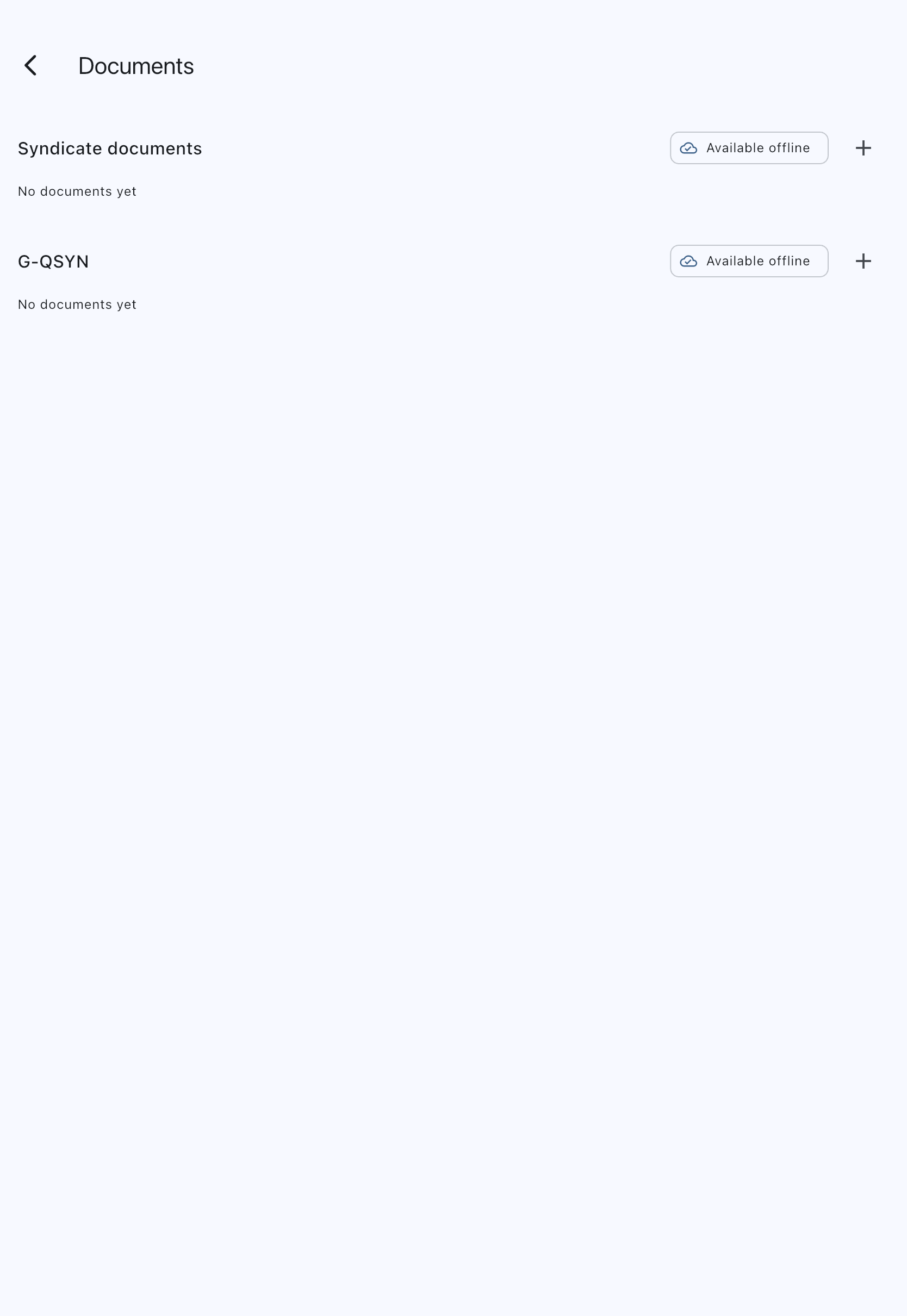
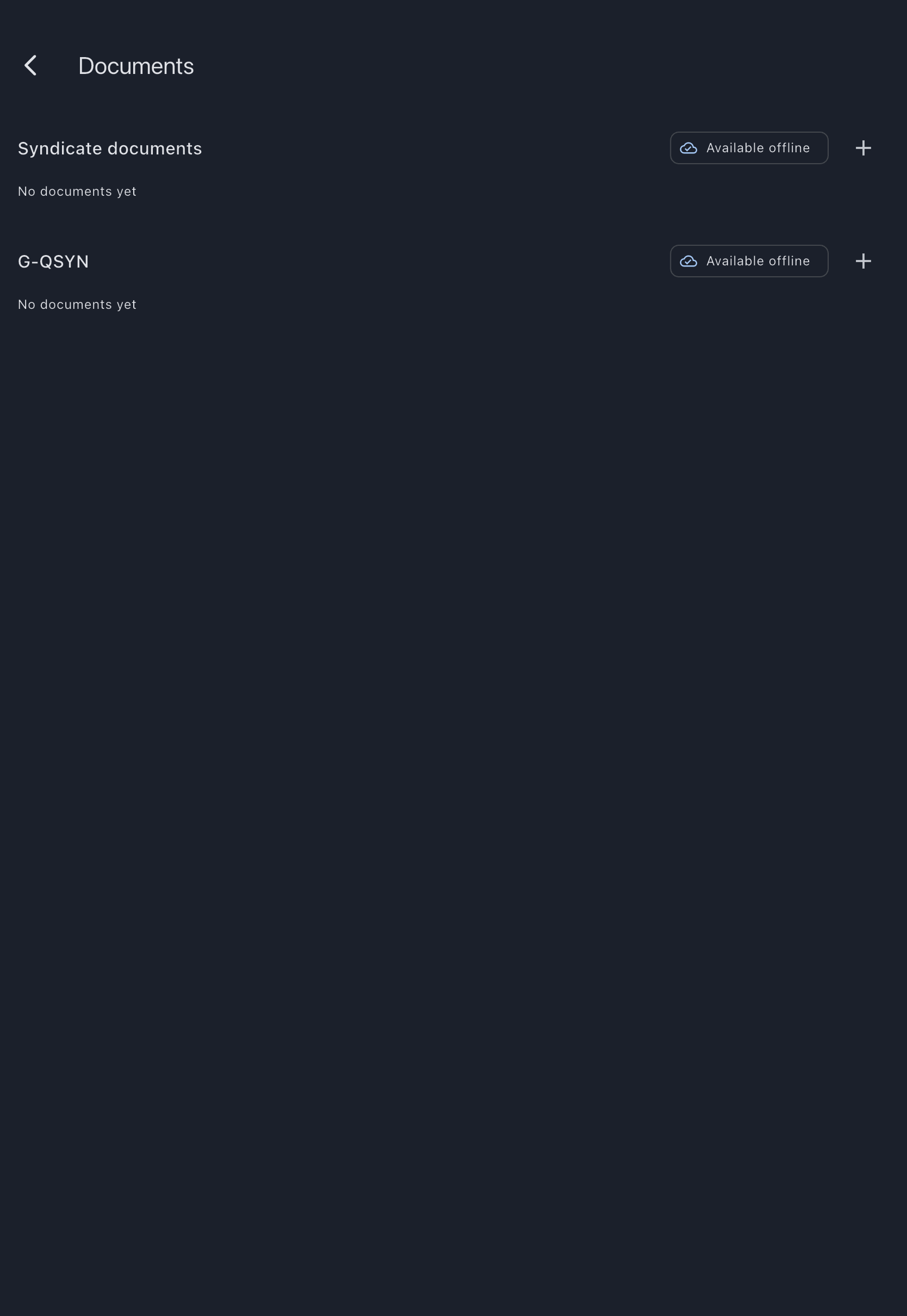
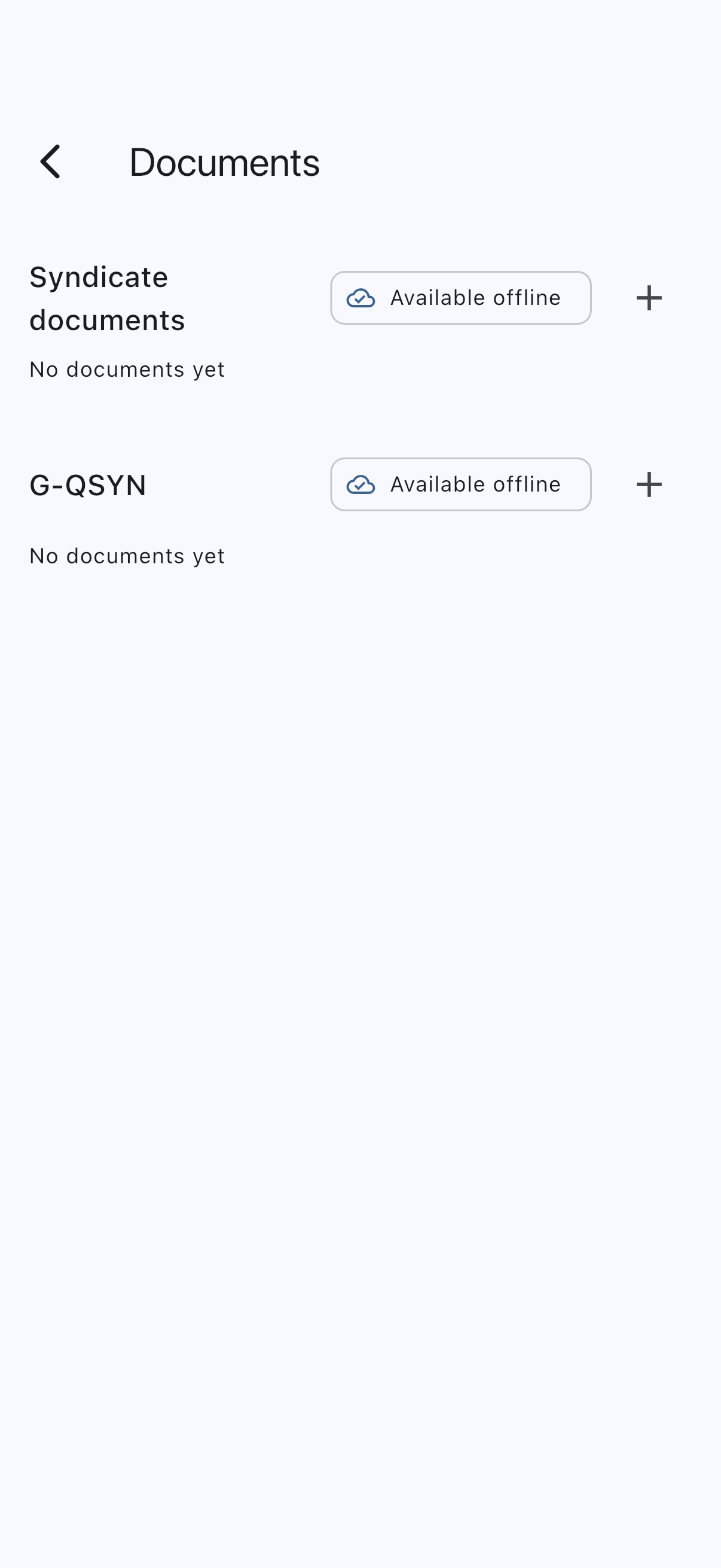
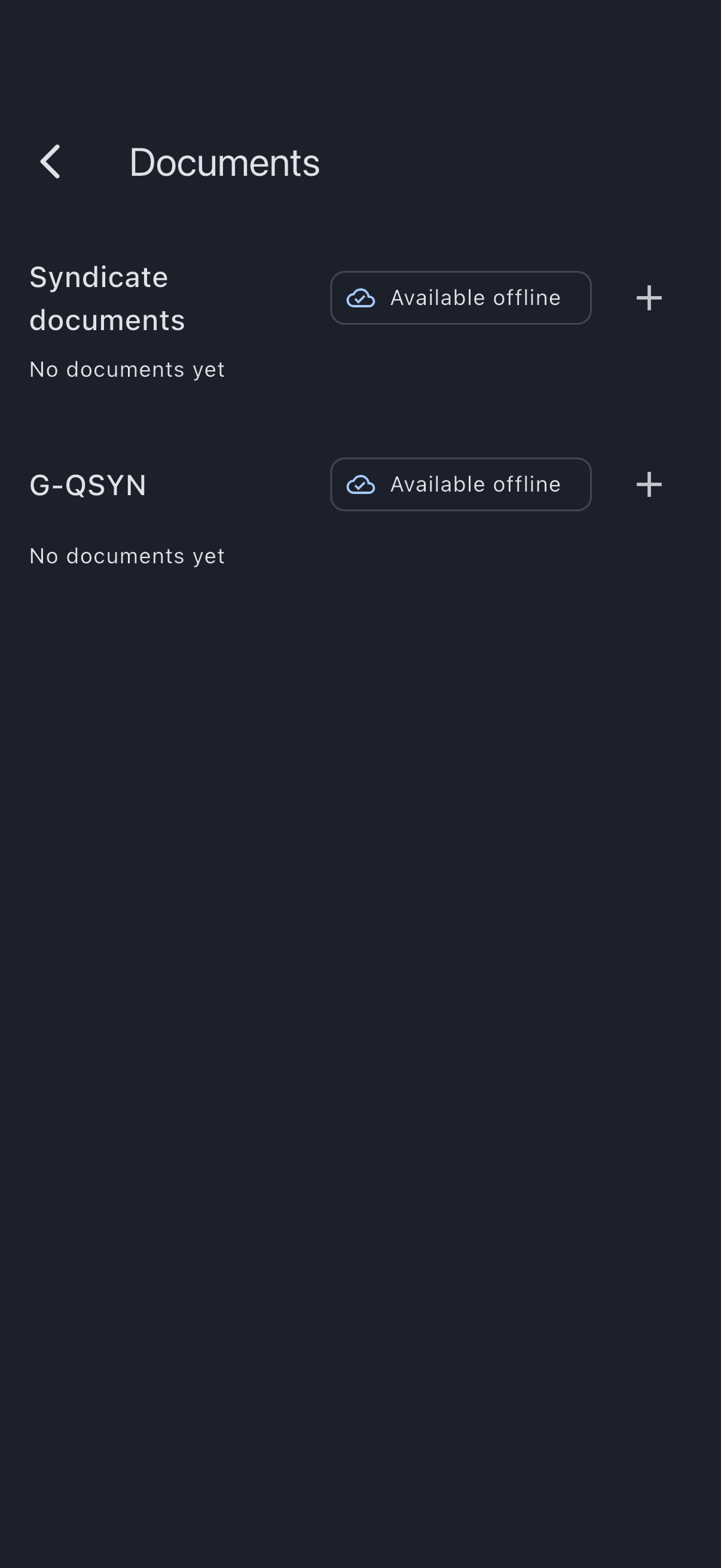
The library is the single screen for everything; there is no separate “asset documents” page. Each section has its own + button on the right of the header. That’s the only way to upload. There’s no global add button.
Step 2: Upload the syndicate agreement
Section titled “Step 2: Upload the syndicate agreement”Tap + on the syndicate section. The upload screen opens with the Owner already set to the syndicate.
Tap Choose file and pick the syndicate agreement PDF from your phone or laptop. PDFs, JPEGs, PNGs, and WebP are all accepted up to 20 MB.
The Title fills in from the file name. Make it something a fellow admin will recognise: Syndicate Agreement v3 Signed 2026 is more useful than agreement_final_v3_signed.pdf. Leave Expiry date (optional) blank: most syndicate documents don’t expire.
Choose Syndicate agreement from the Document type dropdown. The dropdown is filtered to syndicate-level types only: syndicate agreement, house rules, bank mandate, hangar lease, and other (syndicate).
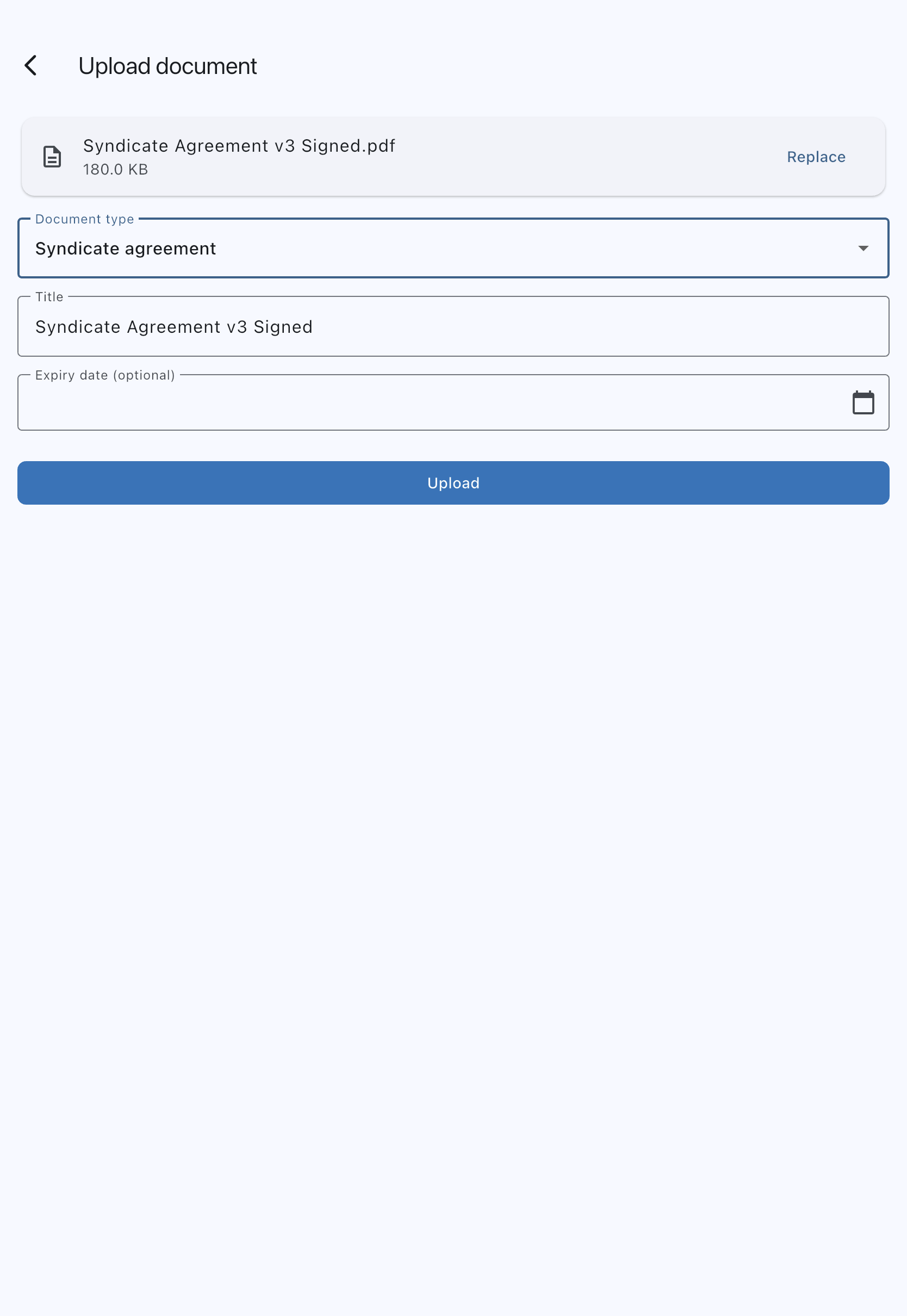
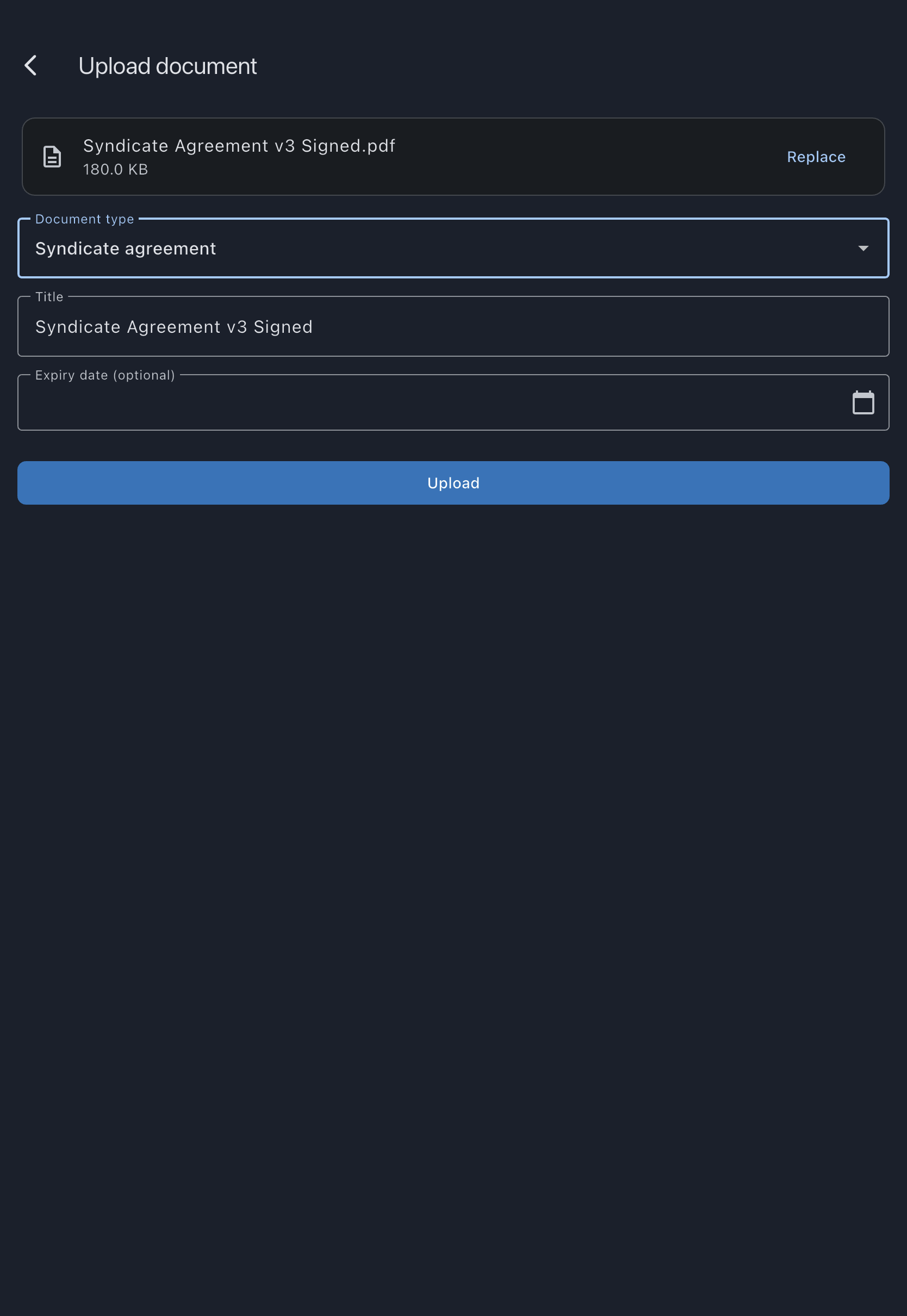
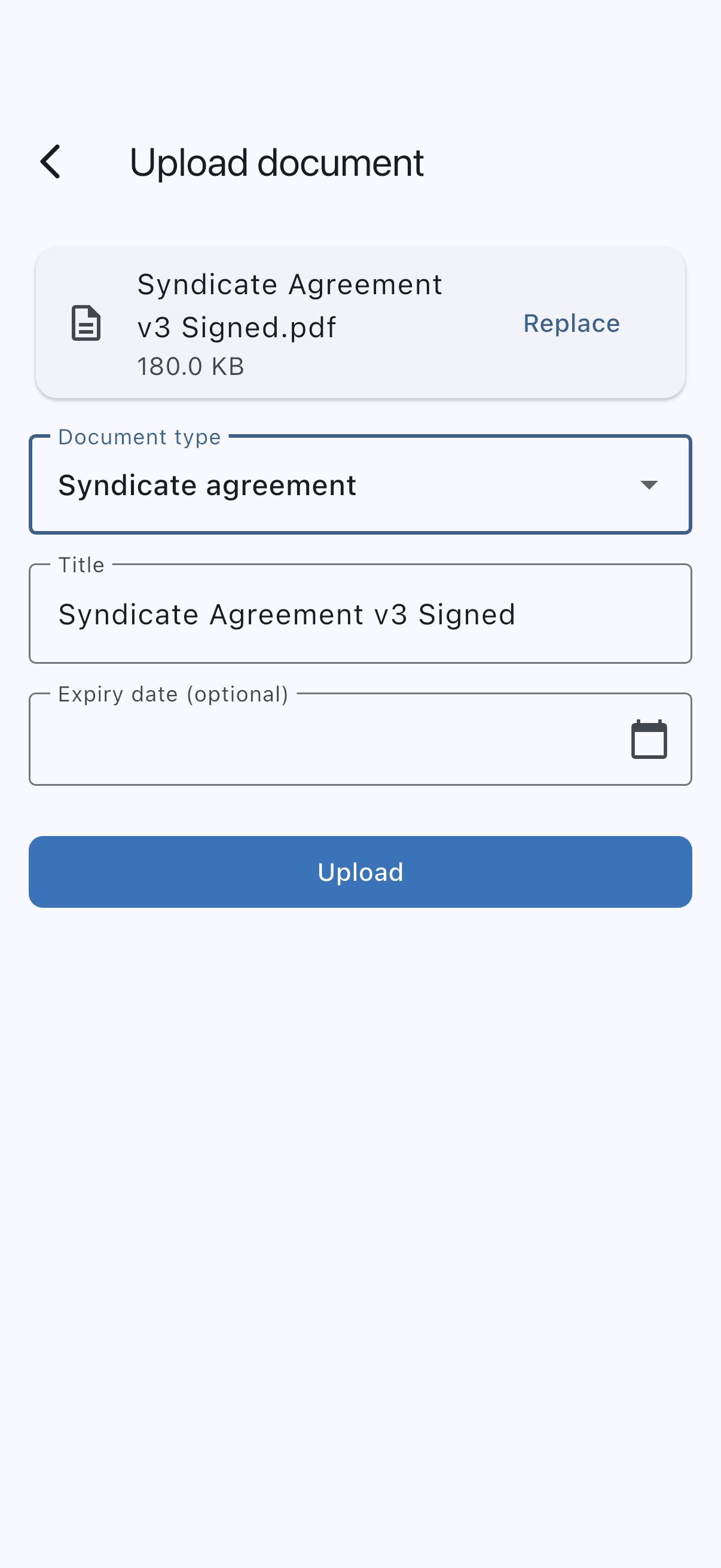
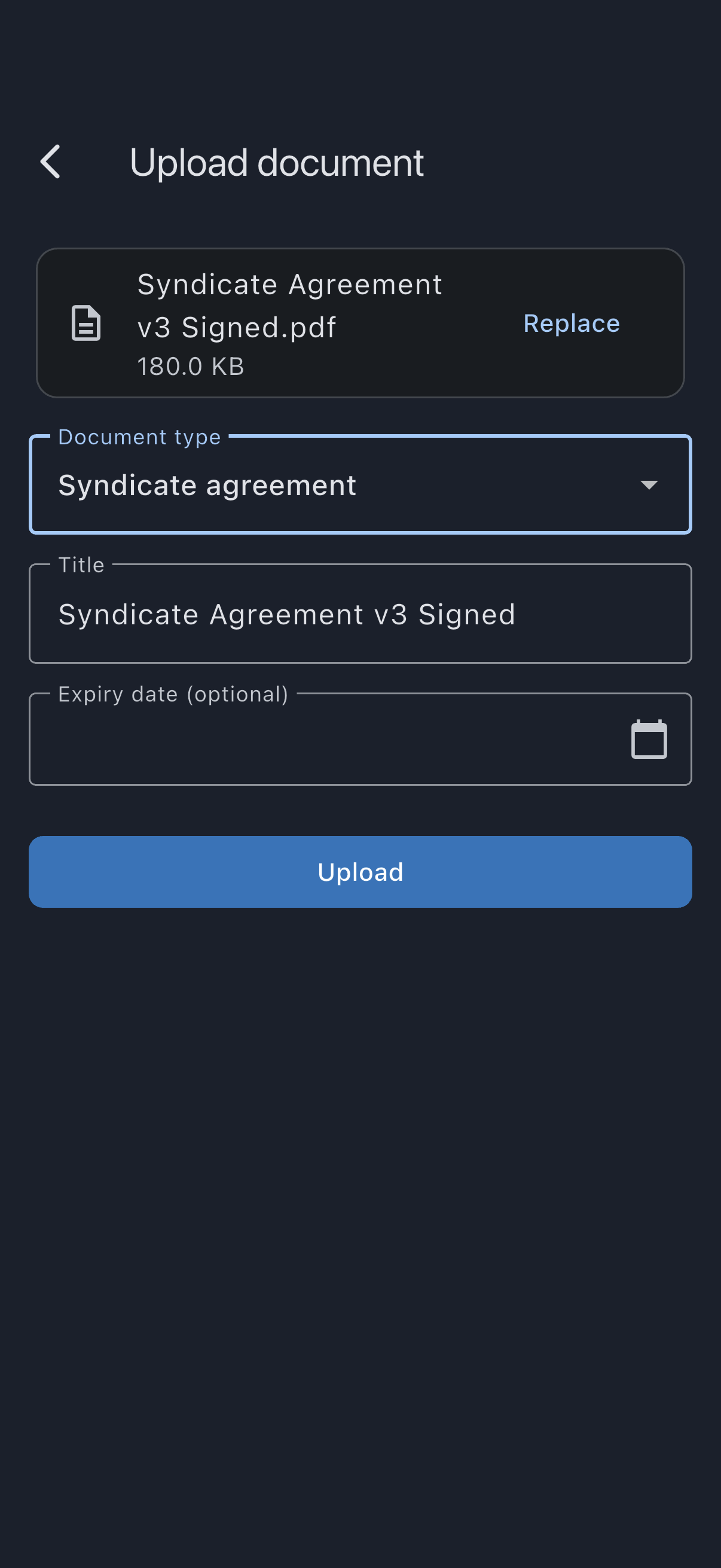
Tap Upload. The library returns; your syndicate agreement is the first row in the syndicate section.
Step 3: Add the house rules and the bank mandate
Section titled “Step 3: Add the house rules and the bank mandate”Repeat Step 2 twice more. House rules first: pick House rules from the dropdown. Then the bank mandate: Bank mandate.
Your syndicate section now lists three rows: agreement, house rules, mandate. Members will see all three the next time they sync.
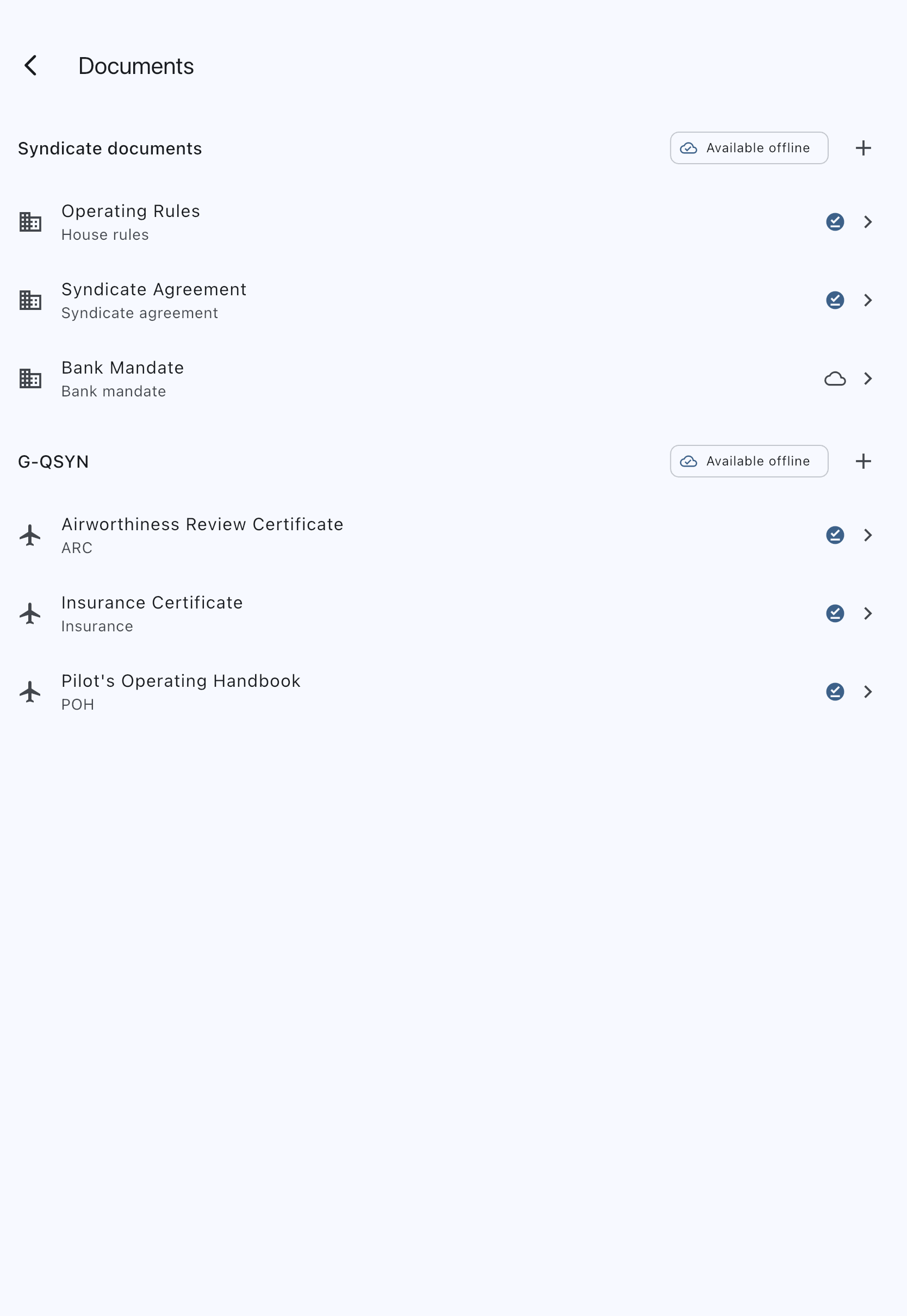
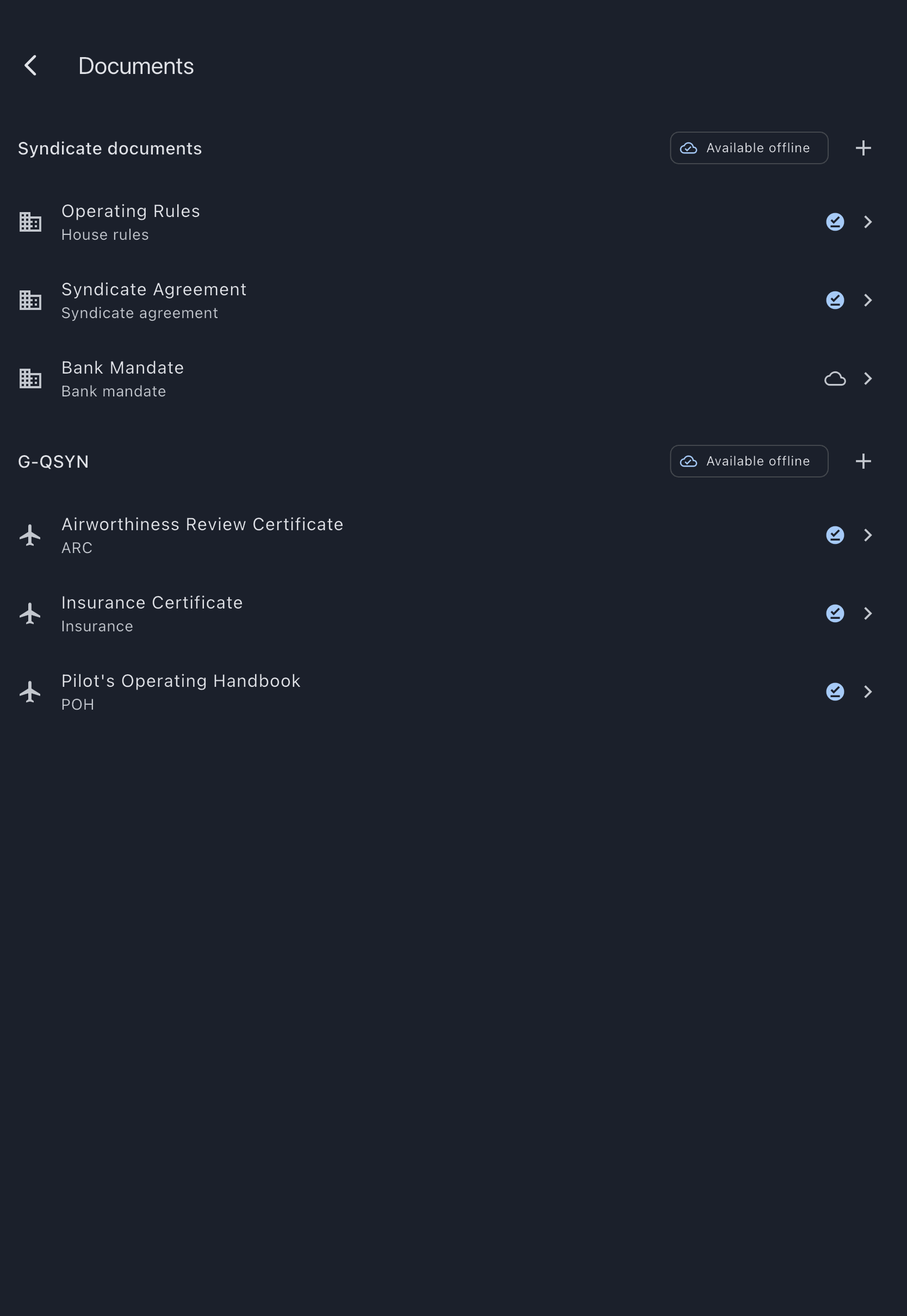
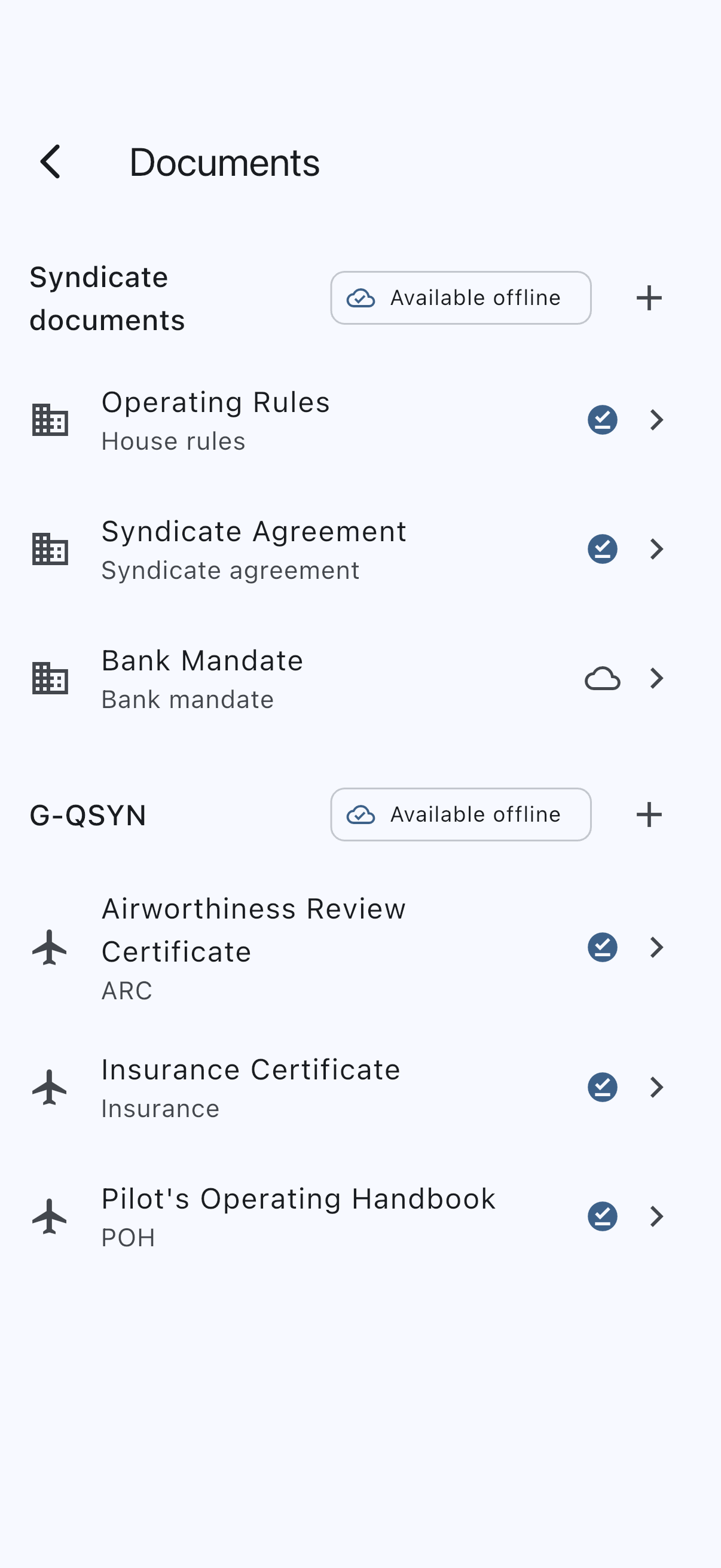
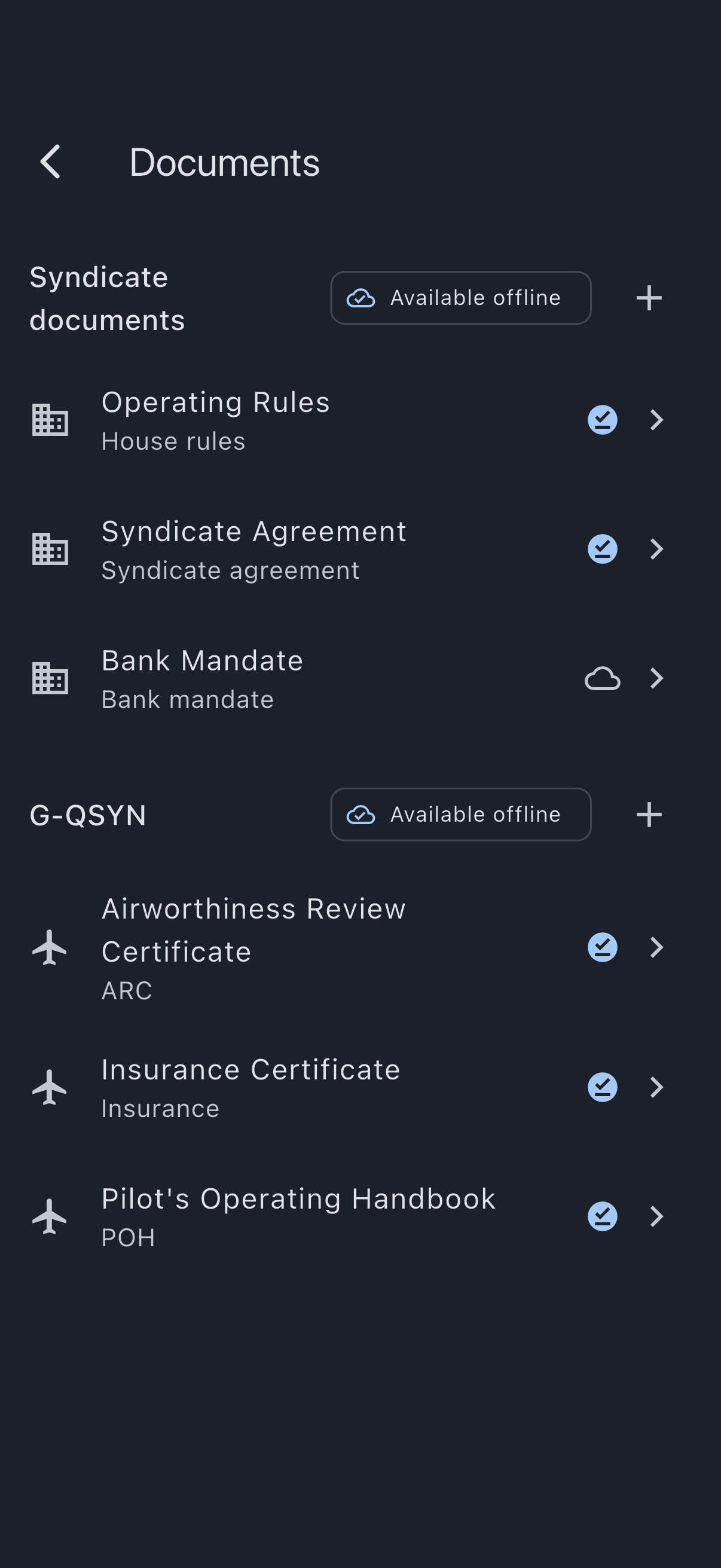
The Available offline badge on the section header tells you these three documents are cached on every member’s phone automatically. That’s the rule for syndicate-level documents: tiny in volume, universally useful, so no opt-in.
Step 4: Move on to the aircraft
Section titled “Step 4: Move on to the aircraft”Scroll down to the asset’s section. Tap + on its header. The upload screen opens with the asset pre-selected as the Owner, so you don’t have to pick it again.
This time the type dropdown shows asset-level types: ARC, insurance, CofA, CofR, radio licence, noise certificate, Mode S check, ELT registration, weight and balance, POH, hangar lease, and other (asset).
Start with the insurance schedule. Pick the file, set the title, and fill in the Expiry date (insurance always renews, so this matters). Look at the insurance certificate to find it. Setting the expiry now is what unlocks the renewal reminders later: Syndik8 will nudge you 30, 7, and 1 day before the expiry, and again if it slips by. (See Document expiry alerts for the full schedule.)
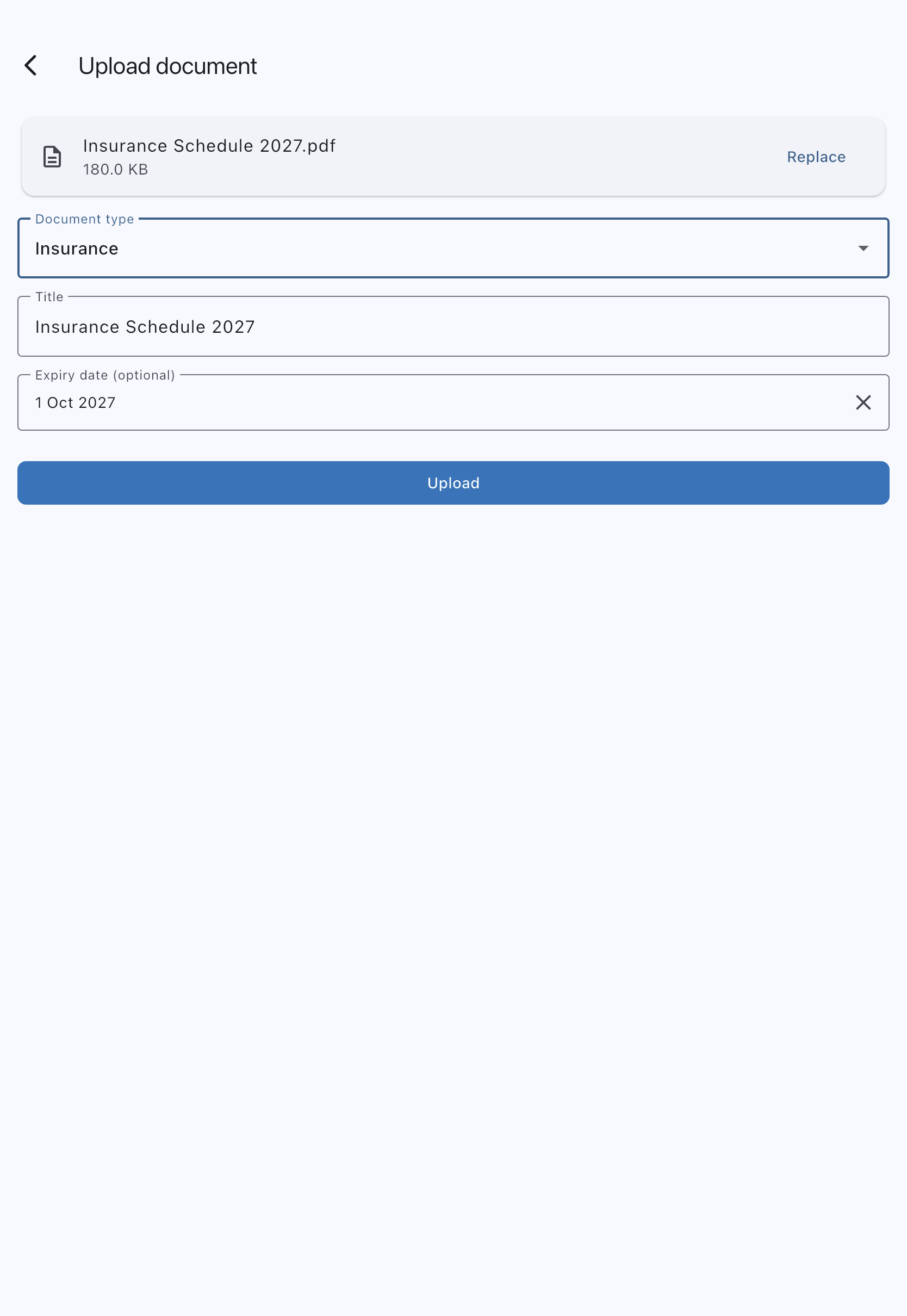
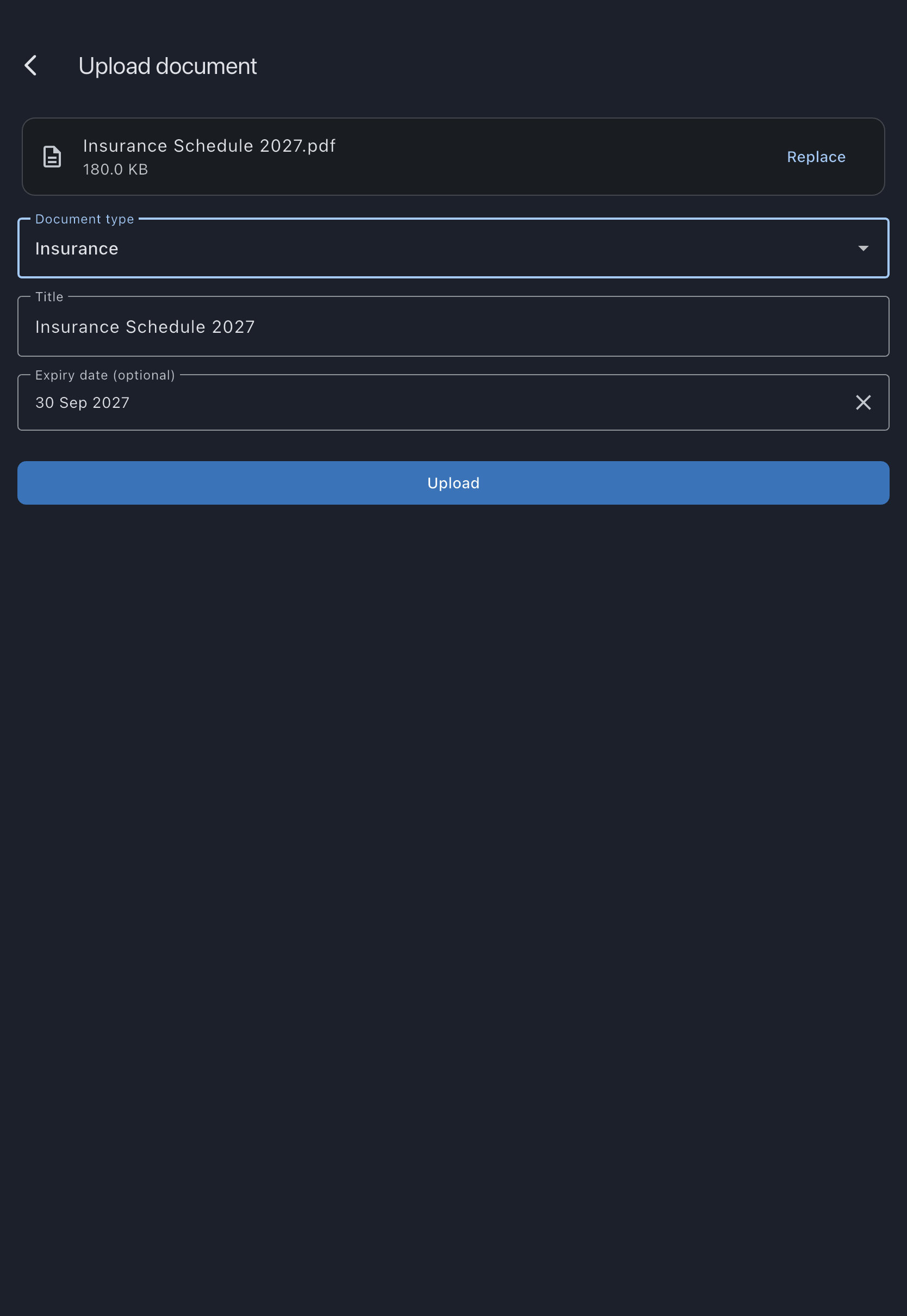
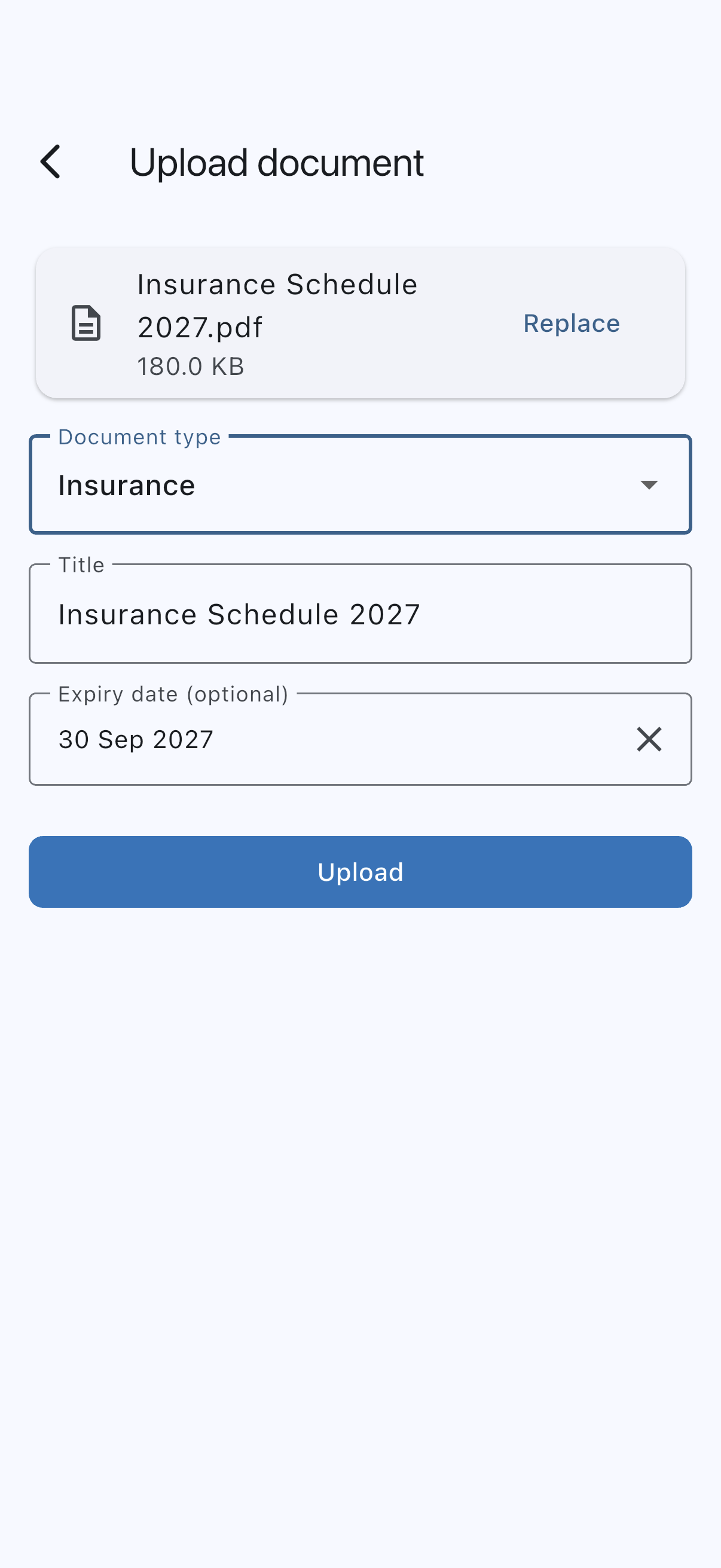
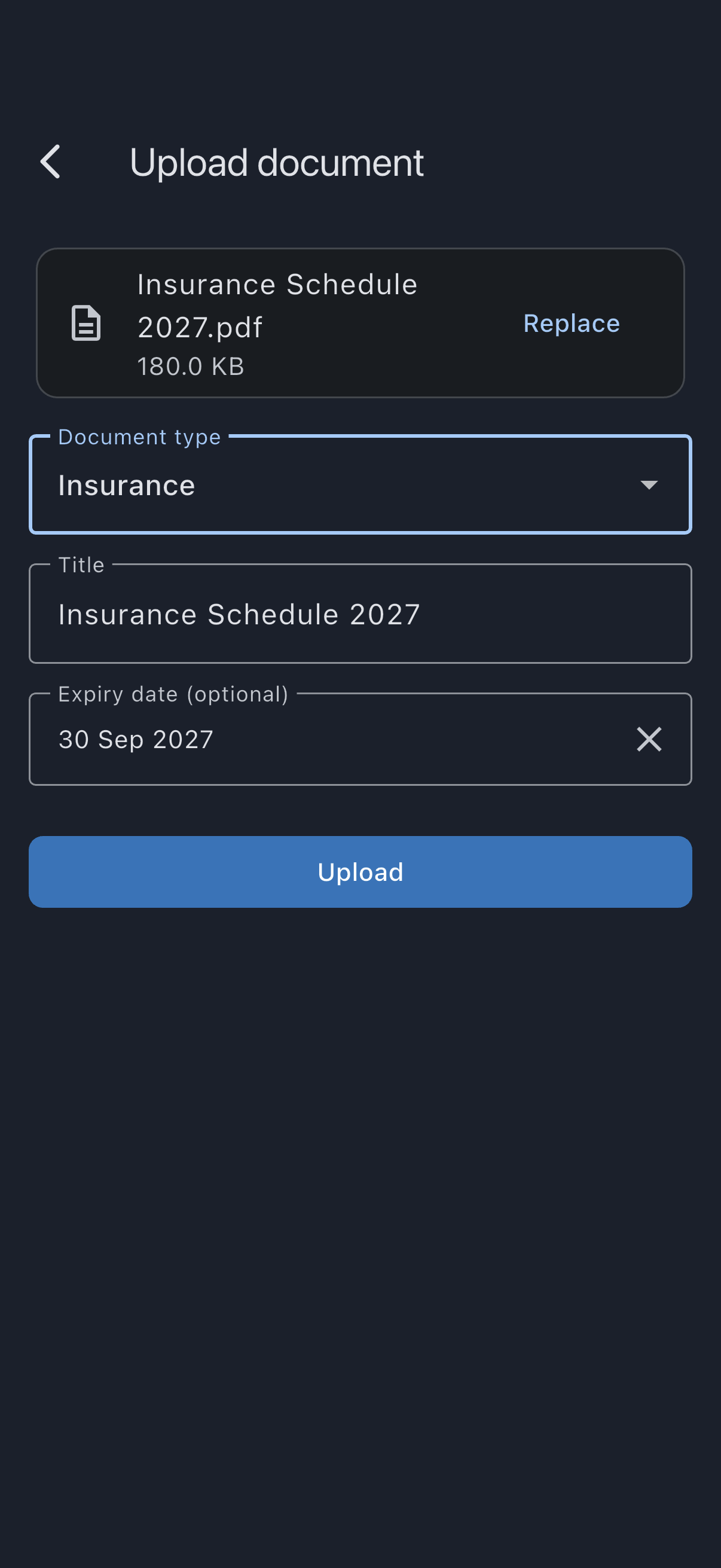
Tap Upload.
Step 5: Keep going with the rest of the ship’s papers
Section titled “Step 5: Keep going with the rest of the ship’s papers”Repeat for ARC, CofA, CofR, radio licence, noise certificate, and POH. Set expiry dates on the ones that actually expire (ARC and radio licence are annual; insurance is annual; the others are usually indefinite).
Take your time. You only do this once per asset. The next time a document needs renewing you’ll just replace the existing row, not start from scratch (see Replace a document).
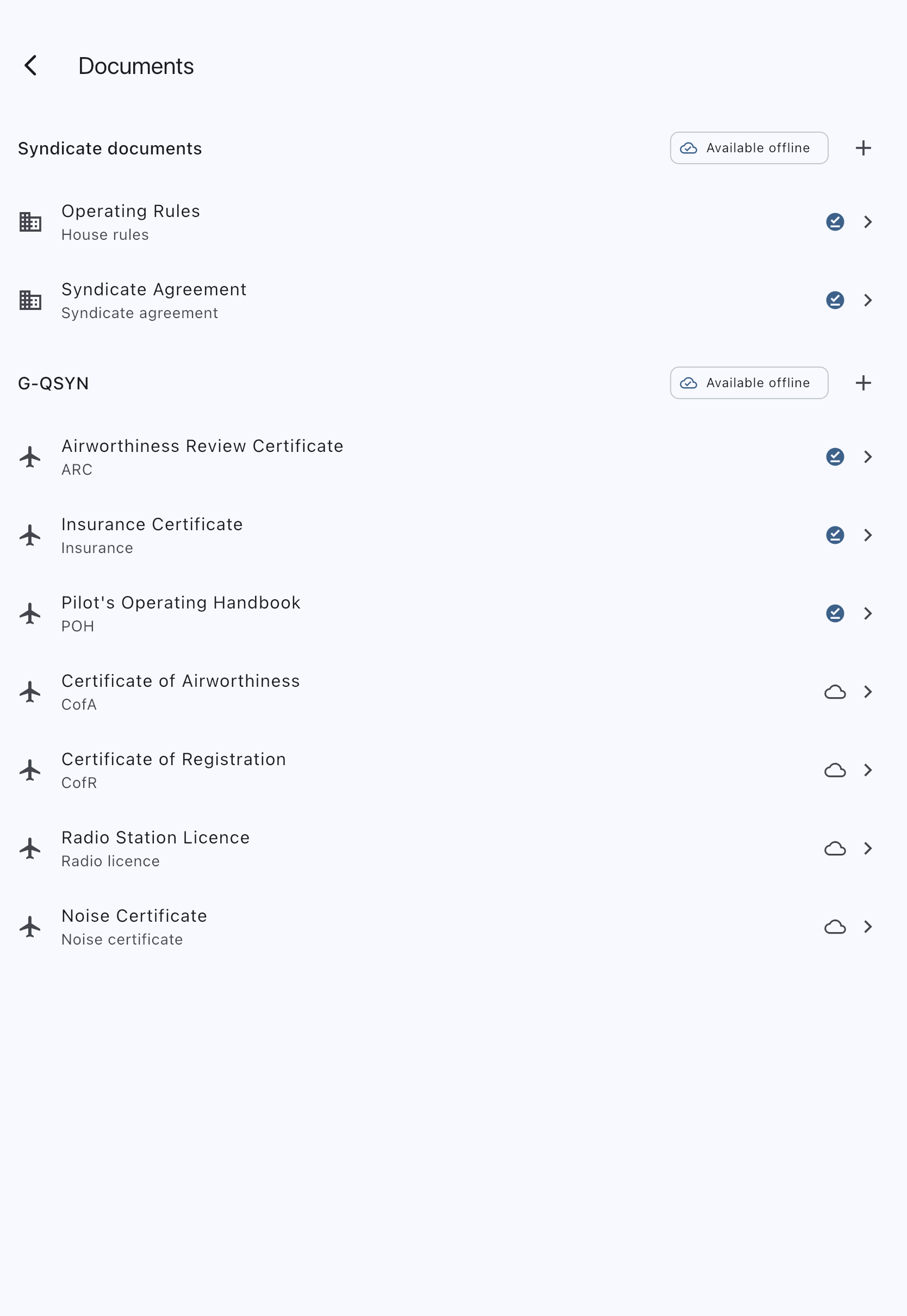
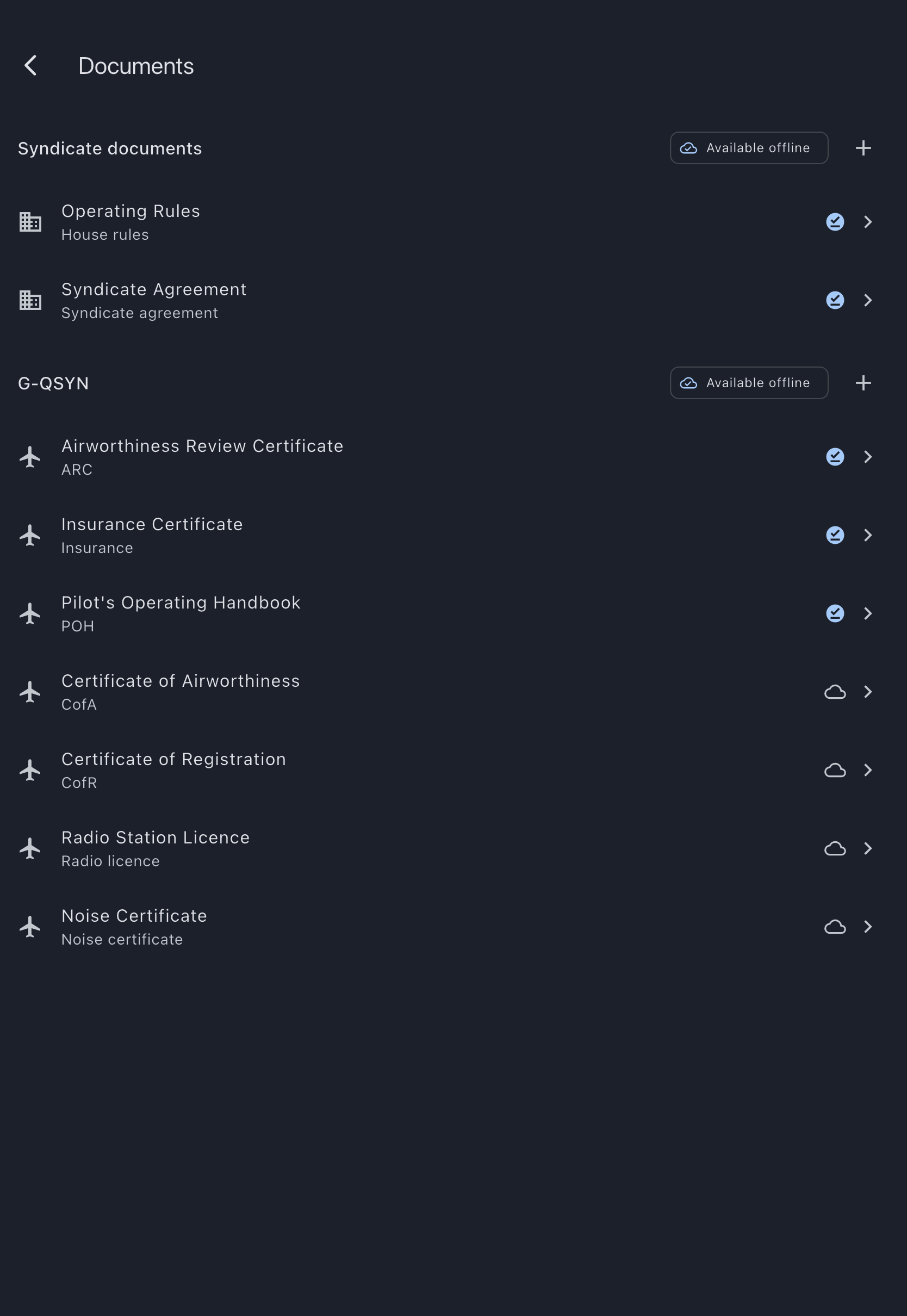
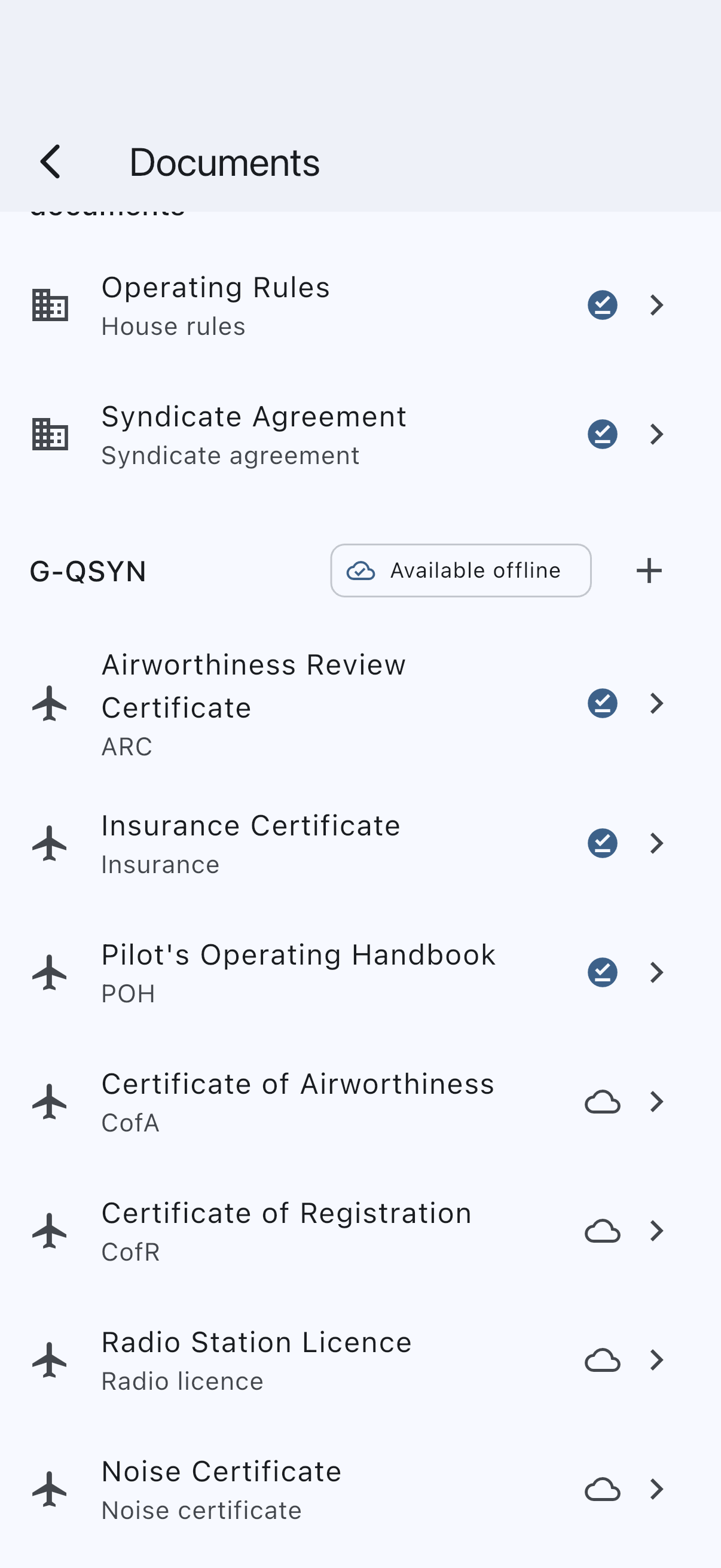
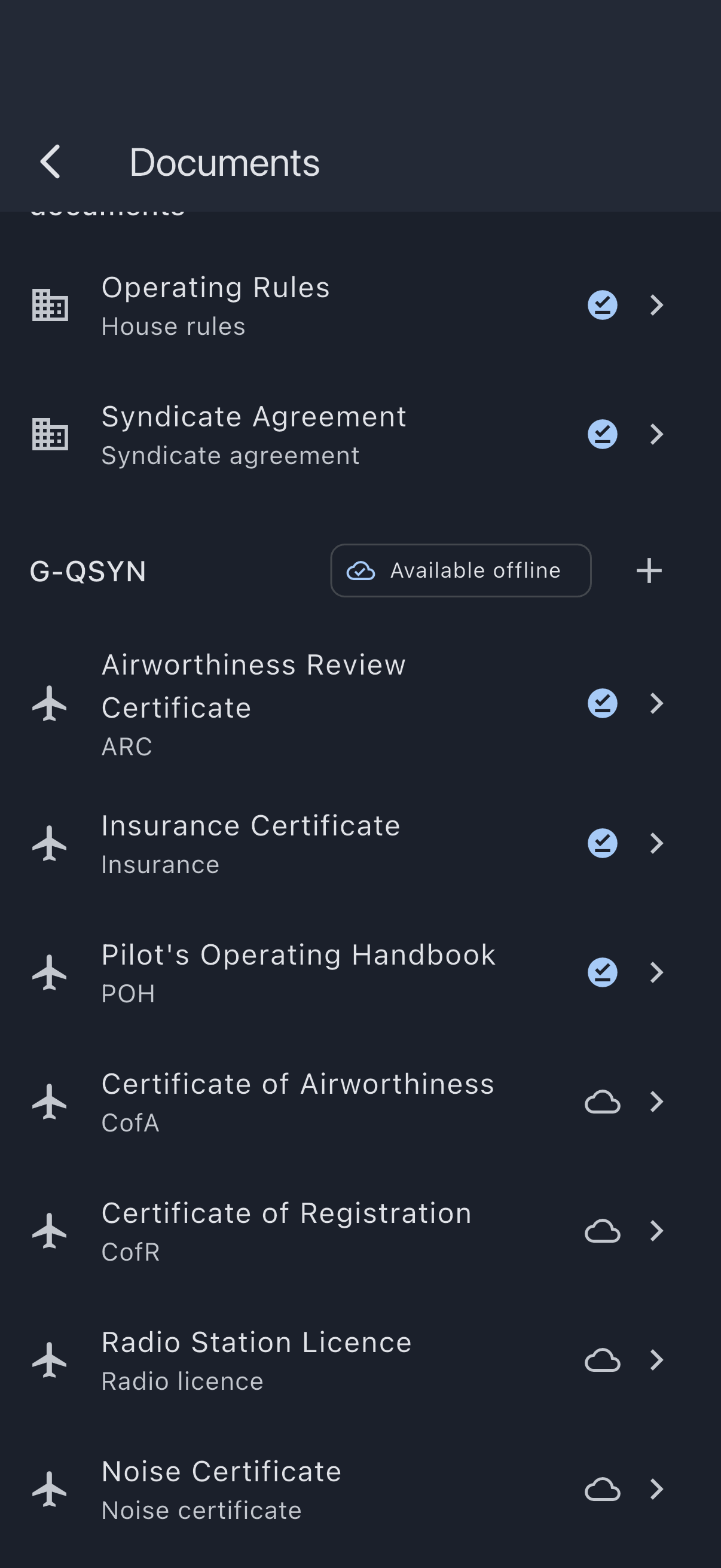
By now your asset section is properly populated. The rows are deliberately spare: each one shows the document’s title, its type on the line underneath, an offline mark, and a chevron to open it. Expiry dates and upload dates aren’t listed here, so don’t go looking for an at-a-glance renewal board. Open a document to see or change its expiry, and let the reminders do the watching for you.
The offline mark is the small icon just before the chevron, and on a phone it’s worth knowing before Step 7: a tick in a circle means that file is on this device, an outline of a cloud means it isn’t. It carries no wording; a screen reader announces it as Saved on this device or Not saved on this device.
Step 6: Switch the offline cache on (multi-asset syndicates only)
Section titled “Step 6: Switch the offline cache on (multi-asset syndicates only)”If your syndicate has more than one asset, look at the right-hand end of the asset’s section header. There’s a bare switch there, with no wording next to it; hover it on a laptop, or let a screen reader read it, and it announces itself as Cache on this device. Switch it on. Syndik8 downloads every document in that section into your phone’s cache.
If your syndicate has exactly one asset, you’ll see an Available offline badge instead of the toggle. Single-asset syndicates cache every asset document by default, so there’s nothing to switch. Skip to Step 7.
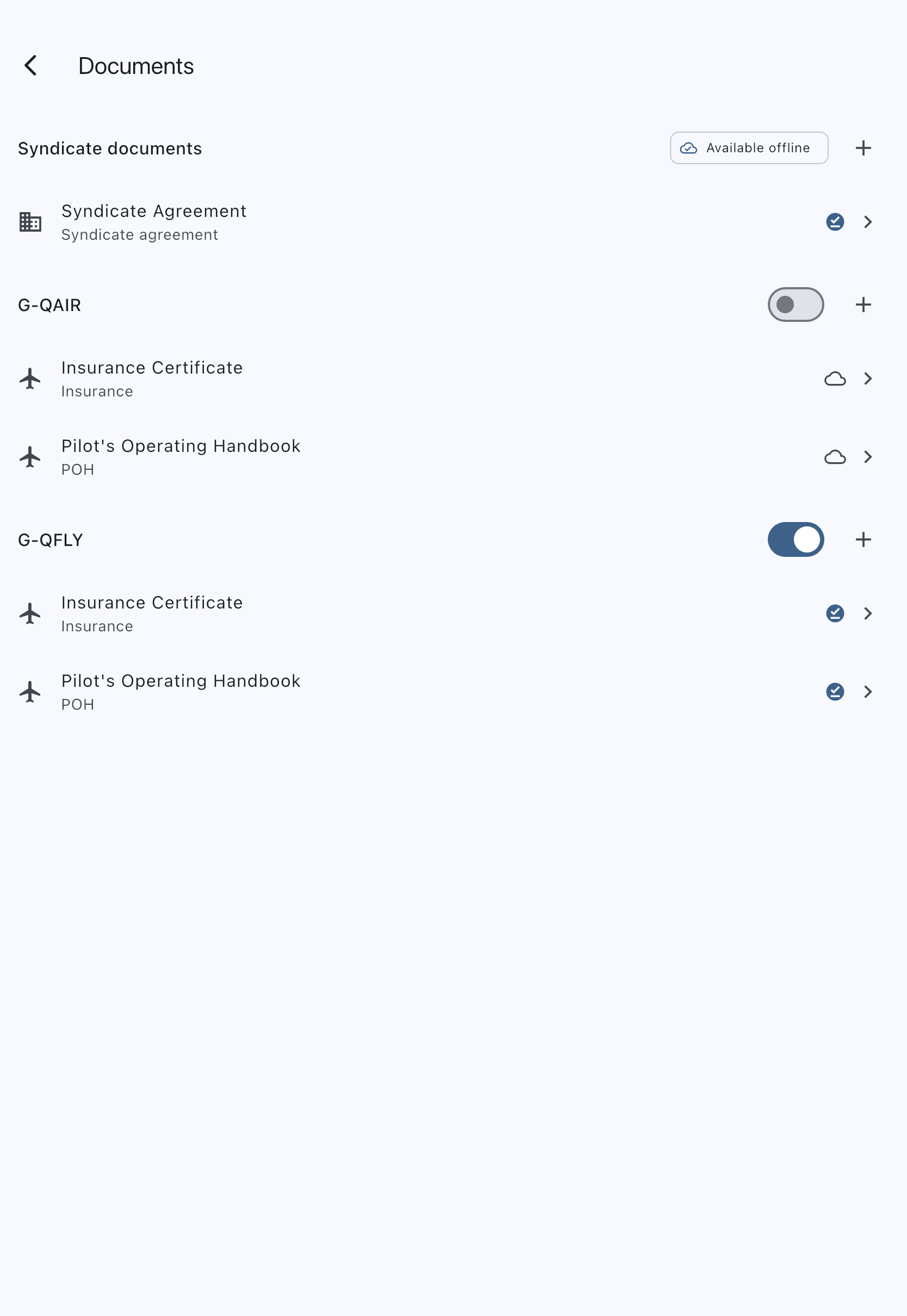
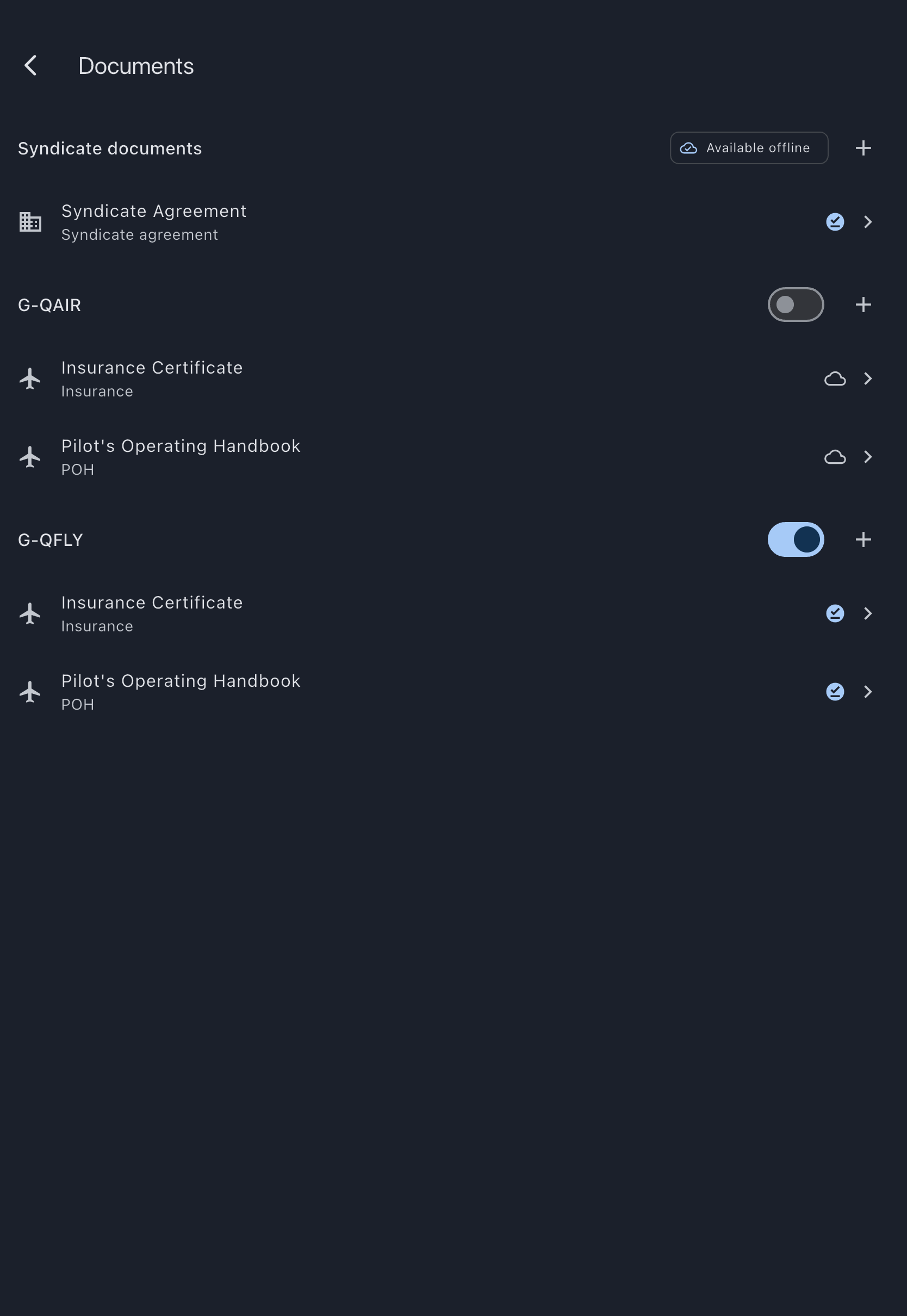
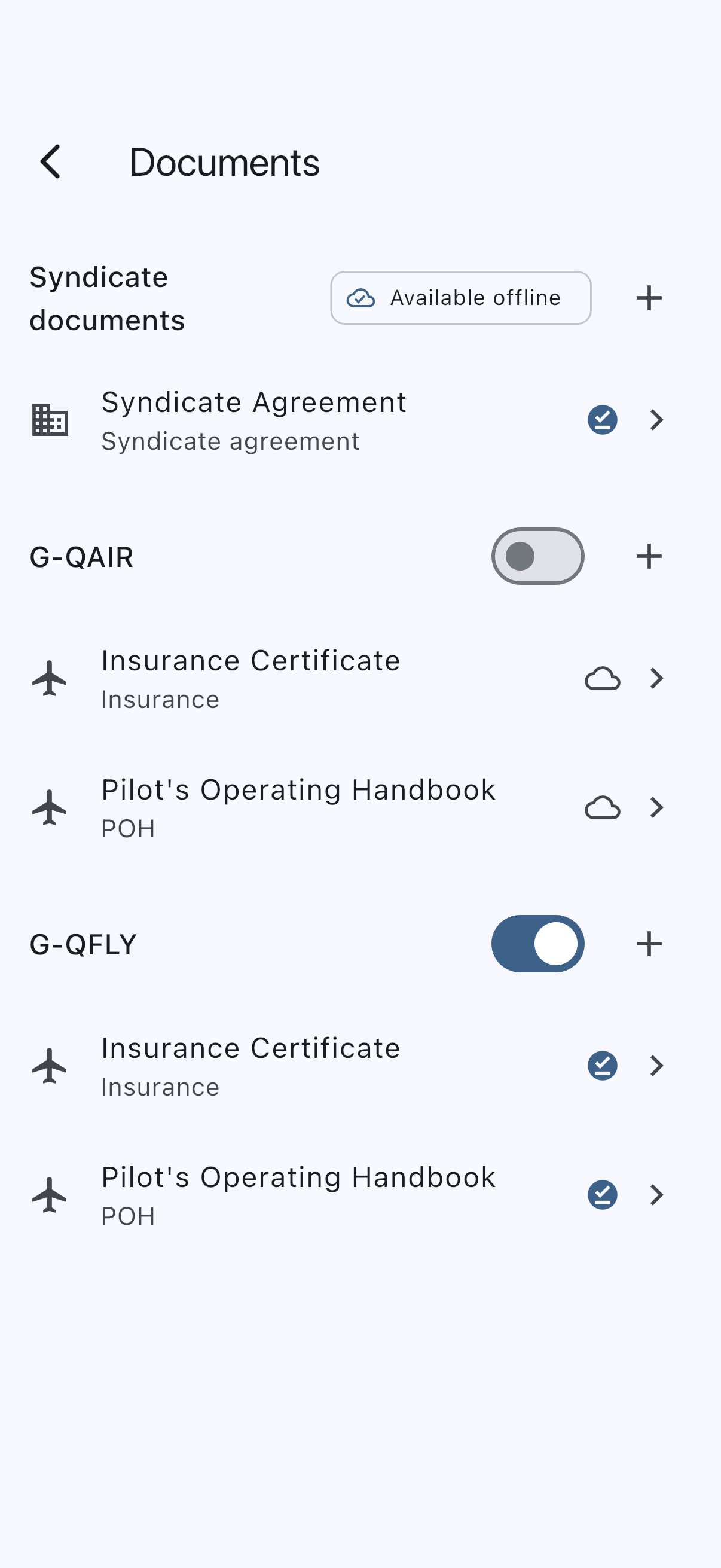
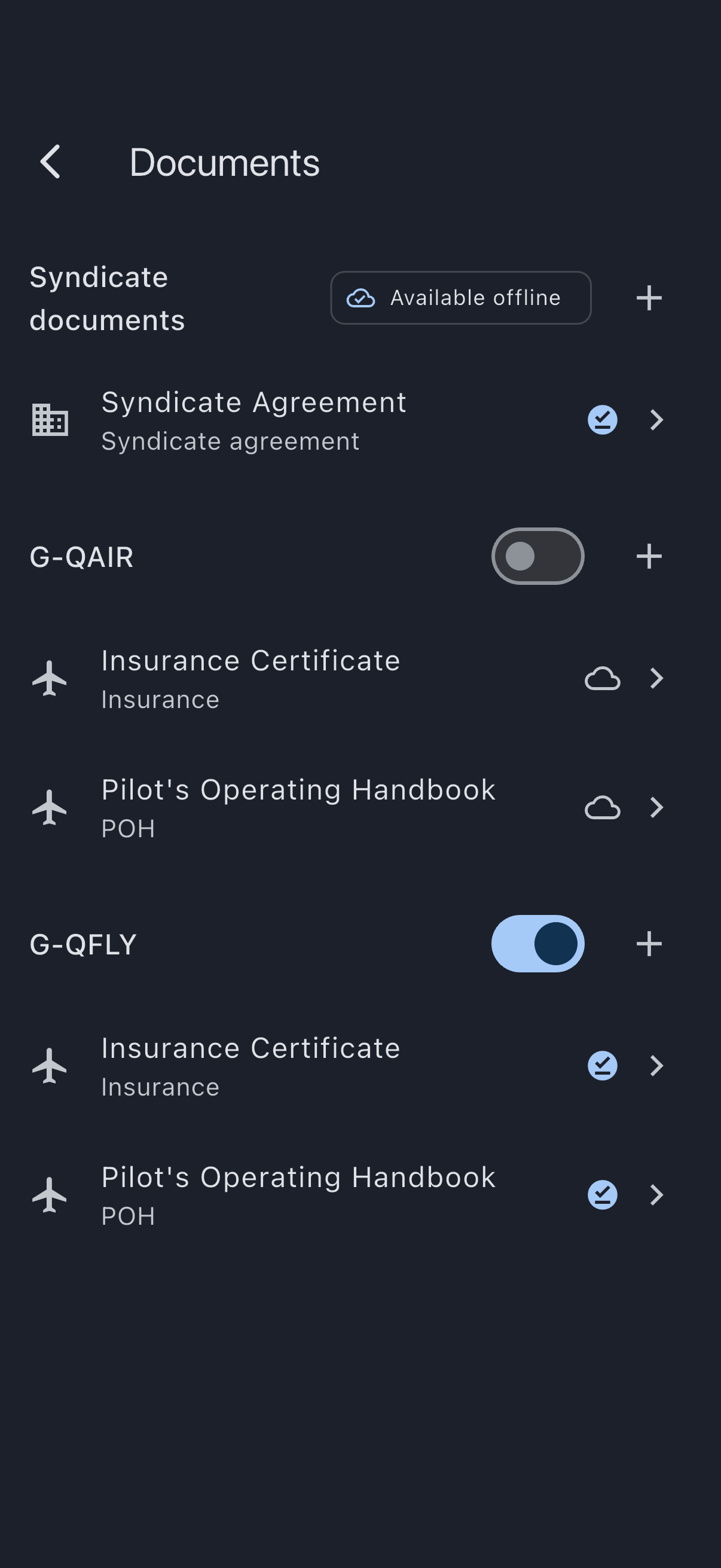
This one image is from a different, two-aircraft syndicate rather than the single-aircraft one the rest of this tutorial follows, because the switch does not exist anywhere else. Everything else on the screen looks the same.
Web doesn’t have a cache. If you’re following along on a laptop, do this step on your phone afterwards. The library is a synced screen, so your edits from the laptop are already on the device.
Step 7: Check the marks, then verify with a no-signal test
Section titled “Step 7: Check the marks, then verify with a no-signal test”Before you go anywhere, read down the right-hand edge of the asset’s rows. Every one should show a tick in a circle. If some still show a cloud, those files haven’t downloaded yet; stay in range, leave the app in the foreground, and watch them flip as each one lands. This is the check you’ll actually use in future, and it takes two seconds at the hangar door.
Then prove it. You don’t have to wait for a real ramp check. Put your phone into Aeroplane mode. Open the syndicate. Tap Documents. Open the ARC.
The PDF renders. There’s no spinner, no “no internet” complaint. The file is on disk and the viewer fetched it from disk.
There’s no picture of the Aeroplane-mode half of this step, and that’s the point of it: inside the viewer, a cached document and a freshly downloaded one render identically, with no badge, banner or wording to tell them apart. What proves it there is the absence of a wait and the absence of an error, and a still frame cannot show you either. The marks in the library exist precisely so you don’t have to run the Aeroplane-mode test every time.
Turn Aeroplane mode off again.
You’re done
Section titled “You’re done”Your syndicate’s documents are uploaded, expiries are tracked, and the whole library is on your phone for the next time you fly without a signal. Members of the syndicate will see exactly the same library; what they cache offline is their own choice. And next time the ARC renewal is due, you’ll get a reminder in plenty of time.
A few useful follow-ups:
- Upload your medical and pilot licence: pilot documents have a separate flow with a consent step, and they live on My documents rather than the syndicate library.
- Replace a document: when the time comes to update the ARC.
- Document expiry and renewal alerts: the full schedule of reminders.
- How offline document caching works: why the cache is shaped the way it is.