
Use a maintenance template
Use a maintenance template
Section titled “Use a maintenance template”Create a maintenance item from a preset so you don’t have to type the name, description, and typical interval.
Before you start
Section titled “Before you start”- You must be an admin on the syndicate.
- Templates are listed on each asset. A template that is already set up for this asset is shown as Already set up and cannot be added twice.
- For an hours-based template on an aircraft you have just added, know what the measure it counts reads on the aircraft right now. Syndik8 asks for it if it does not have one yet. See If the aircraft has no reading yet.
- Open the asset: Syndicate → Assets → [asset].
- Open Maintenance on the asset.
- Tap Add maintenance item.
- Choose From template.
- Pick a template from the list. The section Essential checks covers annual inspections, ARC renewals, and 50-hour checks; Additional checks covers 100-hour checks, oil changes, and transponder checks.
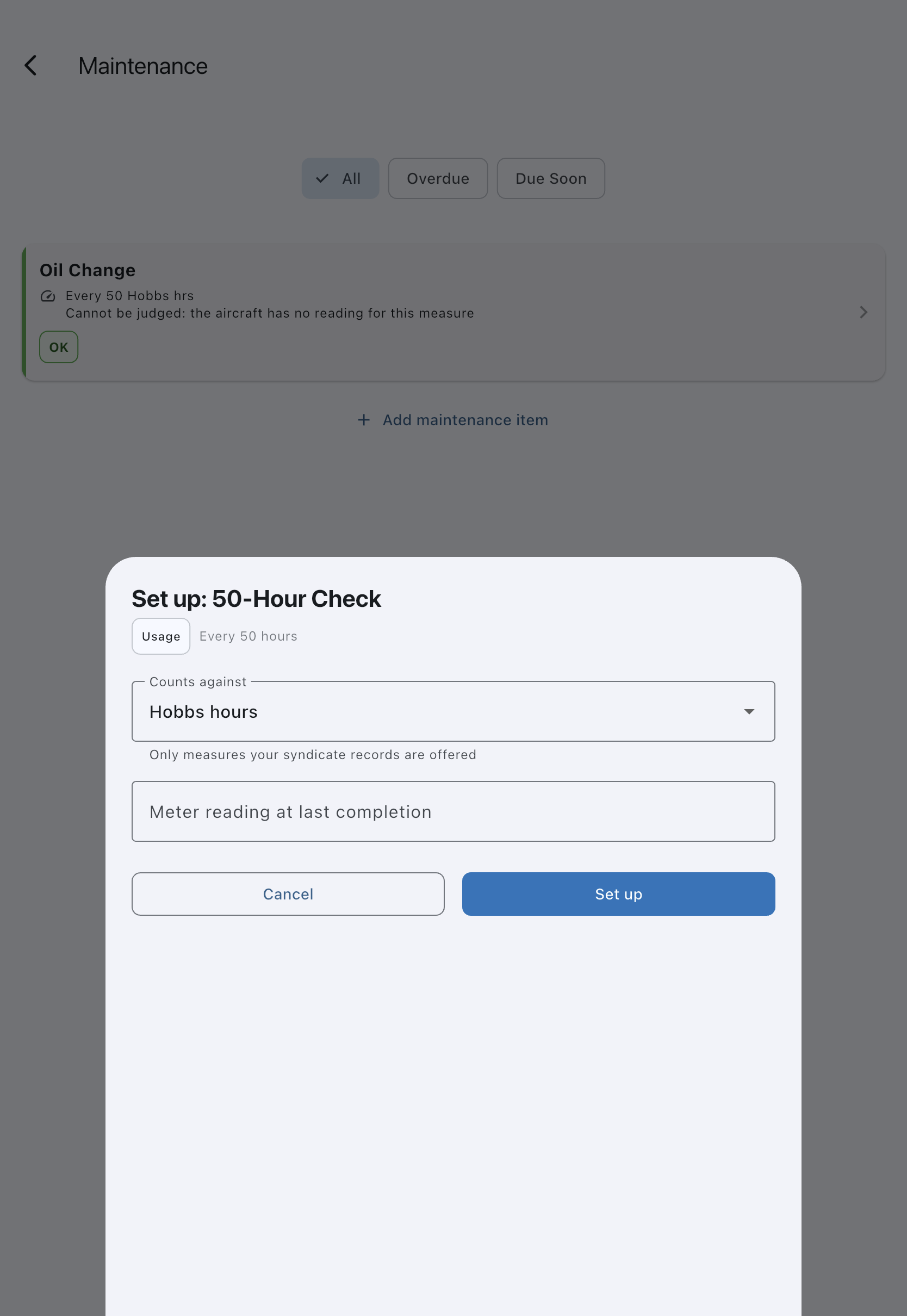
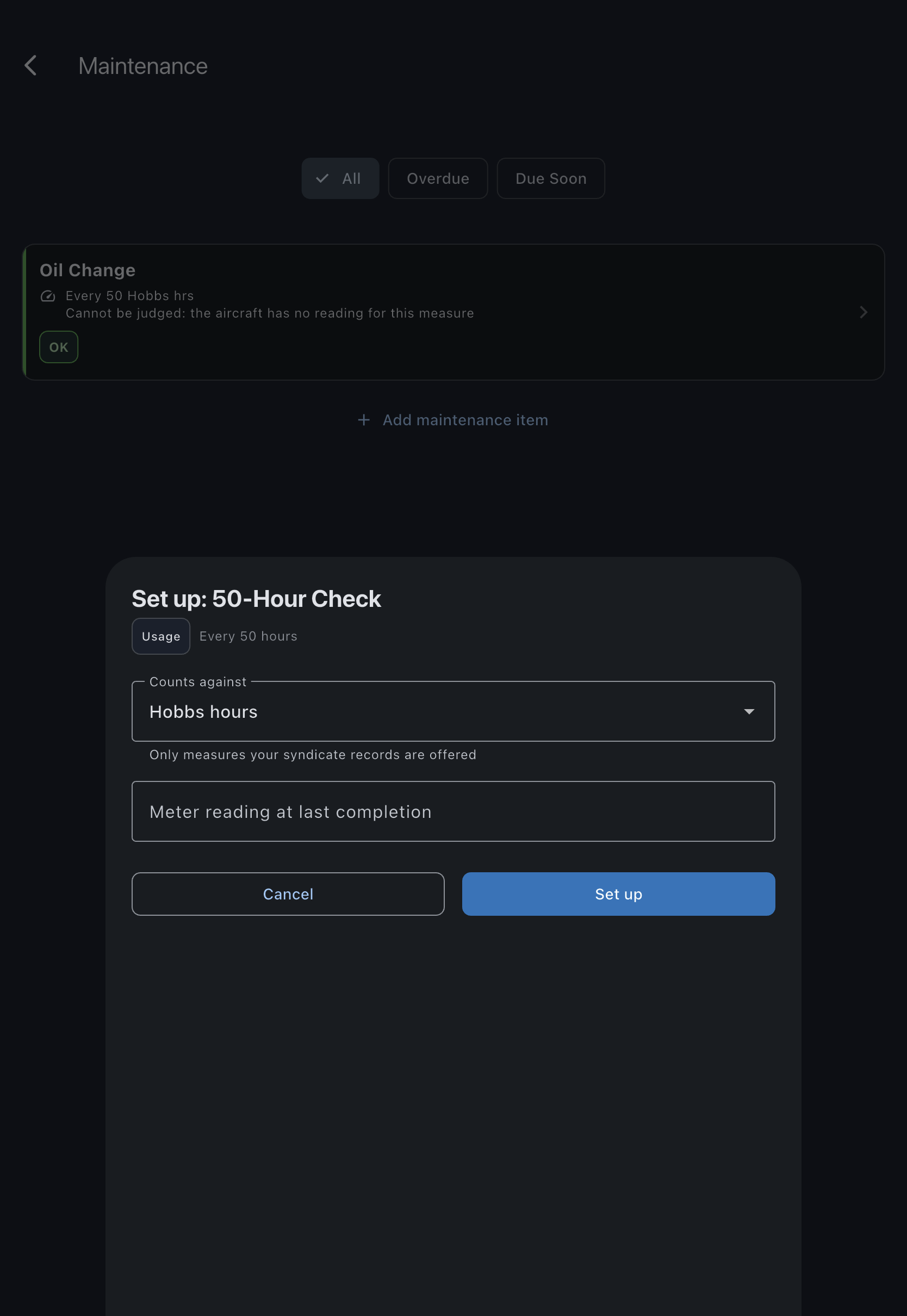
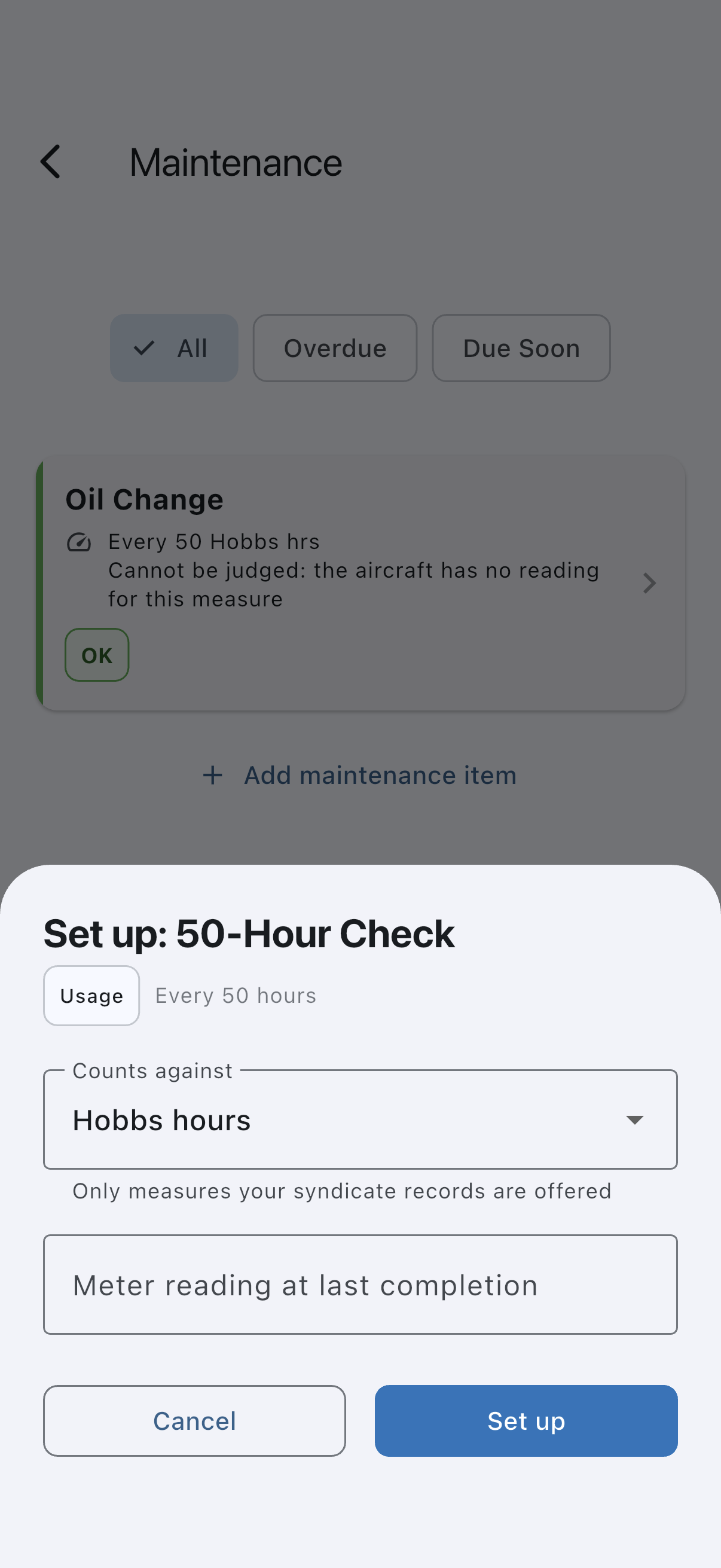
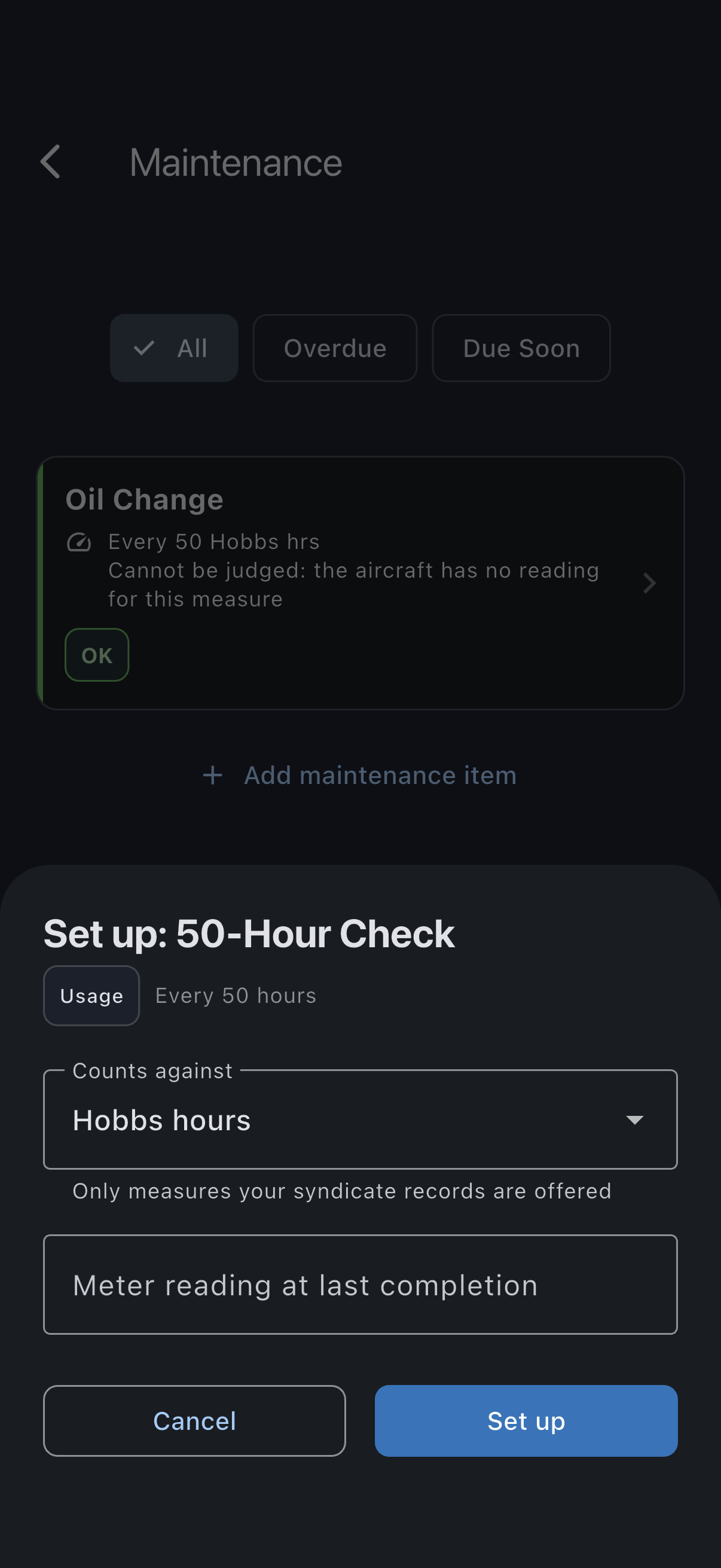
- The setup sheet opens, showing the template’s name, a badge saying whether it is a usage-based or calendar-based check, and its interval. For a template with a secondary calendar limit the header shows both limits, for example “Every 50 hours or 4 months”. These are read-only; the template’s values are used as-is. Neither the picker card nor the sheet shows the template’s longer description; it is copied into the maintenance item you create, and shows on that item’s own screen.
- For an hours-based template, check what it Counts against. Syndik8 pre-selects the convention for that check — engine hours for an oil change, flying hours for the 50- and 100-hour checks — but only from the measures your syndicate records, and you can change it. See Maintenance intervals.
- If the aircraft has no reading for the measure the check counts, a field for what it reads now appears. Fill it in — see If the aircraft has no reading yet.
- Enter the Meter reading at last completion (for hours-based templates), on the scale of the measure above, or choose the Last completed on date (for calendar-based templates), so the next-due date or value can be calculated. A template with a secondary calendar limit asks for the date as well as the reading, and the date field explains why: “The calendar limit is counted from this date.”
- Tap Set up.
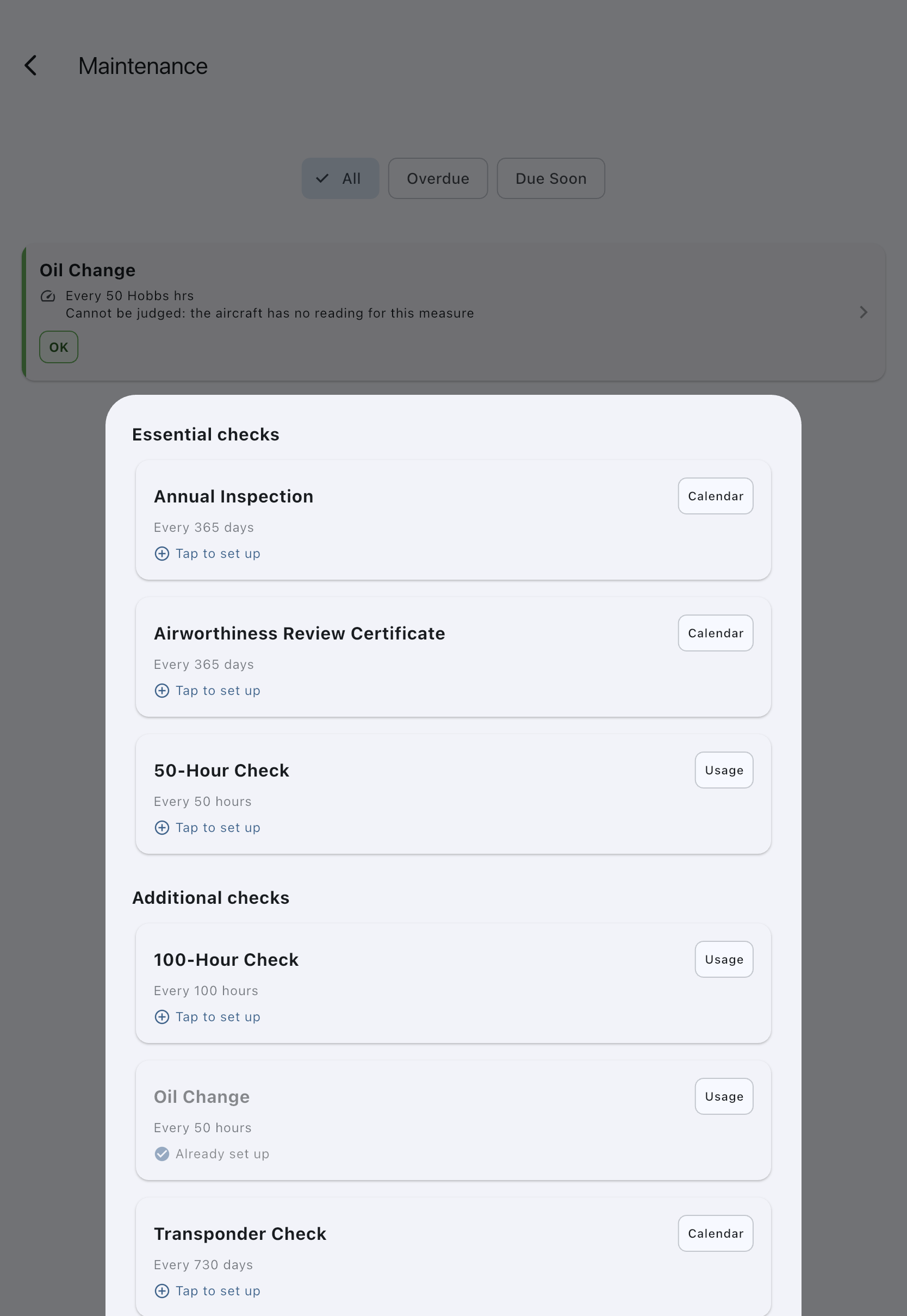
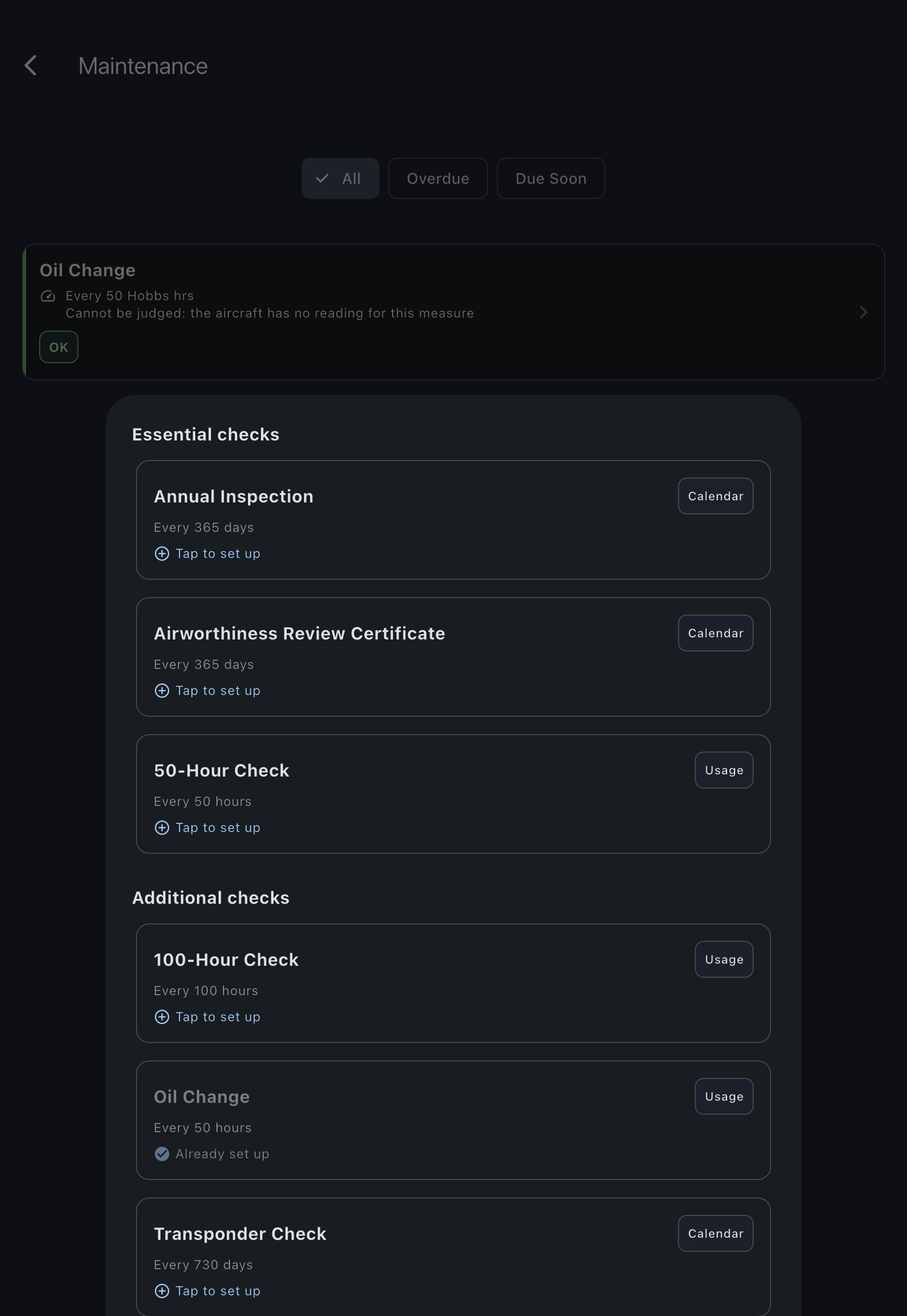
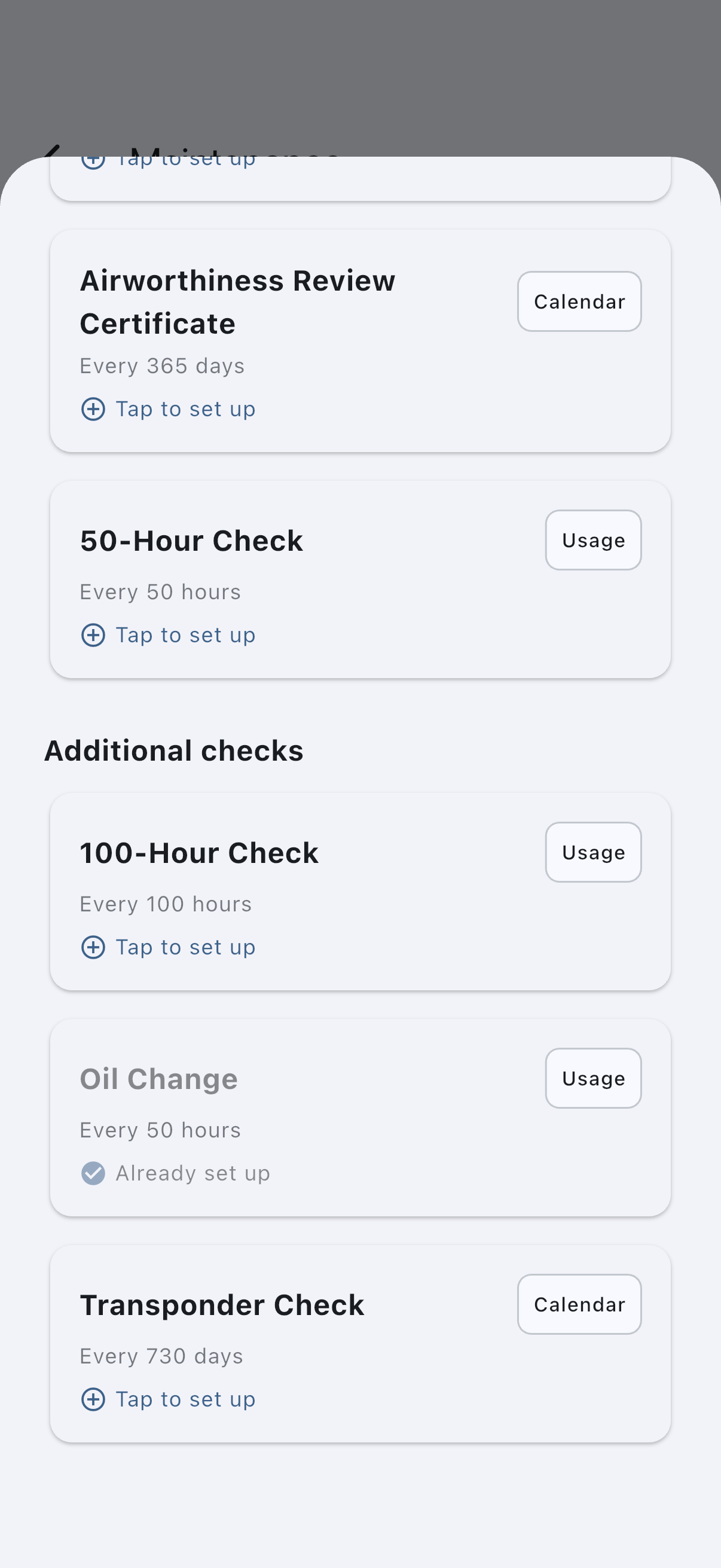
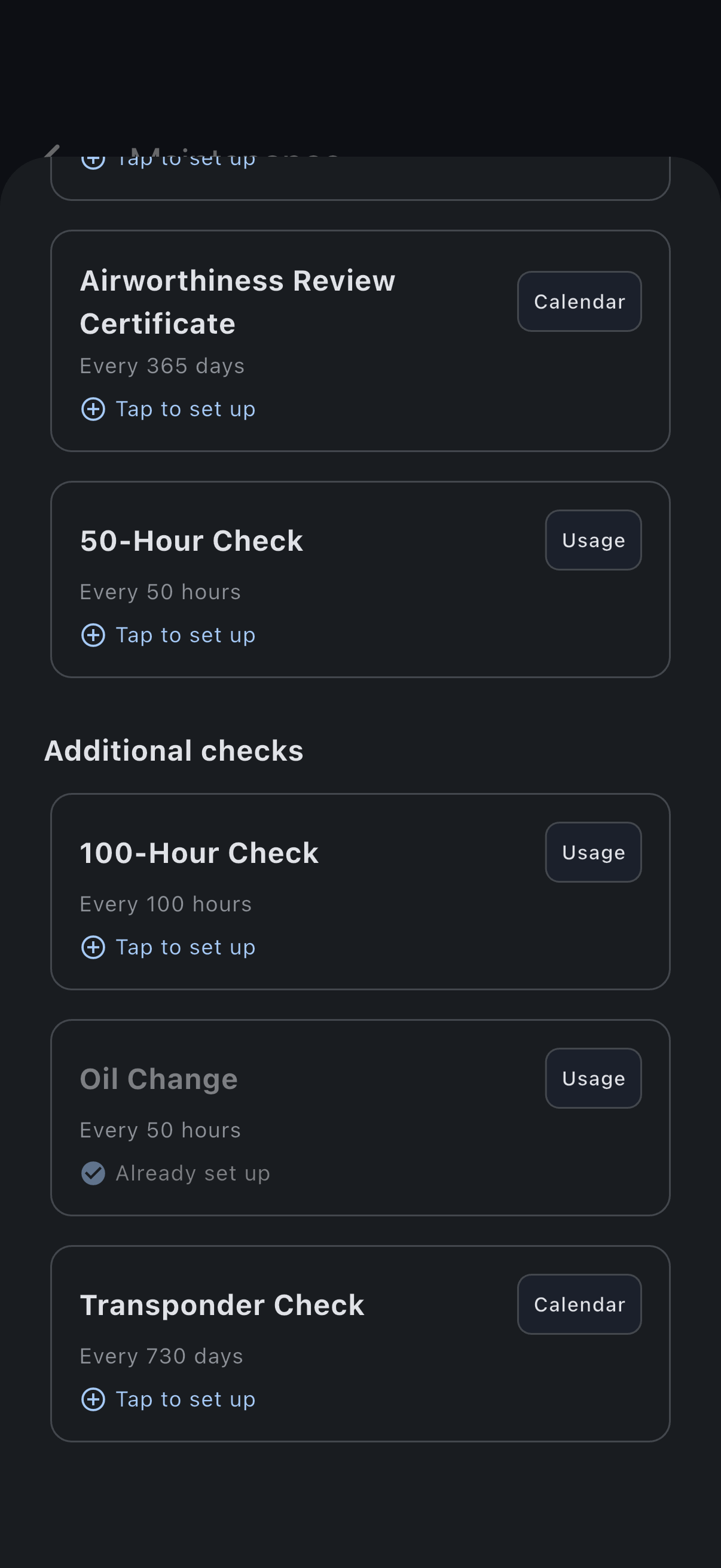
Syndik8 creates the maintenance item with the template’s defaults, and the template is marked Already set up on this asset.
If the aircraft has no reading yet
Section titled “If the aircraft has no reading yet”An hours-based check is judged by comparing the measure it counts against the aircraft’s current figure for that measure. A new aircraft usually has no figures: flying hours and landings only start once a flight has been logged, and the engine meter only exists once somebody has entered its reading. Without one, the check would sit in the list looking healthy and would never come due.
So the sheet says No [measure] reading yet and shows a [measure] now field. Enter what the aircraft reads at this moment (enter 0 if it genuinely is zero). Tap Set up without it and the field shows an inline error instead of saving; cancel if you would rather pick a different check or record the aircraft’s readings first on Syndicate → Assets → [asset] → Edit.
If the meter your syndicate bills on already has a reading, the prompt also offers Count against [billing meter]. One tap moves the check onto that meter, and no figure is needed. Syndik8 never makes that choice for you: each check keeps its own conventional meter as the default (flying hours for the 50- and 100-hour checks, for example), because a safety check timed off a different meter falls due at a different time. Take the offer only if that is how your engineer counts the check.
Note the two figures are different. The [measure] now figure is where the aircraft is at this moment, and it is recorded against the aircraft. The Meter reading at last completion is where it was when this work was last done. Change the Counts against selector and the sheet asks about whichever measure you have moved to.
Recording the reading needs a connection. If it fails, nothing is created and you can retry.
If it goes wrong
Section titled “If it goes wrong”- “Couldn’t set up the maintenance item from that template”: nothing has been saved. Check your connection and try again.
- “Enter the aircraft’s current figure to continue”: the aircraft has no reading for the measure this check counts. See If the aircraft has no reading yet.
- “Couldn’t record the opening reading, so the check was not created”: recording the reading needs a connection. Nothing was saved; reconnect and tap Set up again. If the message says the engine meter cannot read back past a logged flight, a flight has already been recorded with a higher reading on the face of the meter; enter the figure the aircraft actually shows, or correct that flight.
- “This check will be overdue straight away”: the reading or date you entered puts the check past its limit already, so saving it takes the asset out of service. Tap Cancel to correct the entry, or Save anyway if the check genuinely is out of limits. See Add a maintenance item.
- Template marked as “Already set up”: open the existing item under the maintenance list to edit it.
See also
Section titled “See also”- Maintenance templates: the preset library
- Maintenance items: how the created item behaves
- Add a maintenance item: create without a template