
Create a booking
Book an asset for a time range on the syndicate calendar.
Before you start
Section titled “Before you start”- You must be an admin or member of the syndicate. Viewers cannot create bookings, so the calendar shows a viewer no “To book, long-press any day” hint and does not respond when they long-press or drag on it.
- The asset must be airworthy. A grounding squawk blocks new confirmed bookings until the squawk is resolved or deferred. The exception is a flight already flown: a window wholly in the past is not checked against the aircraft’s airworthiness today. See Record a flight already flown.
- If your syndicate requires booking approval, your booking starts as
pendingand an admin must approve it before it reserves the slot, unless it has already ended when you make it. See Booking policy. - The syndicate must not be over its free plan or closed. While it is, the month calendar is read-only: it shows This syndicate is over its free plan and is read-only. or This syndicate is closed and read-only. in place of the “To book, long-press any day” hint, and long-pressing a day shows the same reason instead of opening the dialog.
- Go to the Calendar tab in the syndicate.
- Pick the view you want to book in: Month, Week, or Day. On week and day views you can see the exact hours.
- Open the booking dialog. The gesture depends on the view:
- Month view: with touch, long-press a day for a default-length booking, or long-press then drag across the days for a multi-day booking. A horizontal swipe without the long-press changes months. On web with a mouse, click and drag across the days, or double-click a single day. A long-press fills in the day’s first free slot between 08:00 and 20:00. On today, the slot starts no earlier than the next quarter hour and can be as short as your syndicate’s minimum booking. If nothing is free before 20:00, it uses the evening. If the rest of today is fully booked, it fills in the first free slot tomorrow instead.
- Week or day view on web: click and drag across the time range.
- Week or day view on mobile: long-press then drag across the time range.
- Check the Asset. Opened from the calendar it is a read-only label rather than a picker: in Month and Week view it follows the Filter by aircraft control above the grid, and in Day view it is the aircraft whose row you dragged on. To book a different one, close the dialog, change the filter or use the other row, and start again.
- Adjust Start Time and End Time if you need to. The dialog pre-fills from your drag.
- If you want, tap Add notes and type anything the rest of the syndicate should know.
- Leave Pencil in (tentative) unticked for a normal booking. Tick it to pencil in a non-binding hold instead; see Pencil in a tentative booking.
- Tap Create. If your syndicate requires approval and you are a regular member, the dialog shows “An admin must approve this booking before it is confirmed. Until then it shows as Pending.” above the buttons, and the button reads Request booking instead. Neither appears for a booking that has already ended, which needs no approval.
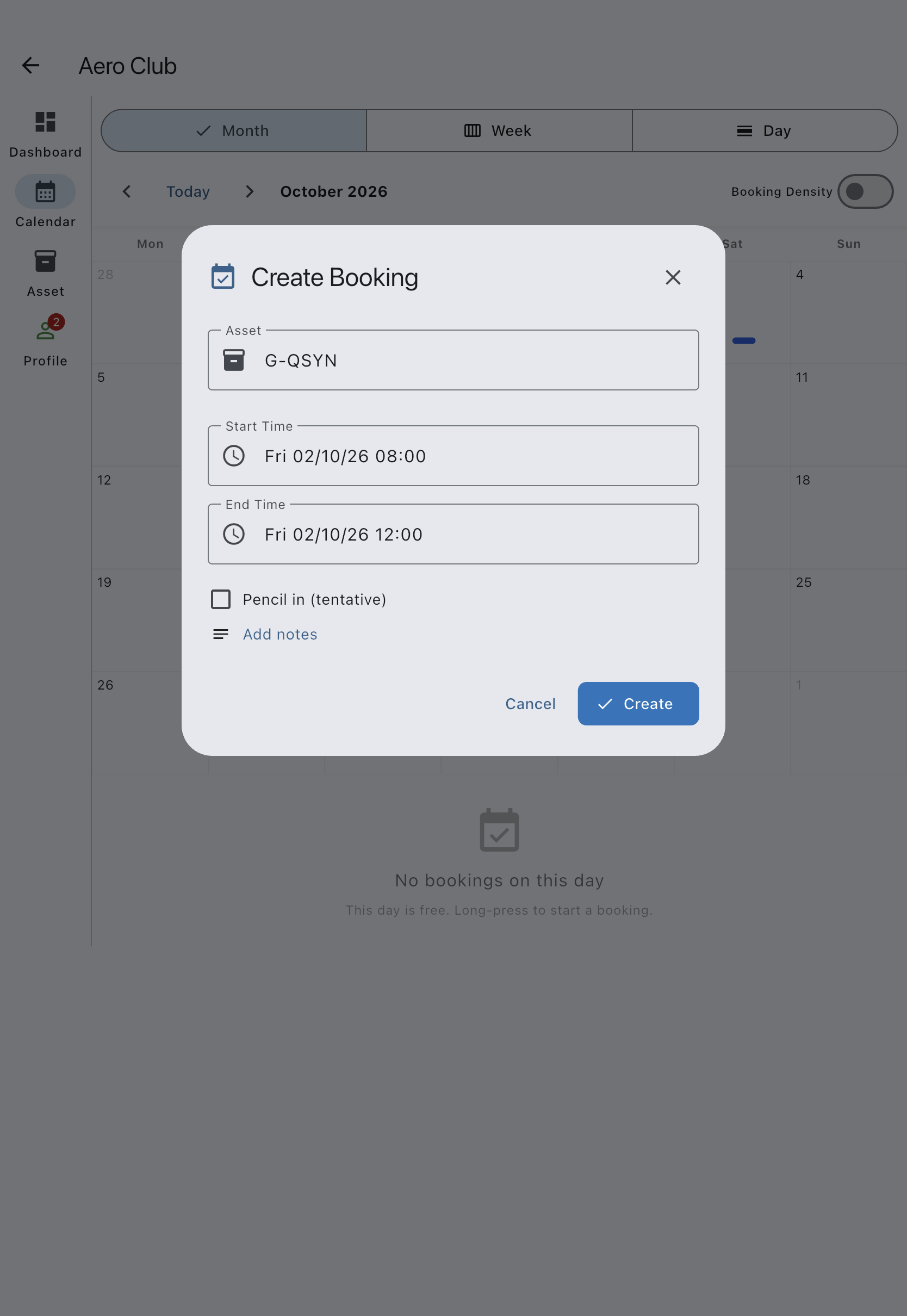
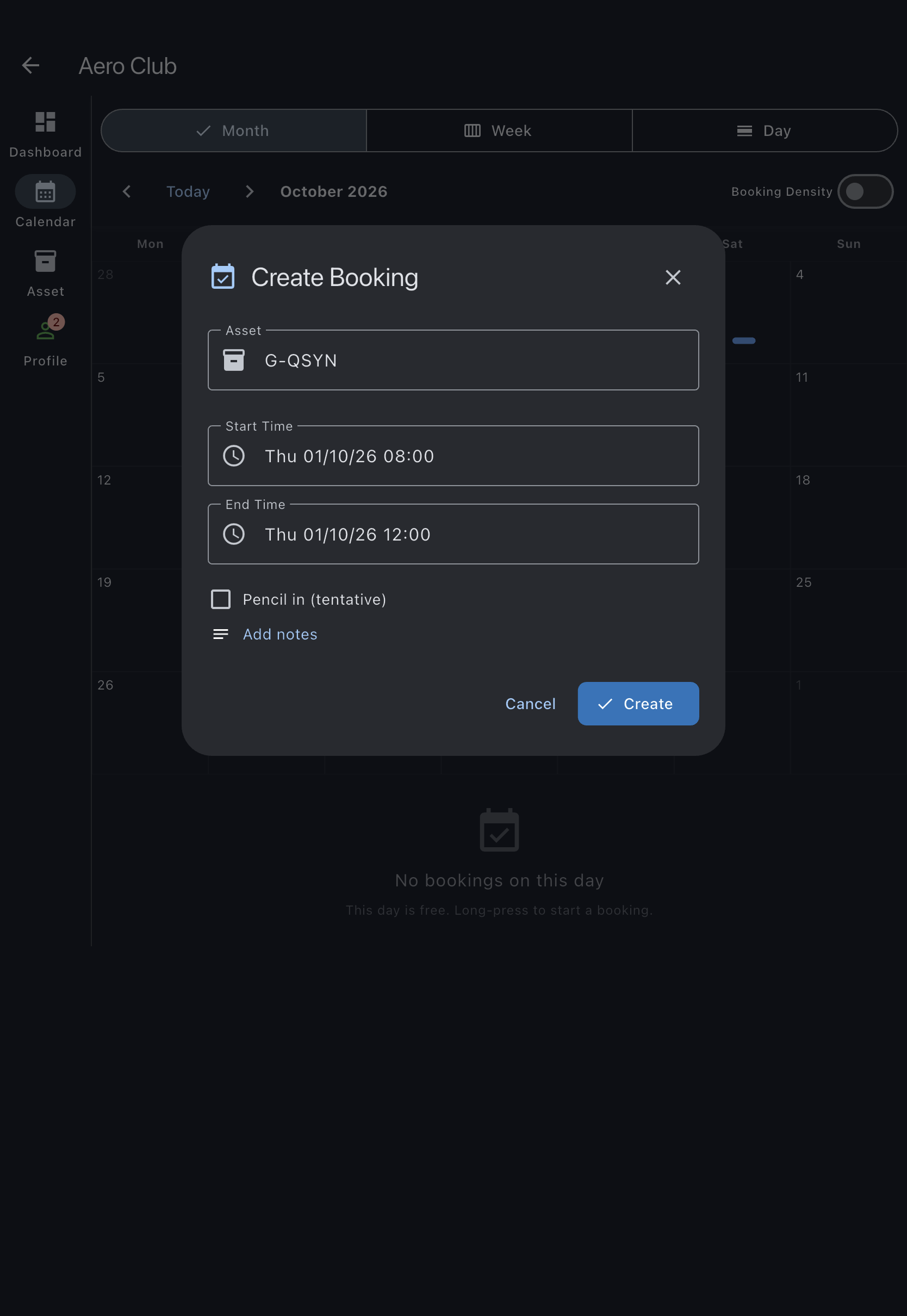
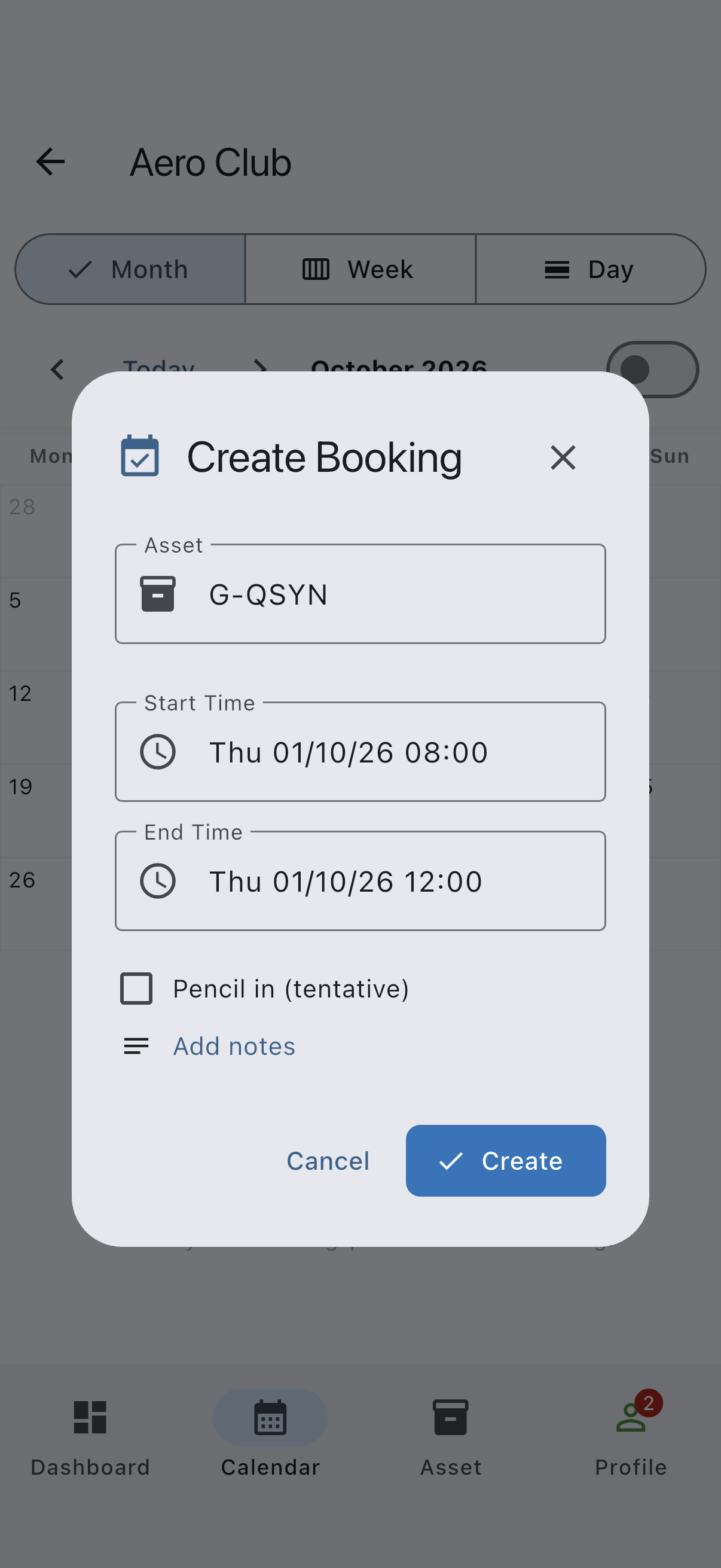
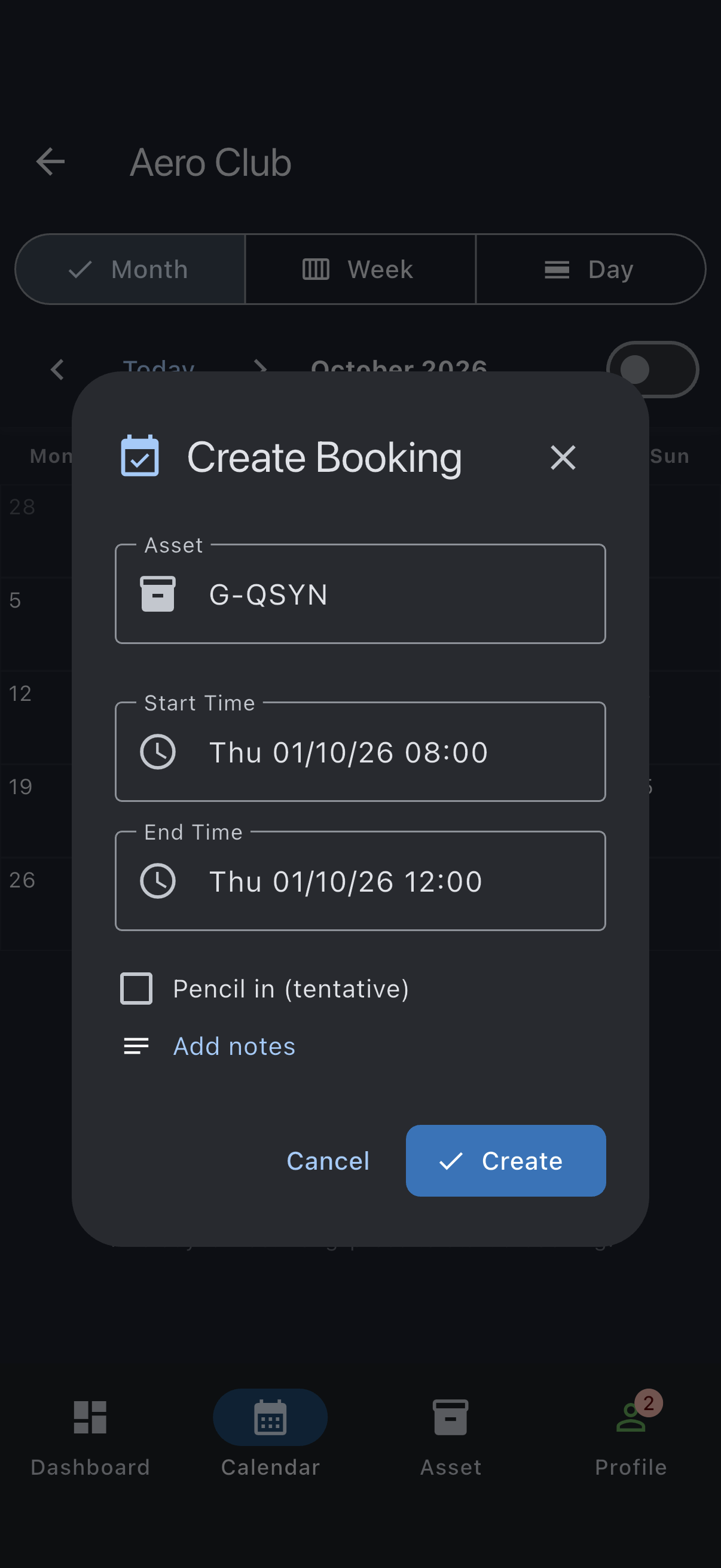
You’ll see a confirmation snackbar and the booking appears on the calendar. The snackbar reads Booking created successfully, or, when an admin must approve your booking first, Booking requested. It is waiting for an admin to approve it. If you are offline, it adds Will sync when you’re back online on a second line; the booking is real on your device straight away, and the app pushes it to the server when your connection returns.
If the booking cannot go ahead, the dialog stays open and tells you why in red just above the Create button. Where Syndik8 can tell in advance — a start time that has passed, or a window shorter than your syndicate’s minimum — the reason appears as soon as you set those times and Create is greyed out until you fix them.
The status depends on your syndicate’s booking policy:
- Approval off, or you are an admin: status is
confirmed. - Approval on, you are a regular member: status is
pendinguntil an admin approves. Other members can still book the same slot while your booking is pending. Tentative holds are not held for approval, so the dialog shows Create for them. - Approval on, you are a regular member, and the booking has already ended, such as a flight you forgot to book: status is
confirmed, because there is nothing left to approve. Every admin gets a Booking added late notification. A booking that is still running, or runs on into the future, ispendinglike any other.
Book on behalf of another member
Section titled “Book on behalf of another member”Admins can create a booking owned by someone else in the syndicate, which is useful when a member phones in a slot or you are managing the calendar on their behalf.
In the create-booking dialog there is a Book on behalf of picker. It defaults to Myself, so your own bookings are unchanged. To book for someone else:
- Open the booking dialog as you normally would and check the Asset, Start Time, and End Time.
- Open the Book on behalf of picker and choose the member you are booking for.
- Tap Create. The booking is owned by the member you picked, not by you, and they get a Booking made for you notification naming you, the aircraft and the times (not for a booking that has already ended, which is a record of a flight already flown).
Notes:
- The picker only appears for admins. A regular member does not see it and can only book for themselves.
- It only lists members who can hold a booking: admins and members. Viewers are not offered, because a viewer cannot hold a booking.
- The picker is shown for personal bookings only, not for maintenance bookings or events.
- The server also checks that the chosen member is allowed to hold a booking, so a booking cannot be created for a viewer even if the request is made directly.
Record a flight already flown
Section titled “Record a flight already flown”A booking can start in the past, to put on the record a flight that was flown without being booked. It must be a normal personal booking: a tentative hold or a maintenance booking cannot start in the past.
- Members can add their own booking for a flight that started no more than 4 hours ago, for example when you turned up, flew and forgot to book. For anything older, ask an admin.
- Admins can book any time that has passed, for a member chosen in Book on behalf of or for themselves.
When the whole window has passed, the dialog says “This booking is in the past, to record a flight already flown. When you create it, you’ll log its flight.” above the buttons. Tap Create and the dialog closes straight into Log Flight for the new booking, with the member who flew it as the pilot. A booking that started a little while ago and ends later is an ordinary booking: Create doesn’t open Log Flight, and you log the flight from the booking when you land.
A member’s booking that has already ended is confirmed straight away, even where the syndicate requires approval, because the flight is over and there is nothing left to approve; every admin gets a Booking added late notification. One that is still running, or runs on into the future, waits for approval there like any other member’s booking. Full steps: Record a flight that was not booked.
Maintenance check
Section titled “Maintenance check”Before the dialog confirms a booking on a personal asset, Syndik8 evaluates the asset’s open maintenance items against the synced meter reading and recent usage logs and shows a warning if the booking would push the asset past a service threshold. The check runs locally (typical evaluation time is around 10 ms, with no network round-trip), so it works the same whether you are online or offline:
- Green (no warning shown). The booking does not bring any maintenance item close to due.
- Amber. A maintenance item will likely come due during or shortly after this booking. The dialog shows the item name and how close. You can still proceed.
- Red. A maintenance item is overdue, or will go overdue during this booking. The card is titled Booking exceeds a maintenance limit and names the item and the estimated usage. A regular member cannot create the booking and is asked to contact an admin. An admin sees an acknowledgement tickbox and can override and create the booking anyway.
If it goes wrong
Section titled “If it goes wrong”- “Please select an asset”. The dialog opened without an asset resolved. From the calendar the Asset field is read-only, so close the dialog, set the Filter by aircraft control on the calendar, and start again. An Asset dropdown appears only when the dialog is opened away from the calendar, such as the Book now shortcut on a syndicate with several aircraft; there you can just pick one.
- “End time must be after start time”. Create stays greyed out, with the reason above it, until the end is later than the start.
- “Ask an admin to record a flight that started more than 4 hours ago, or correct the start if you mistyped it.” You are a member, and the start is further back than a member can book. If the flight has already happened, ask an admin to record it (see Record a flight already flown). If the start is simply wrong, move Start Time forward. Long-pressing a past day in Month view fills in a slot from 08:00 on that day, which is too far back for a member; long-pressing today always starts from the next quarter hour or later.
- “That time has already passed. Choose a start time from now onwards.” The start time you have chosen is behind you, on a booking that cannot start in the past: a tentative hold or a maintenance booking. Move Start Time forward. Only a normal personal booking can start in the past.
- “Bookings must run for at least N minutes.” The window is shorter than your syndicate’s minimum booking duration. Move the end time later, or ask an admin to change the minimum on the Booking Policy screen.
- “Asset is grounded”. A grounding squawk is open on the asset. An admin must resolve or defer it first. See Squawk severity.
- “Couldn’t check airworthiness”. The dialog could not load the asset’s squawks and maintenance items, usually because the connection dropped mid-check. You can still submit, but if the asset turns out to be grounded the booking is refused when it reaches the server. Reopen the dialog once you are back online to get a real answer.
- Conflict warning with an existing booking. A confirmed booking already covers part of your slot. Pick a different time or ask the author to move theirs.