
Import bookings from Goboko
Move your booking history from Goboko into Syndik8 in one pass.
Before you start
Section titled “Before you start”- You must be an admin of the syndicate.
- Export the bookings from Goboko as a CSV. Goboko exports are UTF-16 encoded with a fixed 16-column header; Syndik8 recognises them automatically.
- Re-running the import is safe. Deduplication skips rows already imported, so you can export again after new activity and re-import without creating duplicates.
- Open the syndicate, go to the Admin tab, and tap Import data under the Syndicate heading. You can also tap Import your bookings on the Dashboard tab’s Switching from another system? card.
- On step Upload CSV File, tap Choose File and pick your Goboko export. The wizard moves on as soon as the file is read.
- Step Map Columns is skipped automatically — Goboko’s columns are fixed, so there is nothing to map. Landing straight on the next step is how you know the file was recognised as a Goboko export.
- On step Match Import Entries, which shows the number of rows found, check each unique person the CSV names. Syndik8 resolves them for you first — on the row’s email where Goboko recorded one, otherwise on their name — and shows you what it found. Each entry ends up as one of:
- An existing syndicate member, matched for you or picked from the dropdown. The dropdown lists each person once. Someone who has left the syndicate is still listed, marked (former), because old bookings can be theirs.
- Someone to invite, marked with Invite (available where the row carries an email). Marking does not send anything: the marked people are invited together when you tap Invite N people. If the batch takes a paid syndicate past the members its plan includes, that is where Syndik8 tells you what it adds to your subscription and asks you to agree; a batch that fits inside the allowance is sent without asking. On iOS and Android a batch that would add to the subscription cannot be sent at all (see If it goes wrong). Declining sends nothing and keeps your marks, so you can drop a few and ask again. Inviting somebody does not import their bookings — they are not a member until they accept — so import the file again once they have joined.
- An aircraft maintenance booking — automatic when the CSV entry is
Maintenancewith no email. Custom labels such as50 hr checkare preserved.
- On step Match Aircraft, confirm each unique registration from the CSV maps to an existing asset. If the syndicate has only one asset, every row is auto-matched.
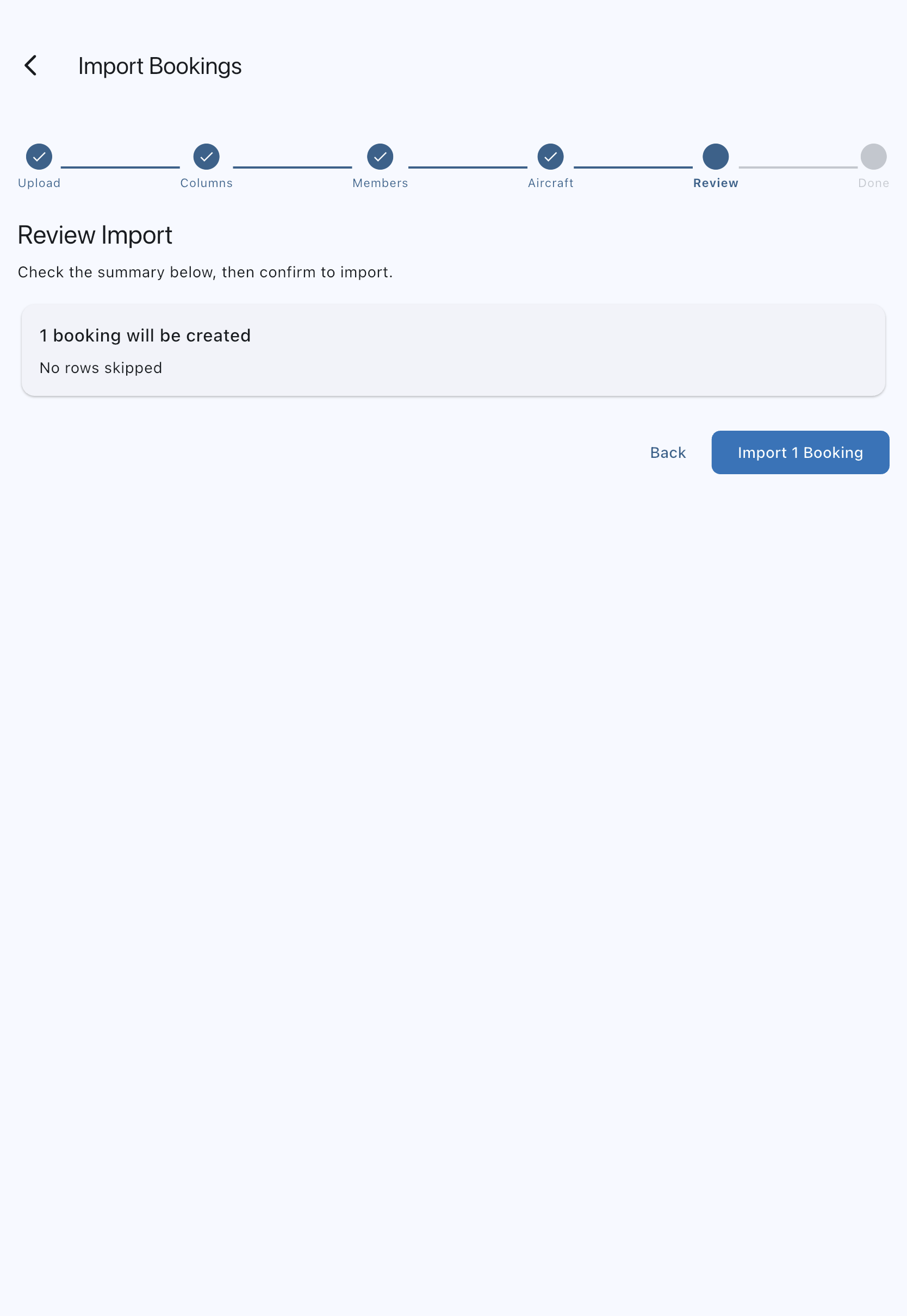
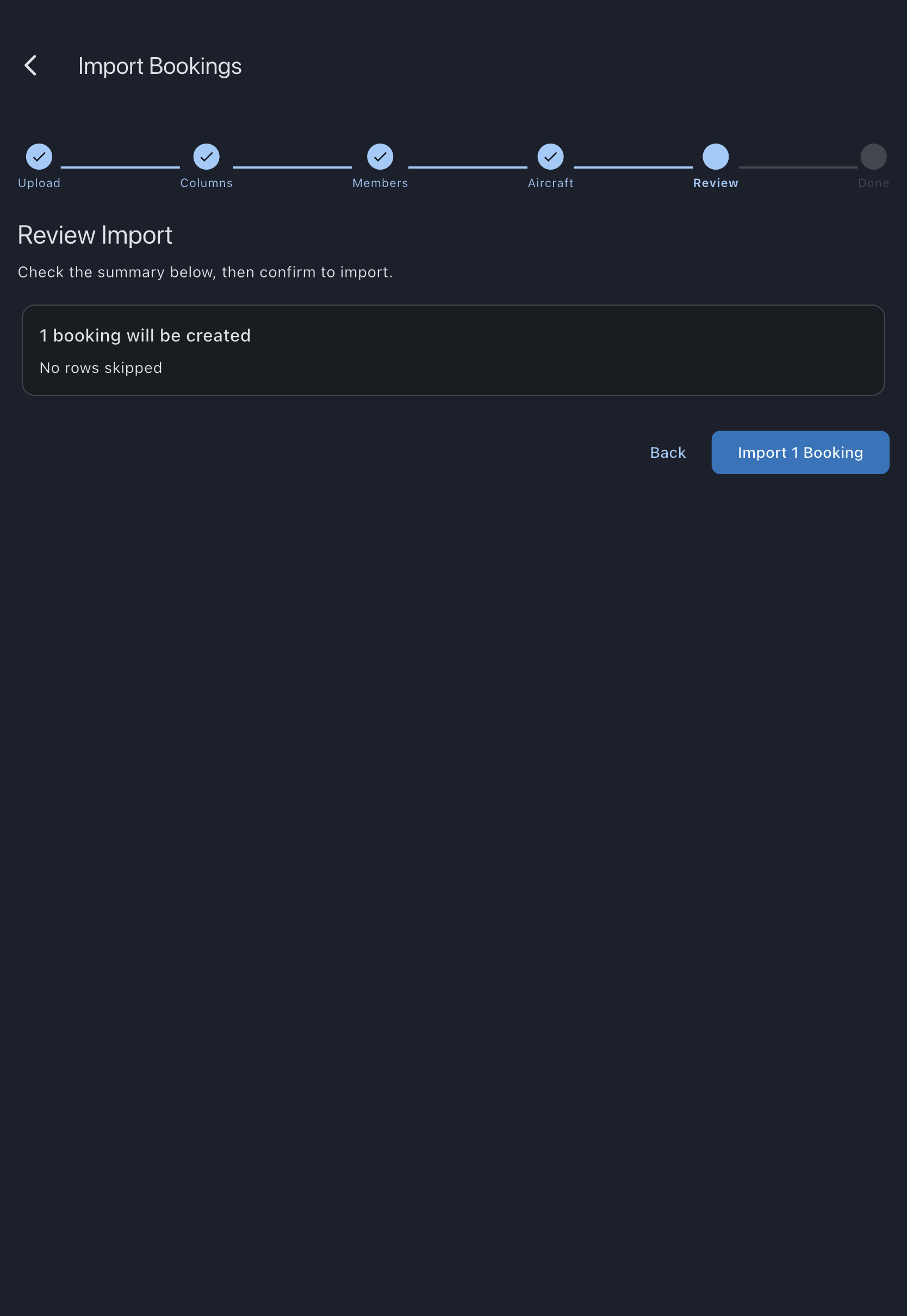
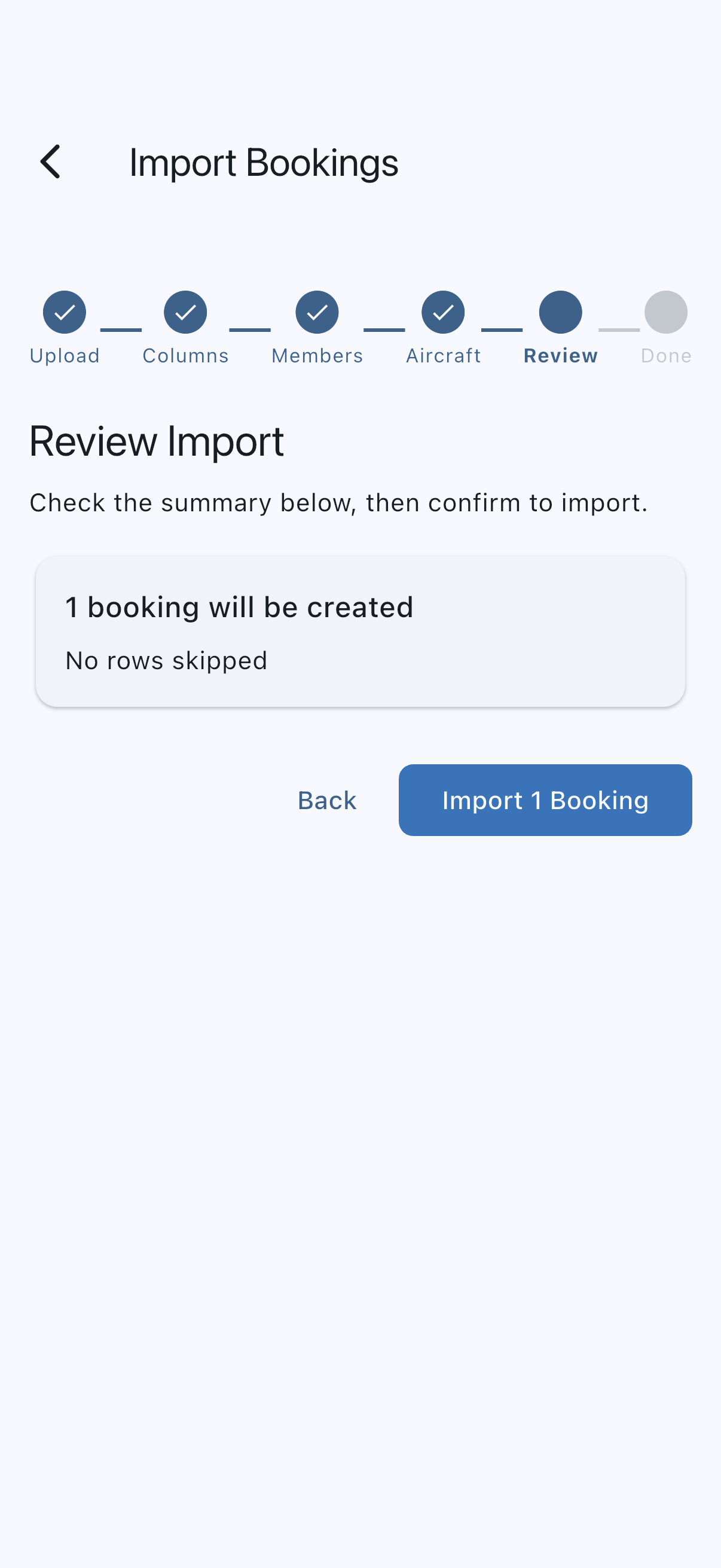
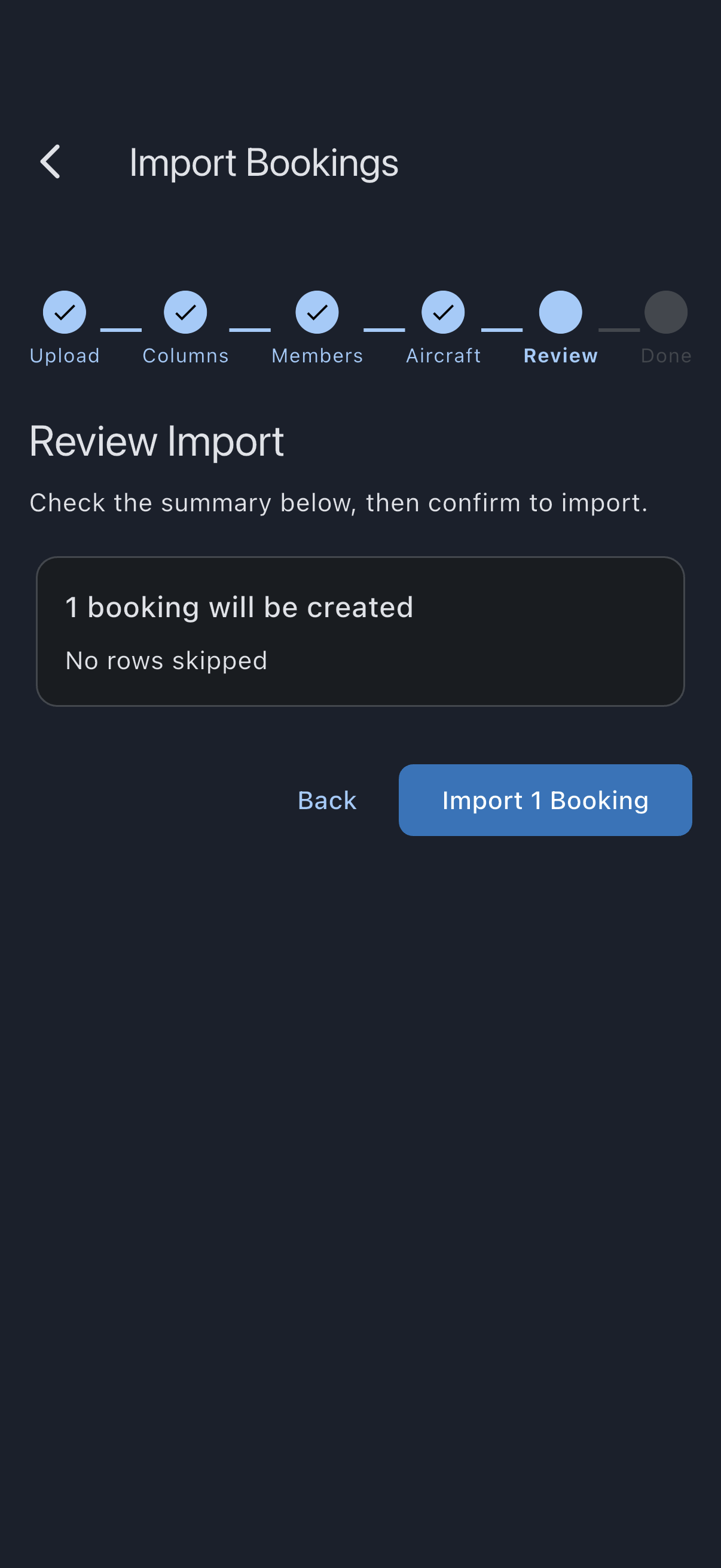
- On step Review Import, read the counts — bookings to create, rows to skip, duplicates already imported. Tap Import N Bookings to commit. Bookings that had already ended arrive as completed: Goboko has already charged for that flying, so Syndik8 never finalises or bills them, and they hold nobody in the syndicate. Bookings still to come, or in progress as you import, arrive as confirmed and are billed once they end. Provisional bookings arrive as pending.
- The wizard runs the import and lands on Done. The new bookings appear on the calendar immediately.
If it goes wrong
Section titled “If it goes wrong”- “The file could not be read. Pick it again, or export a fresh copy.” Syndik8 could not open the file you picked, so nothing has been uploaded and no matching has started. This is about the file on your device rather than your connection: the export may have finished incompletely, the file may have moved or been deleted since you picked it, or a cloud-storage placeholder may not have downloaded yet. Pick the file again, and if it still will not open, export a fresh copy from your old system and use that.
- The file is not detected as Goboko. You will see this as a Map Columns step that is not skipped. The detection check requires both a UTF-16 byte-order mark and the exact header
#,Start Time,End Time,TimeZone. If either is missing, the file routes through the generic CSV path instead, which asks you to map columns. - A member shows “no match”. First check the dropdown — if they are already in the syndicate under a different name or email, pick them there. Otherwise mark them with Invite on the matching step and tap Invite N people to send the whole batch.
- Invite N people is greyed out on a phone or tablet. The batch would take the syndicate past the members its plan includes, and seats that add to the subscription cannot be bought in the app. The card says Seats that add to your subscription cannot be bought in the app, so these invitations can’t be sent here. Send the batch from a web browser, or unmark people until it fits inside your allowance. A batch that costs nothing can be sent from any device.
- Somebody I invited has no bookings. A booking has to belong to a member, and an invitation is not a membership until it is accepted, so rows naming somebody who has not joined are skipped. The Review Import step counts them and says so. Once they accept, import the same file again: deduplication skips everything already created, and their bookings are added.
- The matching step says it could not check email addresses. Nobody’s email is stored on anyone else’s phone, so Syndik8 asks the server for them while you are on that step, and only when your export actually carries an address to match against. If the request fails — you are offline, or you are not an admin of this syndicate — matching falls back to names alone and tells you so. Goboko names often differ from the ones people registered with, so reconnect and reload the file rather than inviting members who are already in the syndicate. An export whose Email column is blank throughout never triggers the request, so you will not see this message for one.
- Two members with the same name are both left unmatched. Syndik8 will not guess between them. Pick the right one from the dropdown on the matching step.
- A row overlaps another booking, or has a date that cannot be read. The Review Import step lists each one with its row number, and skips it: an overlap names the member and the times, and says whether it clashes with a booking already in Syndik8 or with an earlier row of the file; an unreadable date quotes what the row held. The rest import. See import bookings from a CSV for how overlaps are decided.
- A row names a viewer or someone who has left. The import refuses that one row and writes the rest. The finished import names it. See import bookings from a CSV.
- An aircraft shows “no match”. Add the aircraft to the syndicate (or rename a registration) and restart the wizard. Rows with an unmatched aircraft are skipped.
- Times look wrong. Goboko rows carry their own timezone. If the timezone column holds a name Syndik8 does not recognise, the time is saved as if already in UTC — see Goboko CSV format for the exact rules.
- You imported the wrong file. There is no one-click undo. Use the affected bookings’ Delete action individually, or contact support with the date range if the volume is large.
See also
Section titled “See also”- Goboko CSV format — exact columns, detection checks, and conversion rules
- Deduplication — how rows already imported are skipped
- Import bookings from a CSV — the fallback path for any other booking system