
Finalise a booking
Finalise a booking
Section titled “Finalise a booking”Finalise a booking’s charge. Finalisation writes the usage charge, any shortfall, any event fees, and any custom charge to the ledger, then marks the booking completed — except for a maintenance booking, which closes the same way but posts no charge at all. See finalisation rules for the full breakdown by booking type.
Before you start
Section titled “Before you start”- You must be an admin (a treasurer needs the admin role).
- Finalisation is irreversible in the UI. To change a finalised booking, correct the flight and apply the new charge rather than trying to “unfinalise” it.
- Once finalised, the booking disappears from the unfinalised-bookings queue.
- Many bookings never reach you: the pilot closes their own booking after their last flight (unless your syndicate has turned off Pilots finalise their own bookings), and auto-finalisation (if on) finalises the clean ones left open 24 hours after they end. A booking with a shortfall is never finalised automatically; it waits here. With auto-finalisation on, you are sent a Booking Needs Attention notification once the sweep holds it back, 24 hours after the booking ends. With auto-finalisation off, nobody is alerted: the booking simply waits in this queue.
- You must be online. Finalisation writes to the financial ledger and cannot be queued; see Offline behaviour below.
- The single-booking flow on this page bypasses the look-back continuity check the bulk path uses. The admin has already decided to finalise. It does not check the departure either. Use this when bulk left a row in the queue (a Meter mismatch, Missing previous log, Departure mismatch or Possible duplicate badge), or when you want to override a shortfall.
- The booking must have a member on it. A booking whose owner has deleted their account cannot be finalised: the charge has nobody to go to, and it would be priced at the syndicate’s base rate rather than that member’s. The finalisation panel says so in place of the usual figures. Assign the booking to a member and finalise it then. Flights cannot be logged against such a booking either, for the same reason.
- Open the booking detail screen.
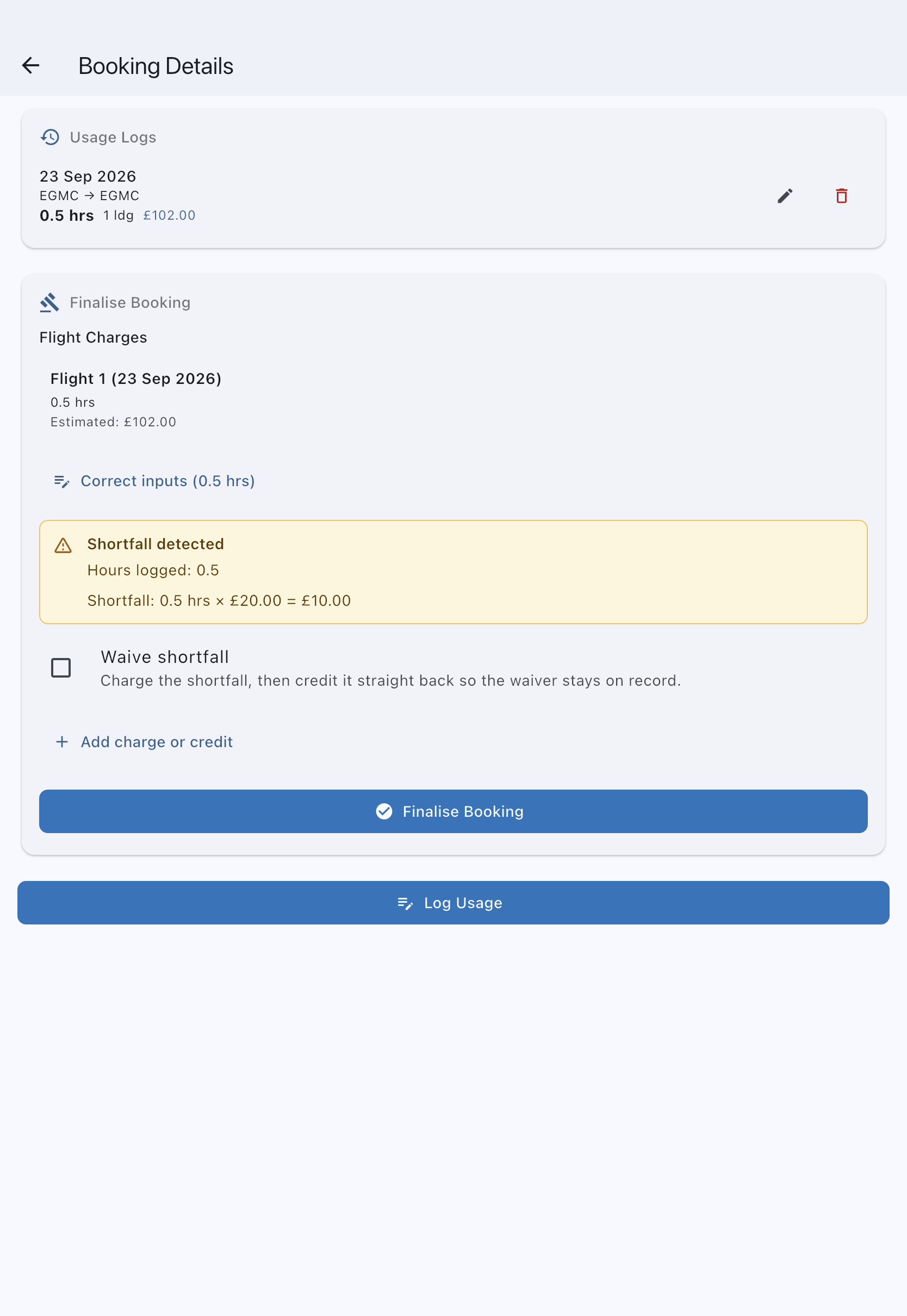
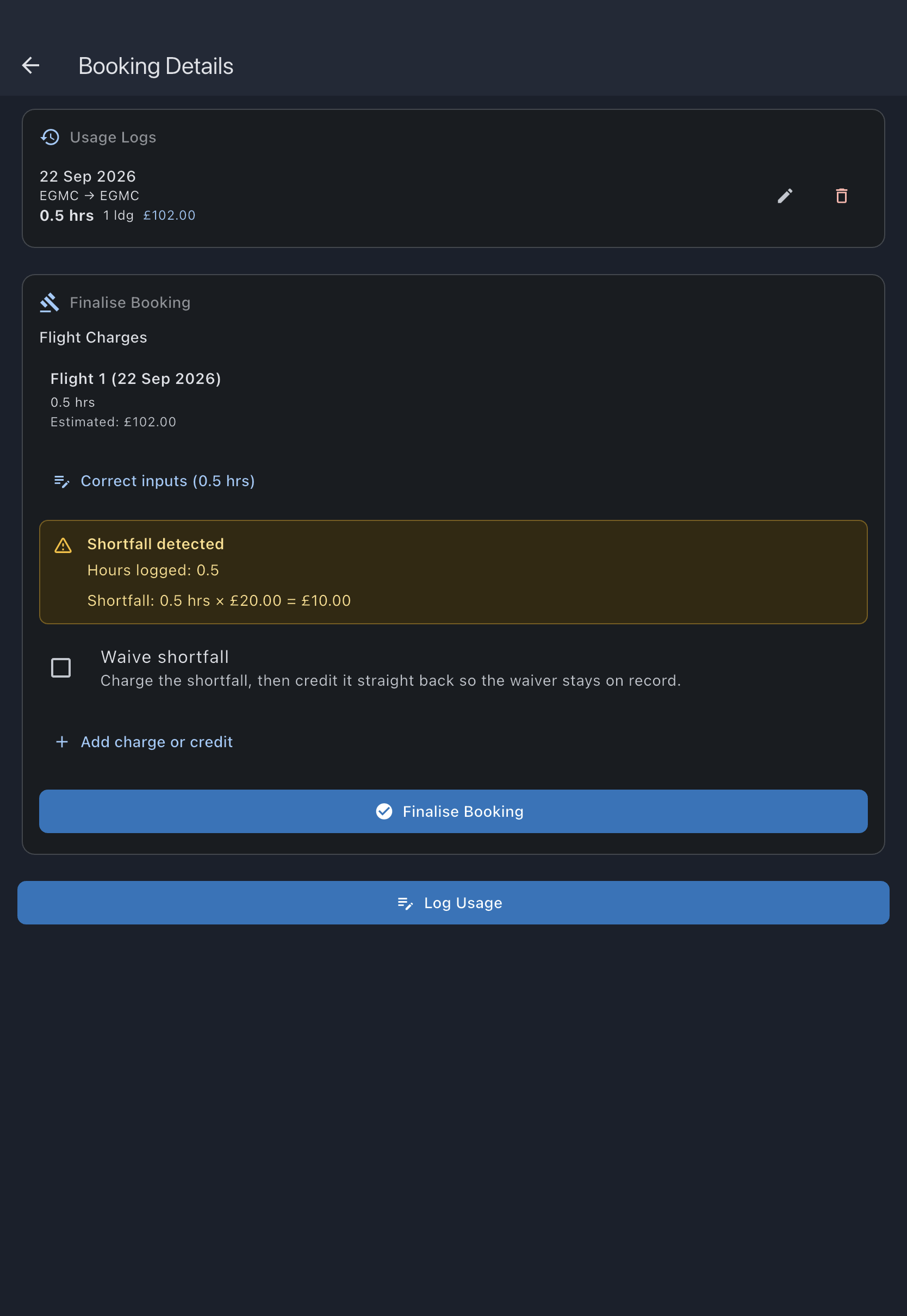
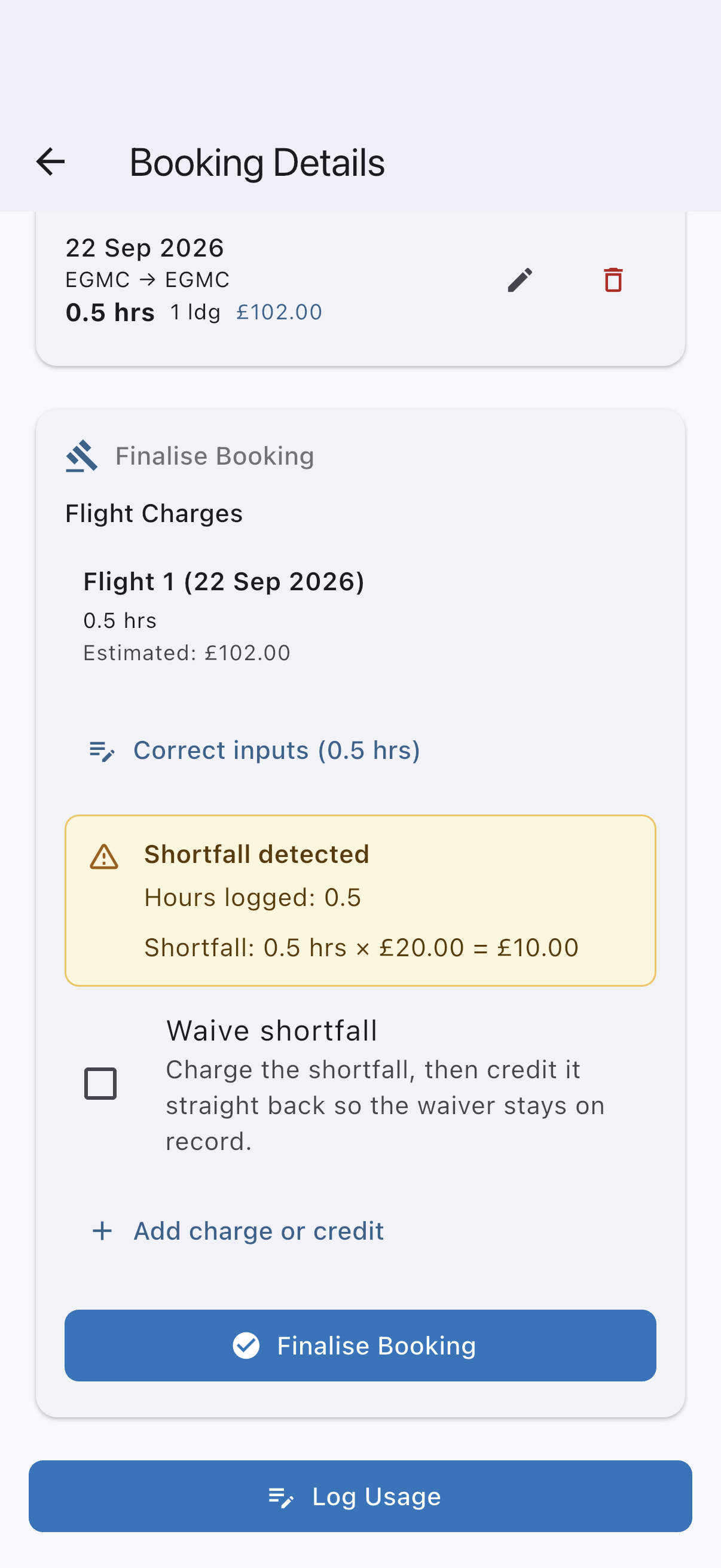
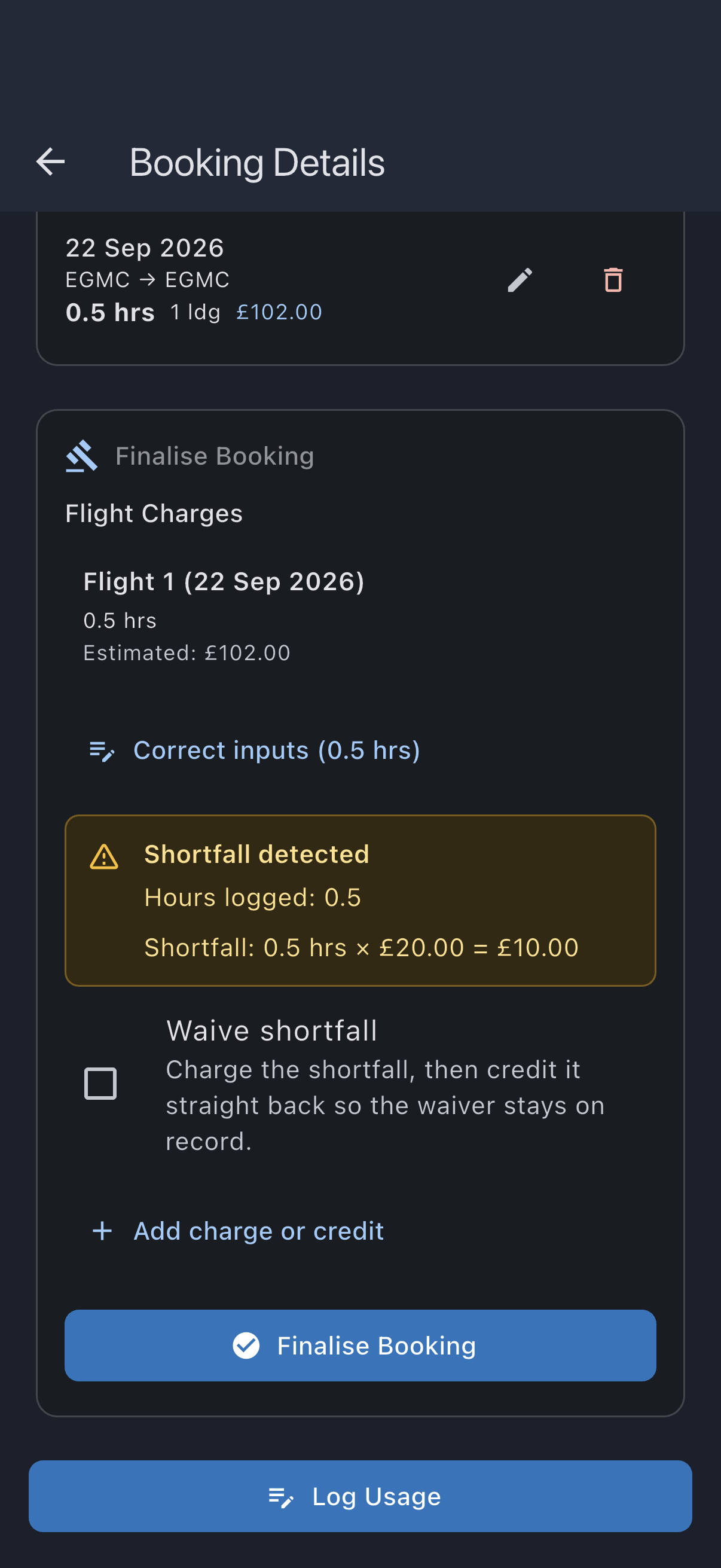
- Scroll to the Finalise Booking section.
- Review the per-flight charge breakdown. If a captured input is wrong, correct it now (see Correct the captured inputs before finalising below).
- Review the shortfall preview. Syndik8 computes the shortfall from the minimum-usage rule and the logged usage, and shows the breakdown: Shortfall: X hrs × £rate = £total. The figure is computed server-side and shown read-only. Money is shown with the currency symbol, for example £20.00. If the charges could not be worked out (you are offline, or the preview failed), the panel reads Charges not worked out instead of No shortfall, because a booking that could not be priced is not the same as one with nothing to charge; get a connection and reopen the booking.
- To waive the shortfall entirely, tick the Waive shortfall checkbox. The shortfall is still charged and then credited straight back, so the waiver stays on the audit record.
- To add an ad-hoc charge or credit unrelated to shortfall, tap Add charge or credit, select Charge or Credit, enter the amount in Custom charge amount (the field carries a £ prefix), and enter a Custom charge description (the description is required when an amount is entered).
- Tap Finalise Booking.
- Confirm in the dialog. It names every part of the charge, one line each — Usage: £X, Event fees (landings and similar): £X, Shortfall of X hrs: £X, and any Charge you have added: £X or Credit you have added: £X — then the net figure the member will be billed, Total to be charged: £X, and asks Finalise this booking? Where an added credit outweighs the charges the total reads Total to be credited: £X instead, and where the booking comes to nothing it reads Nothing will be charged for this booking. If you ticked Waive shortfall, the shortfall line is replaced by The £X shortfall will be charged and credited straight back (waived). and the waived amount is left out of the total. If the charges could not be worked out — you are offline, or the preview failed, or is still being worked out after a correction — the dialog says so (The charges for this booking could not be worked out just now, so they cannot be shown here.) rather than naming figures it does not have; close the dialog, get a connection, and reopen the booking to see the charge before you finalise.
You see Booking finalised successfully. The ledger now carries the usage charge, shortfall, any event charges, and any custom charge — except for a maintenance booking, which carries none of these; only its status changes. The booking shows This booking has been finalised.
Two logs of one flight
Section titled “Two logs of one flight”If two logs on the booking cover some of the same time, or have the same start and end readings, they are usually one flight logged twice (once on the Apple Watch and once on the phone, say), and finalising would charge both. The Finalise Booking section says so before any figure, for example Two logs overlap 11:05–12:10, as though one flight was logged twice. Remove one before finalising, or both will be charged. Where the logs recorded no times, it names the readings they share instead. Logs whose readings only partly overlap are two flights, not one logged twice: the later one does not follow on, which bulk finalisation shows as a Meter mismatch.
Under the message is a Remove flight N button for each overlapping log. Tapping one asks Delete Usage Log?: Delete removes it and the breakdown reprices what is left, and Cancel changes nothing. Until the removal has reached the server the section shows Updating the charge… in place of the price and Finalise Booking is unavailable, so the figure you confirm never includes the flight you removed. If both really were separate flights, you can still finalise without removing either; the warning is there so you decide knowingly. A maintenance booking charges nobody, so its finalise section shows no such warning, though its log rows are still marked.
Correct the captured inputs before finalising
Section titled “Correct the captured inputs before finalising”If a meter reading, time, landing count, or other captured input is wrong, correct it before you finalise rather than finalising and posting an adjustment afterwards. While the booking is still confirmed, the values are not yet locked, so your corrected figures become the canonical record and the recomputed charge is billed directly.
- In the Finalise Booking section, find the per-flight breakdown.
- Tap Correct inputs (X hrs) under the flight you need to change.
- Enter a Reason for correction when prompted, for example Pilot misread the tacho. The reason is required and is kept on the audit trail.
- Tap Continue. The usage-capture screen opens with the captured values pre-filled.
- Edit the inputs (meter readings, times, landings, event counts) and save.
On return, the card shows the flight as you saved it, and the breakdown and shortfall preview recompute from your corrected values. Your own correction never shows up as somebody else’s change, even while your phone is still catching up with it.
Finalising always bills each flight as it was last saved, and exactly the total shown in the confirmation dialog. Nothing you see on the card is ever written back over a saved flight.
If somebody else saves a change to a flight while you have the card open, a banner appears: A flight on this booking has changed since you opened it. Refresh to see it before you finalise. Tap Refresh to see their change. If you finalise without refreshing, or the price has moved since the dialog opened, nothing is charged: you are told The flights or charges changed since you checked them, the card shows the saved figures, and you finalise again once you have checked them.
Adding another flight while the card is open also needs Refresh before you approve the updated total. The banner appears only when a flight’s figures have actually changed: your device catching up in the background with figures that are the same as before does not raise it.
Once finalised, the log is locked
Section titled “Once finalised, the log is locked”When you finalise, the usage log is committed and locked to ordinary editing; the in-line “Correct inputs” affordance is gone. From that point a mistake is fixed through the separate, admin-only post-finalisation process: Correct flight fixes the captured reading (the original is preserved in the audit trail) and posts no money; the booking then shows what the corrected flights now price at, and Apply the new charge posts a single adjustment for the difference, leaving the original transactions intact. See correct a finalised booking.
So the rule of thumb is: correct inputs while confirmed; use Correct flight once finalised.
The most recent flight on an asset
Section titled “The most recent flight on an asset”The most recent flight on an asset finalises like any other once its look-back checks pass. It never waits on a future flight. A start that matches the latest genuine reading (or opening reading with no earlier logged usage) can look past empty bookings, without marking them as no-shows or finalising them. A higher reading across empty bookings shows Missing previous log instead, as does a different first departure across an empty booking that is not a maintenance booking; an opening-reading mismatch with no earlier eligible booking is a conflict. The bulk path includes the latest booking when its readings and route pass. Individual admin finalisation remains available after reviewing a held booking. See finalise multiple bookings at once.
If that flight’s end reading later turns out to have been wrong (the next pilot’s start tacho, once they fly and log, disagrees with what was recorded as the end), use correct a finalised booking to fix the flight and apply the difference. Do not try to “unfinalise”; finalisations are forward-only.
Offline behaviour
Section titled “Offline behaviour”The Finalise Booking button watches connectivity. When the device is offline, the button disables and shows Settlements need a connection. Try again when you’re online in a snackbar if you tap it. The button re-enables automatically when the connection returns; you do not need to refresh the screen.
This is deliberate. Finalisation writes to the ledger via a server-side RPC that atomically posts the per-log charges, the shortfall transaction, any event fees, and any custom charge before flipping the booking to completed. Queueing that offline would risk double-posts or partial writes: money conflicts that an “eventually consistent” model cannot resolve safely. So the action waits for a connection rather than accepting a tap that might never reach the server.
If it goes wrong
Section titled “If it goes wrong”- “Please provide a description for the charge or credit”, under the description field: the Custom charge description is required when a custom amount is entered. Type a description and tap Finalise Booking again.
- “Enter a valid amount”, under the amount field: the amount must be a plain positive number, such as
15or15.50. Choose Charge or Credit for the direction rather than typing a minus sign. - The “Correct inputs” prompt won’t continue. A reason for the correction is required; enter one before tapping Continue.
- “Failed to finalise”: connectivity dropped mid-call (or the RPC errored). No partial finalisation is written; retry when you have signal again.
- “A change you made is still being sent”: something you changed on this device, such as a spare log you removed, hasn’t reached the server yet. Finalising prices the logs the server holds, so it waits rather than charge a log you removed. Try again in a moment; if it keeps happening, check your connection.
- The Finalise Booking section is not shown. The section only appears on past confirmed bookings. Already-finalised bookings (status: completed) or future/pending bookings do not show it. If the device is offline the button inside the section disables; see Offline behaviour above.
See also
Section titled “See also”- Finalisation rules: what finalisation does, the snapshot rule, and how each path handles a junction
- Transaction types: the ledger entries finalisation writes
- Unfinalised bookings queue: the admin view of bookings awaiting finalisation
- Finalise multiple bookings at once: bulk version with look-back classifications
- Enable auto-finalisation: the fallback that finalises clean bookings the pilot left open
- Close a booking: how a pilot finalises their own booking
- Correct a finalised booking: recovery when a booking has already been finalised and a captured value later turns out to have been wrong