
Upload your medical
Add your aeromedical certificate to Syndik8 so it is available on your own devices (including offline, for a ramp check with no signal), you get renewal reminders, and your syndicate’s admins can see at a glance that you’re current.
Uploading the certificate is optional. If you only want the reminders, and for your admins to see that you’re current, record just the expiry date instead; no certificate is stored anywhere.
Before you start
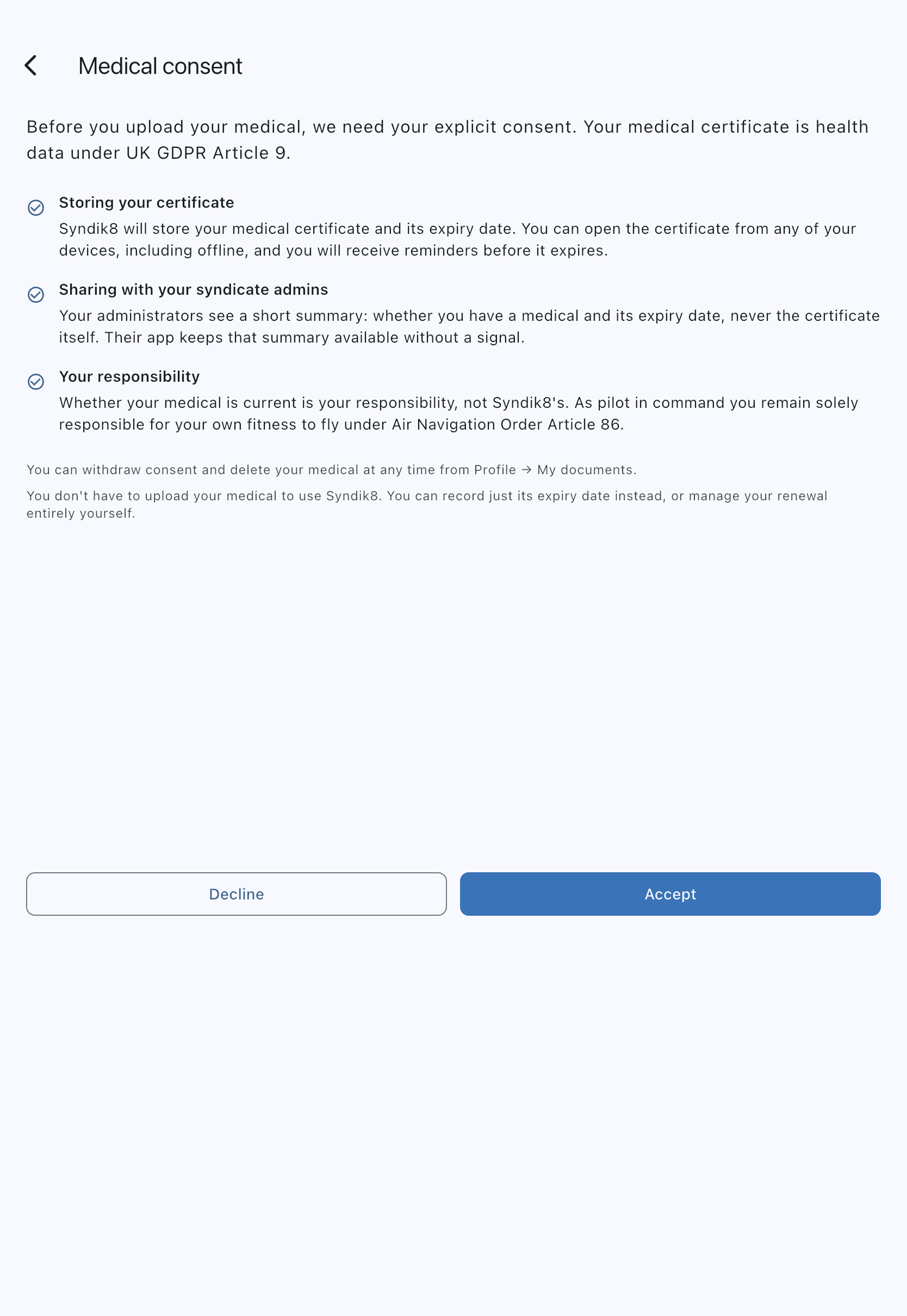
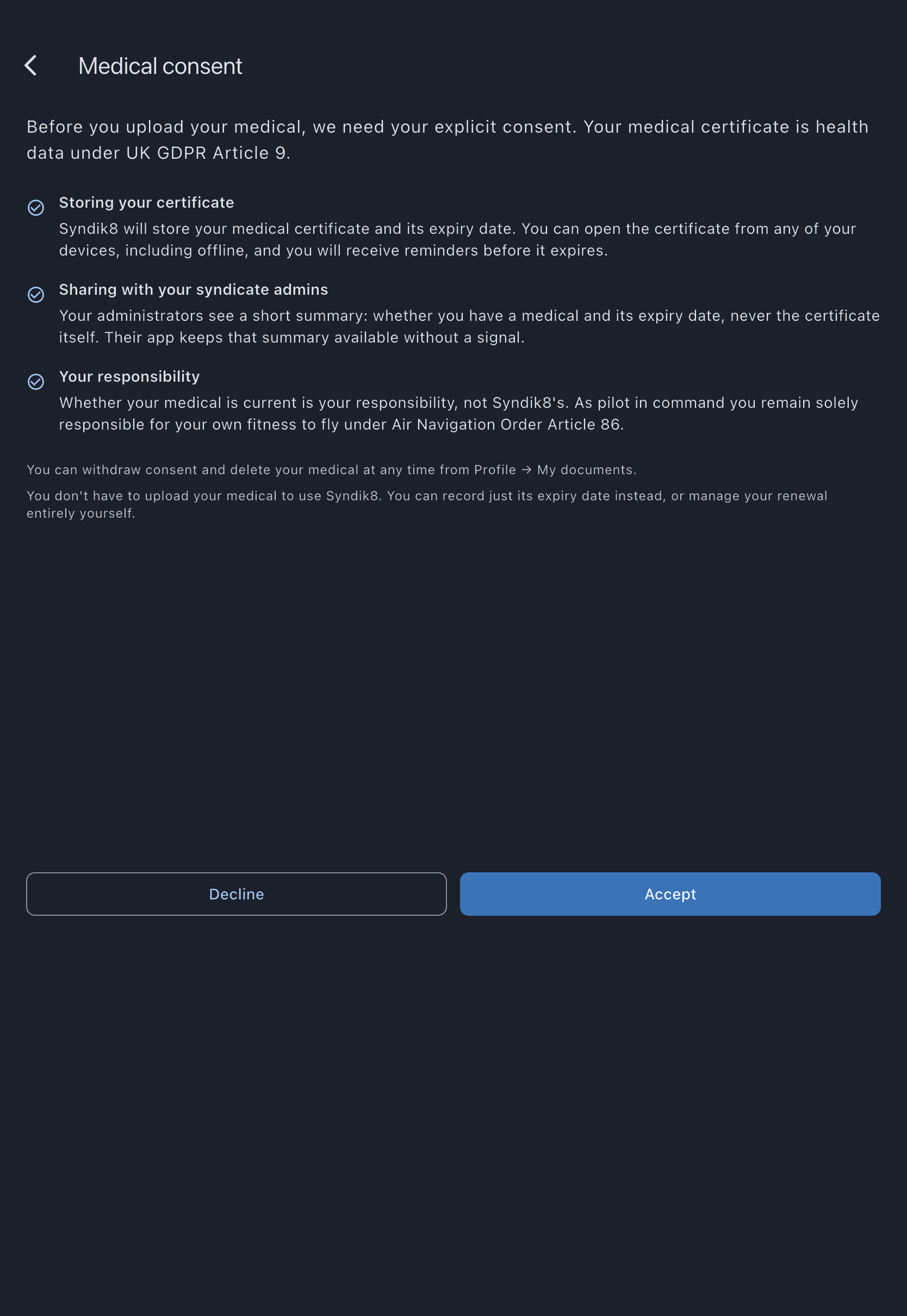
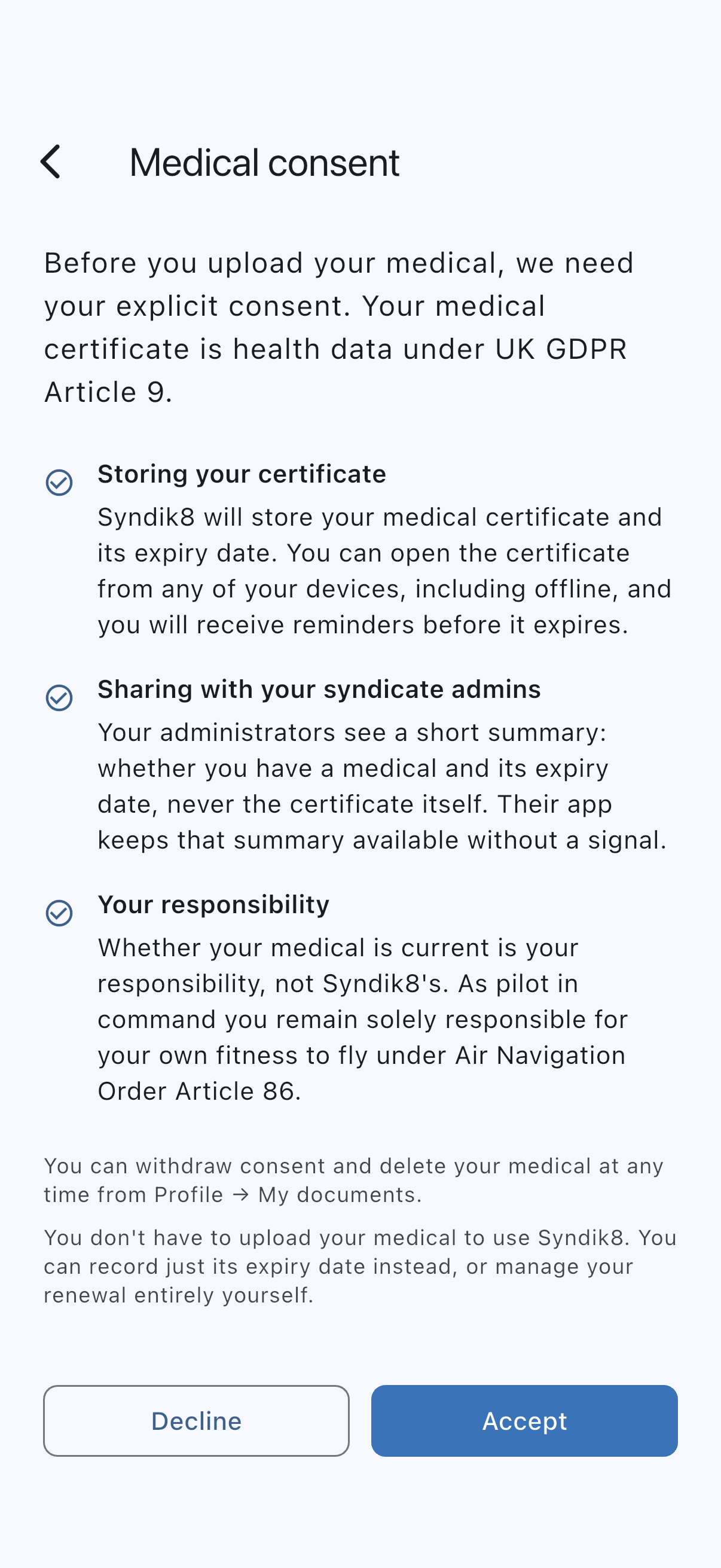
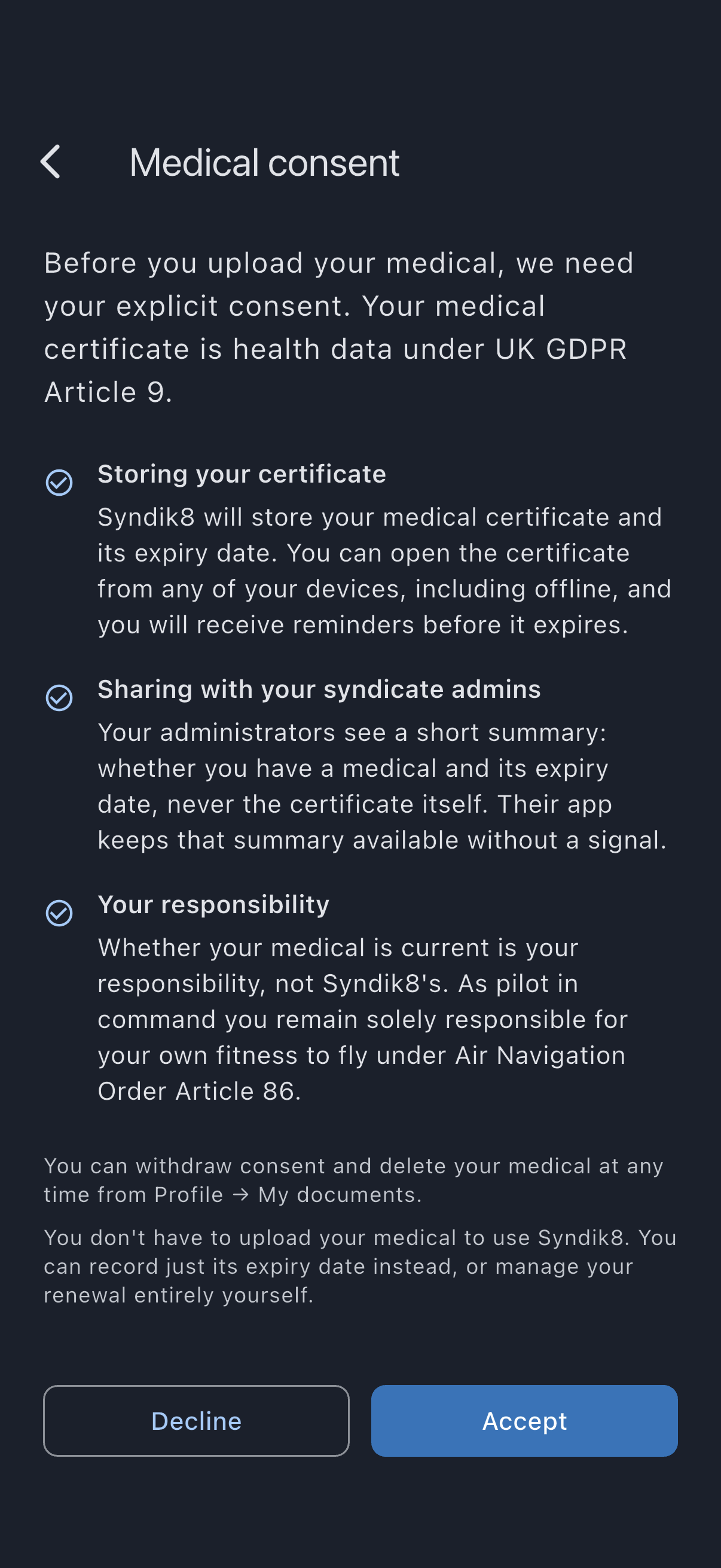
Section titled “Before you start”- Information about your medical is special-category health data under UK GDPR Article 9. Syndik8 stores it on the basis of your explicit consent (see Medical consent). The first time you record a medical you’ll be shown a consent screen; you can decline and nothing is stored.
- Have the certificate on your device. A PDF, a photo, or a scan are all fine (PDF, JPEG, PNG, or WebP). Up to 20 MB.
- You need the expiry date from the certificate. It’s mandatory for medicals.
- You don’t need to be an admin of any syndicate. Pilot documents are personal.
- Uploaded files are kept on your device for offline use and stay there after you sign out; the upload form carries a caution about shared devices for this reason.
- Open the Profile tab, then under Pilot documents tap My documents.
- On the Medical tile tap Upload certificate.
- (First-time only.) The Medical consent screen opens. It lists what will be stored, who sees what, and your continuing responsibility. Read it. If you agree, tap Accept. If you tap Decline, the upload is aborted and nothing is uploaded.
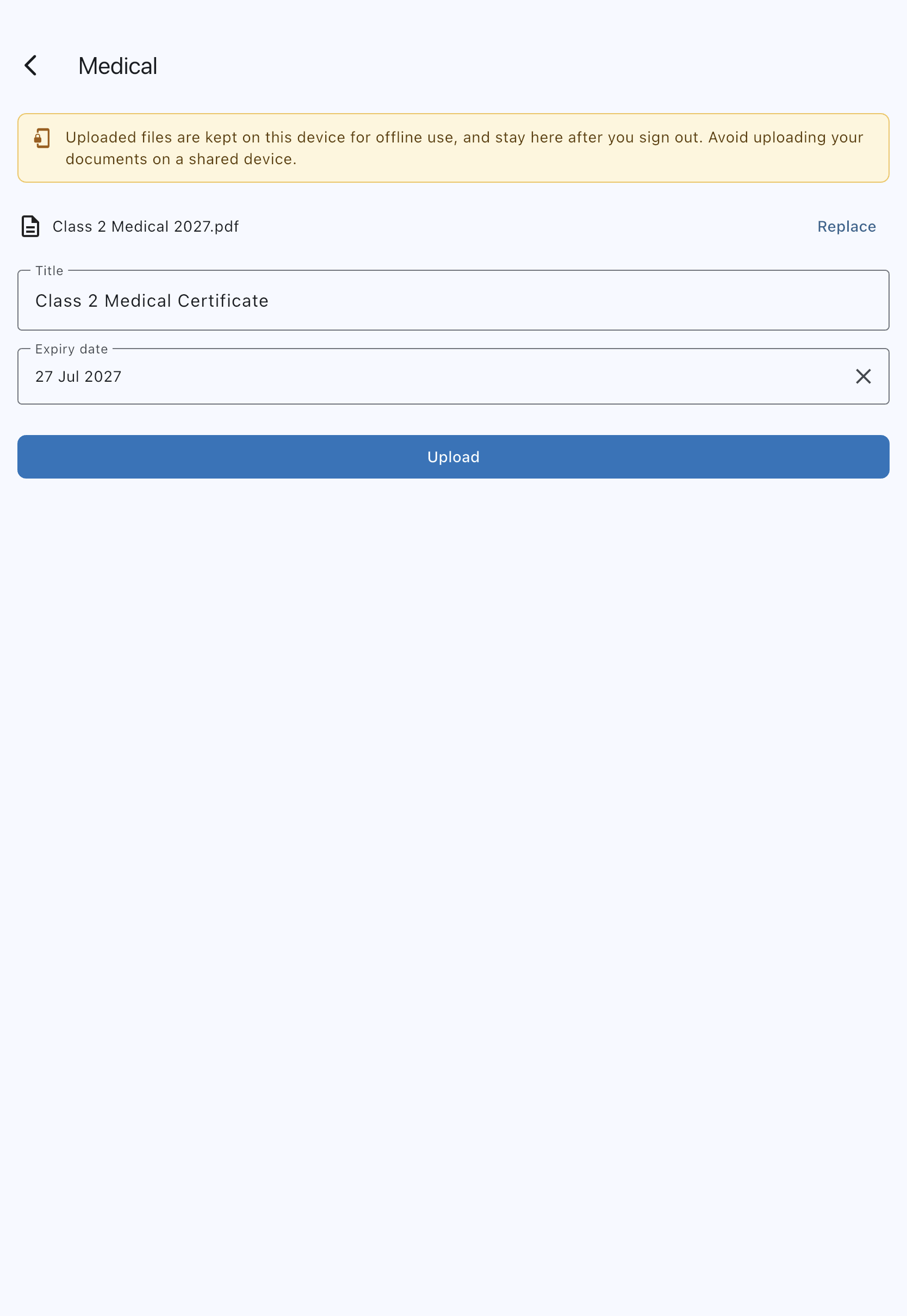
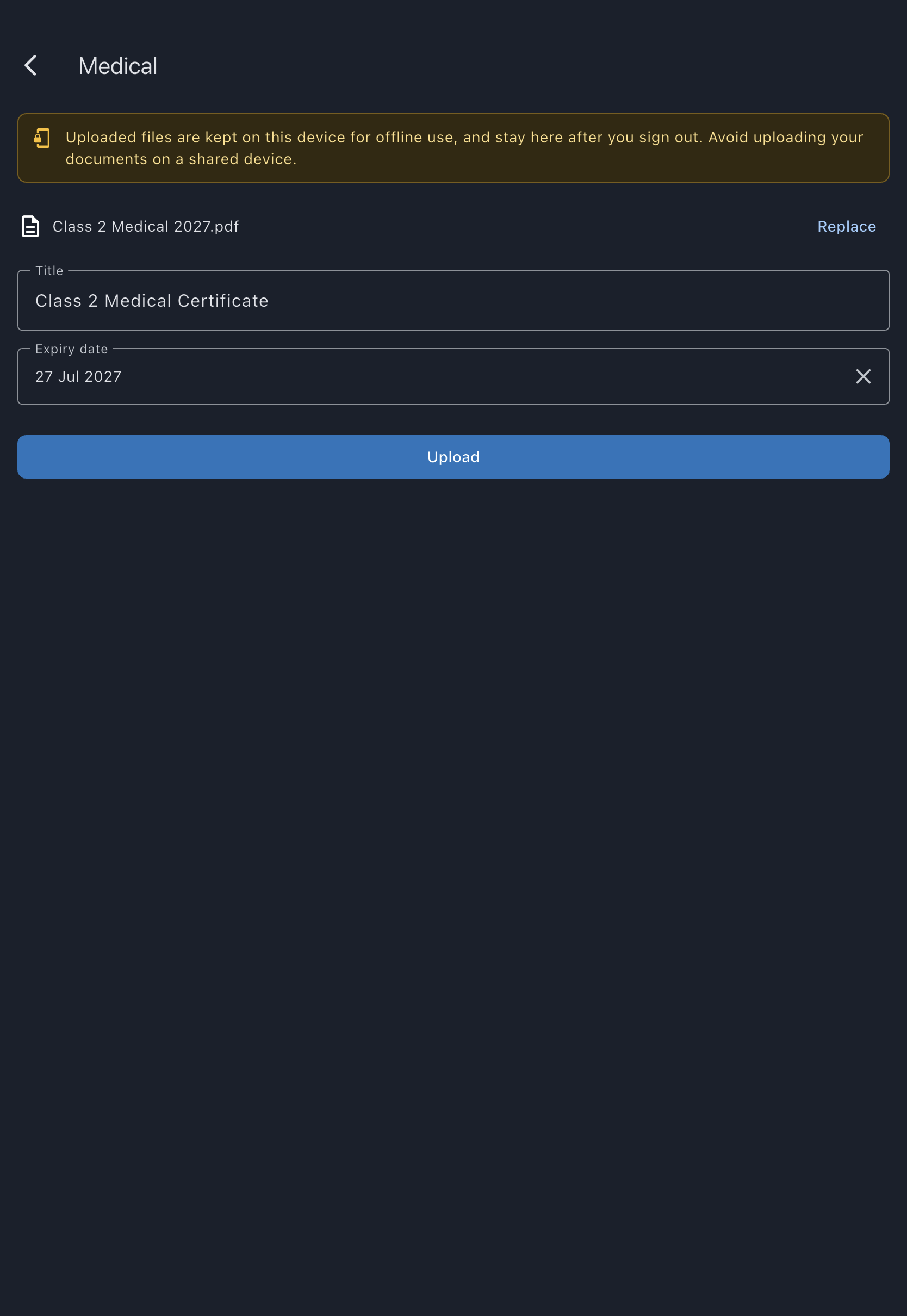
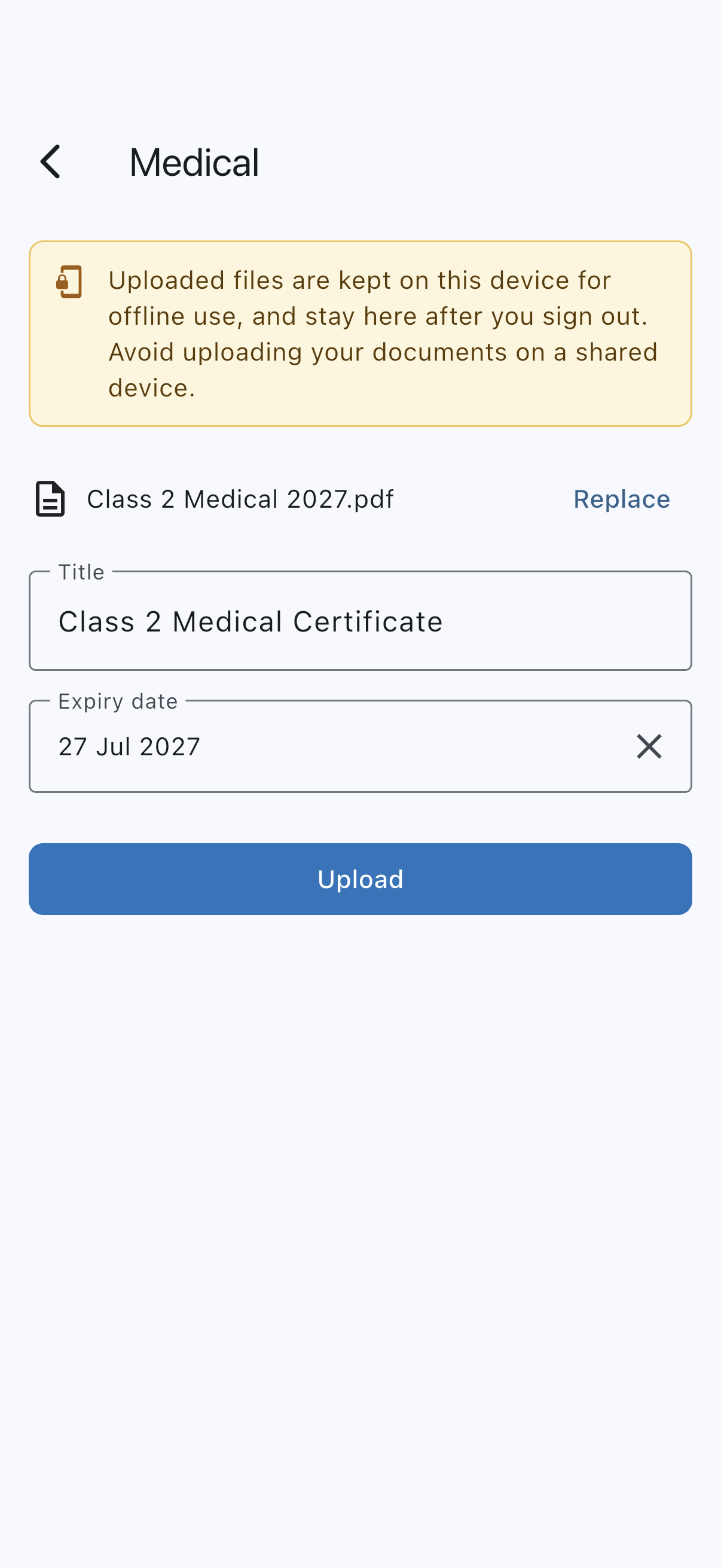
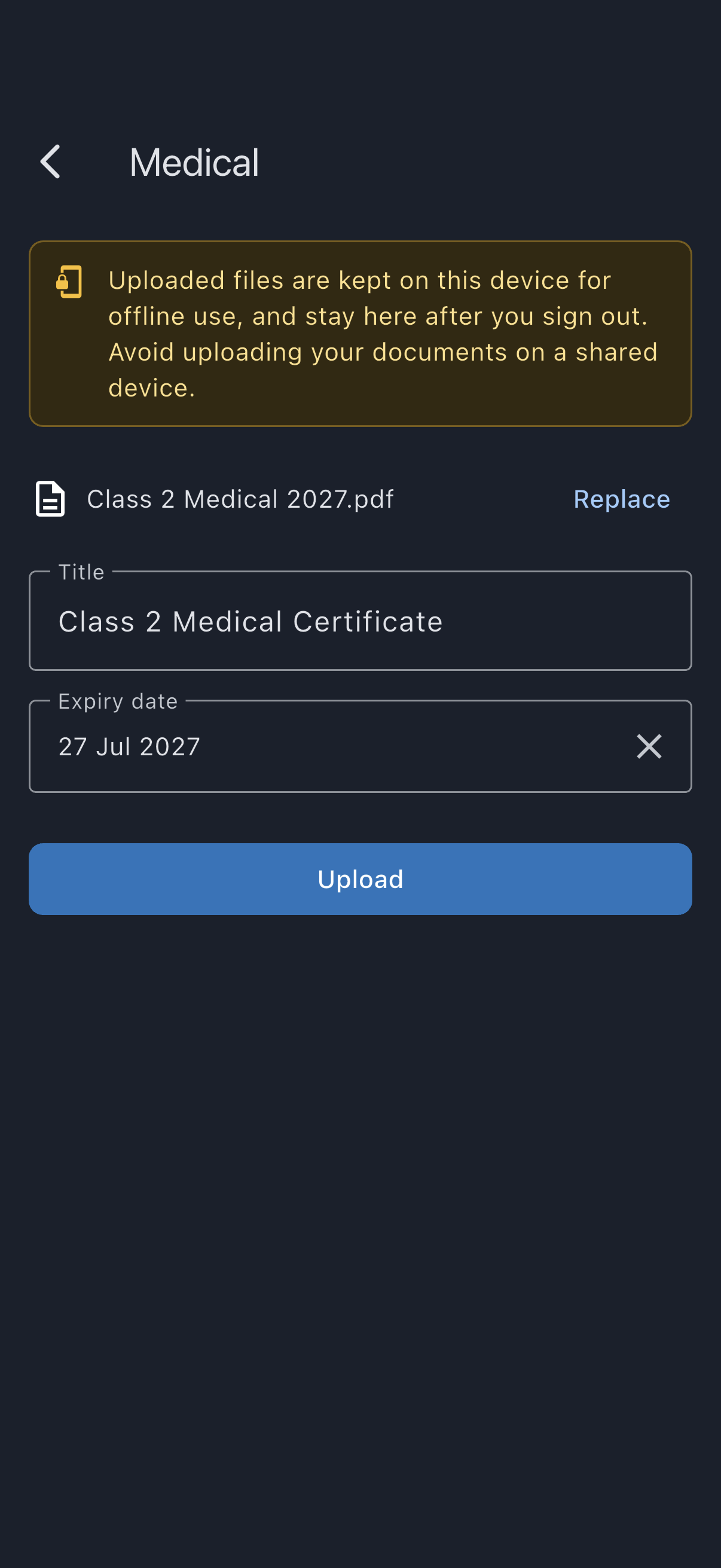
- Tap Choose file and pick your medical certificate from the device. If the file is over 20 MB you’ll see “This file is over 20 MB. Save a smaller copy and try again.”; if it’s another format, “Syndik8 accepts PDF, JPEG, PNG or WebP files.” Either way the file isn’t added, so choose a different one. If the upload itself fails once you tap Upload, usually for want of a connection, you’ll see “Upload failed. Please try again.” and can tap Upload again.
- The Title fills in as “Medical”. Edit it if you like, for example Class 2, Renewed Apr 2026.
- Pick the Expiry date from the calendar. This is the expiry printed on your medical. If the date you pick has already passed, a note appears beneath it saying the medical has expired. It is a check, not a block: you can still save a lapsed medical, for example while you are renewing, but look at the date again first in case it is mistyped.
- Tap Upload.
You’ll see a “Document uploaded.” snackbar and return to My documents. The Medical tile now shows the title and the expiry date, and colours its icon and that subtitle by how close the expiry is: green if you’re well clear, amber within the last 30 days, red once it’s past. There is no separate chip; the colour is carried by the text and icon themselves.
What happens next
Section titled “What happens next”- You’ll get a reminder in your notifications at 60, 30, and 7 days before expiry, and again on the day it lapses. See Document expiry alerts.
- Admins of every syndicate you’re currently in can see Medical expires {your date} in the Pilot documents section of your member detail screen. Your row on their Members list carries no icon at all while the medical is in date; the red one appears only once it is missing or has expired. They never see the certificate itself, the medical class, or any clinical detail.
- If you join a new syndicate while the medical is on file, that syndicate’s admins get the same view from the day you join.
Replacing your medical
Section titled “Replacing your medical”When you renew, upload the new certificate the same way: open your medical and tap Replace in the viewer, choose the new file, update the title and expiry, and submit. The old certificate is replaced in one operation, the reminder ladder re-evaluates against the new expiry, and what your admins see updates the next time they open the screen. (If your medical is a date-only record, the same viewer action reads Upload certificate and attaches the file to your existing record.)
Removing your medical
Section titled “Removing your medical”Open your medical and tap Delete. A screen offers two outcomes: Delete everything (the certificate, the expiry date, and your consent record all go; this withdraws your consent) or Delete the file, keep the date (only the certificate is removed, from Syndik8 and from your devices; your expiry stays and admins still see you as current). See Withdraw medical consent.