
Log a flight
Record a usage session against a booking: a flight for an aircraft.
Before you start
Section titled “Before you start”- It must be your own booking, or a maintenance booking. On a maintenance booking any admin or member (not a viewer) of the syndicate can log usage (the ferry pilot, the admin who watched the ground run). Being an admin does not on its own unlock the action while a member’s booking is still to come or under way: an admin gets Log Usage on another member’s personal booking only once it has ended. That is how an admin records a flight a member flew, and the form then starts with that member, not the admin, as Pilot in Command, Pre-flight By and Used by. See Record a flight that was not booked.
- The booking must be
confirmed. You can log usage during or after the booked time. The app offers no Log Usage on a booking that has been finalised (completed). A flight that still reaches one, from the End Flight card, the Apple Watch or a device that was offline, is kept and an admin is asked to bill it; see What happens after you save. - The syndicate must not be closed or in read-only mode; usage capture is one of the writes read-only blocks.
- A booking can have more than one log (e.g. three flights in a week-long booking). Add one log per flight.
Log a flight from the booking
Section titled “Log a flight from the booking”- Open the booking. From the calendar, tap the booking. From the Bookings tab, pick it from the list.
- Tap Log Usage at the bottom of the booking detail screen. (For an aircraft the screen that opens is titled Log Flight.) If a Quick Capture started in the last 24 hours is under way for this booking on this phone, Log Usage opens the capture’s end step, Flight complete?, instead of a blank form; finishing there opens Log Flight filled in from the capture. A capture started longer ago than that is left alone, and Log Usage opens Log Flight as usual.
- Fill in the fields. Exactly which fields appear depends on which measures the asset captures and its configuration. Full field reference: Usage log fields.
- Tap Log Usage at the bottom of the form to save. While it is greyed out, a line under it names the first thing still missing, in the order the form runs: “Add the departure airfield”, “Add the Landing time”, “Type the Tacho End reading”, “Sign the defects declaration”. Tap the line to scroll to that field. It only explains; the button’s rules are unchanged, so the pre-filled End reading still has to be typed over.
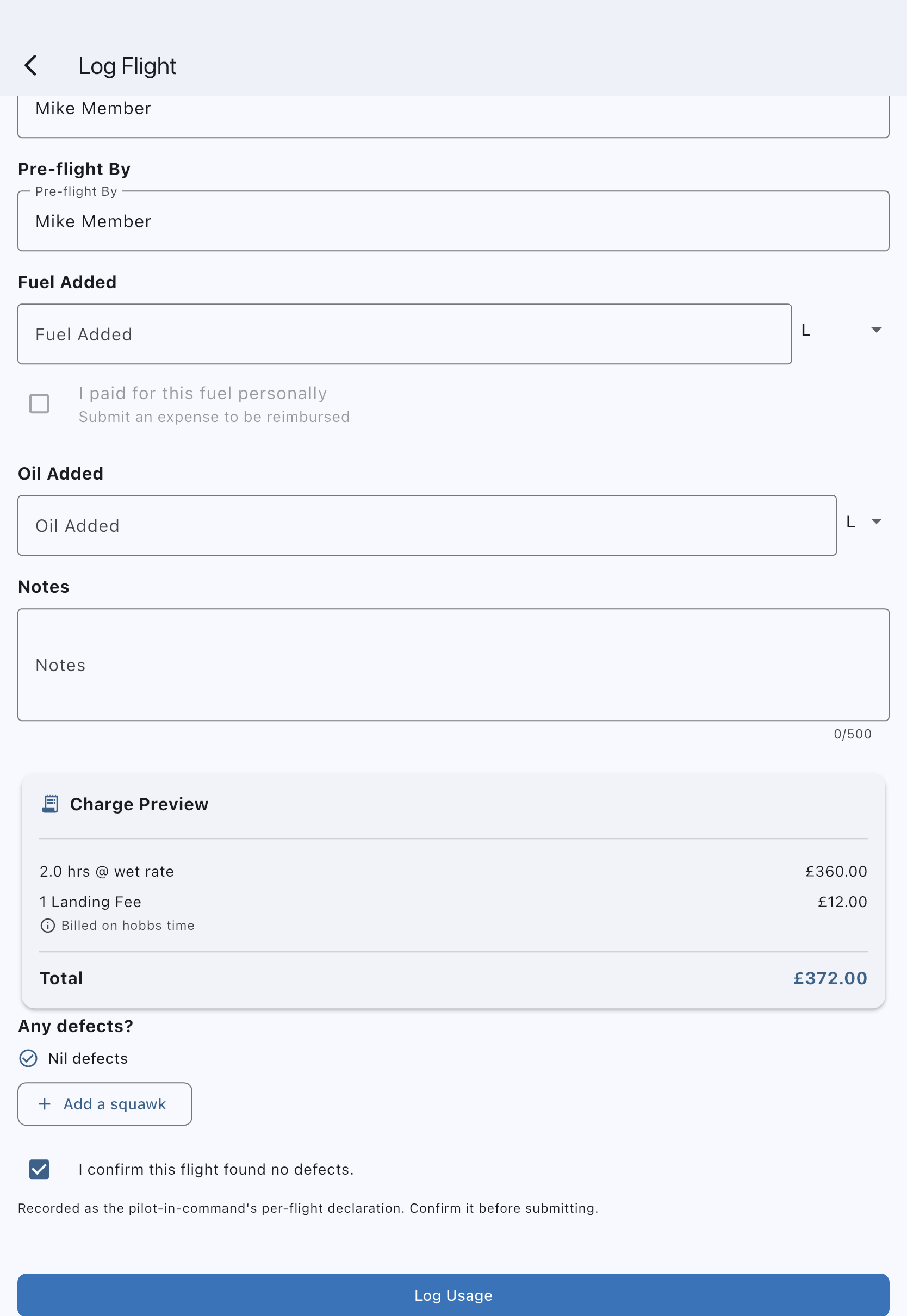
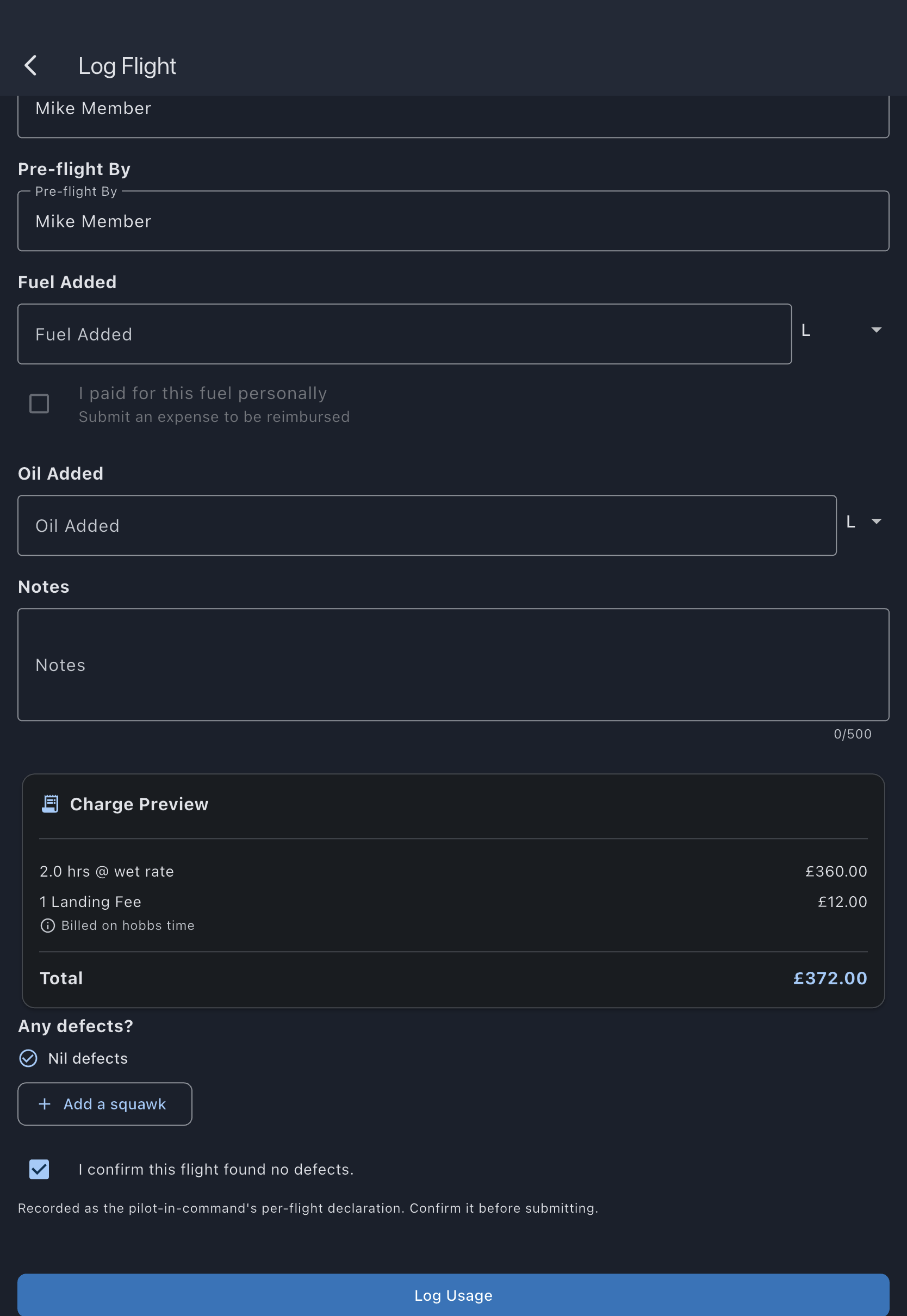
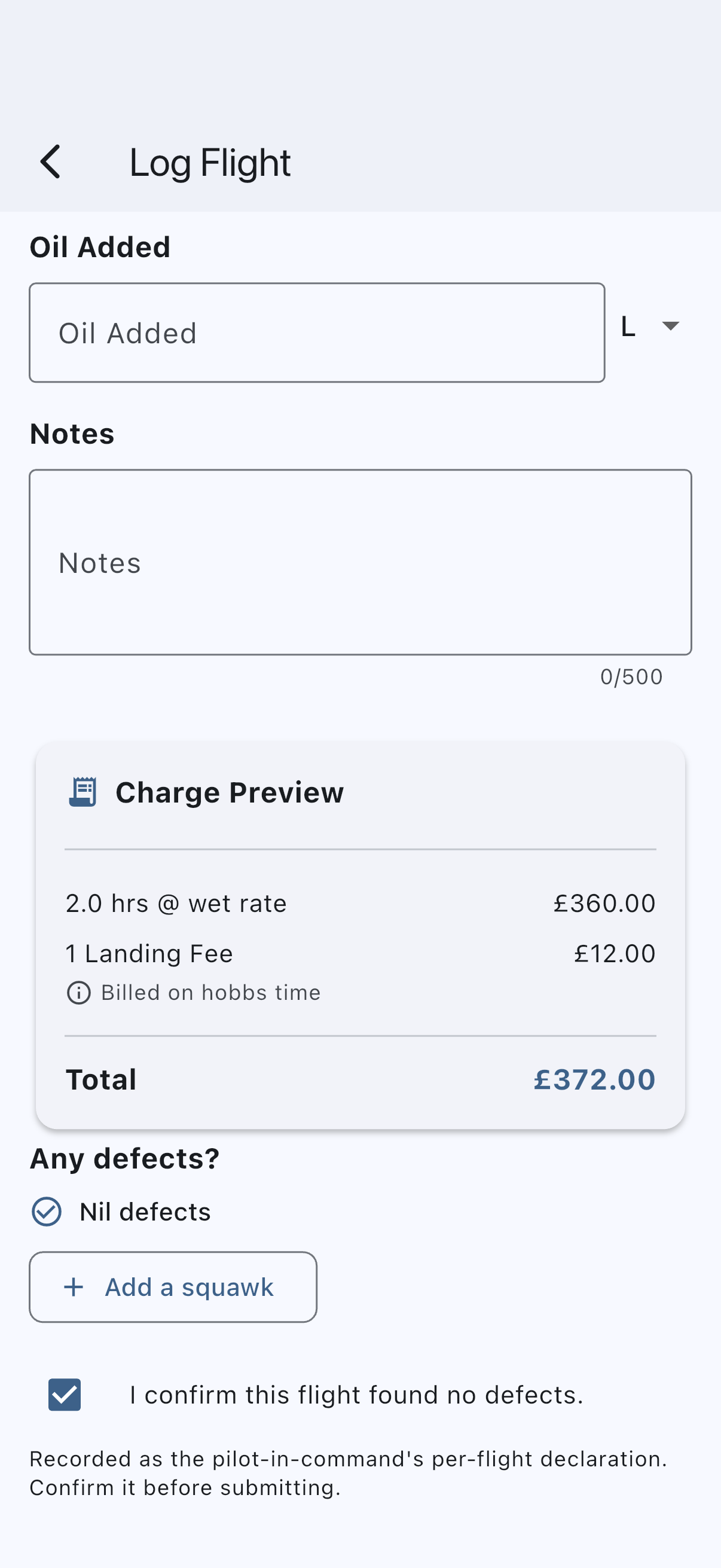
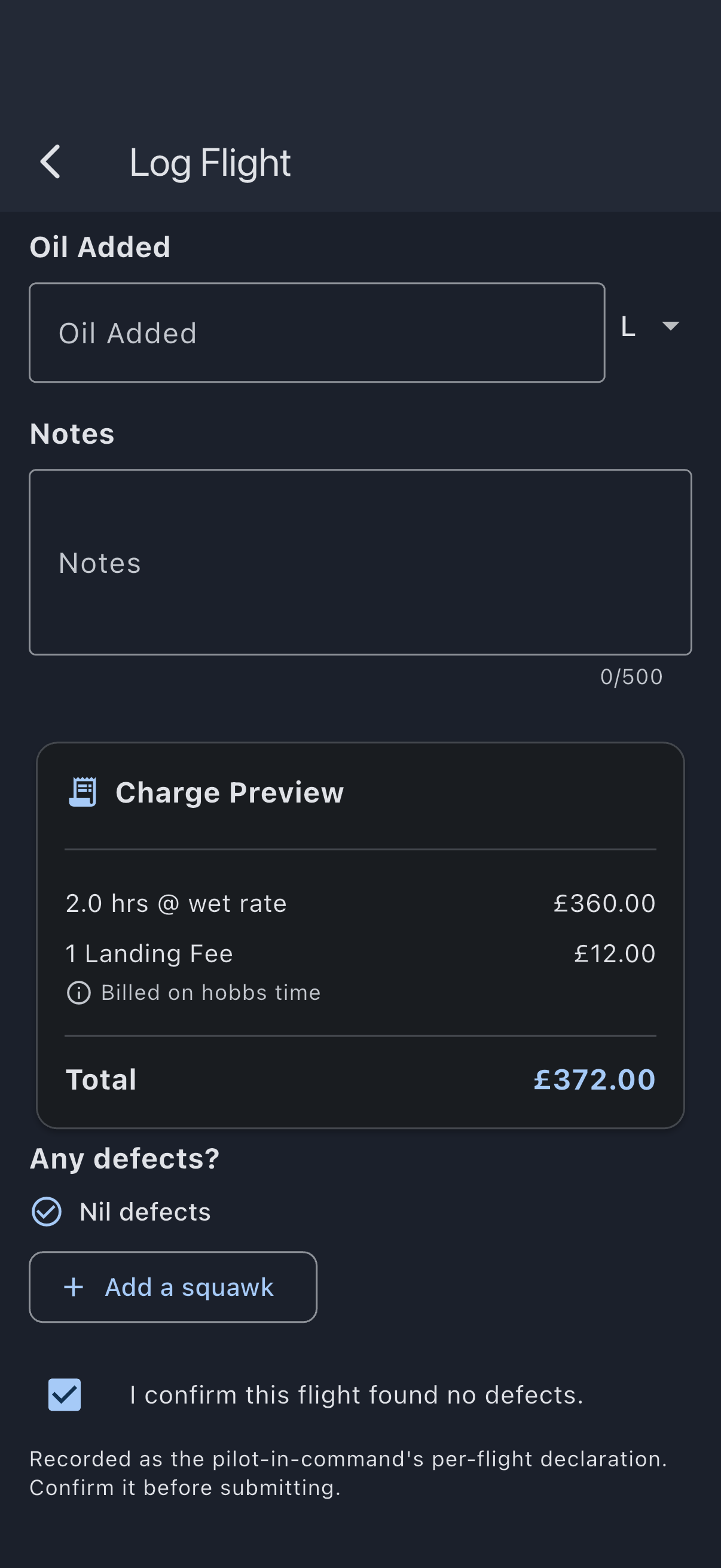
You’ll see a “Usage logged successfully” snackbar and the log appears in the booking’s usage-logs section.
If you leave the form before saving (the back arrow, a swipe back, or the Android Back button) after entering anything or adding a defect, the app asks Discard this flight? Keep editing is the prominent answer and returns you to the form as you left it; Discard the flight throws it away. An untouched form, including one opened already filled from Quick Capture or your watch, closes without asking (a departure the app filled in and you left alone does not count as something you entered), and nothing is asked once the flight is saved.
Key fields for a typical flight
Section titled “Key fields for a typical flight”- Date: defaults to the day the booking starts, or today if the booking starts later. Back-date if the flight happened earlier within the booking.
- Start and end readings: the asset’s meter reading at the start and end of the flight. They carry your syndicate’s names for them: Tacho Start and Tacho End by default (Hobbs Start and Hobbs End for a Hobbs), or whatever your admin chose. End must be above Start — equal is refused, because two identical readings describe no flight. Both arrive pre-filled: Start with the highest reading logged on the aircraft by the time your booking started (so a second leg starts where your first ended), and End with the Start reading less its last digit (1234.5 gives 1234), so you type the last digit or two rather than the whole number. Tapping into End keeps what is there and puts the cursor after the last digit. If the Start differs from where the flight before it ended, a line under it says so, for example “Last flight ended at 1234.5” (or “The aircraft’s opening reading is 1234.5” on the first flight on an aircraft since it was set up in Syndik8), and the booking is then held for an admin to check. That goes for every leg: a later leg must start exactly where your previous leg ended, neither above it nor below it. The line also shows when you edit a flight you have already saved, measured against the flights before it, so you can see what a corrected log should start on. If your own log is wrong, correct it while the booking is still open. The pre-fill sits just below the Start on purpose: the form will not save with it untouched, so type the real end reading. See Previous-tacho pre-fill. A reading takes at most two decimal places (a third cannot be typed), must not be below zero, and must be under 1,000,000; the End may be at most 10,000 above the Start. Those limits sit above any real meter and any real flight, so a reading outside them is a slipped digit and the form refuses it rather than saving it.
- The hours read-out under End: shows what your two readings come to, updating as you type. This is the number you can check — you know how long you were out, so if the read-out says 1.5 and you flew 1.8, the End reading is wrong. The minus and plus either side of it move the End reading by 0.1 a tap, which is the quickest way to close that gap; on a freshly opened form, plus starts the End at a tenth above the Start. Minus stops at zero. A dash instead of a figure means the hours cannot be worked out yet: a reading is blank, half-typed, or the End is below the Start — which is where the pre-fill leaves it until you type.
- Actual departure for an early meter-only flight: if the booking has not started and your syndicate records neither block nor airborne times, a single departure-time input is available. Enter when you actually departed if you want to close the booking before its reserved start. This also appears when editing that flight. It does not add a time span to your billing settings or invent a departure for you.
- Block start and end times: when your syndicate records block time. They carry your syndicate’s names for them: Brakes off and Brakes on by default, or a pair such as Off blocks and On blocks or Engine start and Engine stop. The form lists the times in the order of the flight: the block start, then the airborne start and end, then the block end. Once both block times are set, the block time between them shows under the last time field, with the airborne time beneath it. A flight log records a flight that has happened, so no time may be later than now; a time before the booking began is accepted.
- Airborne start and end times: for aircraft, the wheels-up and wheels-down times, named Takeoff and Landing by default (or Wheels up and Wheels down, or your syndicate’s own words). Airborne time is the measured takeoff-to-landing span; if your syndicate bills on airborne time, recording both is what produces a non-zero charge. When entering a new flight with your syndicate’s taxi time set, entering the block start fills the airborne start (and the reverse), and entering the airborne end fills the block end (and the reverse), so you only enter two of the four times; any value you set by hand is left untouched. Taxi only prefills these times; it never changes the charge.
- Departure and Arrival: ICAO codes, required for a flight. Type part of a code or an airfield’s name and the matching airfields appear in a list above or below the box, whichever side has more room, for example EGMC (London Southend Airport) once you have typed EGM; tap one to put its code in the box. Nothing is chosen for you, and a strip that isn’t on the list is typed in full and kept as you typed it. On an aircraft the departure starts filled in with where the aircraft last landed (a second leg starts where the first ended), or its home airfield when nothing has been logged; change it if you left from somewhere else. If your departure differs from the last landing, a line under it says so, for example “Last landed at EGKB”, and the booking is then held for an admin to check. That goes for every leg: a later leg must leave from where your previous leg landed. Ground runs (Ground run: no takeoff selected) are passed over, so they never count as a landing; see Departure pre-fill. The arrival is never filled in. Letters appear in capitals as you type, and codes are saved in capitals whatever the keyboard sends, so the tech log reads the same airfield the same way. Event fees (landing and touch-and-go) apply only when the arrival matches the asset’s home airfield; a different airfield, or no home airfield set, means no event fees for that log. A blank arrival is not accepted for a flight and is never treated as “home”. A freshly opened form doesn’t flag an empty route: the route messages appear once you type in a route field, or as soon as the route is the only thing still stopping Log Usage.
- Touch-and-gos and the Flight / Ground run choice: every aircraft flight records exactly 1 full-stop landing. Enter the T&G count in digits, or leave the box empty if you flew none: an empty box counts as 0, so it never stops Log Usage; a circuit session with four touch-and-gos and a final full stop is 1 full stop plus 4 T&Gs, charged at their separate rates. Record each flight leg separately. The chosen answer shows a tick, with its outline and text in green. Choose Ground run: no takeoff for an engine run: it records 0 full stops and 0 T&Gs while retaining meter and block readings. It can be chosen while the T&G box is empty or 0; with any touch-and-gos entered it is greyed out, and a line under it reads Set touch-and-gos to zero to mark a ground run. Historical counts remain visible on edits and are preserved when unchanged. Changing either counter or the flight/ground-run choice requires a valid set; choosing Flight explicitly sets one full stop. Rejected watch captures and drafts keep their original values for review.
- Pilot in Command and Pre-flight By: member pickers with free-text fallback. Both start filled with your own name — your display name, or your first and last name if you have not set one. What you leave in these boxes is kept in the aircraft’s technical log permanently, so the app will not stand your email address in for a name: if you have set no name at all they start empty, and the flight records your account until someone types a name in. For the same reason the member list offers people by name only, so a member who has set none is not suggested; type theirs by hand. Pilot in Command must name someone: if you clear it, Log Usage (or Update Usage when you edit a flight) stops and the field reads “Enter the pilot in command” until you pick a member or type a name. The same applies when you edit an older flight that was saved with no pilot at all: name one before Update Usage will save it. A flight that recorded the pilot’s account but not their name, as a watch capture taken before the first sync can, opens with their name filled in.
- Fuel Added and Oil Added: amounts, in the units configured on the asset. Fuel is optional; if entered, it must be a finite number from 0 to 10,000 in the selected unit. A larger or invalid quantity shows an error and prevents saving or claiming reimbursement until corrected. This also applies to the full form opened from Quick Capture. Older logged quantities are kept; correct an oversized quantity before saving an edit through this form.
- I paid for this fuel personally: a checkbox under the fuel field. Tick it when you paid for the fuel uplift yourself and want to claim it back. On save, the form hands off to the expense submission flow with the fuel quantity and unit pre-filled; you add the receipt and total there. Any defects you added are written with the flight first, so the two never compete for the screen. The checkbox stays disabled when the fuel field is empty or zero (nothing to claim).
- Notes: free text for anything noteworthy.
Populated time fields have an × button (Clear) beside the clock icon. Tap it to clear that time and its date without changing another field. Any required times must be entered again before saving.
Choosing Ground run: no takeoff hides takeoff, landing, and the airborne duration. These times are excluded when you save a ground run. Switching back to Flight before saving brings back any times you had entered.
Confirm any defects before you submit
Section titled “Confirm any defects before you submit”For an aircraft flight that left the ground, the form asks Any defects? and will not save until you have signed the line under it.
The line starts at Nil defects. If you found something, tap Add a squawk and write it up: a card rises over the form with the same title, description, severity and photo fields as reporting a squawk from the aircraft. Save it and the card drops away with your half-filled flight form exactly as you left it, and the line now reads “1 defect recorded” with what you wrote listed under it. Add as many as you found. Each has a cross beside it if you want to take one off again.
Nothing is written when you close the card — a defect is saved with the flight, which is what the note under the card says. Back out of a half-written one and the app asks before discarding it; the flight form itself is untouched either way.
Then tick the line to confirm it. The wording follows what it says: “I confirm this flight found no defects” when the list is empty, and “I confirm the defect above is the only one this flight found” once you have added one. Adding or removing a defect clears the tick, because what you would be confirming has changed. Submit without it and the form blocks with “Confirm whether the aircraft has any known defects before submitting.”
This is a per-flight declaration tied to the flight you are logging, not a running status on the aircraft, and each defect you add is recorded against that flight — so the aircraft’s tech log can say not only that a defect was found but what it was.
The question is shown only for aircraft, and only when the flight actually took off. A ground run with Ground run: no takeoff selected, a non-aircraft asset, or a maintenance log doesn’t ask it. Once saved, you can’t change the declaration unless you are an admin of the syndicate: editing other fields on the log later never changes it or asks again, and a log that reported a defect has no Delete button for you. The declaration is shown under the flight in the booking’s Usage Logs section, as “No known defects” or “Defect reported”, with the defects raised on that flight listed under it — tap one to open it. Where a flight says a defect was reported and nothing describes it, the line reads “no squawk recorded” rather than leaving you to guess. If the answer was wrong, ask an admin to correct it (see below). Why this is a pilot’s call and not the app’s: Pilot-in-command responsibility.
A defect you notice at any other time — on a walk-round, or after the flight is already logged — is still reported against the aircraft in the usual way. That one names no flight, which is correct: it did not come from one.
Correct a pilot’s declaration (admins)
Section titled “Correct a pilot’s declaration (admins)”If a pilot chose the wrong answer, an admin of the syndicate can change it without removing the flight:
- Open the booking. It must be confirmed or completed.
- In Usage Logs, find the flight and tap Correct declaration.
- Read what the change does, type a reason if you want one on record (it’s optional), and tap Change to no known defects or Change to defect reported. Cancel closes the dialog and changes nothing.
The flight keeps its hours and its charge, the log is marked (edited), and the change is recorded with your name and the reason — a record that survives even if the flight is later deleted. Correcting needs a connection: offline, the app says it couldn’t reach the server and nothing changes. Changing a reported defect to no known defects doesn’t close a squawk the pilot raised; deal with that separately. Setting a declaration to defect reported writes no squawk either, so that flight will read “Defect reported, no squawk recorded” until somebody reports one. Pilots who aren’t admins don’t see Correct declaration.
Auto-fill from flight data
Section titled “Auto-fill from flight data”If the aircraft has ADS-B transponder data recorded for its registration, Syndik8 can fetch the flight records for your booking window and pre-fill departure, arrival, and block times for you.
The Auto-fill from flight data button appears on the Log Flight form when:
- Your syndicate records block time. The lookup returns gate-to-gate times and a route and nothing else, so on a syndicate that records only the engine meter there is nothing for it to fill in.
- The booking’s start time has already passed (ADS-B data isn’t available for flights that haven’t happened yet).
- The aircraft has a registration number configured on its asset record.
To use it:
- Open the Log Flight form for a past booking.
- Tap Auto-fill from flight data. The app fetches flight records for the booking window.
- A picker sheet appears listing the flights recorded for that registration. Each entry shows the route, off-blocks and on-blocks times, and the block duration.
- Tap the flight that matches your log. Departure, arrival, off-blocks, and on-blocks are filled in immediately.
If the booking window contained more than one flight (a day of circuits, or a booking that covered two legs) all flights are listed and you pick the one you want to log. The picker always shows, even when there is only one flight, so you can confirm before committing.
Already logged: a flight that overlaps (within 5 minutes) with a usage log you’ve already saved for this booking shows an “Already logged” chip. You can still select it if you need to; a confirmation prompt appears first to make sure it isn’t a duplicate.
If no flights are found: a “No flights found in this booking window” message appears. This can happen if the aircraft flew without ADS-B coverage, the data hasn’t arrived yet, or the registration on the asset record doesn’t match what is held in the recorded flight data. Fill in the fields manually.
If the fetch fails: a “Couldn’t fetch flight data” message appears with a Retry button. Tapping Retry re-attempts the lookup without closing the form.
After auto-fill, all pre-filled fields remain editable. The meter readings, landings, and notes are not touched; fill those in as normal.
Auto-fill meter readings with a photo
Section titled “Auto-fill meter readings with a photo”Both the Start and End meter fields have a camera button next to them.
- Tap the camera icon.
- Take a photo of the Hobbs or tacho meter. On the web you choose a photo file instead.
- The first time, the app asks Send meter photos to AI? Choose Allow to have photos read by AI services from Cloudflare, Google and OpenAI, or Don’t allow to send nothing: the photo is still attached and you type the figure. You can change this under Preferences in Settings.
- While the photo is read, the field shows Reading…. When you’re online the photo is read automatically, the same way on iPhone, Android and the web, and the reading is filled in when it comes back.
- Check the filled number against the real meter. If it’s wrong, type over it; the field stays editable and nothing asks you to confirm.
Anything you type wins:
- If you tap the field, type, or press the minus or plus under End before the reading comes back, the reading is dropped.
- If the field already holds a reading you typed, the photo is attached and the field is left alone.
- A reading that is filled in is yours to change. Typing over it is taken as your answer, with no second check.
A reading is only filled in when Syndik8 is confident of it: two separate readers must see the same number, and it must fit where the meter should be (a start near where the last flight ended, an end not far past the start). If they disagree, the photo can’t be read, or nothing comes back within about five seconds, the field is left as it was, with no message. The photo is attached either way. With no start reading to check against, the server is not asked. Taking another photo of the same meter replaces the earlier read; if the new photo can’t be read, the field goes back to what the app had filled in.
Offline, if you chose Don’t allow, when the server’s reader isn’t working, or once you’ve had the day’s 20 photos read, an iPhone reads the photo on the device instead, under the same rule that what you type wins; it fills the field only when every drum of the counter comes out clearly as one number. Otherwise on Android or the web, the photo is attached as evidence and you type the reading.
For the cleanest read, when you photograph the meter:
- Fill the frame and shoot square-on: hold the camera straight in front so the digits sit on one horizontal line.
- Avoid glare on the glass: a reflection can wash out a digit or be misread as a mark between the drums.
- Keep every digit clear: don’t let the needle, a finger, or a shadow fall across the numbers.
- Hold steady and let it focus: a sharp, well-framed shot reads best.
- Frame one meter at a time: just the Hobbs or tacho counter, not the whole panel.
- Wait for a settled reading: if a drum is mid-roll between two numbers, let it settle or type the value in.
The End-meter photo is saved to the log as evidence. The Start-meter photo is held in memory to help you confirm your reading, but it isn’t saved with the log.
Full detail: Hobbs and tacho photos.
Use Quick Capture on a flying day
Section titled “Use Quick Capture on a flying day”If you’re about to fly and want a two-step workflow (capture the start readings on the ramp now, finish the log after you land), use I’m flying now instead.
The Home Start Flight card stays available throughout your confirmed non-maintenance booking, including multi-day bookings, and within two hours either side of its start, matching the Watch. A booking may contain several legs, so logging one does not remove Start Flight for the next. An active capture keeps End Flight priority.
- On the booking detail screen, tap I’m flying now (shown on your own confirmed booking from two hours before it starts until it ends, but never on a maintenance booking, where a ferry flight or ground run is recorded with Log Usage, and not while another flight is in progress on the End Flight card, so a second capture can’t replace it).
- The ramp Start step captures the start-meter reading (pre-filled as a soft placeholder from the highest end reading logged on the aircraft by the time your booking started, or its opening reading when nothing has been logged; see Previous-tacho pre-fill), the block start time (Brakes off, or your syndicate’s name for it), and the departure airfield. The departure starts at where the aircraft last landed, or its home airfield when nothing has been logged (an airfield missing from the app’s list is left for you to choose); tap it to choose another. The picker lists the airfields nearest your phone first when you allow location, then the aircraft’s home airfield and the airfields it has recently flown to or from; with location off it lists the home and recent airfields, and you can always search by code or name. Nearby airfields are only suggestions: the app never chooses one for you. For an aircraft, Start Flight with no departure chosen says “Choose where you’re departing from” on the field and starts nothing. At the end step, the arrival picker offers the departure first, since many flights end where they began. Each step shows only what your syndicate records: on a syndicate that captures the engine meter alone there is no block start field, and no time is stamped for you. The time fields carry no date. A time still to come today that fell within the past 12 hours yesterday is taken as last night’s, so 23:55 picked at 00:05 means ten minutes ago. A time only a little ahead of now stays today, so a block start later than now shows “Brakes off cannot be later than now” (in your syndicate’s words), and Start Flight does nothing until it is corrected. Take an optional start-meter photo, then tap Start Flight.
- When you land, pick the flight up from the End Flight card. It sits on the syndicate’s Dashboard and on your Home screen for as long as a capture is open — not on the booking, which still only offers I’m flying now. (Tapping Log Usage on the booking while the capture is open brings you to the same end step, provided the capture was started in the last 24 hours.) The end step captures the end meter, end photo, block end time, arrival airfield, touch-and-gos, and the explicit full-stop landing or ground-run choice. The end meter arrives pre-filled with your start reading less its last digit, the same as on the Log Flight form, so you type the tail; it will not accept the pre-fill untouched, a reading equal to the start, or a reading outside the limits the Log Flight form applies (the Start step checks its reading the same way), nor a block end time later than now. Tap End Flight there to open the full Log Flight form, pre-filled with your captured data, for a final review before saving.
Quick Capture is a convenience wrapper around the normal log-flight flow, not a separate log.
Fix a flight from your watch
Section titled “Fix a flight from your watch”When the phone cannot save a flight captured on the Apple Watch (a meter reading that could not be real, a time later than now, a missing departure, arrival or defect declaration, or a booking that has not reached the phone yet), it keeps the flight and notifies you: “Check your 11:05 flight: the meter reading looks wrong.” The same flight is listed on your Home screen under A flight from your watch needs checking, in case notifications are off.
- Tap the notification, or Check and save on the entry on Home. Log Flight opens on the flight’s booking with everything the watch recorded filled in, including a reading that was refused, and a note at the top saying what to check.
- Correct the field and tap Log Usage. The flight is saved once, however many times the watch delivered it, and it leaves the Home list.
If the save is refused again, the flight stays on the phone for you to try again. To log it another way instead, tap Discard this flight on its entry on Home and confirm Discard. A discarded flight cannot be recovered.
If the flight is already logged
Section titled “If the flight is already logged”A flight logged twice is charged twice, and the usual way it happens is logging on the Apple Watch and then again on the phone. So before a new flight saves, the form checks it against the flights already on the booking. If its flight times overlap one of them, or its start and end readings are the same as one of them, the form asks Already logged? and names the flight that is already there: by its times (“A flight from 11:05 to 12:10 is already logged on this booking.”), by its readings when it recorded no times, and starting “Your watch already logged…” when the watch filed it. Then it asks Save this as another leg?
- Cancel returns you to the form as you left it. Nothing is saved.
- Save as another leg saves the flight exactly as you entered it. Use it only when this really is a different flight.
Legs flown back to back never count: a second leg that starts at the moment the first ended, or on the reading it ended on, saves without the question. Readings that only partly overlap, at different times or with no times recorded, don’t ask either: those are two flights, and the later one doesn’t follow on from the one before it, so the booking is held for that instead. Editing a flight you have already saved never asks.
If one flight does end up logged twice on a booking, its Usage Logs section marks both logs “Overlaps another log on this booking. Is it the same flight logged twice?”, and a log the watch filed is marked From the watch. Remove the spare one. Until you do, the booking can’t be closed, auto-finalisation holds it back for an admin, and an admin finalising it is shown the overlap first.
What happens after you save
Section titled “What happens after you save”- The log is recorded against the booking. Saving never finalises the booking or posts a charge.
- The Log Usage button remains; you can add further logs to the same booking (e.g. a second flight on the same trip).
- Any defects you added are written straight after the flight itself, naming it. Nothing opens for them: they were written on the form.
- When you save a new flight (not an edit) on your own confirmed booking that has started, at most one thing follows:
- If you ticked I paid for this fuel personally, the expense form opens, and nothing else.
- Otherwise, if your syndicate doesn’t let members close their own bookings, nothing follows: an admin finalises the booking.
- Otherwise, a sheet opens over the log form (still showing its “Usage logged successfully” snackbar) and asks Is that your last flight on registration? It shows the charge, including any minimum-usage shortfall. Tap Close booking and post £Z to finish with the booking, or Not yet, I’ll log more. The log screen closes once you’ve answered. Offline, the sheet says Close your booking later instead.
- After the expense form, close the booking later: tap Close booking on the booking, or use the Finished with registration? card on your Home screen. See Close a booking.
- A booking you leave open is finalised by an admin, or automatically 24 hours after it ends if your syndicate has auto-finalisation on and there is no shortfall.
- If the booking was already finalised when the flight reached the server, the flight is kept but not billed, and every admin of the syndicate is notified so they can add it to the charge. You see “Flight logged. This booking was already finalised, so an admin has been asked to add this flight to its charge.”
The estimated charge
Section titled “The estimated charge”Once the readings that drive your syndicate’s billing are complete, the form shows an estimated charge for the flight. The estimate is calculated on the server with the same machinery an admin’s finalisation uses (your rate, event fees, the lot), so it only appears when you are online. Logging offline shows a note that the cost will be available once you’re back online; the estimate is filled in when the log syncs. Syndik8 never computes charges on the device.
The figure is indicative, not final. The close sheet shows the booking’s actual charge, shortfall included, before you post it. If an admin finalises instead, they can still waive a shortfall, correct a mis-read meter before finalising, or add a separate charge or credit afterwards (damage, goodwill), any of which changes what is actually billed. Until the booking is finalised, the estimate sits as a pending amount on your member balance, itemised per flight, and also shows against the log on the booking detail screen.
Finalisation happens per booking, not per flight: a multi-day booking’s shortfall can only be worked out once all its flights are in. See Why finalisation is a separate step.
If it goes wrong
Section titled “If it goes wrong”- “Start value is required” / “End value is required”: the start or end meter field is empty.
- “End value must be greater than the start value”: the End reading is below the Start — a typo, a misread photo, or a Start you have just corrected upwards past an End you had already entered. Re-check the meter.
- “End value is the same as the start value: the meter has not moved”: the two readings are identical, which describes no flight. Type the real end reading.
- “Enter a valid number”: the meter field must be numeric.
- “That reading is out of range: a meter cannot read below zero or run to seven digits. Check for an extra digit.”: a reading is negative or 1,000,000 or more.
- “Meter readings go to two decimal places at most. Check for an extra digit.”: a reading has a third decimal place, usually from a pasted value. It is refused rather than rounded, so type the reading as the meter shows it.
- “The end reading is too far past the start to be right. Check both readings for an extra or missing digit.”: the End is more than 10,000 above the Start, which no single log can record.
- “Enter the departure airfield” / “Enter the arrival airfield”: a flight needs both. They are required for any aircraft flight that took off (a ground run with Ground run: no takeoff selected is exempt). The arrival also decides whether home-airfield event fees apply, so a blank arrival is never accepted as “away”. The messages show as soon as every other field is valid and the route is all that is left, or once you have typed in a route field; an untouched empty form shows neither.
- “Choose Flight: one full-stop landing, or Ground run: no takeoff.”: a restored capture has an invalid full-stop count. Choose the flight that happened. For a ground run, clear the T&G box or enter 0 first. Negative, fractional or malformed T&G counts cannot be saved.
- “Confirm whether the aircraft has any known defects before submitting”: you tried to save an aircraft flight without signing the Any defects? line. Add any defects you found, then tick the line to confirm it as it reads.
- “The flight was saved, but a defect could not be. Report it from the aircraft.”: the flight is recorded and at least one of its defects was refused. Report that defect against the aircraft; it will not name the flight, so say which flight it was in the description.
- “Landing cannot be later than now” and similar: a time on the form is in the future, often a slip of the hour or the date. A flight log records a flight that has happened, so Log Usage stays greyed out until every time is now or earlier. The message names the time in your syndicate’s words. Starting before the booking began is not refused. If a log with a future time reaches the server from a phone whose clock was wrong (the server allows five minutes), it is refused there; a log refused that way after being saved offline is removed from the phone, and you are sent an Offline Change Not Saved notification.
- “Brakes on must be after Brakes off”, “Takeoff cannot be before Brakes off” and similar: two times are in the wrong order, often an AM/PM slip. The message names the times in your syndicate’s words, as the fields do.
- “Already logged?”: the flight’s times overlap one already on the booking, or it has the same readings. See If the flight is already logged.
- The Log Usage button is missing: the booking isn’t
confirmed; or the booked time hasn’t started yet; or it is someone else’s personal booking (an admin gets Log Usage on another member’s booking only once it has ended, as well as on their own and on maintenance bookings); or the syndicate is closed or in read-only mode; or it is a maintenance booking and you are a viewer. - The photo filled the wrong number: type over it. Reading the photo is best-effort, and what you type wins.
- The photo attached but the field didn’t change: the photo couldn’t be read with confidence, which is common on a tacho where the needle or glare covers the drums; or you tapped into the field before the reading came back; or you were offline on Android or the web. Type the reading; the photo is kept as evidence.
- Auto-fill button is missing: your syndicate doesn’t record block time (the lookup has nothing else to offer); or the booking’s start time hasn’t passed yet; or the aircraft doesn’t have a registration number set. Ask an admin to add the registration on the asset’s settings screen, or to record block time on the Usage capture screen.
- Auto-fill found the wrong flights: the registration on the asset record may not match what is in the recorded flight data. Check the asset’s registration and update it if needed, then retry.