
Change your email
Move your account to a new email address.
Before you start
Section titled “Before you start”- You must be signed in.
- You need access to both your current and your new email inboxes. Syndik8 sends a confirmation link to each, and the change only takes effect once you have opened both.
- Open the Profile tab.
- In the Security section, tap Change email.
- Enter the new address in the New Email field. The dialog shows your current email so you can see what you’re replacing.
- Tap Update Email. Syndik8 sends a confirmation email to your current address and another to the new one, and closes the dialog with a message naming both addresses and asking you to open both links. Both emails name the address you are moving from and the one you are moving to.
- Open either inbox and tap Confirm Email Change in that email. If the button doesn’t work, copy the link printed underneath it into your browser instead.
- Syndik8 opens and says Confirmed. Now open the link we sent to your other address to finish the change. Nothing has changed yet.
- Open the other inbox and tap Confirm Email Change in that email too.
- Syndik8 opens and says Your email address has changed.
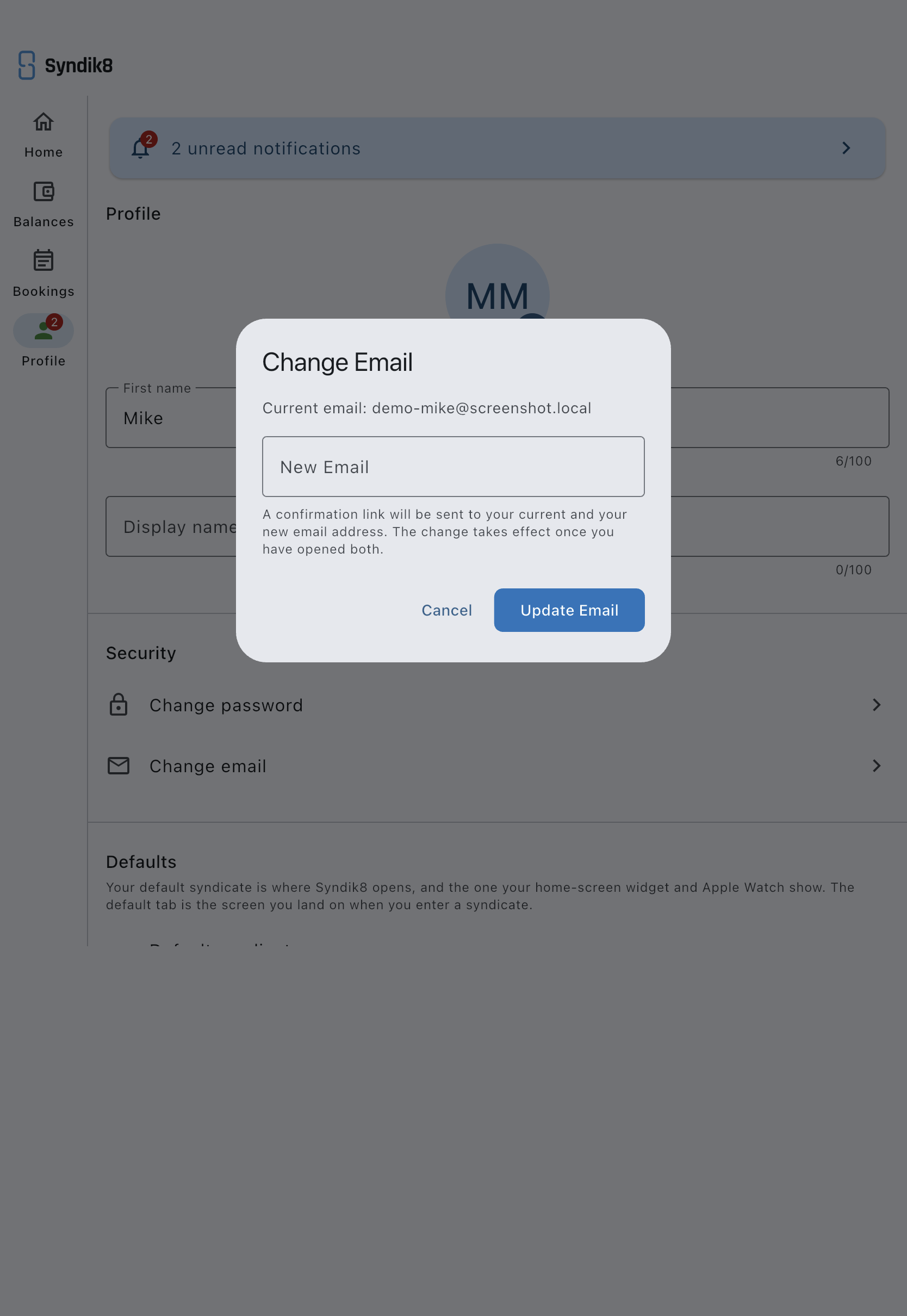
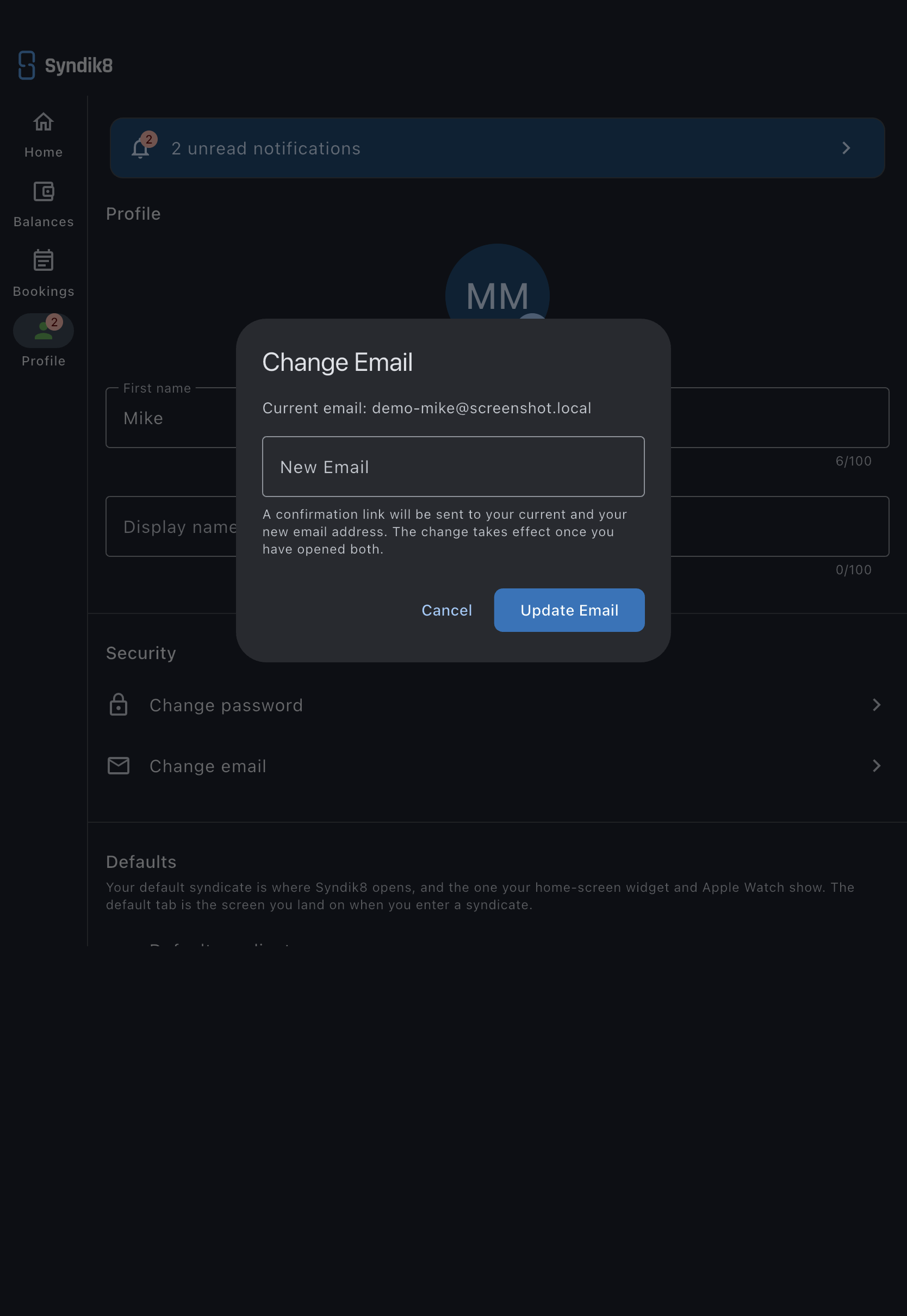
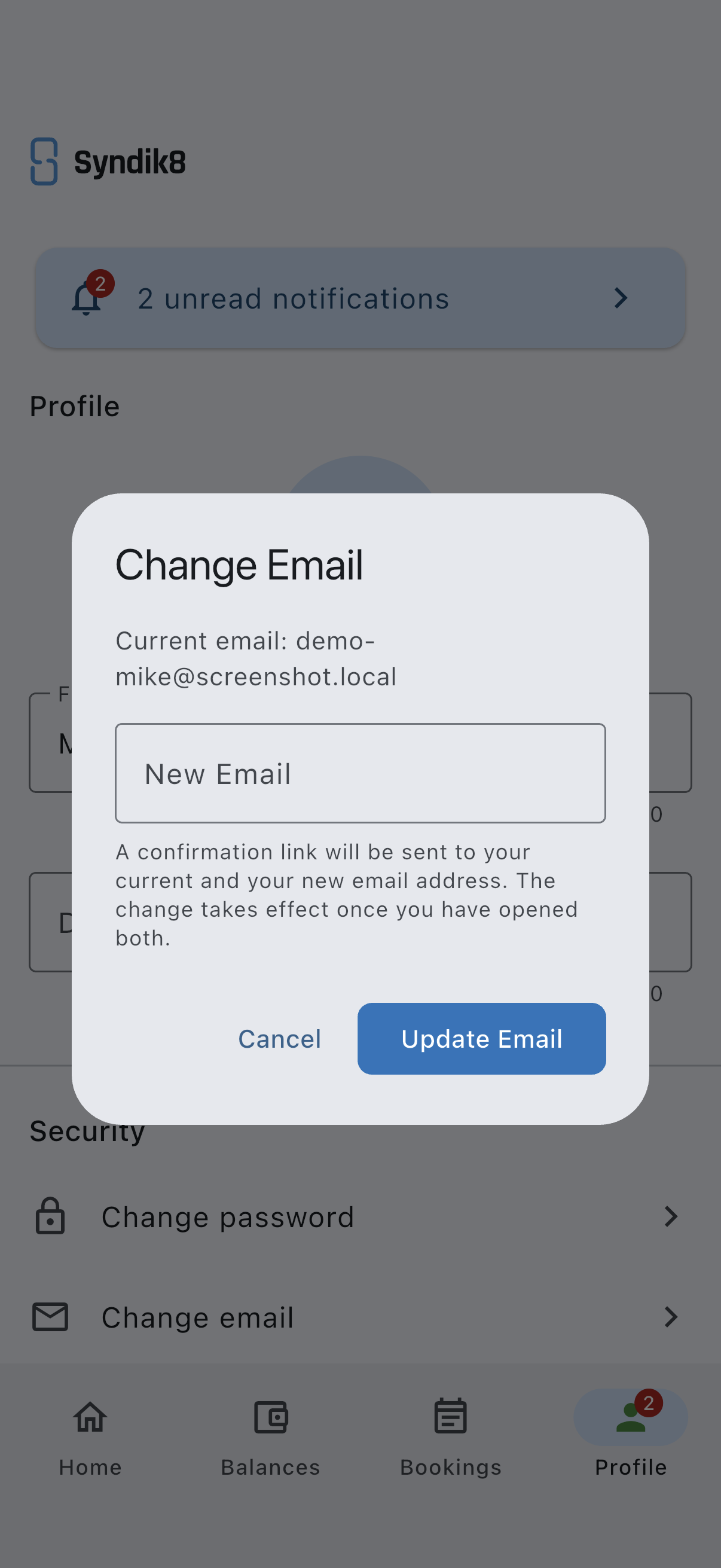
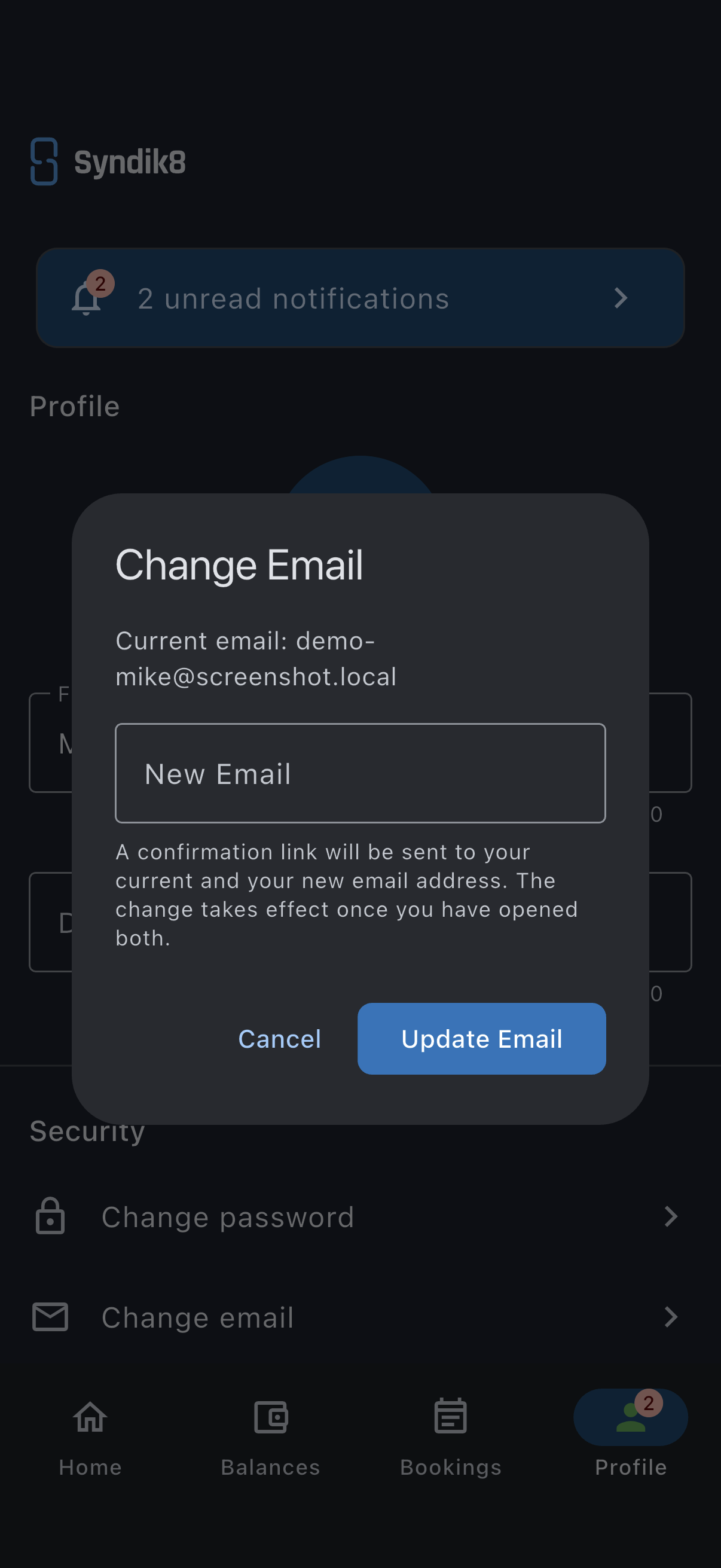
The dialog is a single step. There is no code to type back into the app: everything after Update Email happens in your inbox.
It doesn’t matter which of the two links you open first, but each works only once. The change completes only when both have been opened.
From this point forward you sign in with the new email. Your password, memberships, bookings, and balances are unchanged.
If it goes wrong
Section titled “If it goes wrong”- “New email must be different from current” error. You entered the address you’re already using. Enter a different one.
- No confirmation email arrives at the new address. Check spam. If it’s still missing, re-open Change Email and request it again; typos in the new address are the most common cause.
- The link has expired. Confirmation links last one hour and work only once. Re-open Change Email and request a fresh one.
- You’ve opened one link but still sign in with the old address. Open the link in the other inbox. Until both are opened, the old address stays active.
- You get a confirmation email for a change you didn’t ask for. Don’t open the link, and the address stays as it is. Sign in and change your password, because someone else may have access to your account, and contact [email protected] if you need help.