
Approve an expense
Approve an expense
Section titled “Approve an expense”Review a member-submitted expense. Approving it creates a credit on the member’s balance; rejecting it drops the expense without a credit.
Before you start
Section titled “Before you start”- You must be an admin (a treasurer needs the admin role).
- Expenses that have not yet been reviewed appear in the pending queue.
- You must be online. Both the Approve and Reject buttons write to the financial ledger and disable when the device is offline.
- Open the syndicate.
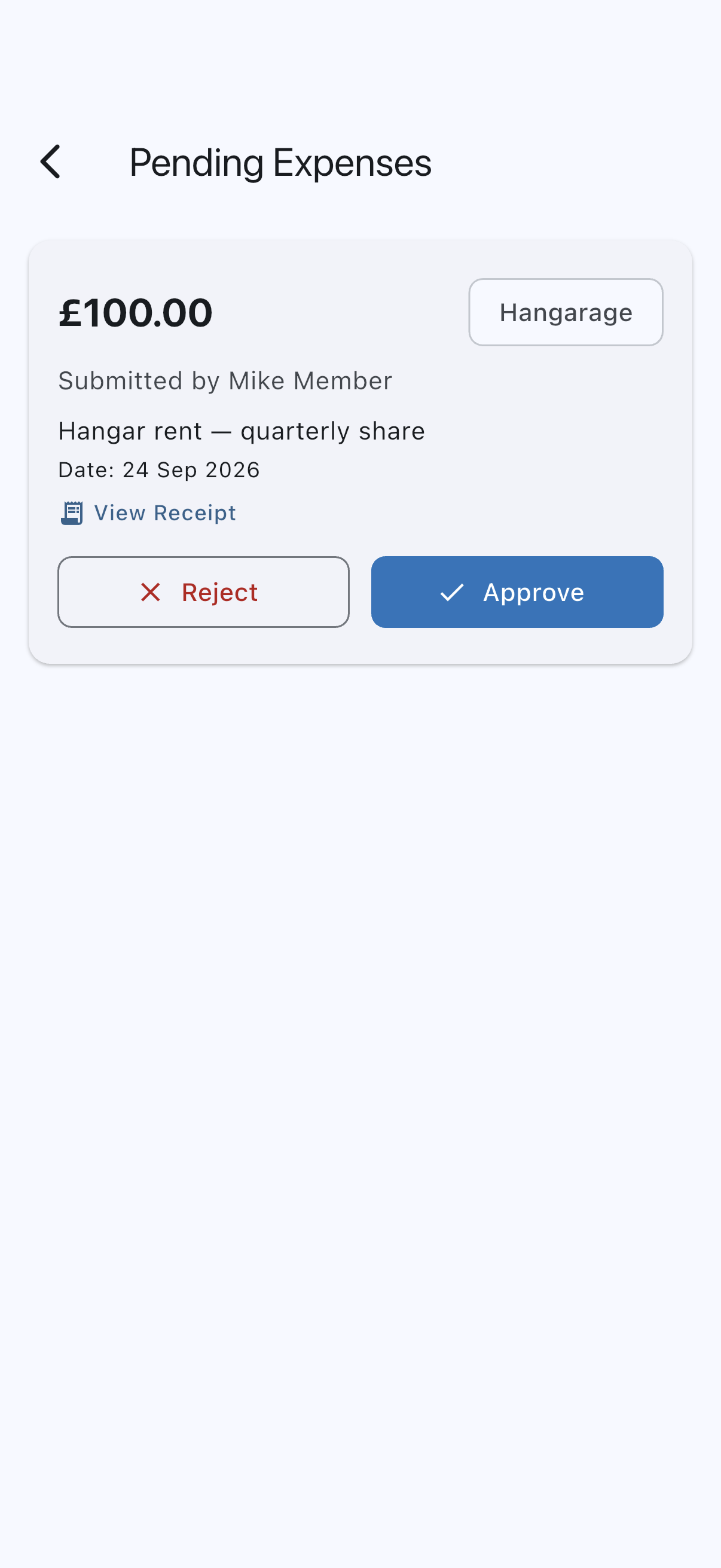
- Open the Admin tab and tap Pending (or tap the pending-actions icon at the top of the syndicate screen). On the Pending page, tap Review on the Expenses section to open Pending Expenses. The section appears only while at least one expense is waiting, and its title carries the count, for example Expenses (2). The new-expense notification also opens this screen, as does the View Pending Expenses button in its email.
- For each expense, review the Amount, Description, Category, Date, and submitting member.
- Tap View Receipt to inspect the attached photo.



To approve
Section titled “To approve”- Tap Approve on the expense card.
- You see Expense approved. An Expense Credit transaction is written to the submitting member’s balance for the full amount.
If the expense is your own, approving it credits your own balance, so every other admin of the syndicate is told with an Admin Changed Own Balance notification: for example Sam approved their own expense claim of £45.00. Reason: Oil for the annual. You are not sent a copy, and if you are the syndicate’s only admin nobody is.
To reject
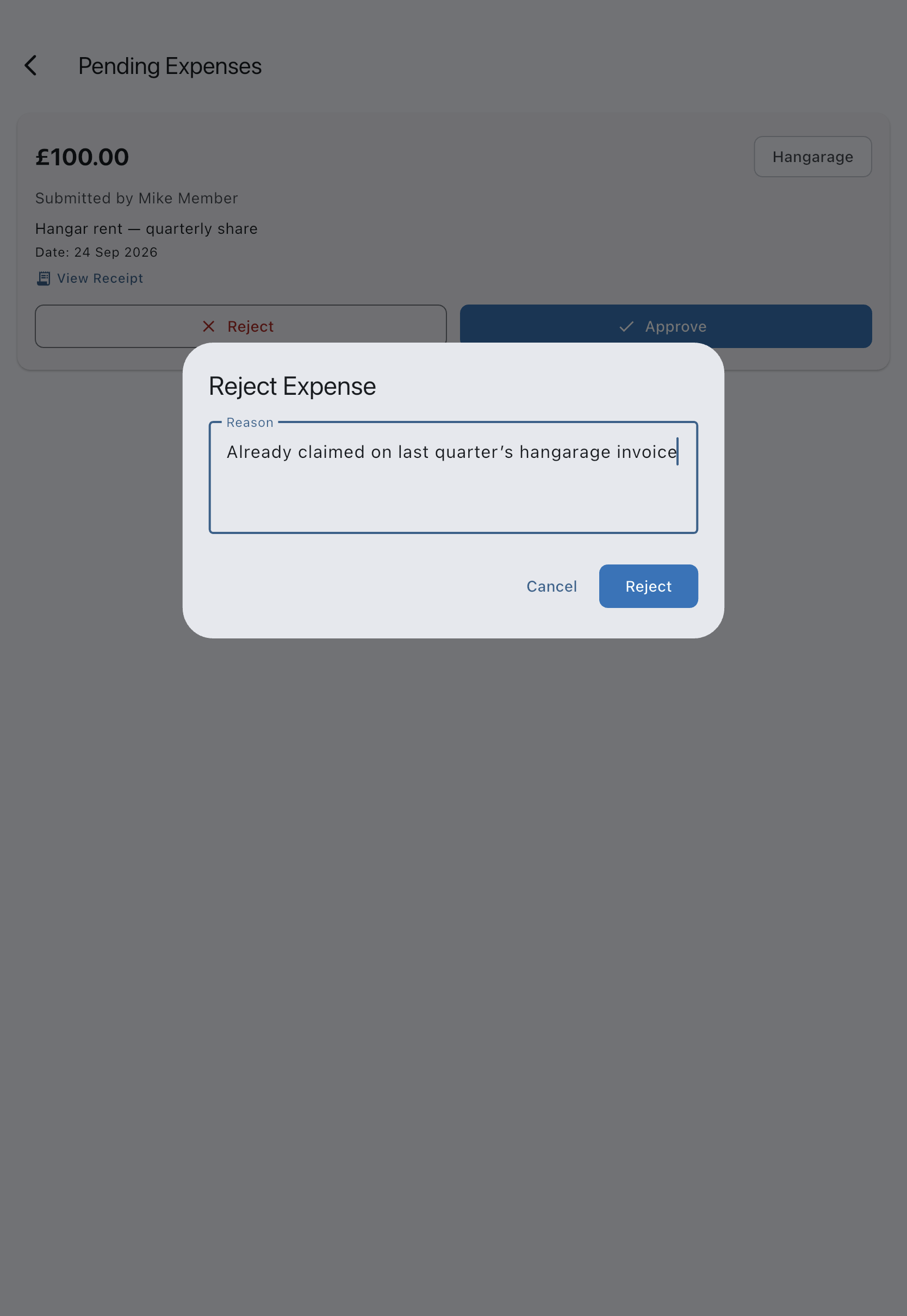
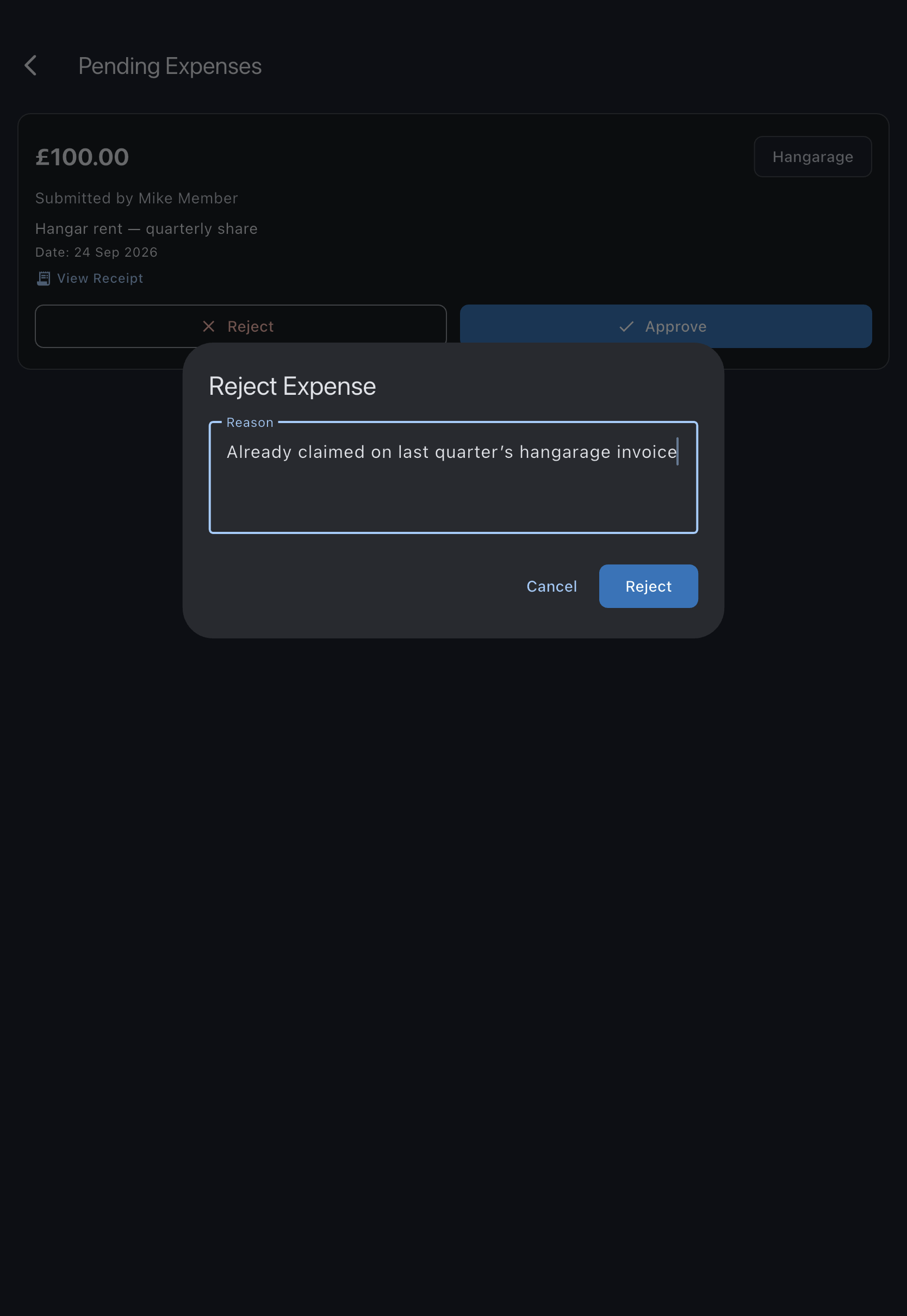
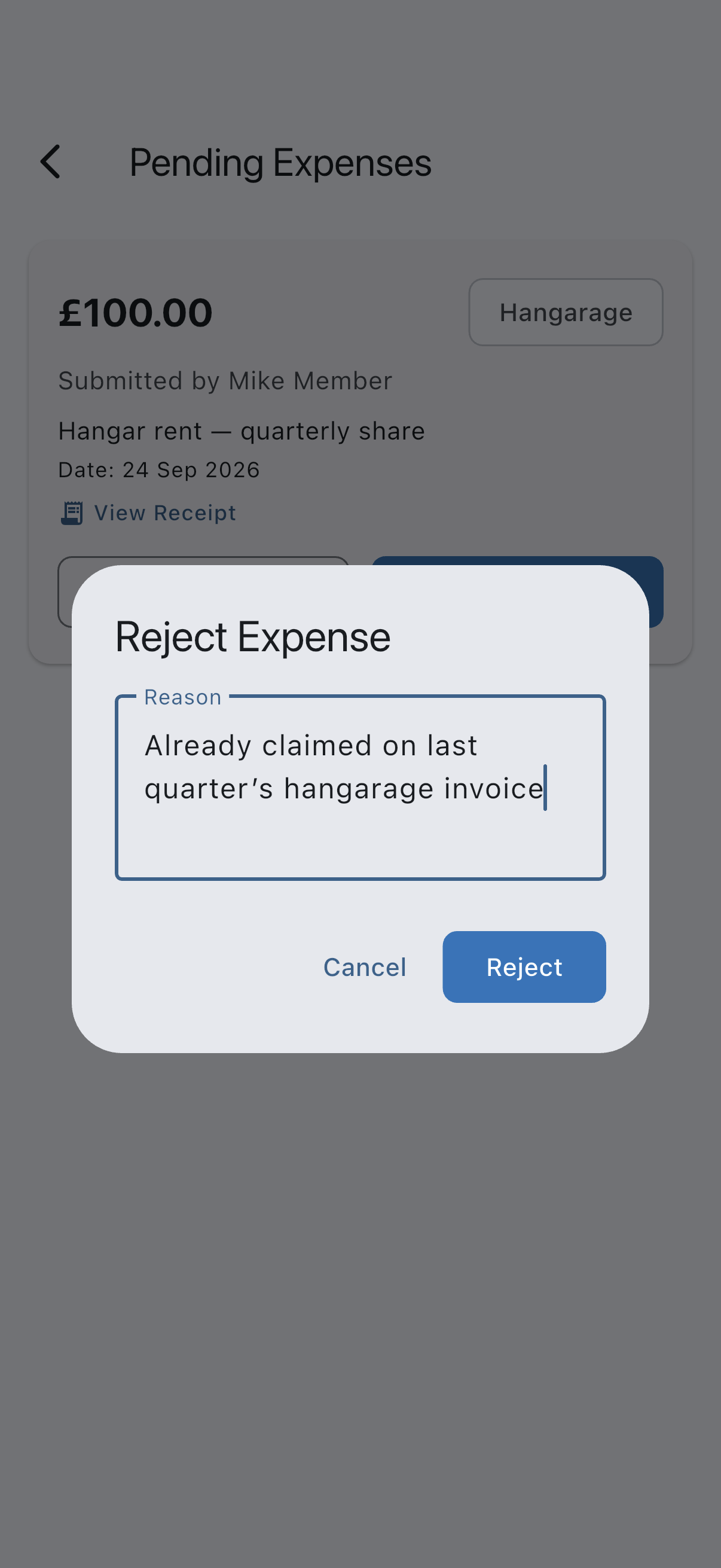
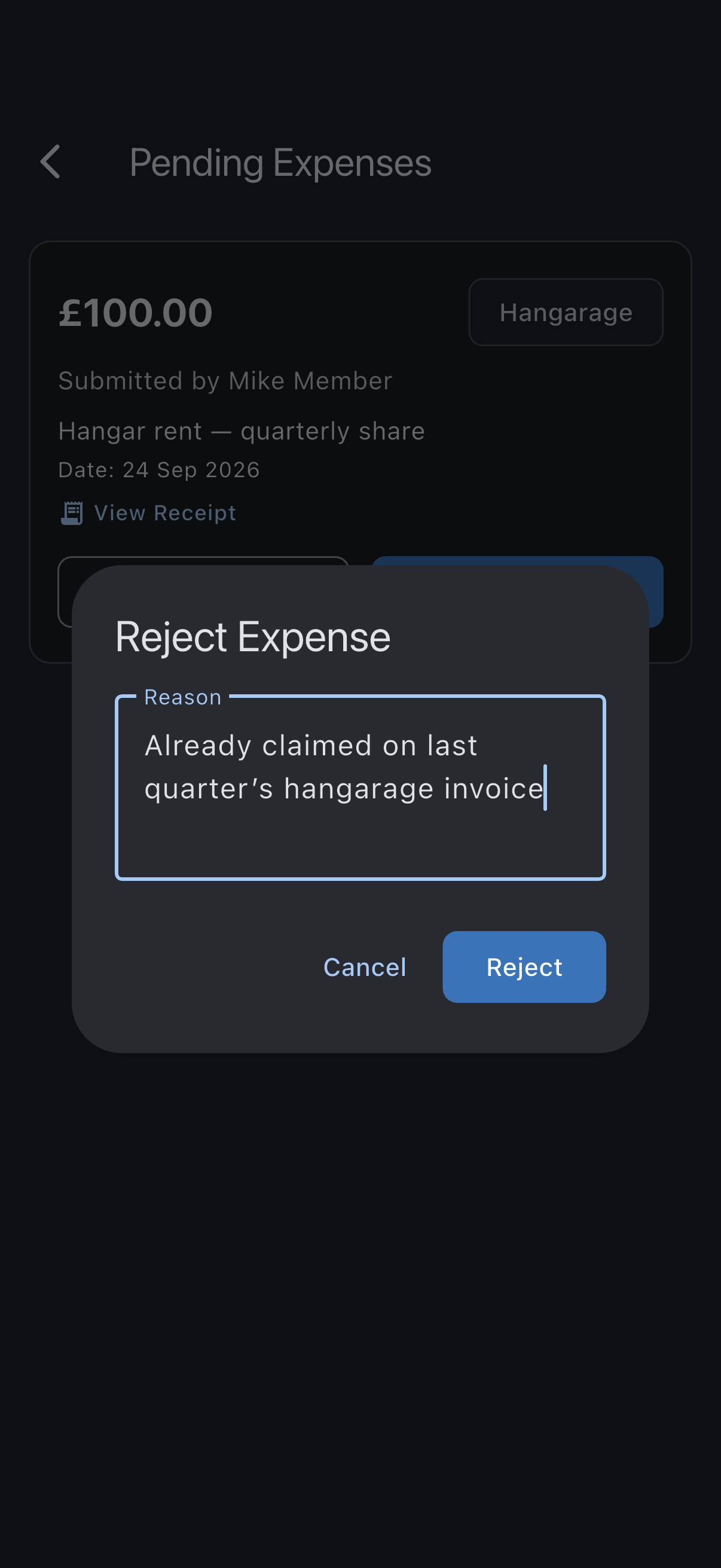
Section titled “To reject”- Tap Reject on the expense card. A Reject Expense dialog appears.
- Enter a reason in the Reason field. The Reject button stays greyed out until it has text. The reason is shown to the member whose expense you are refusing, in their Expense Not Approved notification and on their My Expenses screen, so write it for them.
- Tap Reject to confirm. You see Expense rejected. No credit is created; the expense is removed from the pending queue, and the member sees it as Not approved. Tapping Cancel closes the dialog and leaves the expense pending.
Offline behaviour
Section titled “Offline behaviour”The Approve and Reject buttons watch connectivity. When the device is offline, both buttons disable; tapping one shows Approval needs a connection. Try again when you’re online. in a snackbar. They re-enable automatically when the connection returns.
Approval writes an Expense Credit transaction directly to the ledger, and rejection writes a status change that other admins immediately see. Both are deliberate online-only operations: queueing them offline would risk an admin tapping Approve on a stale view of the queue and creating a credit twice.
If it goes wrong
Section titled “If it goes wrong”- “Failed to approve” / “Failed to reject”: connectivity dropped during the call. The expense stays pending; retry once the connection is back.
- The Approve and Reject buttons are disabled. The device is offline. See Offline behaviour above.
- “Could not load receipt image”: the receipt may have failed to upload. Ask the submitter to reattach and resubmit.
See also
Section titled “See also”- Transaction types: the Expense Credit ledger entry approval creates
- Member balance: where the credit lands
- Expense approvals queue: the admin view of pending expenses
- Submit an expense: the member-side flow