
Set up a payment account
Set up a payment account
Section titled “Set up a payment account”Connect your syndicate payment account so members can pay their balance by card and Direct Debit, with the money landing directly in your syndicate’s own account.
Before you start
Section titled “Before you start”- You must be an admin on the syndicate. The connect controls do not appear for members.
- Not in a demo syndicate. Setting payments up opens a real account with our payments partner, against your own identity documents and bank, and a demo is removed once you stop using it. Syndik8 refuses the moment you open the wizard and points you at Create Another Syndicate on your home screen. Set payments up on a syndicate of your own.
- If you are setting up as a company, have your company registration details to hand. You will also need to flag each director and every owner who holds 25% or more, which you do on their member detail screen, and then ask them to confirm their own personal details. You never type anyone else’s date of birth or home address yourself; each person confirms their own. Nobody is prompted until you ask, so members are never chased for a payment account you have not decided to set up.
- Asking your flagged directors and owners to confirm their details is a shortcut, not a requirement. Everything they give is sent ahead to save them re-typing it. You can finish setup before they respond, but Stripe simply asks anyone still outstanding at that point for their details directly, because their details can only be passed ahead at the moment the account is created.
- Money from member payments lands directly in your syndicate’s connected account; Syndik8 never holds it. Syndik8 takes a platform fee (0.5% by default) from the syndicate side, and the Payment account screen shows the rate your syndicate is actually charged, and your syndicate is the merchant for any refunds or disputes. See how payments work.
- Card and Direct Debit are separate capabilities. They can turn on at different times: card payments may become available before Direct Debit, or the other way round.
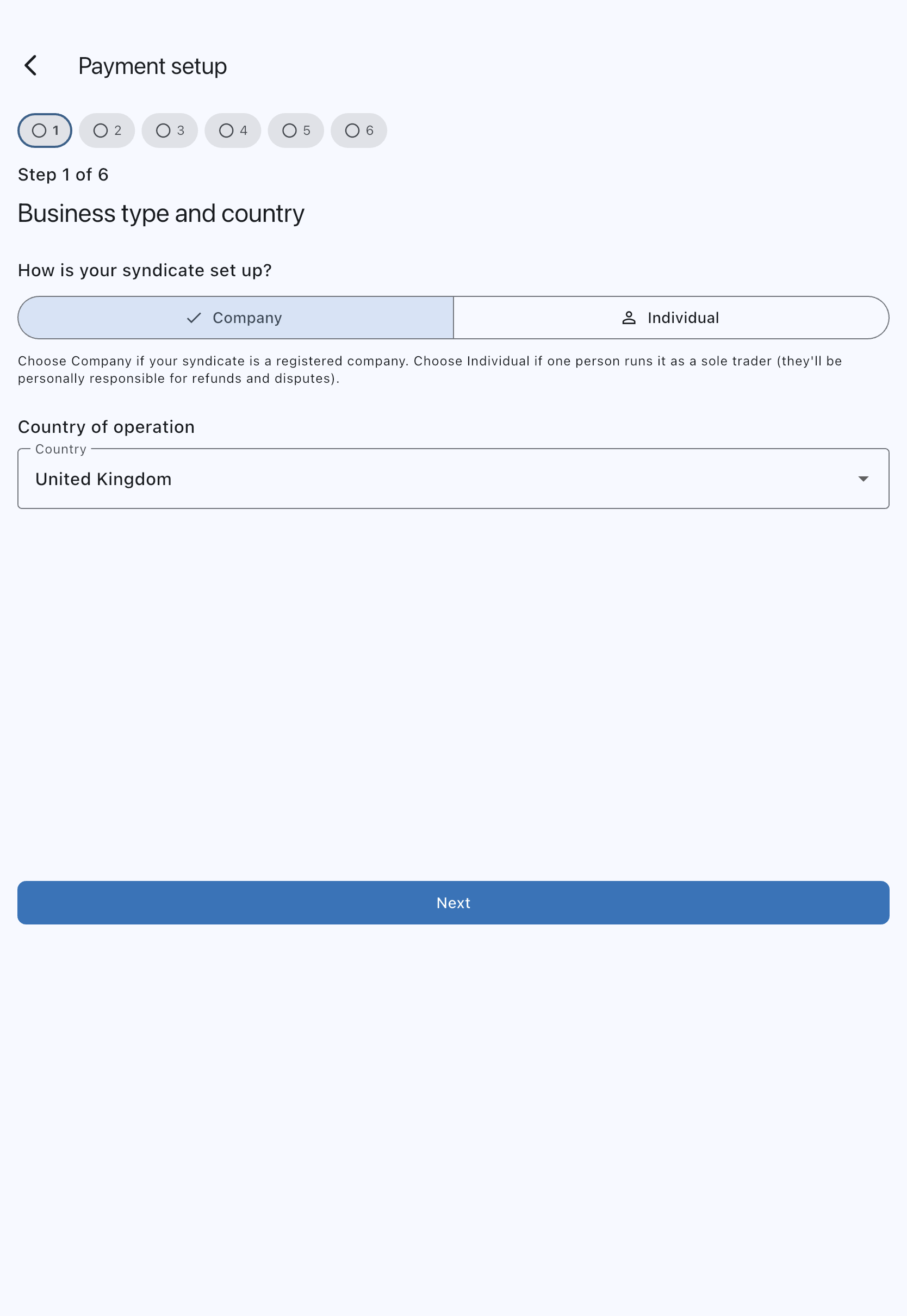
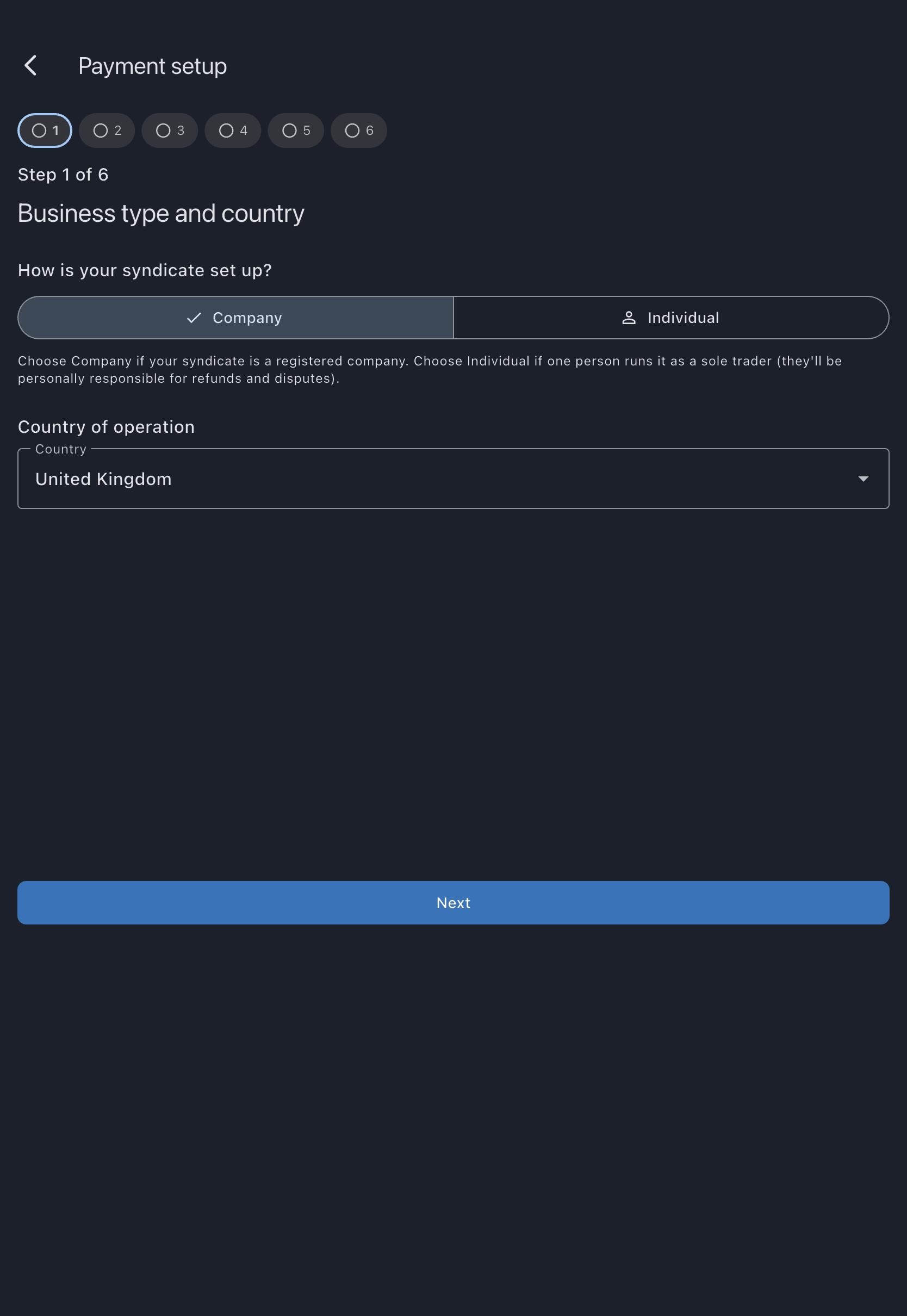
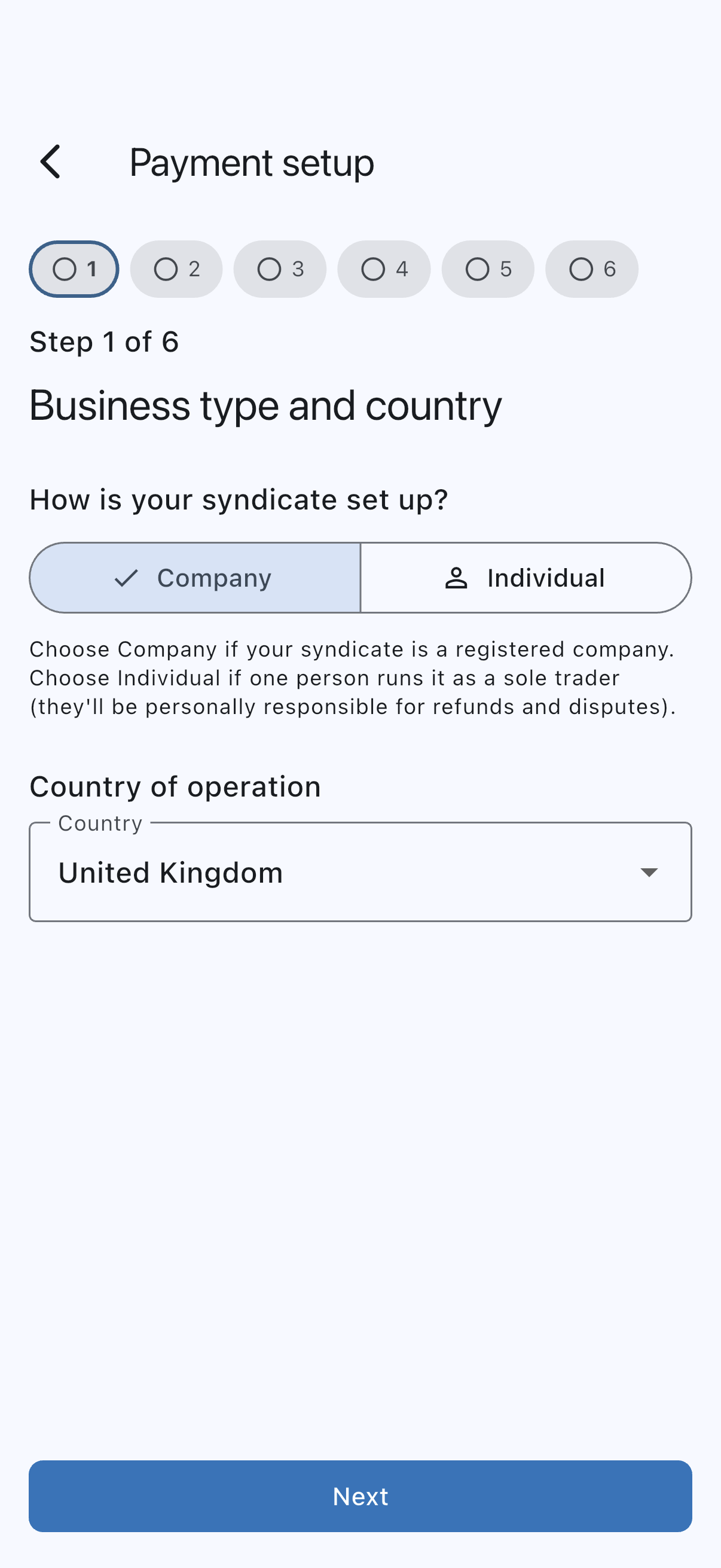
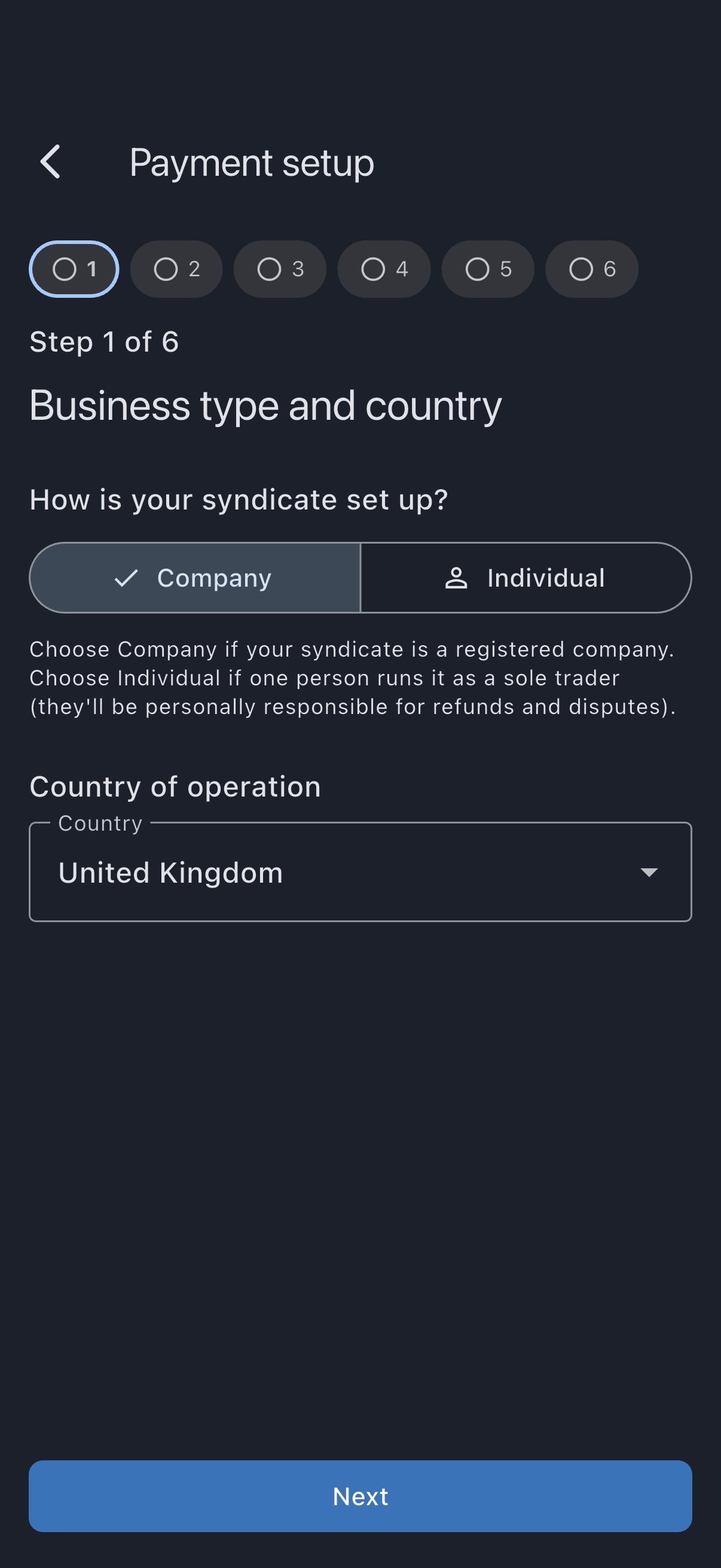
The wizard opens on Business type and country, and the answer you give there shapes every page after it.
- Open the syndicate and go to the Admin tab.
- Under Money, tap Payment account.
- Under Payment Collection tap Set Up Payments.
- On the first step, Business type and country, choose whether you are a company or an individual / sole trader, and confirm your country. This choice shapes the rest of the wizard.
- If you chose individual / sole trader, the wizard collects your own details and then your bank account, and you tap Finish on the final step. Your phone on the first of those steps is also sent to Stripe as your account’s support phone, which Stripe may show to members on their receipts; the note under the field says so.
- If you chose company, work through the remaining five steps in order: Company information, Authorised representative (your date of birth, home address, role and phone number — your name comes from your profile, so it is not asked for again; if your profile has no first name or surname, a warning at the top of the step says which is missing, with a link to your profile, and the step still saves without it), Directors and beneficial owners (nothing to fill in: it lists the people you have already flagged), Companies House check (optional — see below), and Bank account last. The business category is a field on Company information, not a step of its own; its default, Membership organisation, is the right answer for most syndicates. A step ticks in the progress strip when it has actually saved; a step you walk past without typing anything sends nothing and stays unticked. Changing a step that has already saved takes its tick away until you tap Next to save it again. Typing your phone or the contact email does not, because neither is saved. Every field not marked optional has to be filled in before a step saves: once you have entered anything on Company information, Next asks for the company name, registration number and company address (first line, city and post code), and once you have entered anything on Authorised representative it asks for your date of birth, your role, your home address and the I am the duly authorised representative tick. The VAT number, the service description, the second address line and the name on the bank account are optional. The service description is what Stripe is told your syndicate does. Tap into it and you see, in grey, the description Syndik8 sends if you leave it blank; type your own to send that instead.
- Company information has one field Syndik8 never keeps a copy of: the contact email. It reads as a company detail, but a four-person syndicate rarely has a shared mailbox, so in practice it is usually the admin’s own address, and every active member of your syndicate can read the payment account record. So it behaves like the bank digits below: typed into the form, sent to Stripe when you press Finish, and stored nowhere in between. It is required: enter it in the sitting you submit in. If you come back to a part-finished wizard it will be blank, with a line under it saying so, and Finish takes you back to it until it is filled in. There is no separate company phone. Your own phone on the Authorised representative step is the only number the wizard asks for, and it is kept the same way: Stripe needs a number for the person responsible for the account, and Syndik8 sends it at Finish without keeping a copy. Read the note under it before you fill it in: Syndik8 also sends that number to Stripe as the syndicate’s phone and its customer-facing support phone, so it can appear on your members’ receipts. We cannot change that afterwards, because Stripe stops letting us touch it once the account exists, but your syndicate can, from its own Stripe dashboard. The phone is checked when you tap Next: a UK number starting with 0, or an international one starting with + and the country code. Spaces, dashes and brackets are fine, and the number is sent exactly as you typed it.
- The Bank account step is deliberately last, and it works differently from the others: the sort code, account number and (optionally) the name on the account are not saved anywhere when you type them. They are sent to Stripe only when you press Finish, in the same action that creates the account, and Syndik8 keeps only the last four digits for display. Because Stripe receives the bank with the account, its own pages will not ask you for it again. If you leave the wizard before finishing, you will need to re-enter the numbers — that is the price of them never resting anywhere.
- Below the bank fields, the same step asks for the support email shown to members, under Member support contact. This is the one detail on your account that Stripe shows to the people paying you: it appears on their receipts, and it is the address Stripe gives anyone who queries a charge. It arrives filled in with your own address, so accepting it is one tap — but read it before you do, because on a sole trader account that publishes a personal address to everyone who pays. If you would rather members did not have it, put a shared mailbox here instead. Unlike the bank digits above it, a different address you enter here is saved with your syndicate; your own address, the default, is not stored. Choose it before you submit, though: it reaches Stripe with the account, and the wizard closes for good once the account exists — after that the address on the account is changed in your Stripe dashboard, not here. Leave it blank and Stripe falls back to the address the account already carries, which is yours.
- On Directors and beneficial owners, the control that asks everyone you have flagged is Ask them, and wait for their replies. It appears only once somebody is flagged, because there is nothing it could do before that: the request is sent at the moment you press it, to the people flagged at that moment, and nobody flagged later is asked anything. Stripe requires a date of birth and home address for each of these people either way, so the real question is who supplies them. Ask, and your members enter their own in Syndik8, which means pausing here until they have replied, because their answers can only be sent ahead while setup is unfinished. Read the button literally: pressing it usually ends the sitting. Carry on instead, and you supply those details yourself on Stripe’s pages when you get there. If you already have everyone’s details in front of you, that is the quicker route and there is nothing to gain by asking. There is only one opening ask, and pressing it is the whole of it: afterwards the button is replaced by the date you asked on, and chasing is done person by person from the list below rather than by asking everyone again. Each person flagged at that moment who has not already given their details is told (so you are not asked for the details you saved as the representative), by a notification and an email asking them to confirm their date of birth, home address and job title, opening straight onto their own form. Both channels can be turned off under Verification Details Requested in notification preferences. Flag somebody after the ask and they are sent nothing automatically; use Remind on their row to reach them. For anyone you matched to Companies House, the prompt arrives part-filled from the public record: their month and year of birth and a suggested job title are already in place, the day of birth is left blank for them to add (Companies House does not publish it), and the Companies House address is offered as a suggestion behind an “I confirm this is my residential address” tick.
- The same step lists everyone you have flagged, so you can see where each of them is up to. Each row names the person, says whether they are a Company director, a 25%+ shareholder or both, and reads Details confirmed or Details outstanding; a Confirmed: 2 of 4 line above the list is the running total. Chasing happens here, one person at a time: every row reading Details outstanding carries a Remind button that notifies and emails that person and nobody else. Rows reading Details confirmed carry no button — anyone who has finished is never reminded again. Nudge as often as you need to, but only every few hours: press it again too soon and the row tells you how long is left instead of sending anything. If nobody is flagged, the step says so, points you at the member detail screen, and shows nothing else at all. The ask control is not there either, because there is nobody for it to reach. You do not have to wait for everyone: you can submit at any point, and the list is there so you know who has not been sent ahead yet.
- Tap Finish on the bank step. You will be asked to confirm you are ready to send these details to Stripe. If everyone you flagged has responded (or you flagged nobody), the confirmation is a plain “ready to send?” check. If anyone has not responded, the dialog instead names them — “Sam and Alex haven’t added their details” — and warns you plainly: carrying on means their replies will not be used, you give Stripe their details yourself on its pages, and they are told they no longer need to add anything in Syndik8. It is faster now and more work for you later, and where people are outstanding it is your call: that dialog warns you, it does not block you. What it will not do is guess. If the app cannot check at all who has replied, it tells you so plainly (“Looks like a connection problem”) rather than risk telling you nobody is outstanding when nobody was actually checked — and it is honest that nothing has been submitted either way. That one does hold you up until the check works, so if it keeps failing, get back online and press Retry. If the sort code or account number is missing or too short, Finish goes no further: each of those fields says what it needs, before you are asked to confirm anything, and Stripe is not contacted. A support email that is not a valid address is flagged under that field in the same way. On every step, a problem with something you typed is shown under the field it is about, and it clears as soon as you correct it: a contact email must be a valid address, an address needs its first line, city and post code, and each step needs every field it does not mark optional once you have entered anything on it. Until then Next goes no further. Finish sends nothing until every step with something to save shows a tick. If one does not, because you moved past it using the step buttons at the top or changed it without tapping Next, Finish takes you to that step and shows under each field what it still needs. A step saved in an earlier sitting can still have a gap, such as an answer that was optional when you saved it, and Finish takes you to that too. Check it and tap Next: that saves what the step shows, including answers saved in an earlier sitting, so nothing already on file has to be typed again. Finish also waits for the answers Syndik8 never keeps: the contact email on Company information and your phone on Authorised representative. If you chose Other as your role, that is not kept either, because Stripe is given no title for it, so you choose it again in each sitting. Finish takes you to each one and asks for it under the field. If the app cannot check which steps are saved, it says so, sends nothing, and offers Retry.
- Confirm, and Stripe takes over to verify your business and finish setting the account up. If Stripe does not accept one of your answers, such as a phone number, a post code or the bank details, no account is created and you stay in the wizard. The message names the answer and the step it is on (a bank Stripe will not accept is flagged under the bank fields), so correct it there, tap Next to save that step (an answer on the bank step needs no saving), and tap Finish again. Sending the same answers again would be refused the same way, so the message does not suggest it. Only when Stripe could not be reached are you asked to try again. Follow the instructions there. On a phone or tablet those pages open in your device’s browser rather than inside the app; when Stripe is done with you it hands you back, by whichever route suits where you started. If you began in the app, Stripe returns you to a short Syndik8 page carrying a single Back to Syndik8 button: on most phones the app opens by itself, and the button is there for the ones that wait to be asked. If you began in a browser, Stripe’s pages open in that same tab and you are already signed in there, so there is no page and no button at all: it carries straight on to the screen. Everything you sent ahead is already on the account, so it is confirmed rather than re-typed. Coming back lands you on a Payment Setup screen that says where the account stands: Stripe returns you the same way whether you finished or stopped part way, so that screen reports rather than congratulates, and it carries a Refresh status button for the moment after Stripe’s checks clear. The account shows Connected once they do.
Stripe’s pages are Stripe’s own, and it changes them as it sees fit, so we do not walk you through them here. Stripe describes what that stretch involves in its hosted onboarding and identity verification documentation.
The wizard never asks you to upload a document. If Stripe’s checks need one, such as a certificate of incorporation or photo ID for a particular person, Stripe asks for it on its own pages at the point it needs it, so you are never asked for paperwork that turns out not to be required.
If someone will not respond
Section titled “If someone will not respond”You do not need to wait for them, and you cannot answer for them. Their details are theirs to confirm, so the step has nowhere for you to type them. What you can do is nudge them: Remind on their row sends them the request again, and you can keep doing that every few hours for as long as it takes. Finish setup when you are ready: Stripe asks anyone who has not confirmed for their details directly instead, because it requires details for every director and every 25%+ shareholder regardless. Sending them ahead only saves them re-entering what they already gave you.
Once the account exists, anyone still outstanding is told Stripe will contact them directly, and the outstanding markers stop. Their form goes with it: opening the verification screen after that point — from the dashboard or from an older notification — says Stripe will contact them rather than offering fields, and details sent any other way are refused. Nobody is left holding a request that can no longer be acted on.
If someone was flagged by mistake and is not actually a director or a 25%+ shareholder, unflag them so they are not asked at all. The wizard’s Directors and beneficial owners step lists the stakeholders but has no unflag control; to clear a flag, open the members list, tap the member, and untick the director / owner checkboxes on their member detail screen.
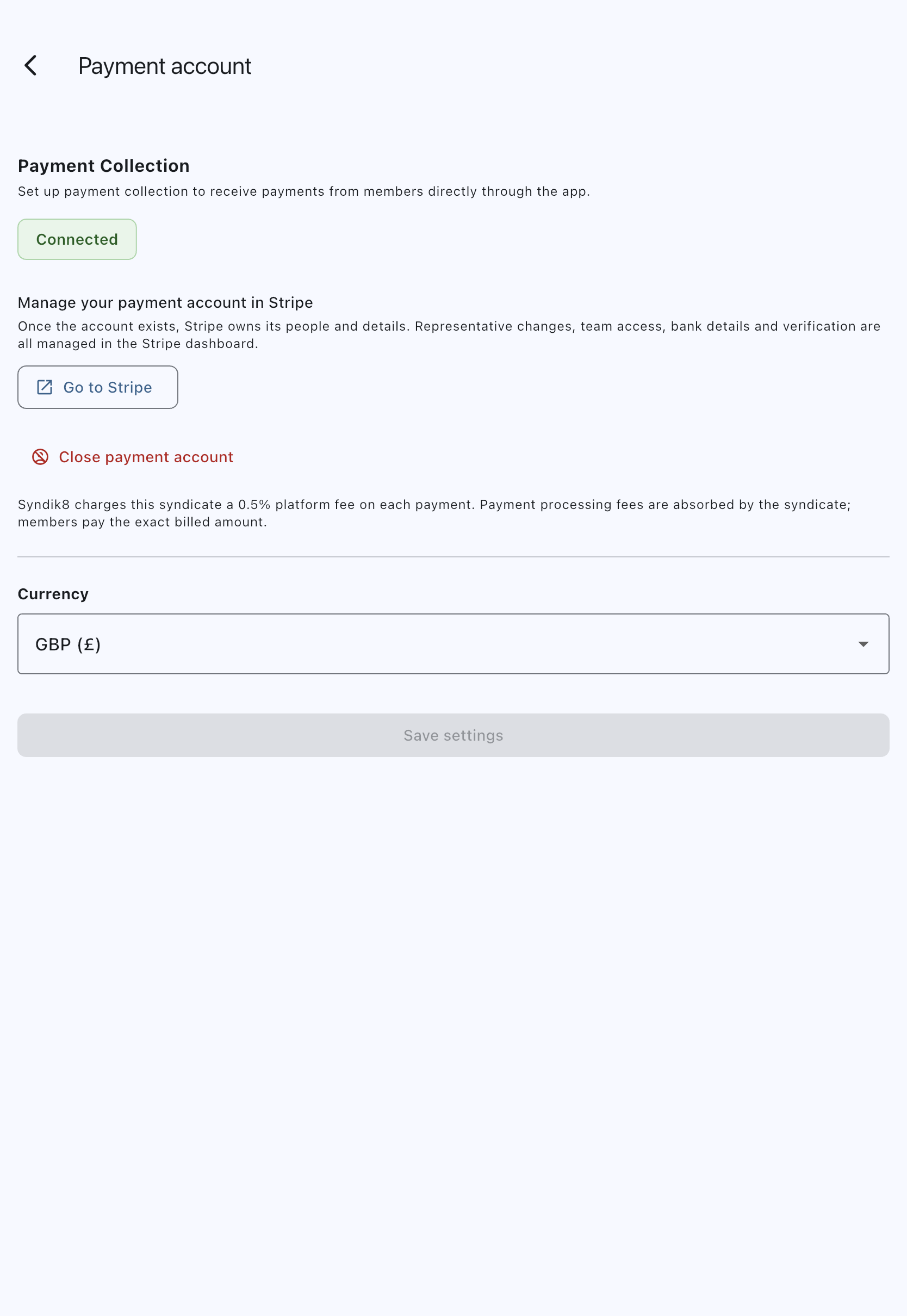
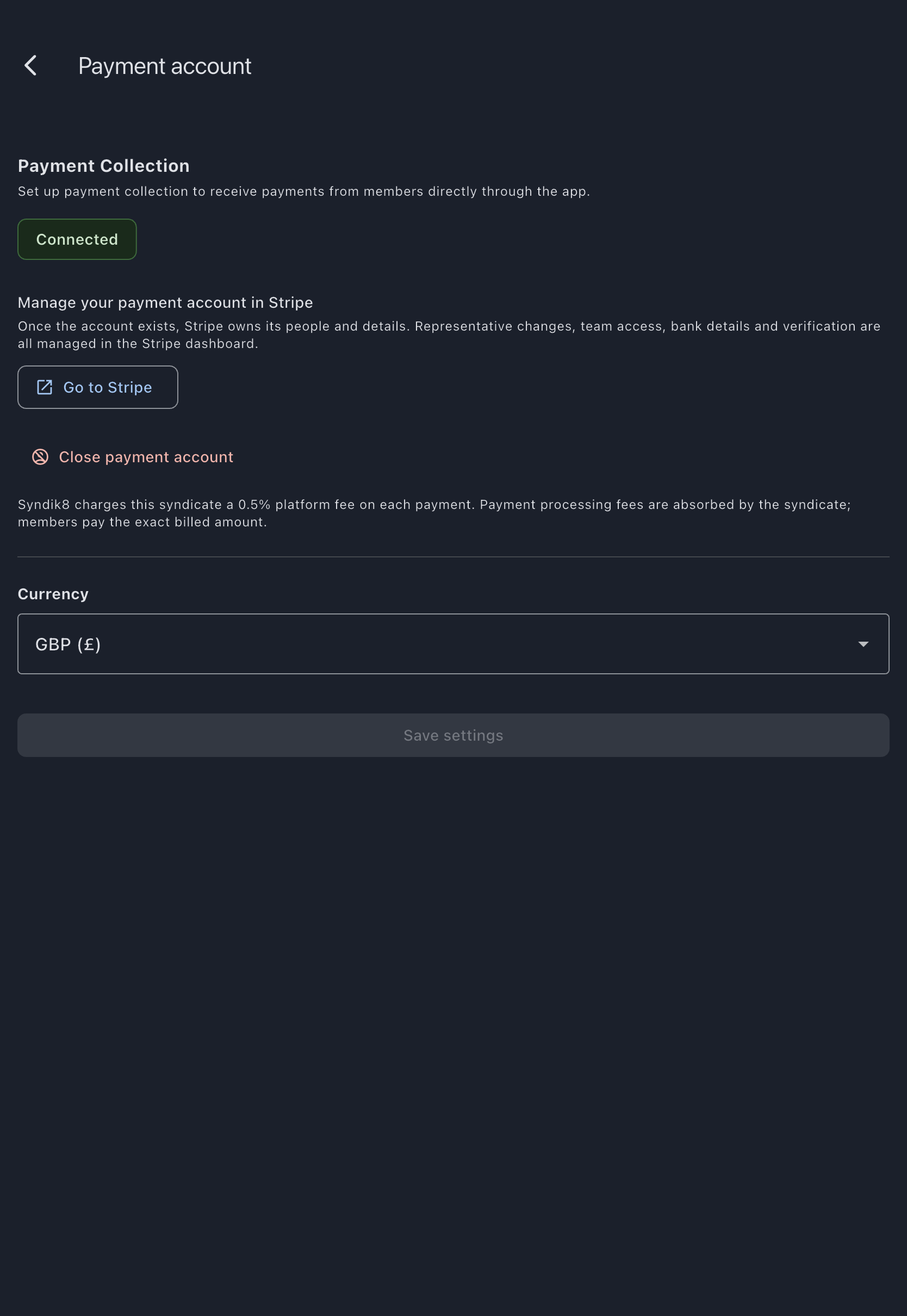
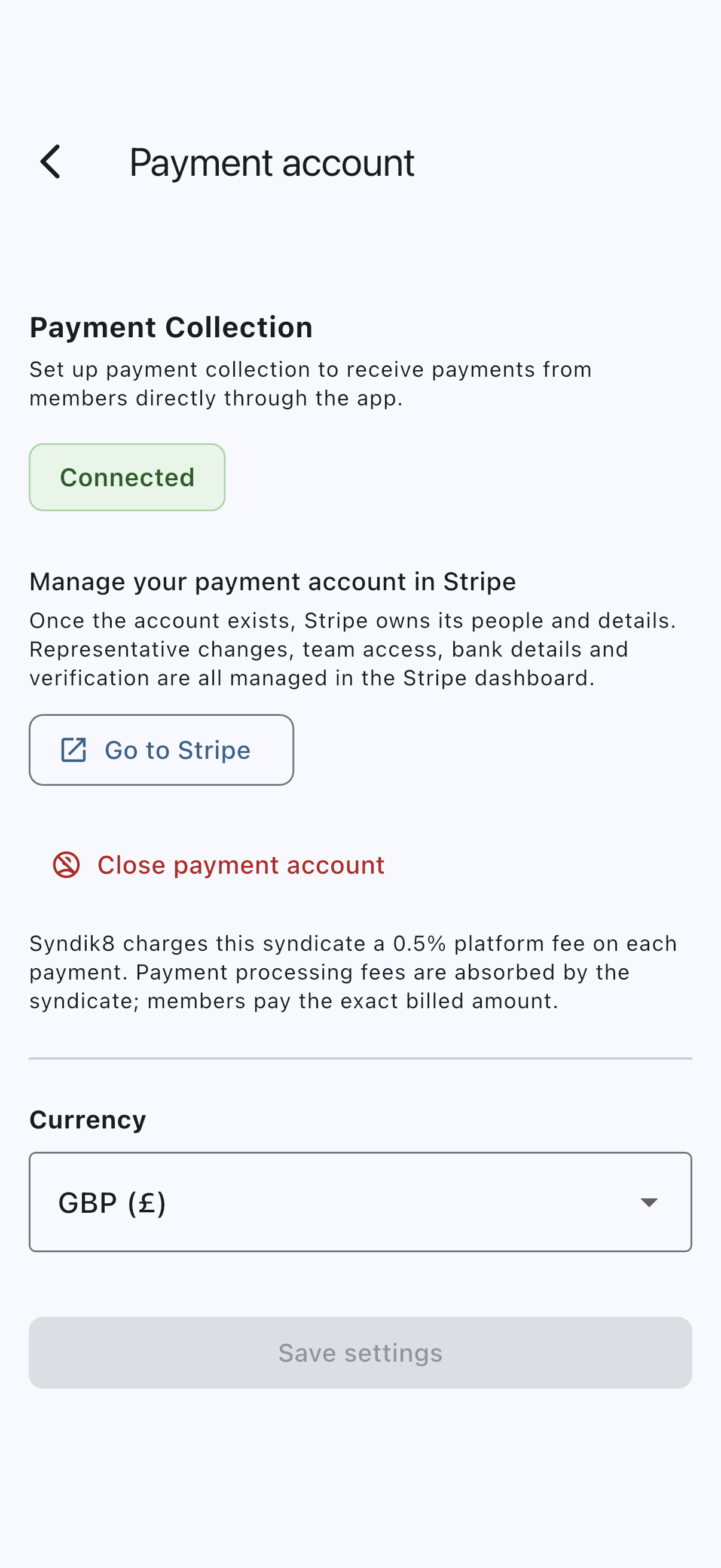
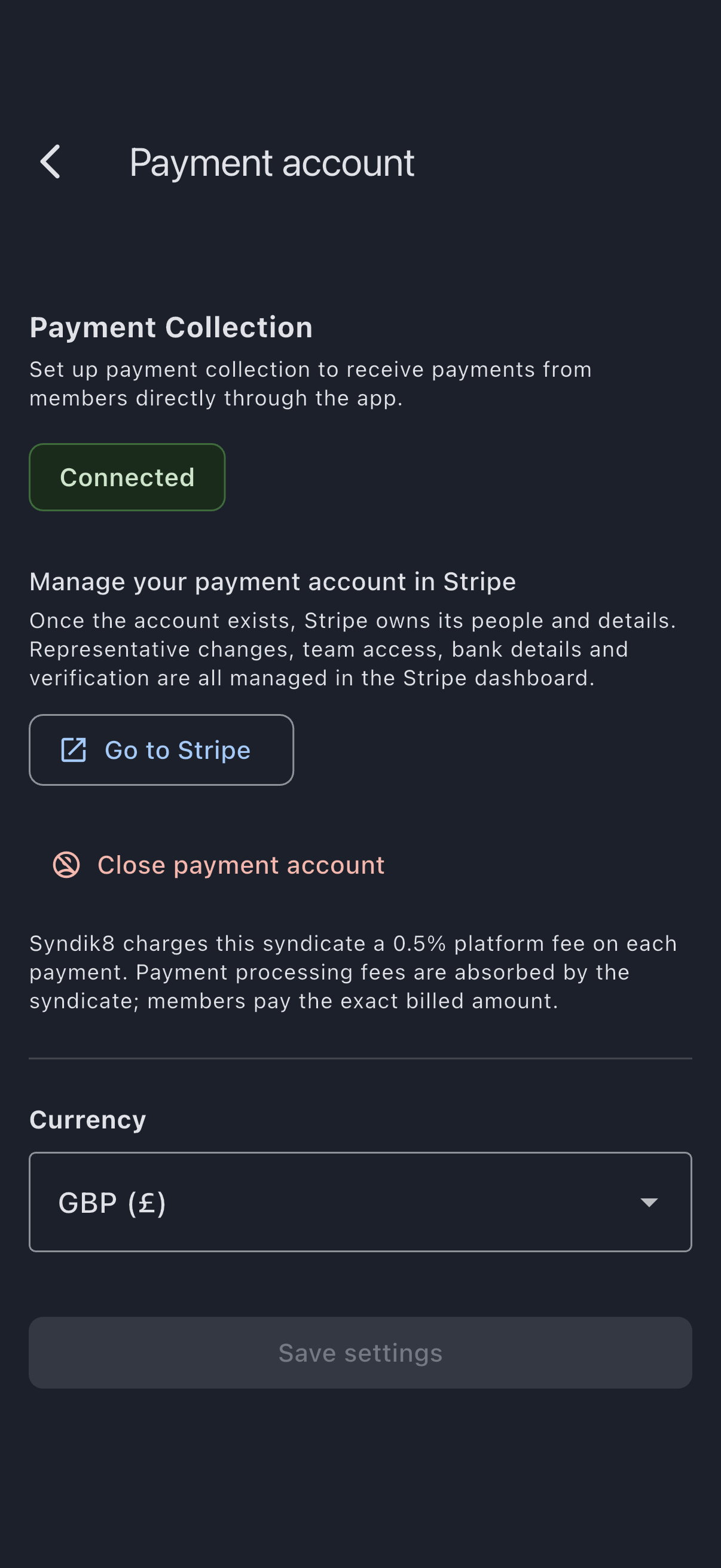
The status badge sits under Payment Collection on the Payment account screen, which the Payment account row under Money on the Admin tab opens. It moves from Not connected through Under review to Connected once verification clears. Card and Direct Debit switch on as each capability is approved, so check the badge again later if only one is live at first. The full list of statuses, and the notifications each change sends to admins, is in Payment account, Member billing and Bill members.
Check your directors and owners against Companies House
Section titled “Check your directors and owners against Companies House”If your syndicate is set up as a limited company, the payment provider needs every director and everyone who owns 25% or more of it. Before you submit that list, you can cross-check it against the public record at Companies House, so nobody is left off by mistake.
Where to find it. It is the wizard’s Companies House check step, just before the bank account. Tap Check the register there. The step is optional: skipping it costs you nothing but convenience, because Stripe asks every director and 25%+ owner for their details directly regardless. The check sits inside the wizard, rather than somewhere to discover later, because confirming people is only useful before you submit — that is when their details can still be sent ahead. It closes when you submit: from then on the check says so rather than offering a lookup, because the payment provider owns the account’s records and nothing confirmed here could still reach it.
From one lookup you have both follow-ups in reach: confirm each person on the results (which saves their public record to pre-fill their own form), or use Ask them, and wait for their replies on the same step to have each flagged person fill in their own. Once you have asked, this step says when, and sends you back to the Directors and beneficial owners step to remind anyone flagged since: that is where each person’s Remind button is.
The check opens on your company registration number, already filled in from the one you entered on the wizard’s Company information step. Syndik8 keeps that number on the syndicate itself, so it is there for this check, it is still there if you come back to the check later, and you never type it twice. Confirm or correct it and tap Check directors & owners. The app looks the company up and lists the directors and 25%+ owners Companies House holds for it. If Companies House has no company for that number, you stay on the number with a note saying so and your number still in the box, ready to correct and check again; that is almost always a typo, not a fault. If the lookup itself could not run you get a “couldn’t reach Companies House” message with Retry, so an unknown result never reads as an empty board.
For each person on that list, the app suggests the member it thinks they are and asks you to confirm. Confirming is deliberate: it is the point at which that member’s Companies House date of birth and address are saved to pre-fill their own details form, so they review and complete them rather than start from a blank page. Nothing is ever matched for you, not even an exact name. Where two members could be the same person, you pick which one before confirming.
Someone who is both a director and a 25% owner is one row carrying both markings, not two, even though Companies House writes the two registers differently — its directors are filed as “DOWNES, David” and its owners as “Mr David Downes”. Confirm that row once and both markings are recorded together. Where the two registers differ by more than a courtesy title, say a middle name filed on one and not the other, they stay two rows; confirm the same member on both and the roles add up rather than replacing each other.
Every row works the same way: a dropdown listing your members, and a Confirm button. The dropdown arrives holding the app’s best guess where it has one, and empty where it does not, and you can change it to anybody. That is how you connect somebody Companies House and Syndik8 know by different names — “David Downes” on the register, “Dave” in the app — which no amount of name matching will ever bring together on its own. The guess is only a guess: nothing is recorded until you press Confirm, so read each row before you do.
One member cannot hold the same role twice. Confirm the same member against two different directors, or two different owners, and the second row refuses and says which row already has them. It is almost always a slip, and accepting it would leave a real director accounted for by nobody. The app also refuses a director row and an owner row whose published dates of birth disagree, because that proves they are two people however they are spelled.
A corporate owner is the one row with no dropdown. It is a company that controls your company, so it is never a person and can never be a member. A protected name — where Companies House withholds someone’s details — does get a dropdown, and you can name them yourself if you know who they are.
If Companies House lists a director or owner you have not accounted for, a warning at the top names them. Add them as members, connect them to a member by hand, or make sure the payment provider will collect their details, before you finalise payment setup, because the provider requires every director and every 25%+ owner regardless. Somebody you name and confirm drops off the warning while the results stay on screen. Run the check again and it starts over from the names, so they are named again, and so is the rule about holding a role twice. What you confirmed is recorded against the member either way, so there is nothing to redo.
Who goes to Stripe as a director
Section titled “Who goes to Stripe as a director”When you press Finish, every active member flagged as a director is put on the account as one, whether or not they have added their details. Anyone who has not goes with just the name and email on their own Syndik8 account, so Stripe knows who to contact; nobody else’s date of birth or address is ever sent for them. You go as the person responsible for the account, and also as a director if you picked Director as your role or confirmed yourself against a Companies House director. Pick a different role and are not on the register, and you go only as the responsible person, under the role you picked.
Someone who has left the syndicate may still be a director of the company. If they filled in their details before leaving, those details go to Stripe only when the Companies House register, checked as you press Finish, still lists them as a current director under the exact name and birth month and year you confirmed for them. Then they go as a director and nothing more. If they have resigned, are not on the register, or Companies House does not answer, they are left off the account entirely and Stripe asks you about them itself.
At the same moment Syndik8 checks the Companies House register again. If every current director on it is someone you confirmed, and each of them has added their full details, Stripe is told it has all the company’s directors and does not ask you to list them. A former member sent this way counts like anyone else. If anything falls short (a director nobody confirmed, one with details missing, a register too long to read in one go, or Companies House not answering) Stripe is left to ask about directors itself. Either way, nothing here holds up your hand-over.
Pick up where you left off
Section titled “Pick up where you left off”Setup does not have to happen in one sitting. Reopening the wizard lands you on the first step you have not yet saved — everything already saved shows a tick in the progress strip, and your saved answers are filled in for you to review or edit, including the I am the duly authorised representative tick if you ticked it before. Your phone and the company contact email are the exceptions: Syndik8 never keeps them, so if you leave before finishing they are blank when you come back and you enter them again. Each field says so under it, and Finish will not go ahead until both are filled in. If you gave a phone number when confirming your own details as a director or owner, that one is offered back instead. A role of Other comes back empty in the same way and is chosen again. Because the bank account is never saved before you press Finish, a fully-completed-but-not-submitted session lands on the bank step with the numbers to re-enter.
If you already pressed Finish and Stripe accepted, reopening the wizard shows Details submitted instead of the steps: from that moment the account’s records belong to Stripe and cannot be edited in the wizard. Continue with our payments partner takes you back to Stripe’s pages if verification is not finished. Stripe treats every newly submitted account as restricted until you have finished its own steps, so for the first 24 hours after you press Finish you are not sent a “Payment account needs attention” notification. If the account is still restricted after 24 hours, you get one reminder. After that, any restriction is notified straight away.
Stripe’s own link into those pages can only be used once, and it times out. Follow one that is spent and Stripe sends you back to a Payment Setup screen in Syndik8 reading Your setup link has expired, with a Get a new link button that fetches a fresh one and takes you straight back. It can also refuse, and it tells you which kind of refusal it is in red on the same screen rather than sending you anywhere. Two of them are yours to act on, and both are acted on in the payment setup wizard, so the message names the refusal and points you back to payment setup: the syndicate’s payout bank account has still not been entered, or one or more directors and owners have not sent their verification details. The other two are not: Syndik8 could not be reached, so check your connection and try again, or something went wrong on our side, so try again in a few minutes. The screen keeps Get a new link and Back to Payment account below the message in every case, and asking for a link writes nothing, so trying again is always safe. If the account was finished in the meantime, the expired-link message gives way to the account’s actual state, with Back to Payment account to return to the Payment account screen. Nothing you have already entered is lost, and nothing is blocked while you sort it out: Continue with our payments partner in the wizard gets you to the same place.
Update your details after setup
Section titled “Update your details after setup”Once your account is connected, the app can no longer change who or what is on it. Stripe takes ownership of the account’s records at that point, so the directors and owners, the registered representative, team access and the bank account can no longer be edited from inside Syndik8.
To make any of those changes, open the syndicate, go to the Admin tab, tap Payment account under Money, and under Manage your payment account in Stripe tap Go to Stripe. That hands you over to the syndicate’s own Stripe dashboard, which is where the account’s people and details live from then on. Stripe documents what you can do there in its dashboard documentation.
Go to Stripe appears only once your details have been submitted. If Stripe later comes back asking for more, the badge reads Action required and the button gives way to Continue Setup, which reopens Stripe’s pages at the step it wants; Go to Stripe returns once that is answered.
Keep the account up to date. A connected account whose directors, owners or details no longer match reality can fail Stripe’s periodic checks, and that surfaces later as a blocked payout rather than an obvious warning.
Change the payment representative
Section titled “Change the payment representative”The representative is the person Stripe holds responsible for the syndicate’s connected account. Changing who that is now happens in Stripe, not in Syndik8: tap Go to Stripe on the Payment account screen, and Stripe takes over from there. On a company account the role can be reassigned to another person. An individual / sole trader account is legally the account holder’s own and cannot be reassigned, so the way to change who is responsible is to close the payment account (the Close payment account button in the same section) and set it up again.
Handing the representative over is no longer forced before the person can go. If an admin leaves a syndicate that has a payment account, or is removed from one, the confirmation shows a reminder to make sure the Stripe representative role has been handed to someone else in Stripe. It is a prompt, not a block, because the app can no longer reliably tell who the Stripe representative is.
See also
Section titled “See also”- Payment account, Member billing and Bill members: the screen where you connect the account, and the sibling screen where you set the billing cycle
- Direct Debit: how members set up a mandate and how collections run once the account is active
- How payments work: the direct-charge model, the platform fee, and who handles refunds