
Choose your default syndicate, tab and aircraft
Tell Syndik8 where to start. Your Default syndicate is the one the app opens to, and the one your home-screen widget and Apple Watch show. Default tab in a syndicate is the screen you land on when you enter a syndicate. If your default syndicate has more than one aircraft, Favourite asset is the one your watch shows. These are personal settings; they only affect what you see.
Before you start
Section titled “Before you start”- You must be signed in and belong to at least one syndicate.
- The default-syndicate and favourite-asset choices feed the home-screen widget and the Apple Watch as well as the app, so an ambient surface always has a stable anchor.
Set your default syndicate and tab
Section titled “Set your default syndicate and tab”- Open the Profile tab.
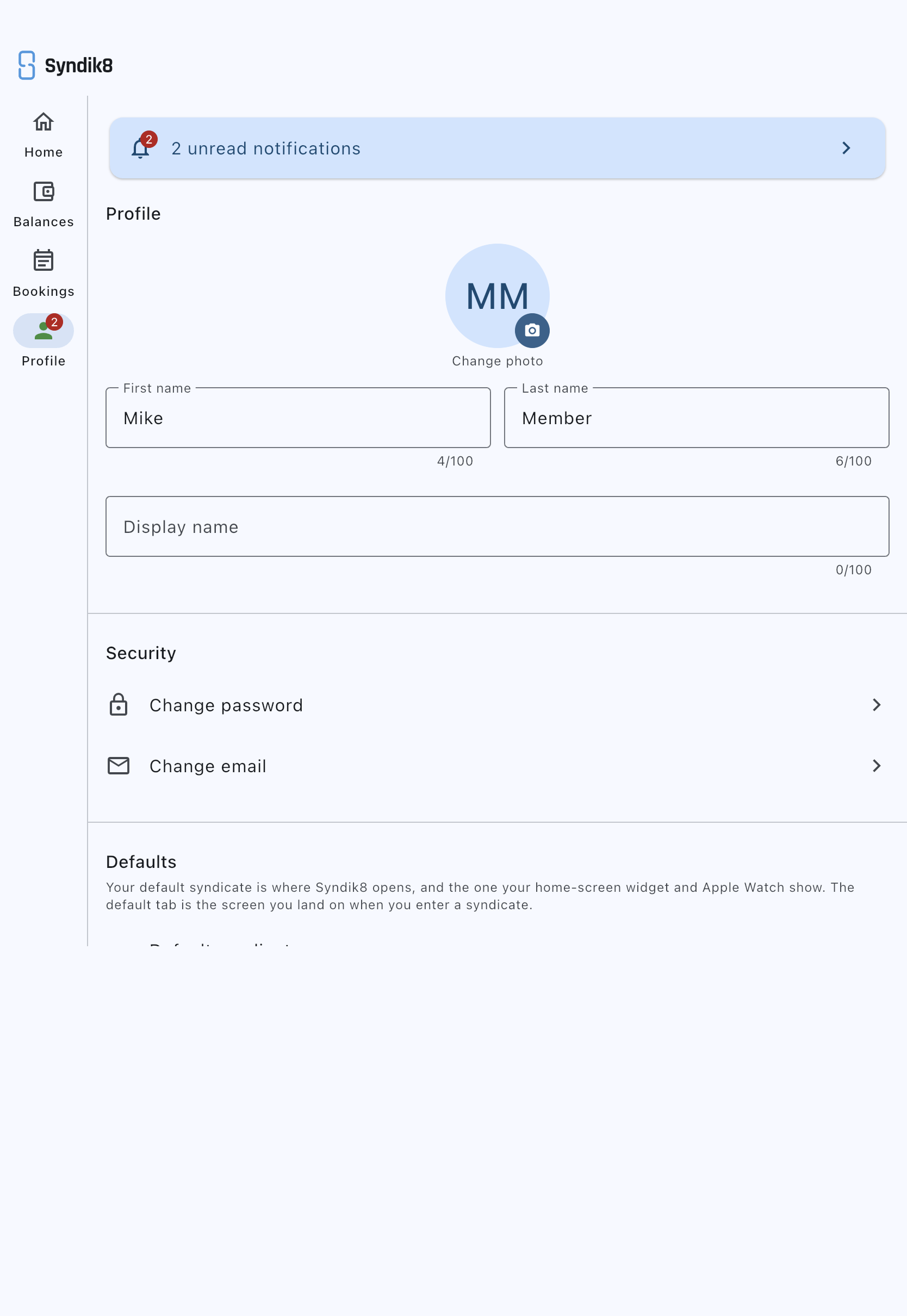
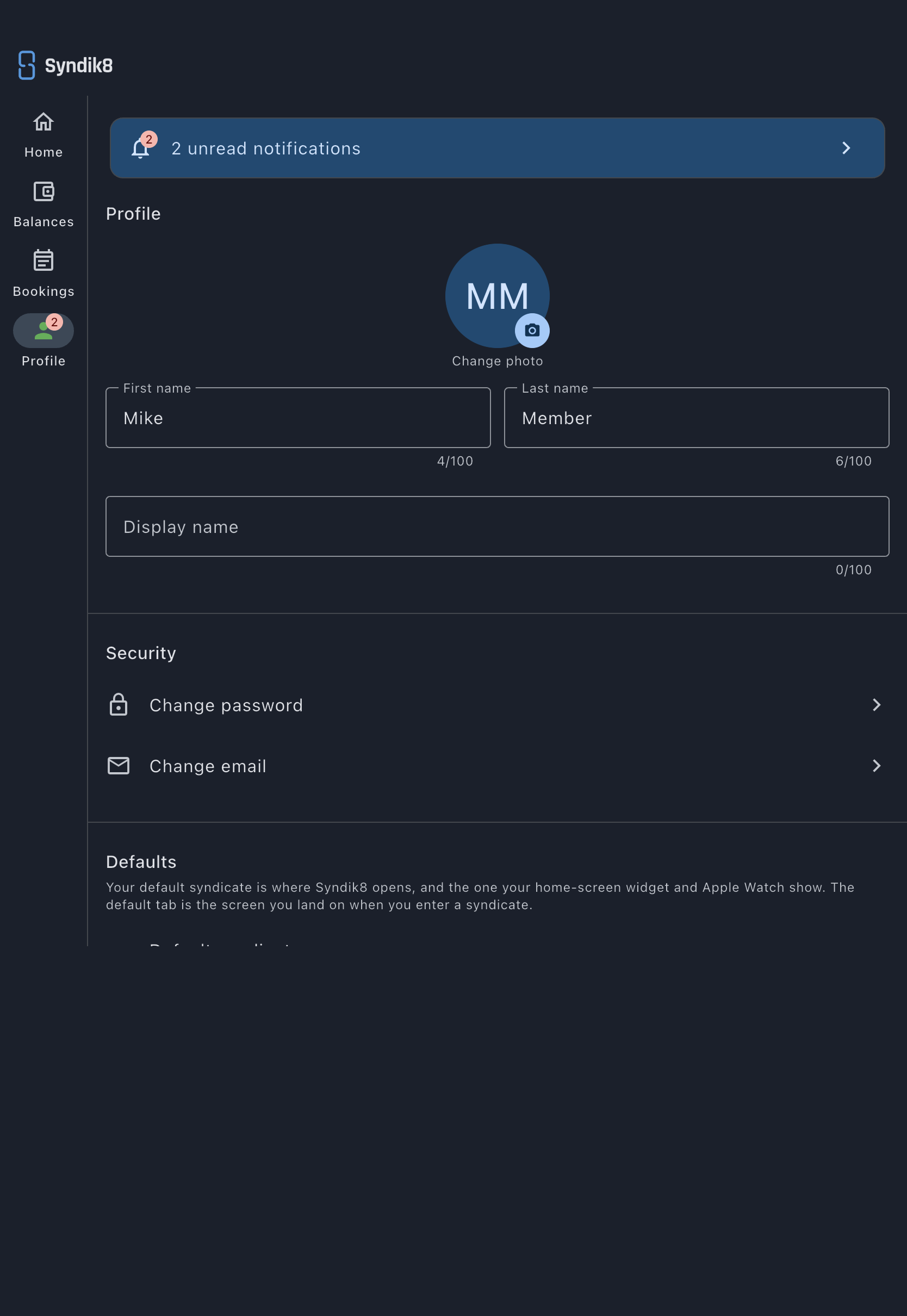
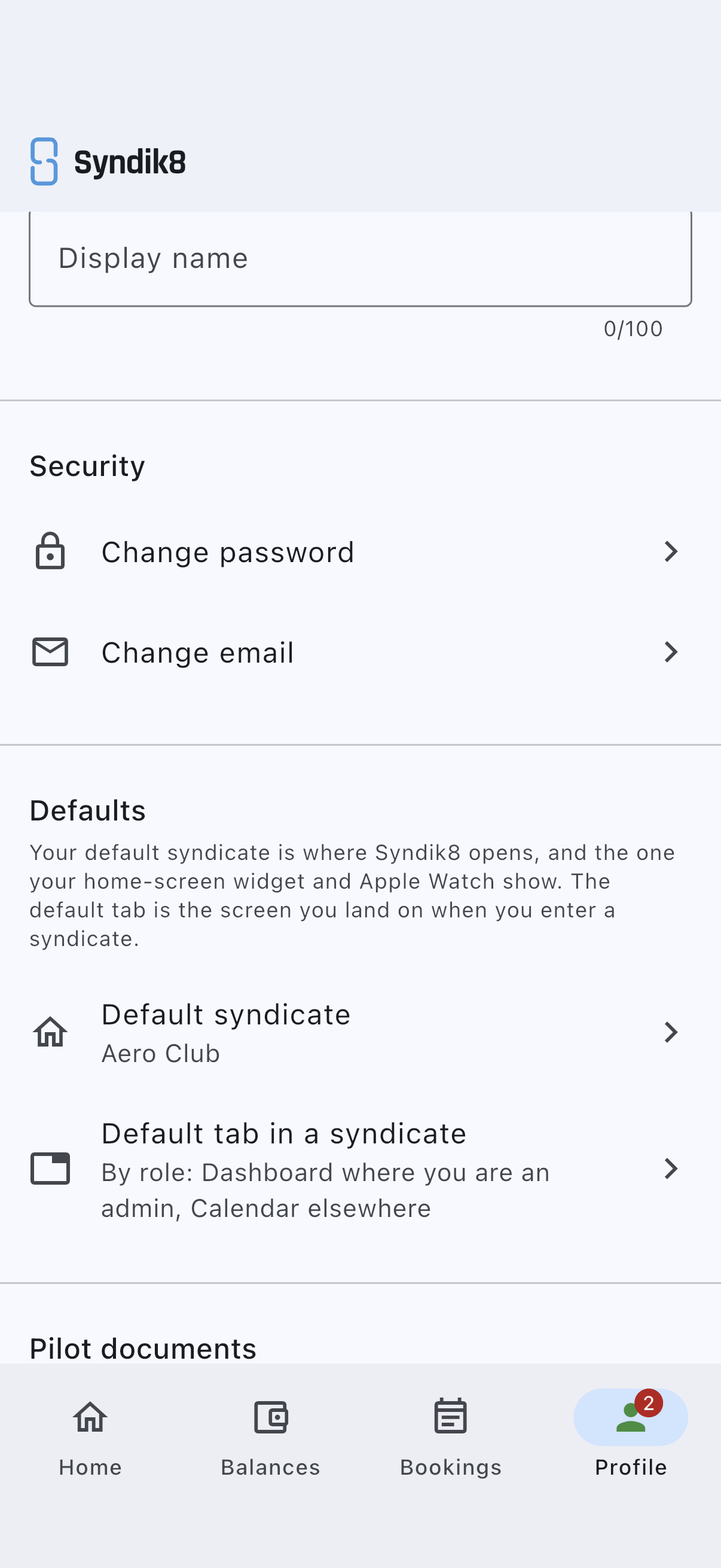
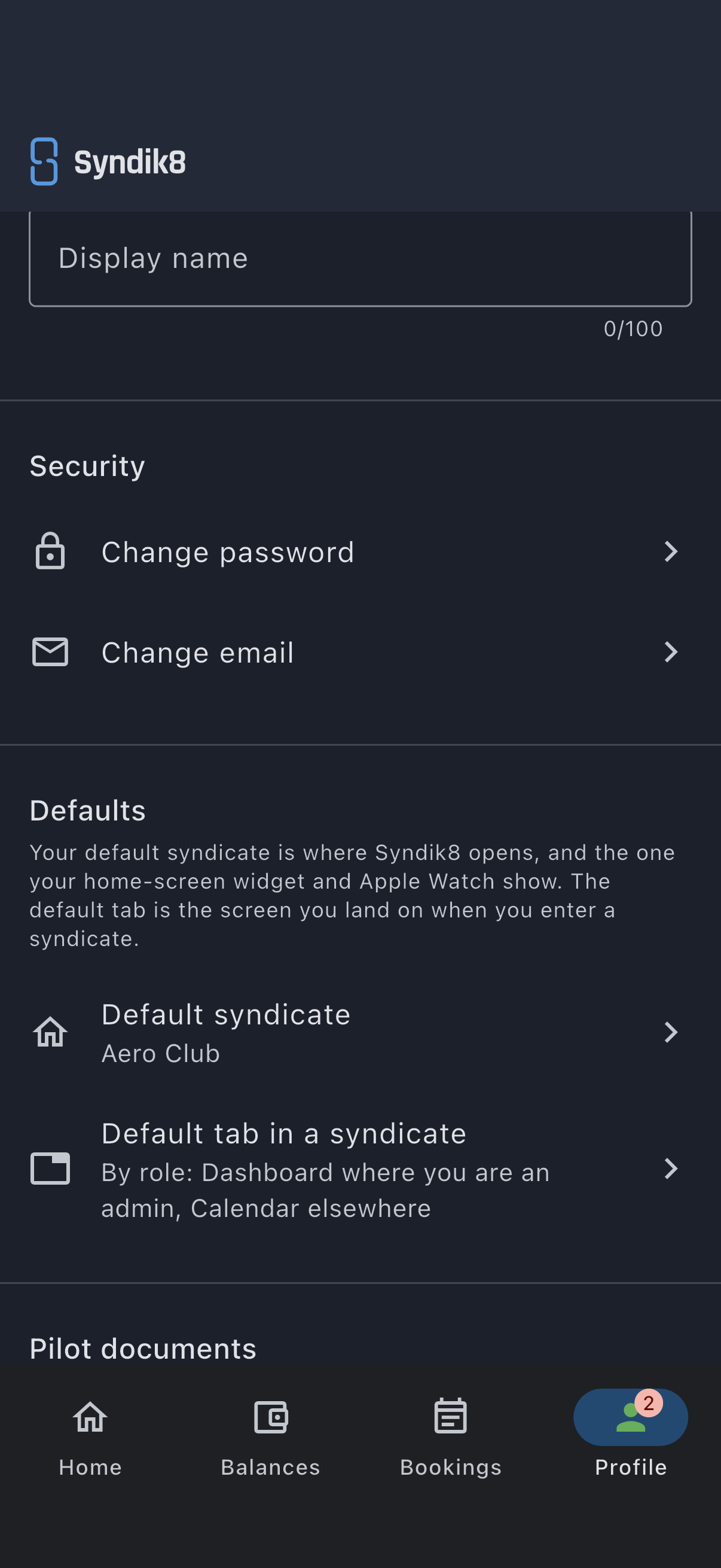
- Find the Defaults card.
- Tap Default syndicate and choose the syndicate Syndik8 should open to.
- If you have not set one, the app opens to its home screen, listing your syndicates, whether you belong to one or several. The row’s subtitle reads Not set (the app opens to your list of syndicates).
- Tap Default tab in a syndicate and choose where you want to land: Dashboard, Calendar or Asset. Admin is offered as a fourth choice only if you are an admin of at least one syndicate, so most members see three.
- Until you choose, the landing follows your role in each syndicate: the Dashboard in any syndicate you administer, the Calendar everywhere else. The row’s subtitle reads By role: Dashboard where you are an admin, Calendar elsewhere while that applies. Choosing a tab replaces it in every syndicate; there is no way back to the by-role landing once you have chosen.
Set your favourite aircraft
Section titled “Set your favourite aircraft”The tile is labelled Favourite asset, and it only appears when both of these are true:
- you have set a Default syndicate, and
- that syndicate has two or more aircraft.
With one aircraft there is nothing to choose, so the tile is hidden. It tells the watch which aircraft’s availability to show.
- In Profile, find Favourite asset at the bottom of the Defaults card. Until you pick one it reads Shown on your watch when your default syndicate has more than one asset; afterwards the subtitle is the aircraft’s name.
- Choose the aircraft you fly most often, or None to leave it unset.
- With no favourite set, the watch shows the syndicate’s only aircraft when there is just one, and nothing when there are several.
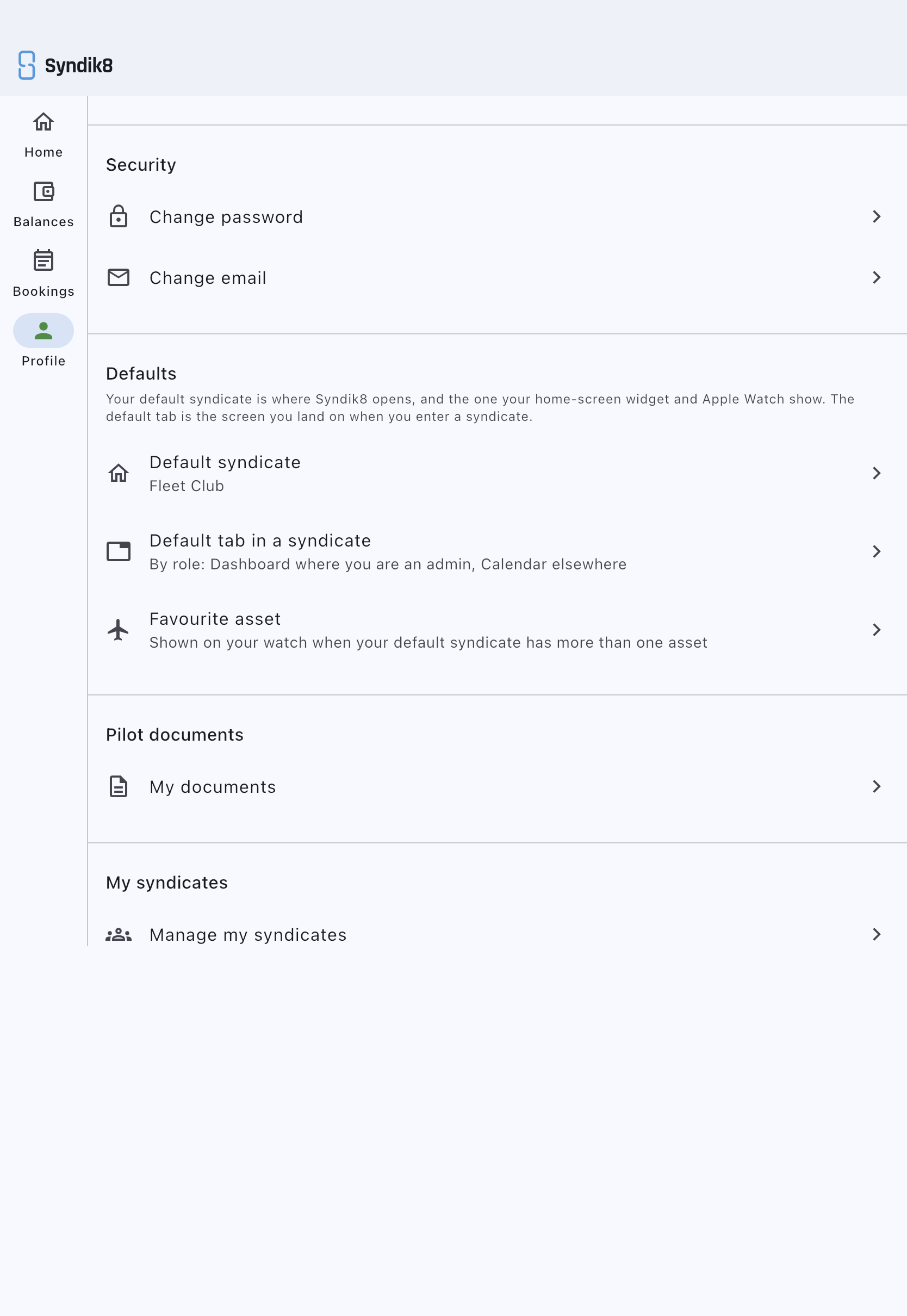
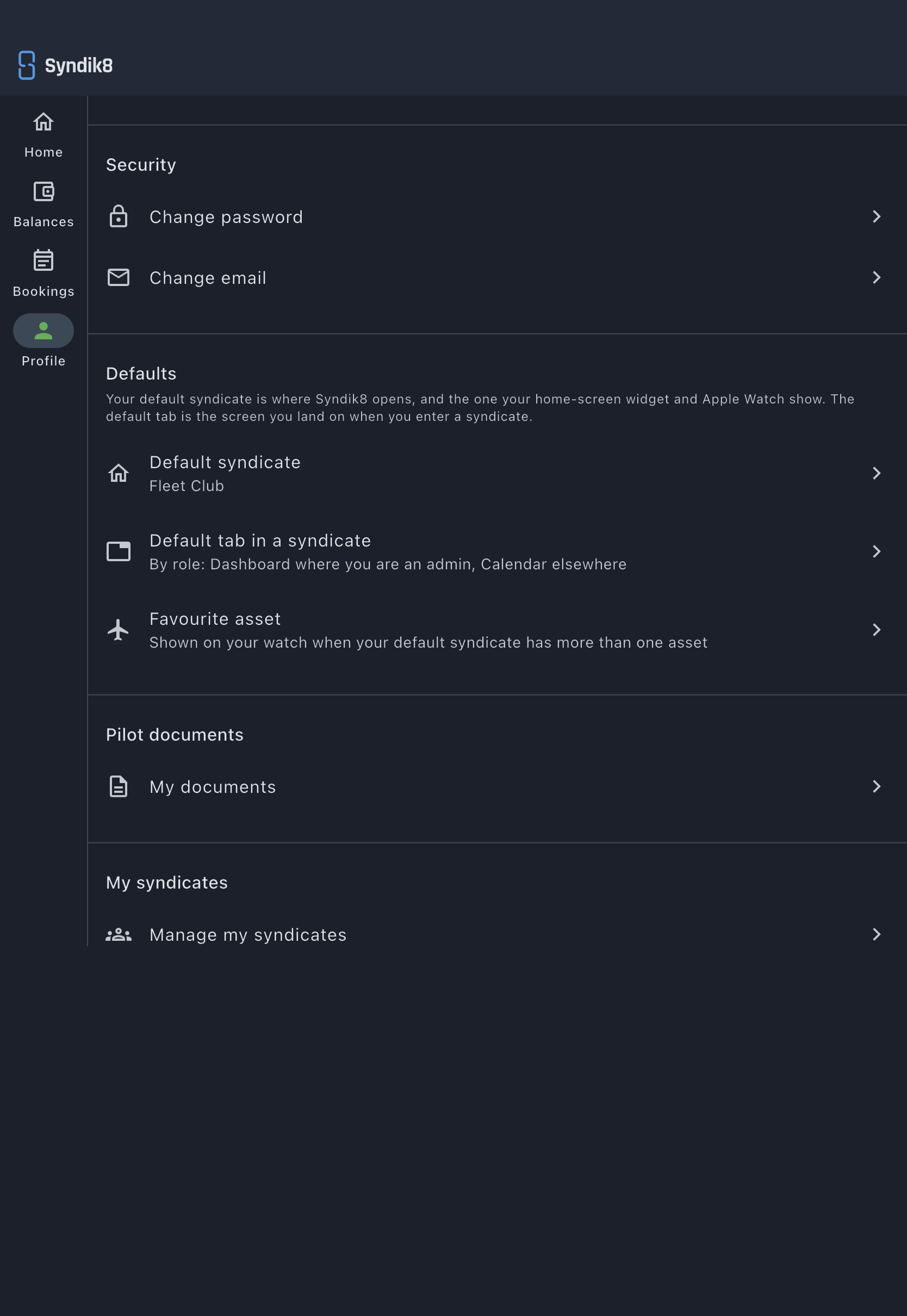
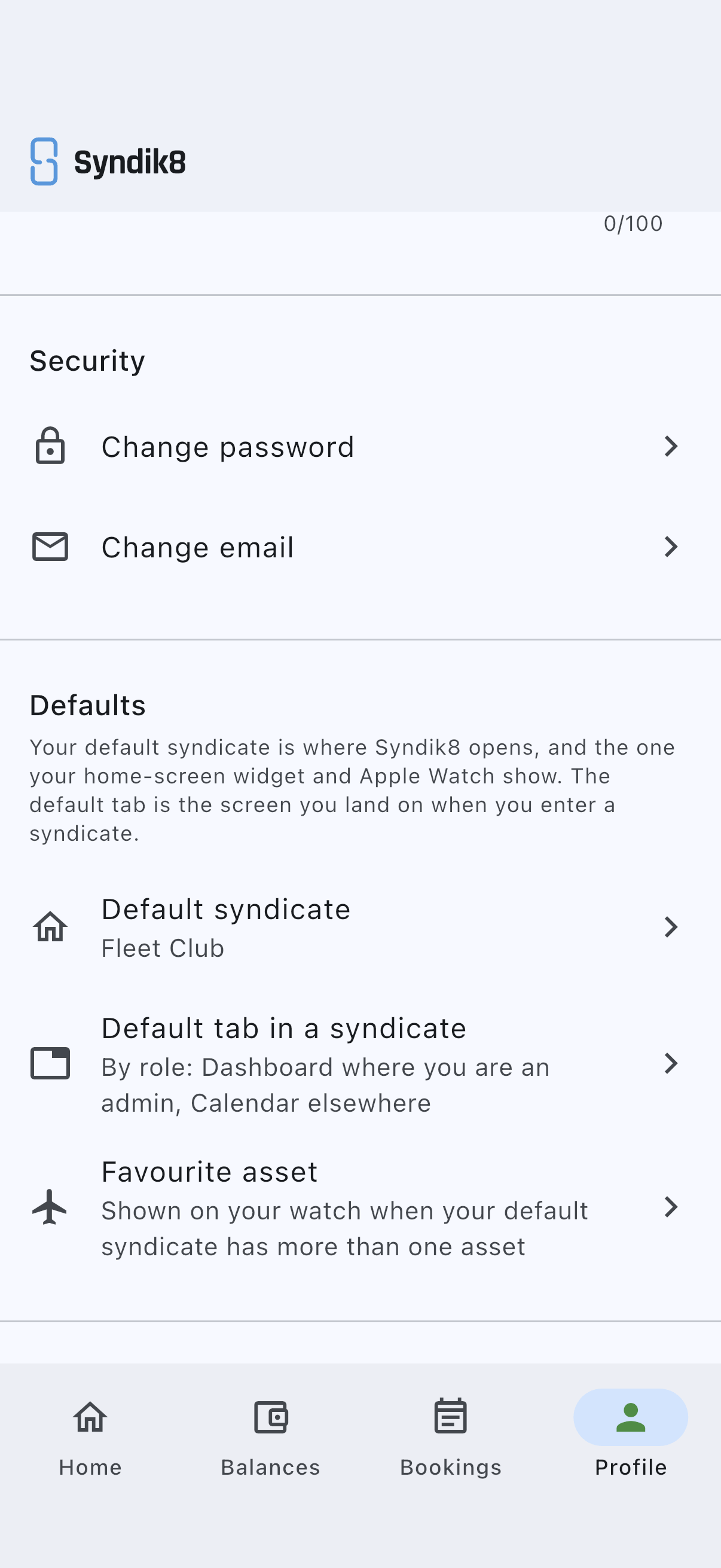
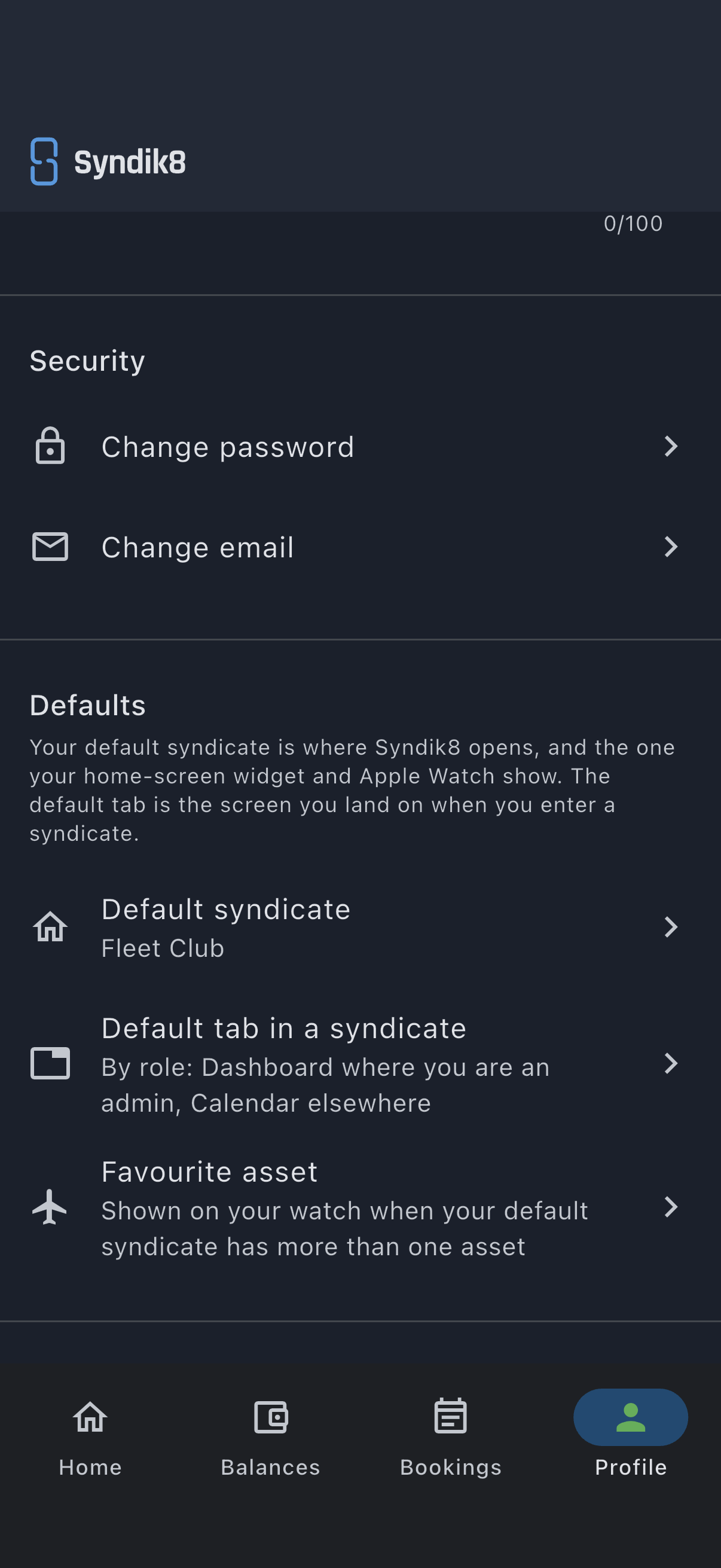
The image above is from an account whose default syndicate holds two aircraft, which is the only place this row appears. Compare it with the card in the previous section, where the default syndicate holds one and the row is absent.
What changes
Section titled “What changes”- The app opens to your default syndicate, on your default tab — or, if you have not chosen one, on the Dashboard where you are an admin and the Calendar where you are not.
- The home-screen widget and Apple Watch follow your default syndicate.
- Your watch’s availability complication shows your favourite asset.