
Set up payments and collect from your members
This tutorial takes a syndicate from no payment account to its first money collected. By the end you’ll have a connected payment account, at least one member on a Direct Debit mandate, a Direct Debit delay set, and a payment-history view that tells you what landed and what didn’t. Each step links out to the matching how-to for the detail, so here you get the shape of the whole flow rather than every field.
Money lands directly in your syndicate’s own connected account (Syndik8 never holds it). Your syndicate is the merchant: it owns its refunds and disputes, and a small platform fee (0.5% by default) is taken from the syndicate side, so the member always pays the face amount. If you want the reasoning behind that arrangement before you start, read how payments work first.
Prerequisites
Section titled “Prerequisites”Before you begin, three things should be true:
- You’re an admin of the syndicate. Members can’t connect a payment account or set up collections.
- You have your syndicate’s business details to hand, whether you’re connecting as a company or as an individual / sole trader. The company path needs company information, your own details as the representative, and the syndicate’s bank details. Your directors and 25%+ shareholders confirm their own details separately, so you don’t need theirs.
- At least one member has an outstanding balance, so your first collection has something to pull. If everyone is square, finalise a month first: see Finalise your first month.
Step 1: Connect the payment account
Section titled “Step 1: Connect the payment account”Open the syndicate, go to the Admin tab, tap Payment account under Money, and start the connection wizard. Choose your business type (a company, or an individual / sole trader) and work through the pages the wizard shows you. The company path collects company information, your own details as the representative, anybody else who has to be verified, and the syndicate’s bank details. There is no terms step to accept here: the payment provider takes the legally binding acceptance itself, on its own pages, so Syndik8 does not ask you to agree to the same thing twice.
Flag everyone who is a director or holds 25% or more before you start, on their member detail screen. The wizard’s Directors and beneficial owners step then lists them, says which flag each carries, and reads Details confirmed or Details outstanding against each name; there is nothing on it for you to fill in. Stripe requires a date of birth, address and job title for each of them either way, so the question is who supplies them. Tap Ask them, and wait for their replies and each of them is asked to enter their own, which means waiting here until they reply. Carry on instead and you enter their details yourself on Stripe’s pages. Nobody is asked anything until you tap that button, and it is not there at all until somebody is flagged. Flag somebody afterwards and they are sent nothing automatically; Remind on their row is what reaches them. Anyone who does not reply can be nudged from their own row, with Remind, every few hours for as long as you need; rows that already read Details confirmed have no button, so nobody who has finished is chased again. You do not have to wait for them all to reply before finishing: sending their details ahead just saves them re-entering everything, and Stripe asks anyone still outstanding when you finish for their details directly, because those details can only be passed ahead at the moment the account is created.
Tap Finish, and Stripe takes over to verify your business and finish setting the account up. Follow the instructions there, then come back to Syndik8. Everything you sent ahead is already on the account, so it is confirmed rather than re-typed. Those pages are Stripe’s, and it changes them as it sees fit, so we do not walk you through them here; Stripe describes that stretch in its hosted onboarding documentation.
Coming back lands you on a Payment Setup screen telling you where the account stands. It reports rather than congratulates, because Stripe returns you the same way whether you finished or stopped part way. Two things can happen there. Usually you see the account’s state and a Refresh status button, for the moment after Stripe’s checks clear. If the link you followed had already been used or had timed out — Stripe’s links are single-use and expire — the screen says so instead and offers Get a new link, which fetches a fresh one and takes you back to where you left off. Neither one is a dead end, and nothing you entered is lost.
Verification cue: the Payment account screen shows the account as Connected. Card and Direct Debit can switch on at different times, so don’t worry if one capability is live before the other; you only need Direct Debit for the collection steps below.
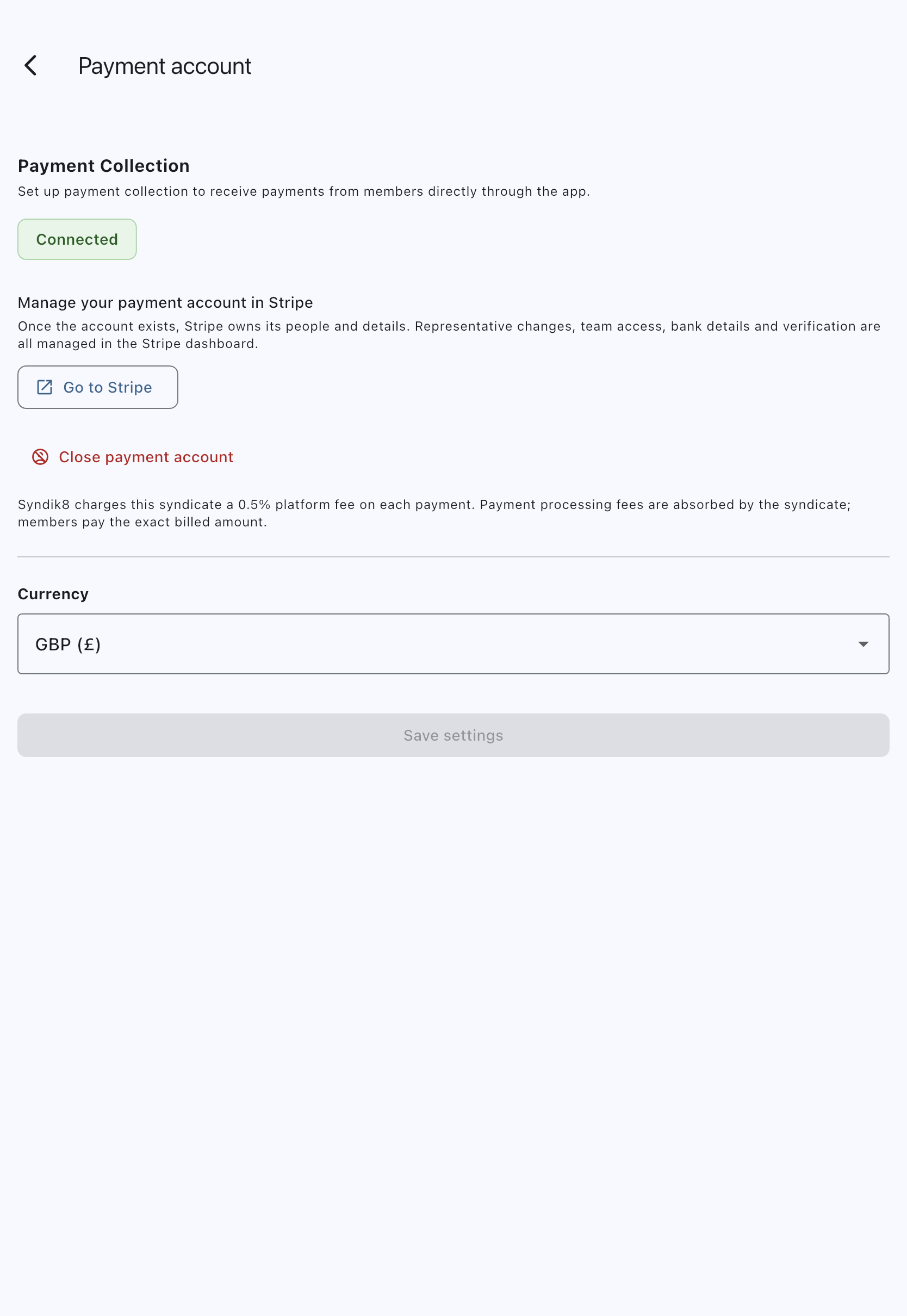
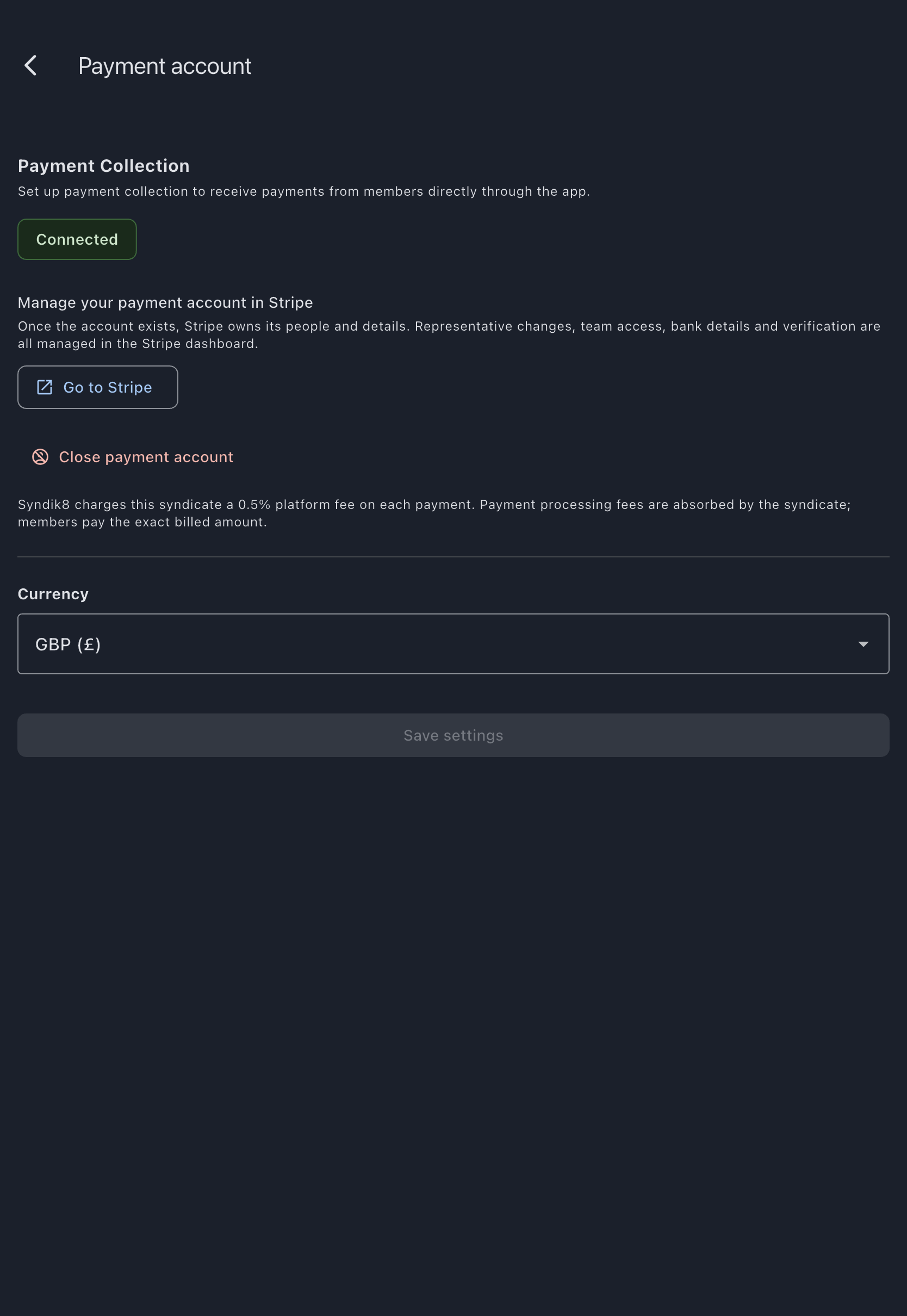
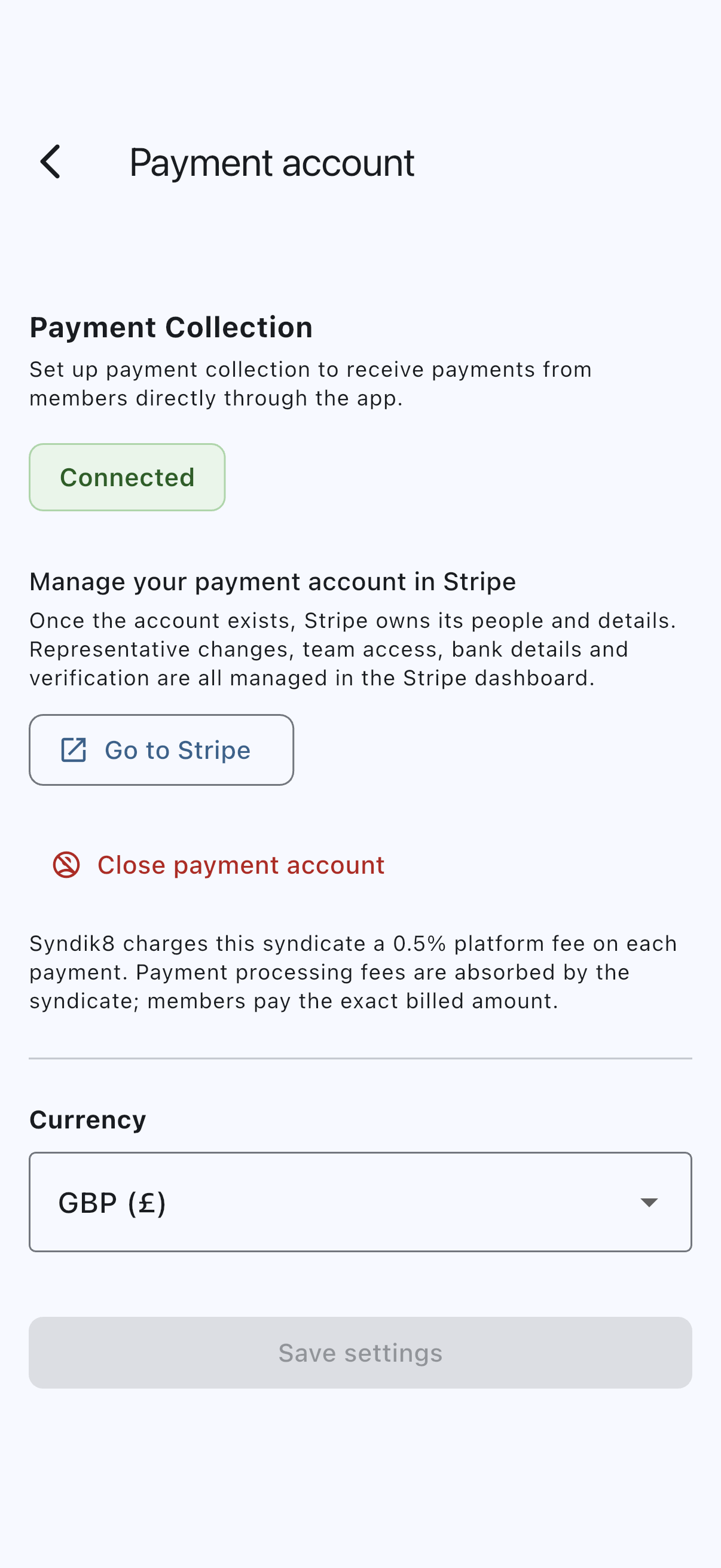
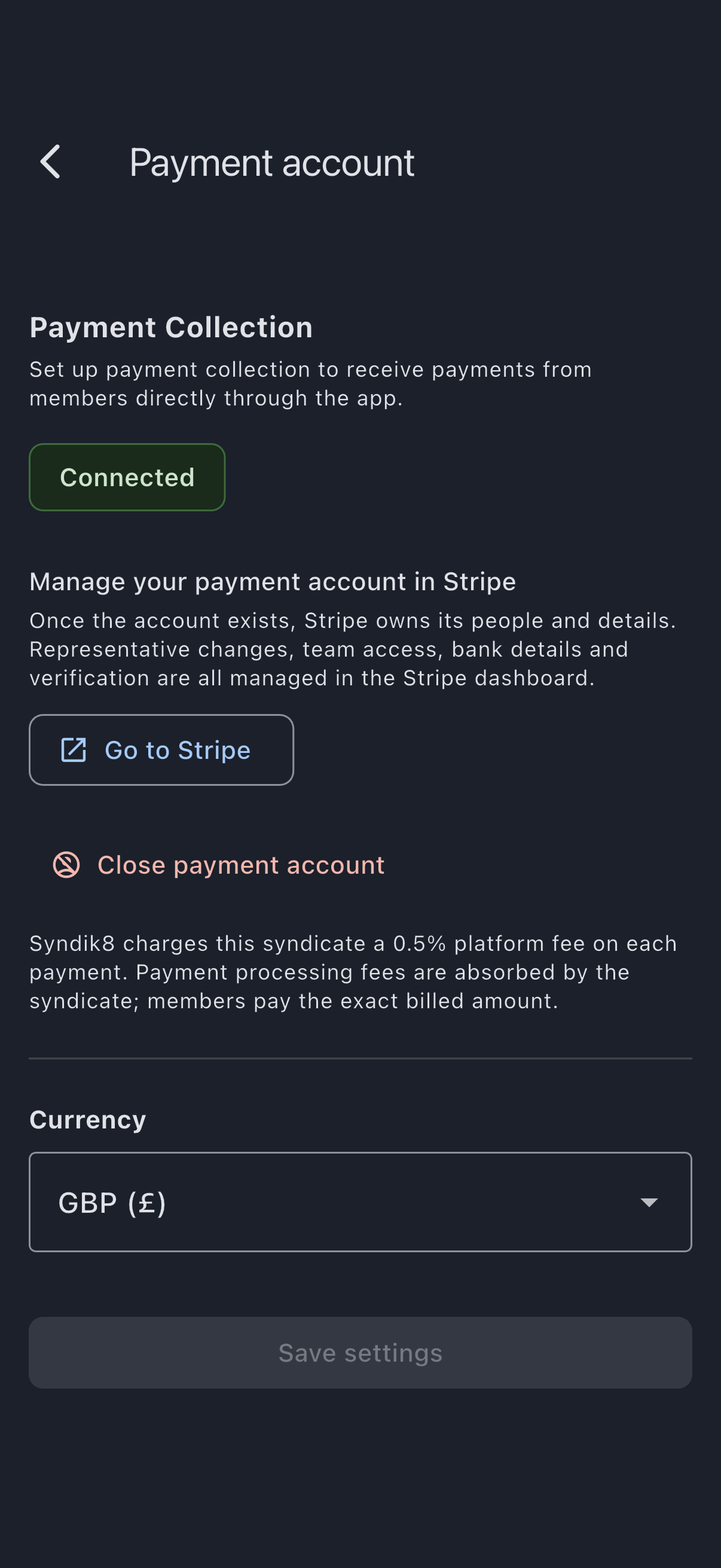
For the full walkthrough of each wizard page, follow Connect your syndicate’s payment account.
Step 2: Set the Direct Debit delay
Section titled “Step 2: Set the Direct Debit delay”Direct Debit collects what is due, so there is no separate collection timetable to set. A charge falls due on the monthly bill day (a new syndicate bills on the last day of the month), or as soon as it is finalised if you choose that instead under When charges become due. Members can pay by card from the moment a charge appears. The one choice for you is how long Direct Debit waits after a charge falls due.
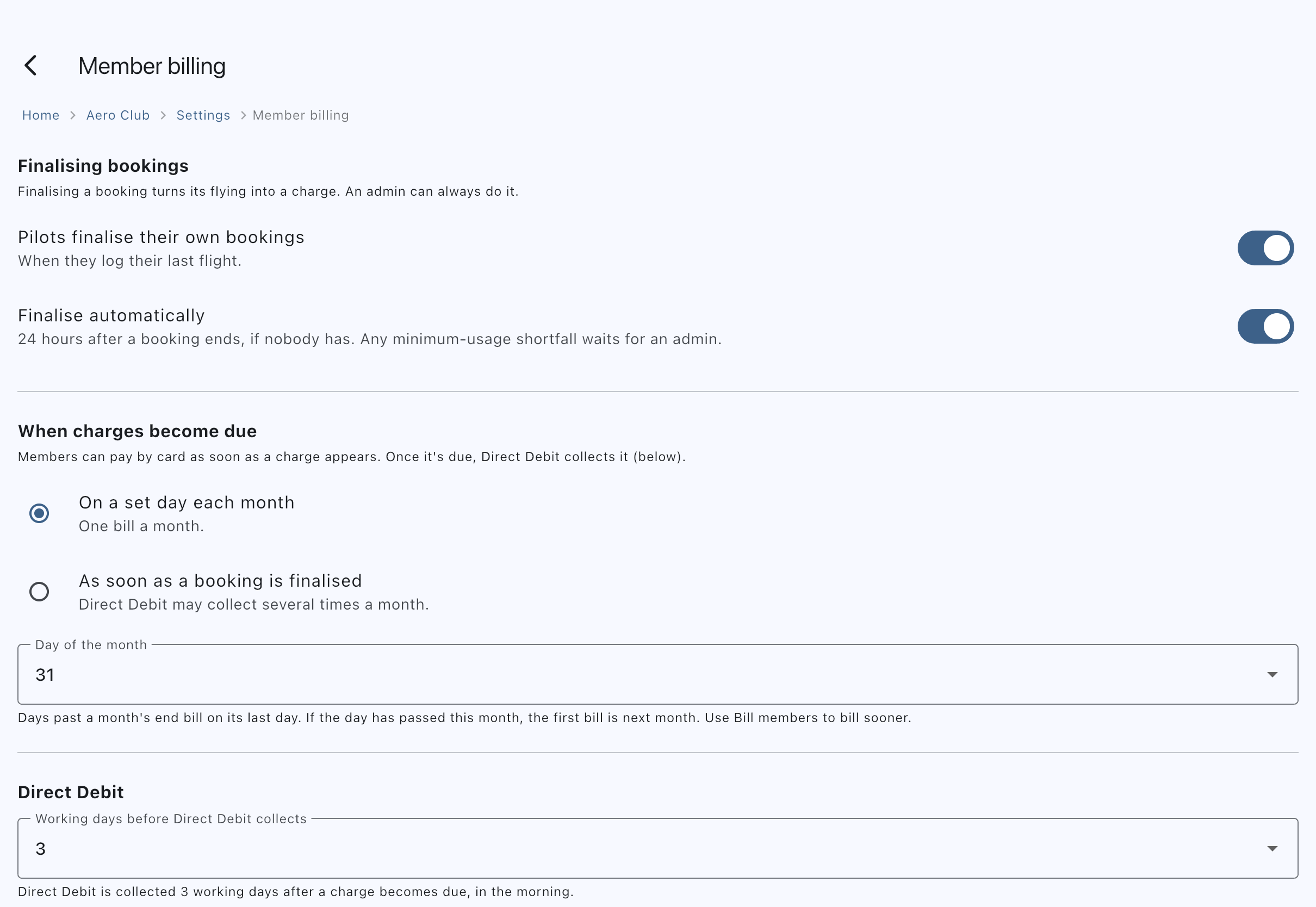
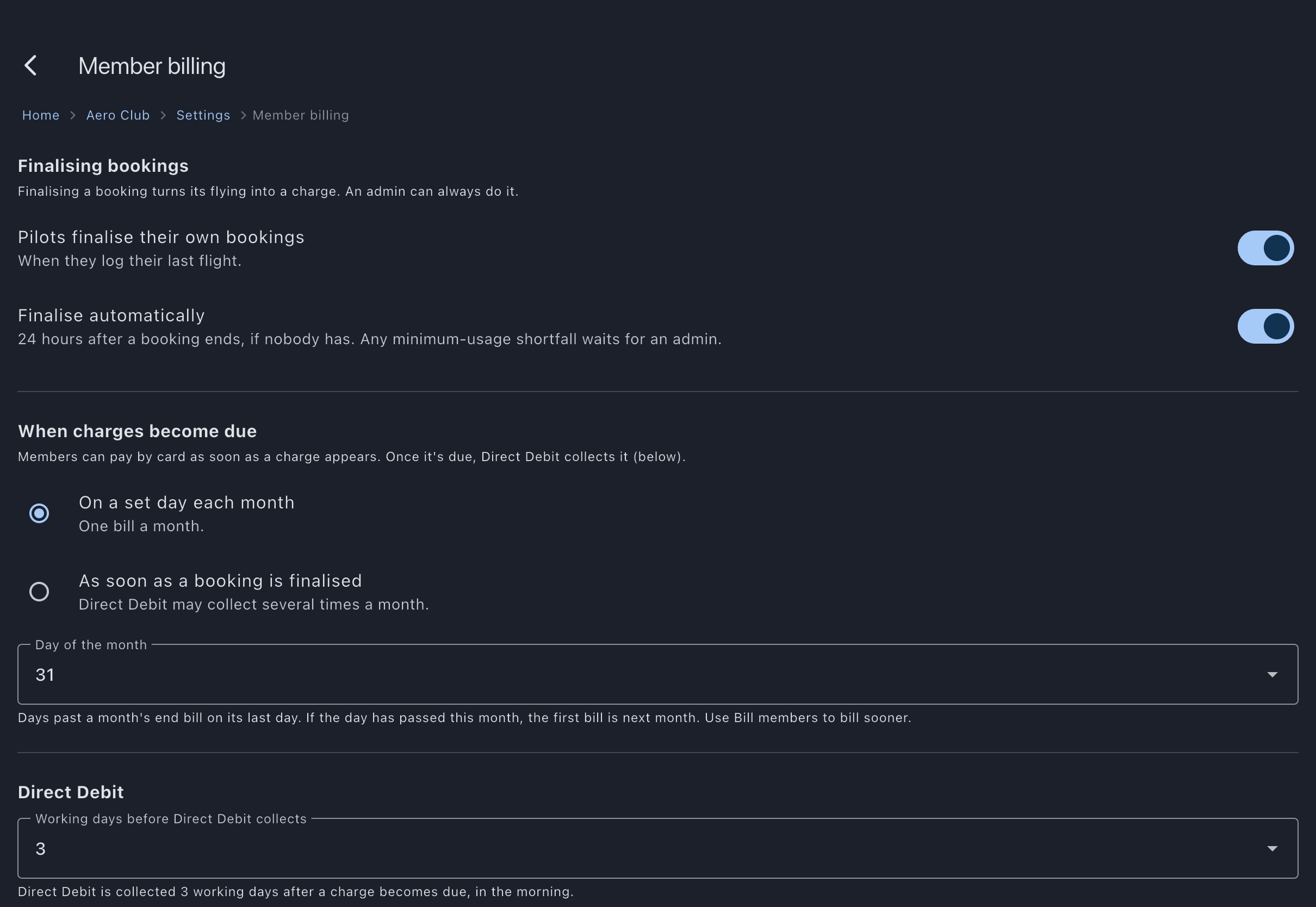
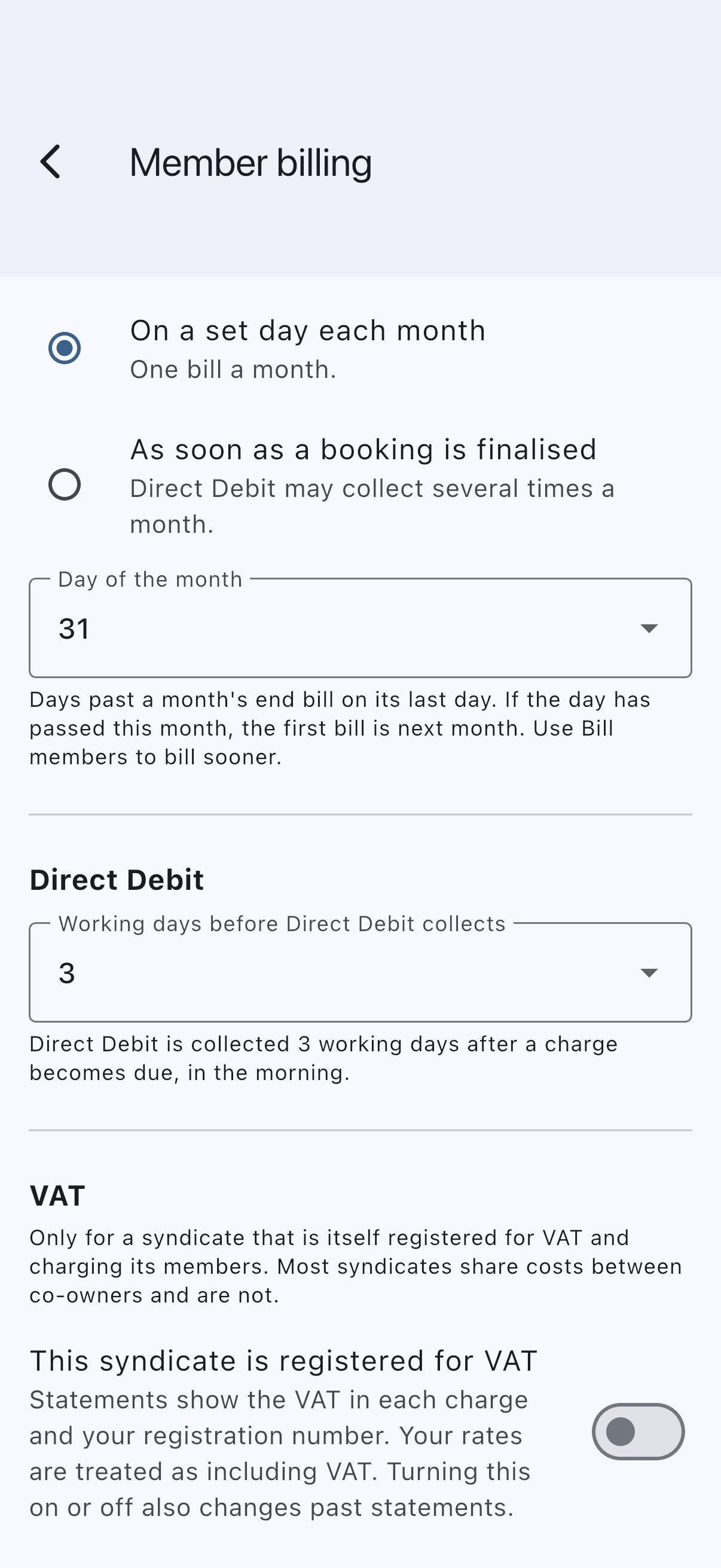
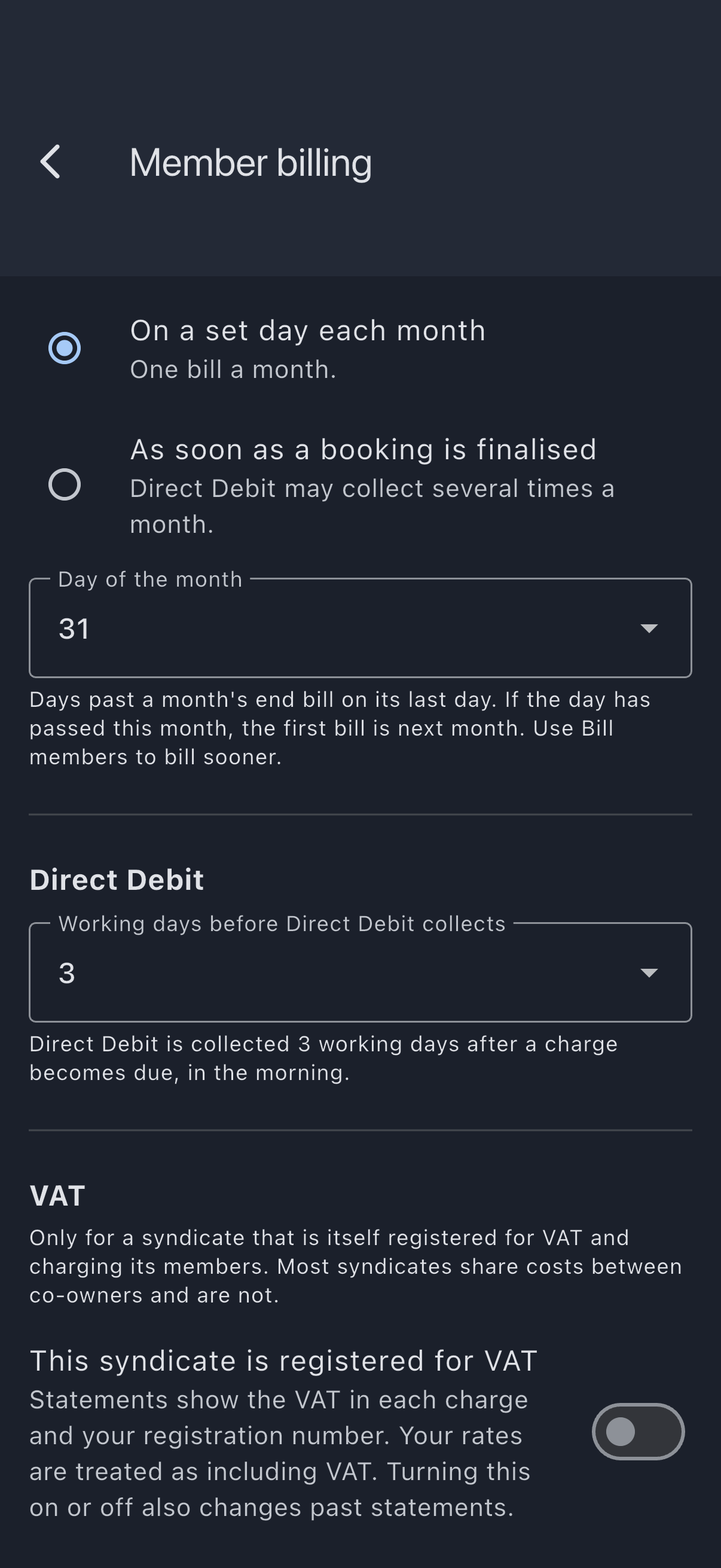
With the account ready, open the Admin tab and tap Member billing under Money. Under Direct Debit, set Working days before Direct Debit collects. The minimum is one and the default is three; the choice saves as soon as you make it.
From then on, a daily runner collects whatever each member with an active mandate owes once that many working days have passed since the charge became due, and skips anyone with nothing outstanding. Weekends don’t count.
Verification cue: the Member billing screen reads back your choice in words, for example “Direct Debit is collected 3 working days after a charge becomes due, in the morning.”
Setting the delay before members have mandates is fine; the runner simply has no one to collect from yet, and starts pulling as members come online. The detail lives in Set up Direct Debit collection.
Step 3: Get members paying
Section titled “Step 3: Get members paying”Members can pay in two ways, and you can mix them.
Direct Debit (recurring). This is what the delay in step 2 governs. To see who is set up, open Bill members under Actions on the Admin tab: Who pays by Direct Debit lists every active member as Direct Debit active, No Direct Debit or Direct Debit cancelled, and tapping a member opens their page. A member sets up a mandate once: they start from Manage Direct Debit on the dashboard’s My Syndicate card (or the Set up button on the short prompt on their My Balance screen), and Stripe takes over to collect their bank details and their authorisation. Stripe then emails them a link to sign, and once they sign, the mandate is active. To nudge a member, open their member detail screen and tap Prompt to set up Direct Debit in its Payments section, which sends them an in-app notification, a push, and an email that deep-links straight to setup. There’s no one-click prompt for everyone, so prompt members one at a time.
Tell members two things up front. First, a Direct Debit appears as “Stripe” on their bank statement, so it isn’t a surprise. Second, before each collection they get an advance notice: the provider sends the legal advance-notice email before the debit, and Syndik8 also shows an in-app “debit incoming” notice naming the amount and saying it will leave over the next few working days. Only the provider’s email names a day — the provider decides when the collection goes, and does not tell Syndik8 what it chose.
Card (one-off). A member who’d rather pay a balance off there and then can, at any time and without waiting for the bill. From their My Balance screen they tap Pay to clear one charge or Pay All to settle everything they owe now. A member who holds credit is asked whether to use it first. A cash call whose due date has not arrived is outside that, and has its own Pay button if they want to settle it early. Stripe takes over to collect the card and take the payment. Card payments are one-off; they don’t create a recurring mandate.
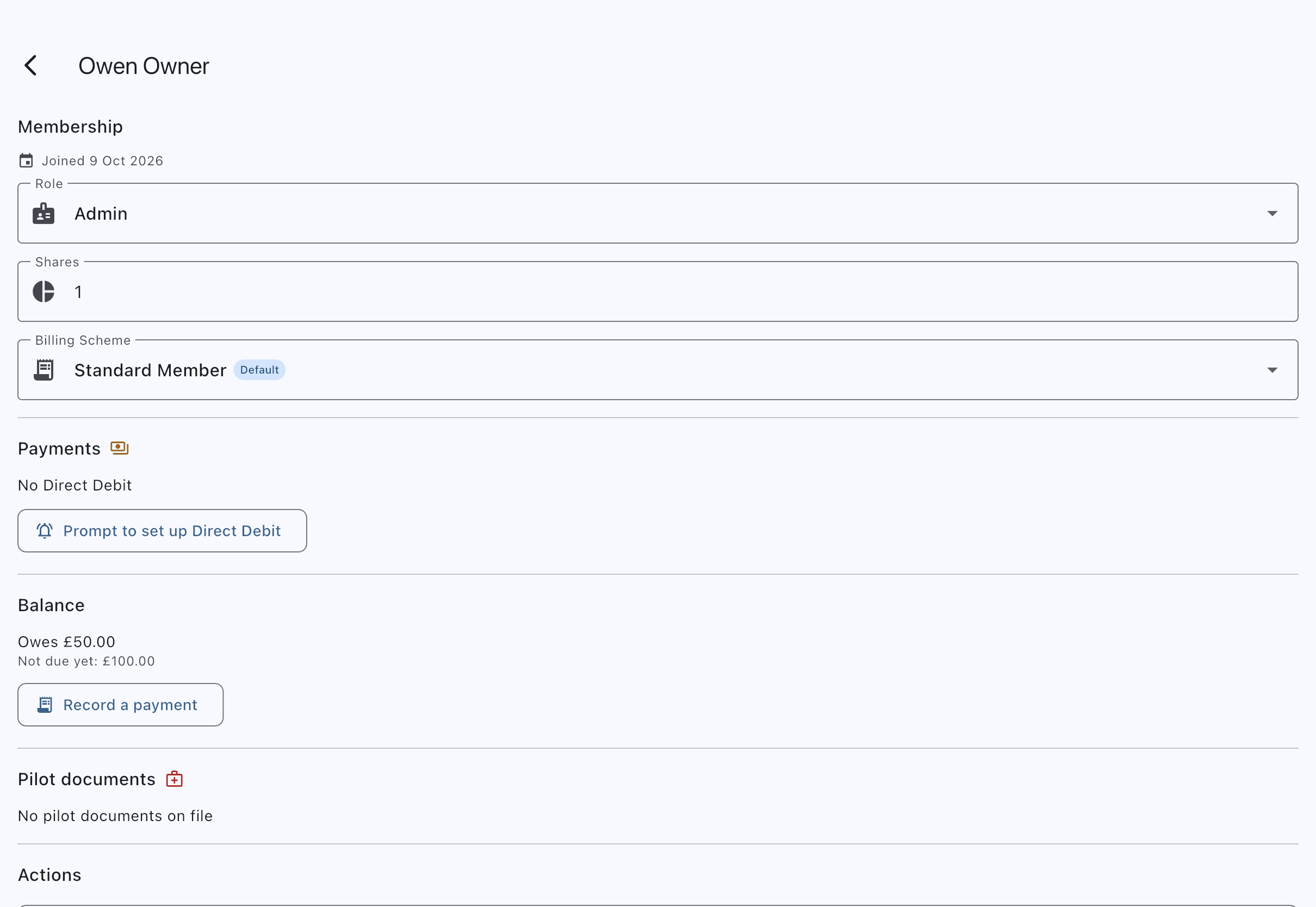
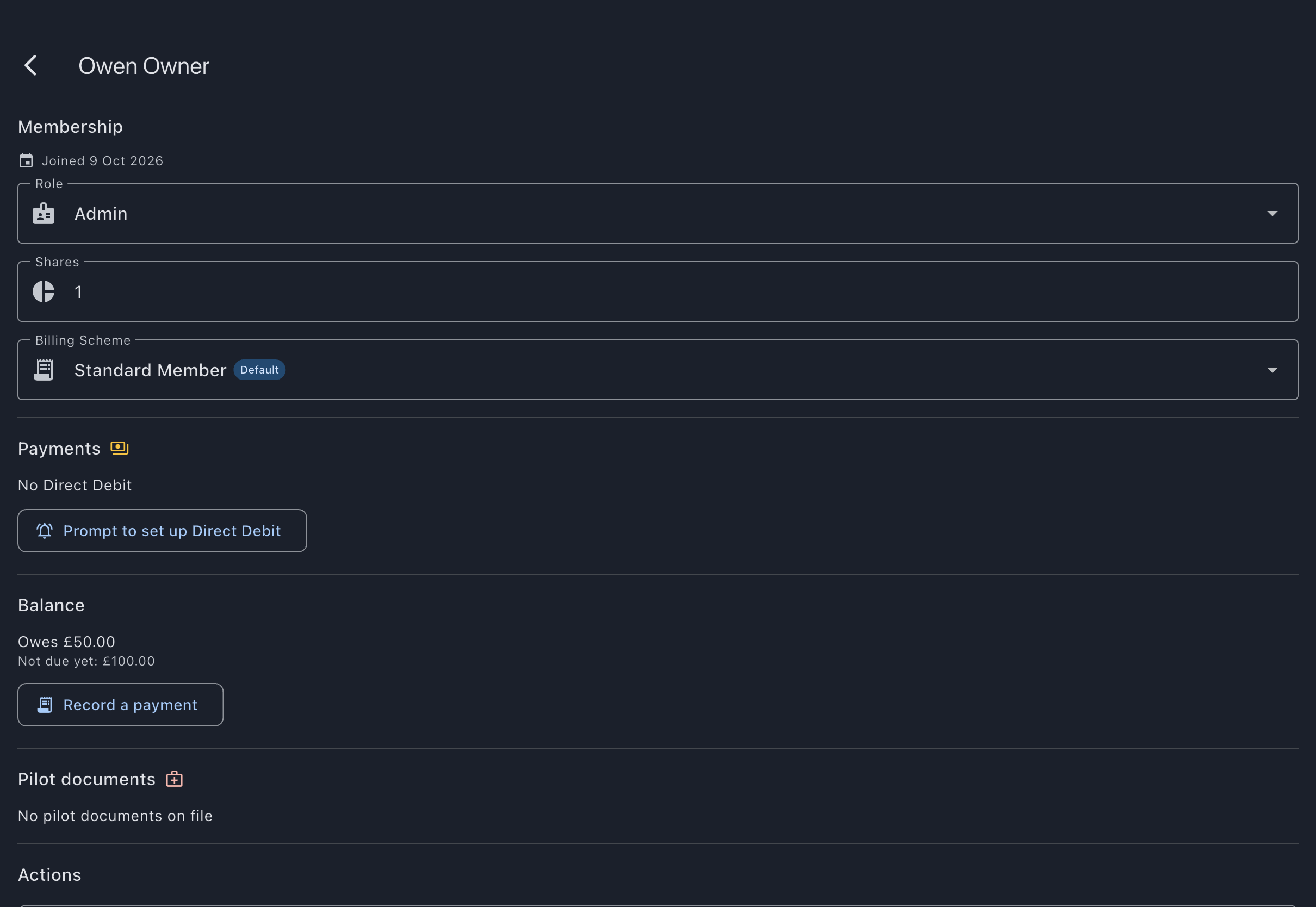
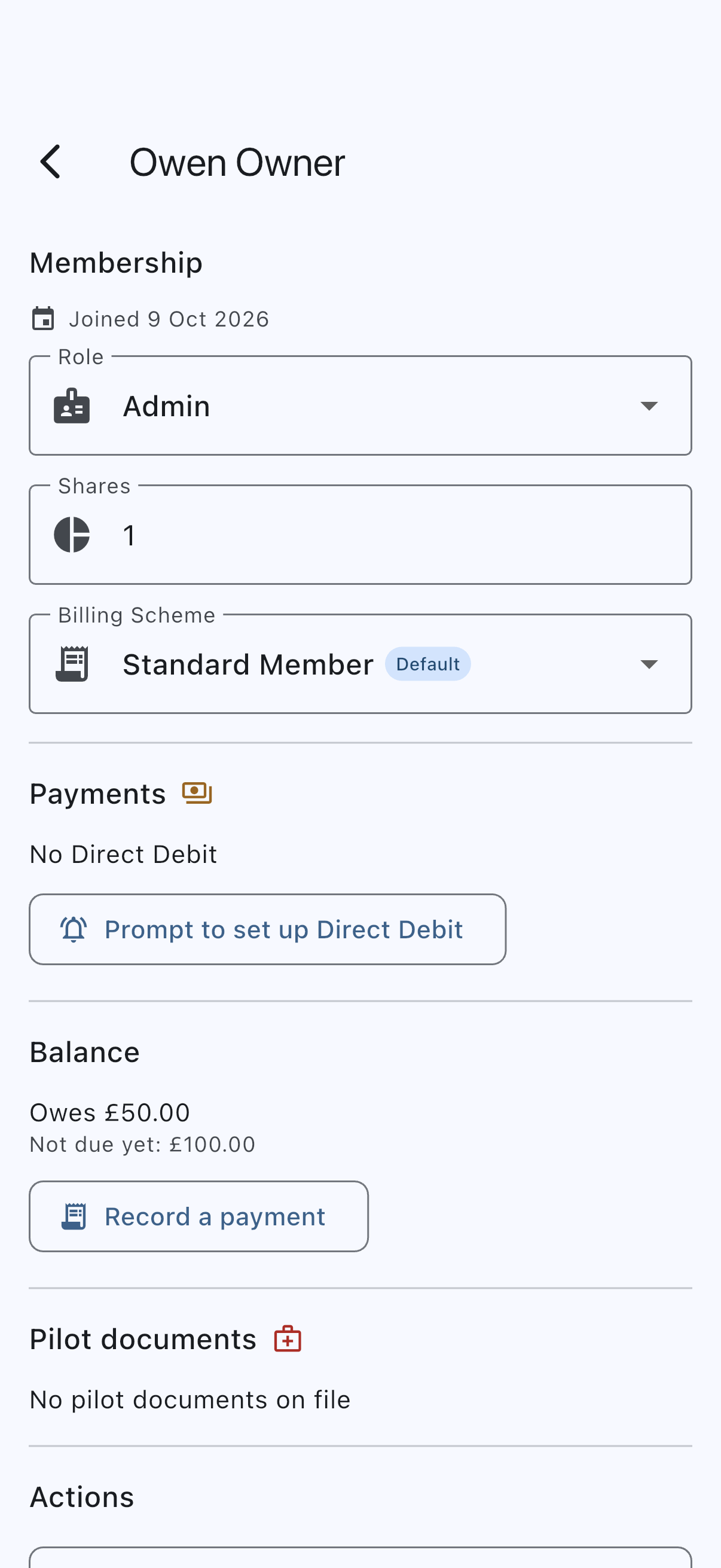
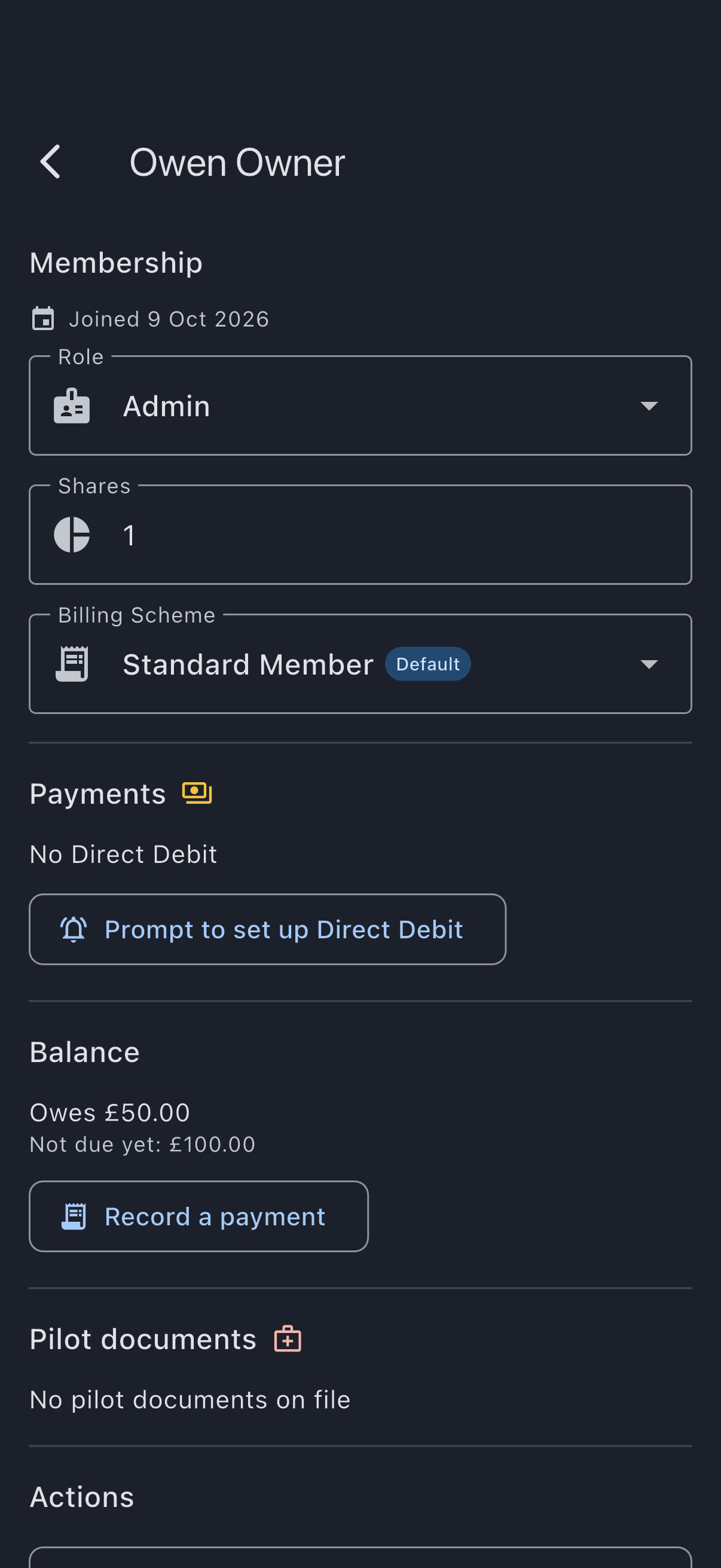
Verification cue: a prompted member receives the notification and email, and once they’ve signed, their mandate reads active. A member who already has one reads Direct Debit active here instead, with no button — so nobody who has finished is chased again.
The member-side steps and screenshots are in Set up a Direct Debit mandate.
Step 4: Watch the first collection land
Section titled “Step 4: Watch the first collection land”You don’t have to wait for the delay to elapse to see this work. On Bill members, Collect now previews what each member owes (name, number of charges, and amount) and collects on confirm. Use it for your first run so you can watch the cycle through.
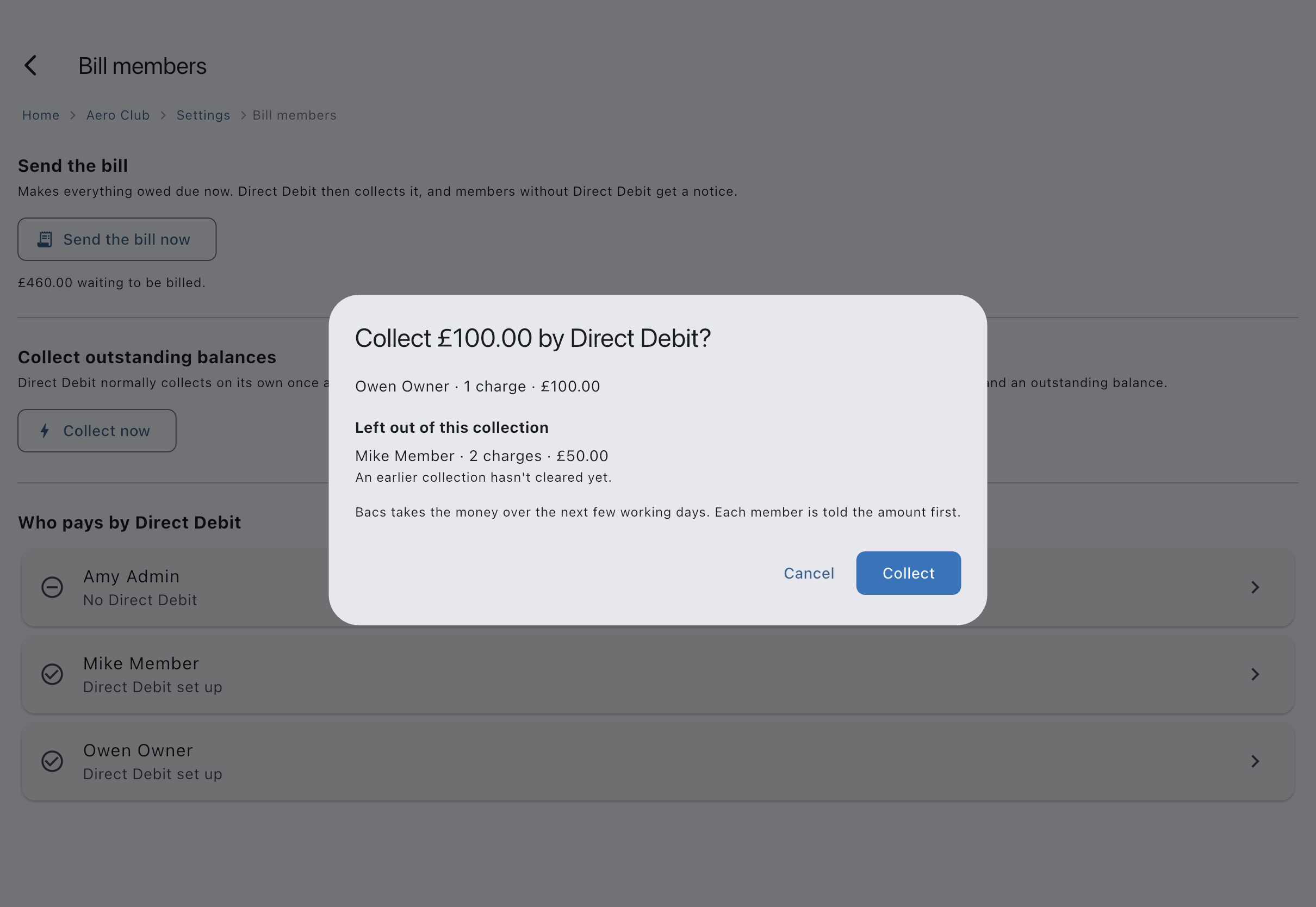
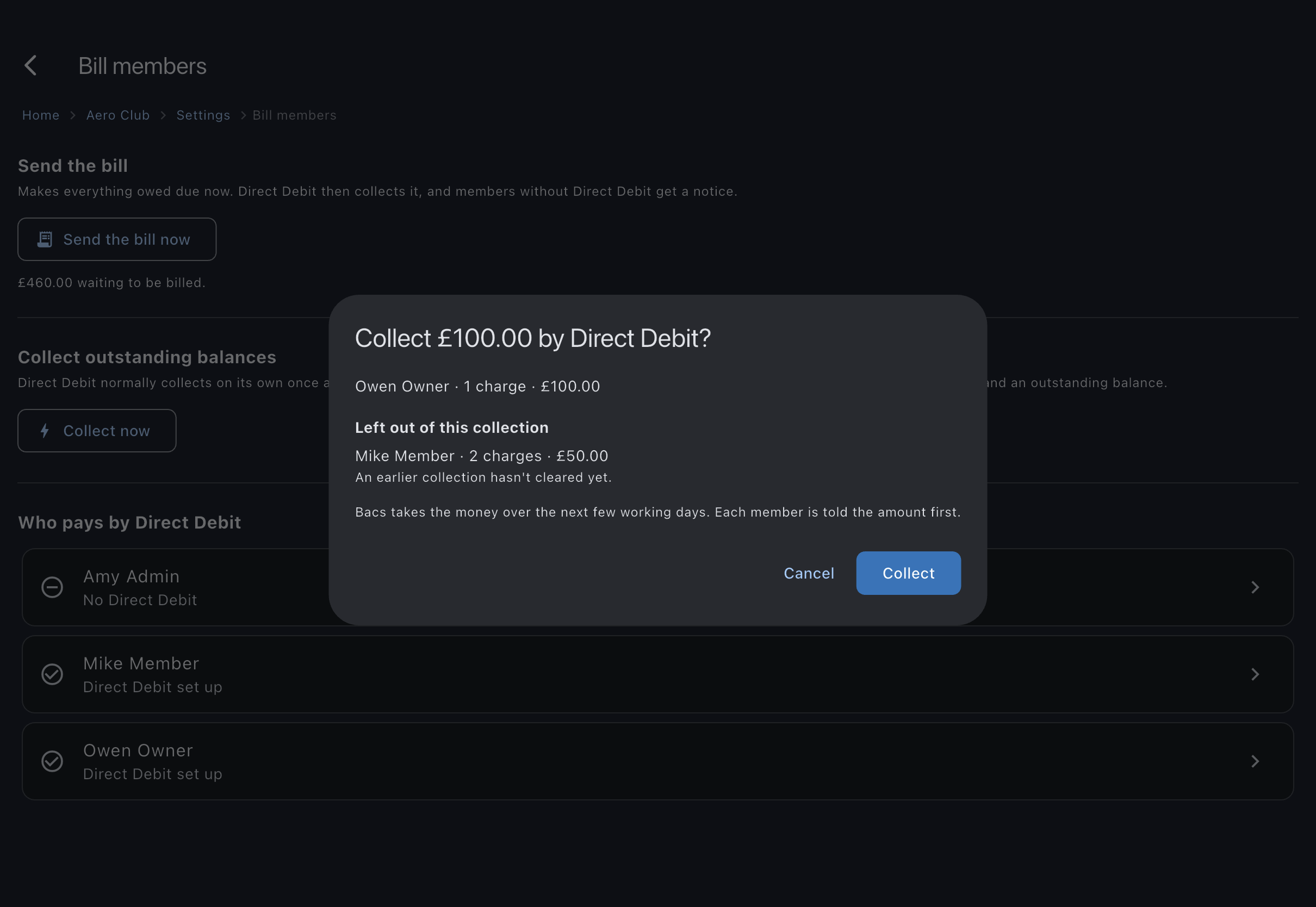
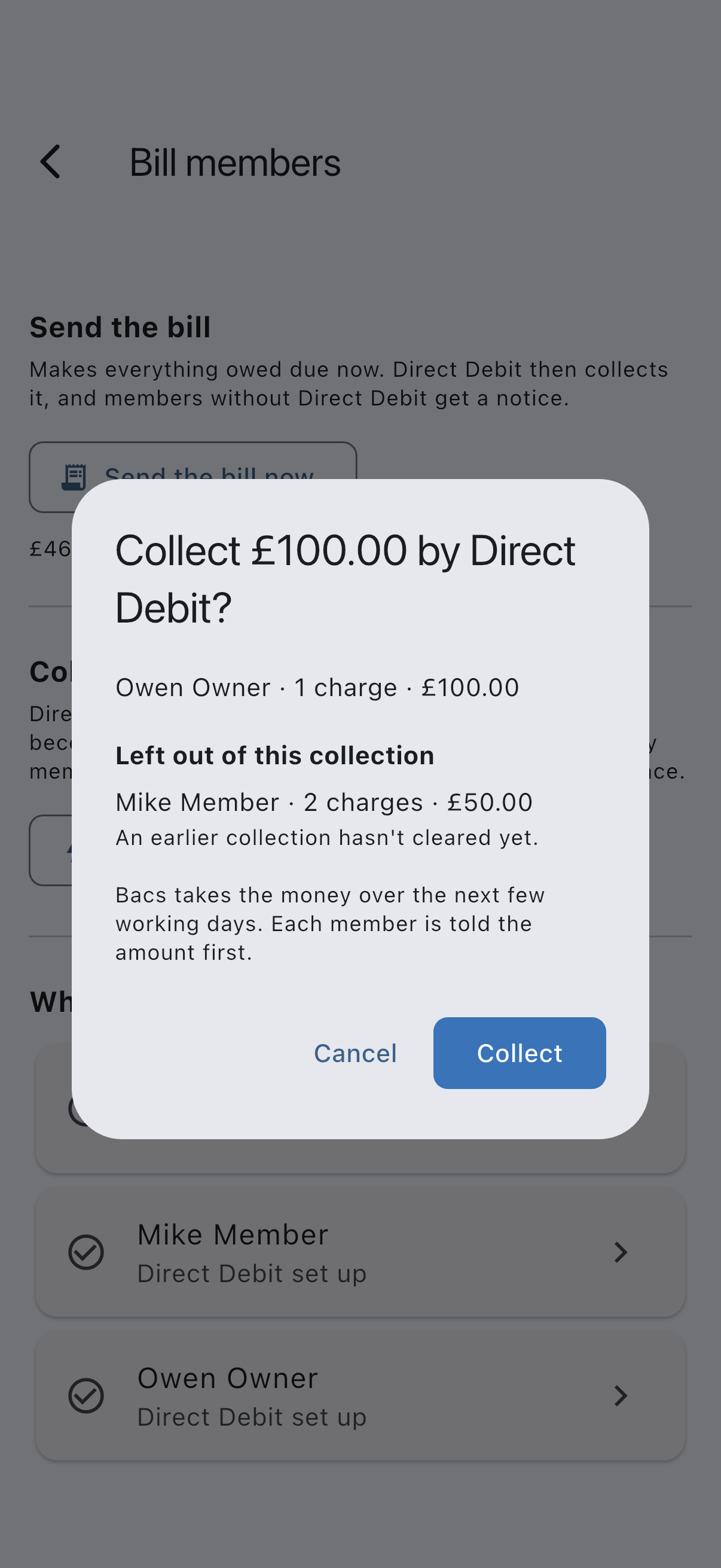
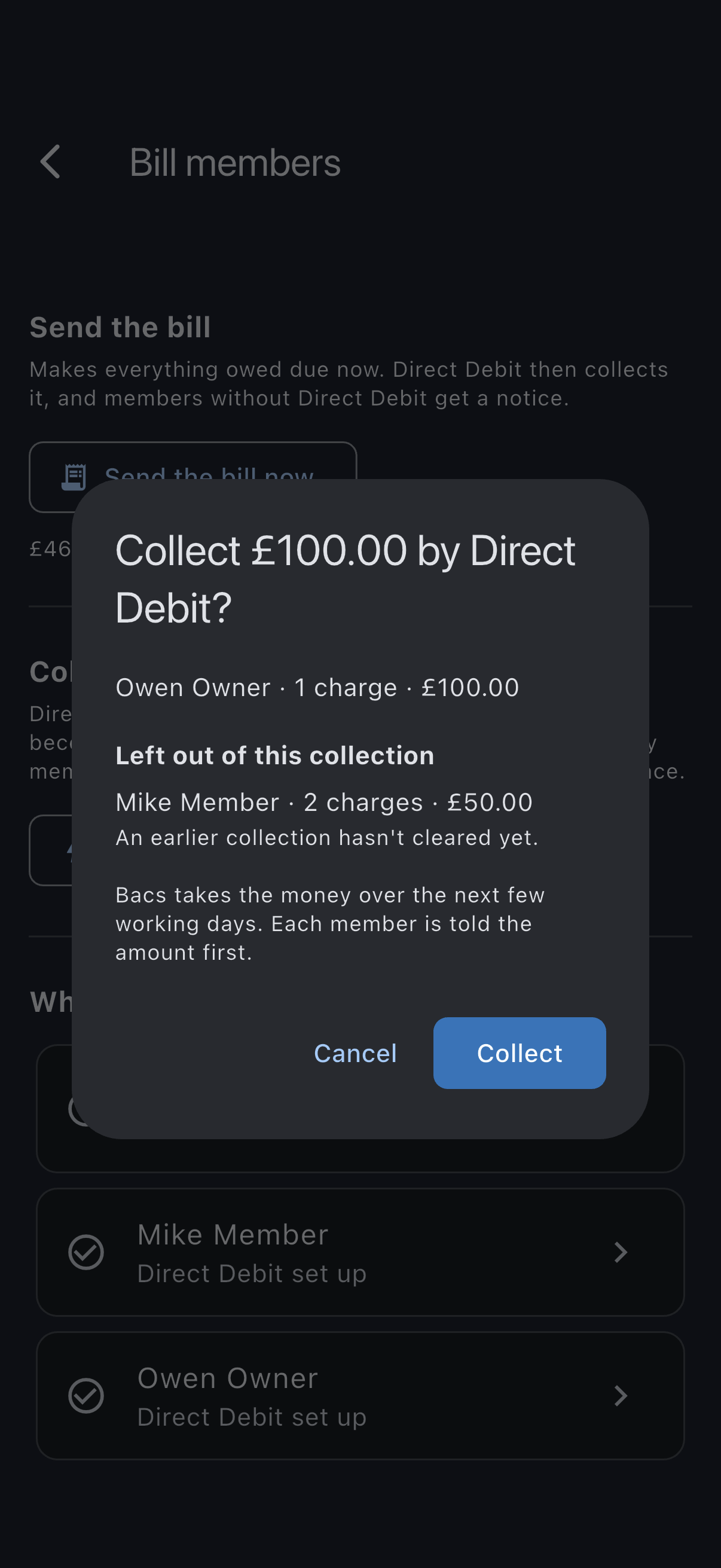
Each member with an active mandate and an outstanding balance is collected from. Their charges are claimed by the collection straight away, and each member is told it is coming — Stripe sends the legal advance-notice email, and Syndik8 shows a debit incoming notice on their My Balance screen naming the same amount. Only Stripe’s email names a day; Stripe decide when the collection goes and don’t tell Syndik8 what they chose. If a collection fails, the member and the admins are notified, the charges are released, and they’re retried on the next run. A member can reclaim any collection under the Direct Debit Guarantee, which is an indemnity handled through the reversals flow.
Verification cue: a Collecting n payments confirmation appears, and reopening Collect now shows No members have an outstanding balance with an active Direct Debit mandate — the charges are now held by the collections you just raised. A few working days on, those collections read Collected in each member’s Payments section on My Balance.
How Collect now, the working-day delay, and failures behave in full is covered in Set up Direct Debit collection.
Step 5: Read the payment history
Section titled “Step 5: Read the payment history”Members see their own record on their My Balance screen. Tap Payments to expand the list of payments and collections, each with an outcome of Collected, Waived, Paid with credit, On its way, Not finished, Not collected, Never requested, Not completed, Cancelled, Returned to you, or Undone, and a sentence under anything that did not simply succeed. The list is kept on the device and follows the server, changing by itself when a collection confirms or a payment is put right, so it’s the place to point a member who asks “did my payment go through?”. A payment only partly refunded stays Collected, because it did clear the charges it was for.
A settled charge also names its payment method where it is known. A chevron at the bottom right of its row means there is more to show: tap the charge to expand its breakdown and payment details. An unsuccessful earlier attempt is kept in Payments, but does not claim the charge is still owed if it was paid afterwards; Due shows what needs paying now.
If you ever need to send money back — a collection taken in error, a goodwill gesture, a charge that turned out to be wrong — you do it from Admin → Refunds & chargebacks, not from the payment provider’s dashboard. See Refund or correct a payment.
Verification cue: expand Payments on My Balance for a member who has paid, and the matching payment reads Collected.
What you just did
Section titled “What you just did”- Connected the syndicate’s payment account and got it to ready.
- Set the working-day delay that decides how soon after a charge falls due Direct Debit collects.
- Got members paying, recurring by Direct Debit or one-off by card.
- Ran a first collection with Collect now and saw the members’ outstanding charges claimed by it.
- Confirmed the result in each member’s Payments section on My Balance.
Where to go next
Section titled “Where to go next”- The reasoning behind the direct-charge model, the platform fee, and who owns refunds: how payments work.
- Each step in full: Connect your syndicate’s payment account, Set up a Direct Debit mandate, and Set up Direct Debit collection.
- A contested or failed collection: the reversals flow handles indemnity claims under the Direct Debit Guarantee.