
Apple Watch app
What it is
Section titled “What it is”The Syndik8 Apple Watch app is a wrist front-end to the same booking and billing engine the phone uses. It has two halves:
- Glance: complications, a Smart Stack widget, and a small app that show your next booking, your balance, and your aircraft’s availability. The glance covers every syndicate you belong to, one page per syndicate, with your default syndicate first.
- Flight capture: a step-by-step wizard that stamps your times and location as you tap, lets the Digital Crown set meter readings and airfields, and submits a real usage log against your booking.
It pairs with the Syndik8 app on your iPhone. The watch is a separate device with no direct access to the phone’s data, so booking data, airfield lookups and submitted flights travel over the Watch connection to your paired iPhone. An unfinished capture is kept locally on the watch so you can resume it.
Who can use it
Section titled “Who can use it”Any member with an Apple Watch paired to an iPhone that has Syndik8 installed and signed in. The capture flow follows the same rules as logging a flight on the phone; you can only capture against your own confirmed booking.
Where to find it
Section titled “Where to find it”- Install Syndik8 on the paired iPhone first, then add the watch app from the iPhone’s Watch app (see Install the watch app).
- Requires an Apple Watch and an iPhone with Syndik8 installed. There is no standalone watch-only mode.
Fields / options
Section titled “Fields / options”Glance surfaces
Section titled “Glance surfaces”| Surface | Shows |
|---|---|
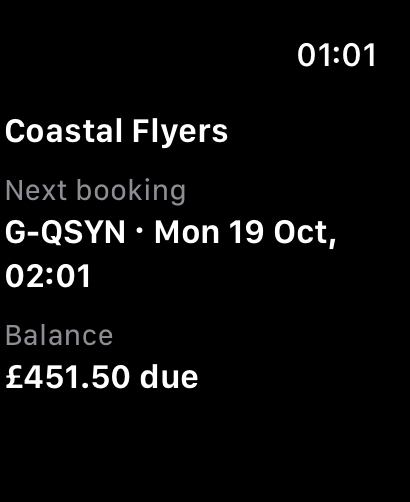
| Watch app | A page per syndicate, default first; each with that syndicate’s next booking and balance. When you owe charges and also hold credit, the balance reads “£X due” with a “Credit: £Y” line under it, as on My Balance. Swipe or turn the Digital Crown to move between them. |
| Smart Stack widget | The active capture, availability strip, ready-to-fly launcher, or next-booking and balance summary for your default syndicate, following the same priorities as the complication. |
| Complication | A single Syndik8 complication you add to a watch face. What it shows adapts to the moment (see below). |
The watch-face complication has no separate background panel. The Smart Stack hosts the rectangular version of the same content.
There is one Syndik8 watch complication, not several. What it shows changes with the situation, in priority order:
- A capture is in progress. It shows the current capture, and tapping returns to the same wizard step on the watch.
- Otherwise, a flight is ready. When a booking is ready to fly, it becomes a launcher: it shows the aircraft’s name, lights up, and tapping it opens straight to Start Flight.
- Otherwise, availability. When you have a favourite aircraft (or your syndicate has only one), it shows that aircraft’s availability.
- Otherwise, a quiet brand mark. With nothing to surface, it settles to a plain “Syndik8”.
It renders in whatever shape the watch face slot uses, showing a little more or less by shape:
- Circular: a compact elapsed duration with a small Block or Airborne label during a timed capture; a “free today” gauge when showing availability; otherwise the brand mark.
- Corner: a compact elapsed duration with a curved Block or Airborne label during a timed capture; otherwise an inner glyph with a curved label around the edge. The curve is a “free today” gauge with the aircraft name for availability, the same name when a flight is ready, or the brand mark when idle.
- Inline (the single line of text above some faces): a Block or Airborne label and compact elapsed duration during a timed capture; “Fly (aircraft)” when a flight is ready; “(aircraft) free” or “(aircraft) busy” for availability; your next booking otherwise; or “Syndik8” when there is nothing to show.
- Rectangular (the richest): during a timed capture it shows a small Block time or Airborne time label above prominent elapsed hours, minutes and seconds, matching the in-app timer. The registration is omitted. For availability it shows the aircraft name, a five-column weather-style strip, and your next booking. The first column is labelled Today and has a border. Its background shows how long the aircraft is free before the next booking; its indicators show bookings throughout today. The other columns show the next four days, each coloured by how booked that day is. When a flight is ready it shows “Ready to fly” and the aircraft name; otherwise it shows your next booking and balance.
Before the flight starts, the complication shows Continue capture or Setup, depending on the slot. After you stop, the duration stays fixed while you finish the wizard and review. Submitting or cancelling clears the active indicator. Engine-meter-only capture uses an active indicator without an elapsed measurement. watchOS controls complication refreshes, including when the display is dimmed or always on; continuously updating seconds are not guaranteed.
Reading the availability strip
Section titled “Reading the availability strip”Each day keeps separate rows for your bookings, other members’ bookings and maintenance:
| Position | Indicator | Meaning |
|---|---|---|
| Top | Grey bar | Another member’s booking |
| Middle | Blue bar | Your booking |
| Bottom | Red diagonal hatching on a pale backing | Maintenance |
The indicators have thin dark outlines. The pale backing keeps maintenance visible even when the day itself is red. A maintenance booking uses the maintenance row regardless of who created it.
Each row has three time sections: early before 11:00, middle from 11:00 to 15:00, and late after 15:00. A booking fills every section it touches. For example, 08:00–12:00 fills early and middle, 11:00–14:00 fills middle, and 15:00–18:00 fills late. These are approximate time windows, not exact durations: two bookings in the same section can look like one bar. Open the calendar on your phone for the full times and details.
Daytime bars keep a little padding at the ends of the day. A bar reaches a day edge only when the booking reaches midnight, and the same booking joins across the gap when it continues into the next day. A 22:00–midnight booking fills late and stops at that day’s right edge. A 22:00–02:00 booking connects late to early on the following day. Merely sharing a day or a section does not indicate a booking conflict.
Today’s background is green when the aircraft is free now with at least six hours until its next booking, orange with one to less than six hours, and red when busy now or booked in less than one hour. No upcoming booking means green. Your own bookings, other members’ bookings and maintenance all count, including bookings after midnight. Exactly six hours is green; exactly one hour is orange. The Watch schedules colour changes as these thresholds pass and bookings start or end, using the last booking data synced by your phone. New bookings or changes to existing bookings still need to sync from the phone.
Future backgrounds run from green through orange to red as the day becomes more booked. The indicators use your account timezone and the last data synced by your phone. A watch face can apply its own tint; the row positions and hatching still distinguish the booking types. VoiceOver describes the day’s availability and the booking types and sections present.
Capture controls
Section titled “Capture controls”The capture wizard presents one step per screen so the Digital Crown always drives the control in front of you:
- Flight buttons: bookend the times your syndicate records: brakes off/on for block time, or takeoff/landing for airborne-only capture. When both spans are recorded, you tap brakes off/on and check the wheels times during review. Each button, meter step and review row is titled with the syndicate’s own name for that moment (for example Brakes off, Engine on or Wheels up, and Tacho Start for the meter), the same words the phone uses. See Start and end names.
- Aircraft landing steps: arrival comes immediately after the end meter (or flight screen when no meter is read), then Touch-and-gos starting at 0, then Full-stop landing or Ground run: no takeoff. A normal watch leg records 1 full-stop landing. Ground run is offered for every aircraft, including meter-only and block-only captures, and is unavailable while touch-and-gos are nonzero.
- Review: shows both counts, or the explicit ground-run choice, and keeps the editable time controls. A short or missing flight time never automatically marks a ground run. Returning to the stopped flight screen shows Flight finished and Continue; this advances to the next post-flight step without restarting the timer or tank reminders.
- Tank reminder: the full-width button on the Start Flight screen for timed captures lets you choose Off / 10 / 15 / 20 / 30 minutes. The Watch remembers the choice separately for each aircraft. During flight, swipe left from the timer to the reminder’s countdown and settings page. When due, an orange Switch tanks card has one large circular tick target to acknowledge the reminder. See Set fuel-tank reminders on your Watch.
- Digital Crown: sets the engine-meter readings (when a meter is captured), scrolls the list of nearby airfields and the review summary, and chooses the reminder interval.
Behaviour rules
Section titled “Behaviour rules”- The glance reflects the data on your phone. Like the home-screen widget, it includes bookings saved locally on the iPhone, even before they upload. The phone needs your account and asset data cached from an earlier sync. If you belong to more than one syndicate and have not chosen a default, the glance prompts you to set one in the phone app first.
- Offline booking updates use the phone–Watch connection. A booking for tomorrow can update the next-booking summary and the five-day availability strip without becoming eligible for Start Flight. Internet is not required to send cached/local data between the paired devices, but their connection must remain available; Bluetooth being on alone does not confirm that connection. Incoming updates are saved and a complication refresh is requested during the Watch’s background execution time. watchOS controls delivery and redraw timing. Opening the Watch app requests a fresh phone snapshot over that same connection.
- Booking changes can request priority delivery to an active complication. When Syndik8 is on your current watch face and the system reports an available priority allowance, the phone requests priority delivery for changed booking details or availability. A Smart Stack widget alone does not qualify. Repeated refreshes of unchanged details do not use the allowance. Ordinary background syncing remains available when priority delivery is unavailable or exhausted. Priority delivery still depends on the paired connection and watchOS scheduling; an immediate visible update is not guaranteed. Apple lists a fix for this delivery method with WidgetKit complications in watchOS 27; older versions may continue to rely on ordinary delivery.
- The glance follows your default syndicate, not the in-app selection. Outside an active capture, the complication and Smart Stack widget anchor to your default syndicate so an ambient surface stays stable. An active capture takes priority and shows its own elapsed time or capture status. Set your default (and your favourite aircraft) in the phone app (see Choose your default syndicate, tab and aircraft).
- Dates match your account settings. Booking dates on the wrist use your chosen clock format and date order, the same as in the app. The incoming-debit line carries no date to format.
- Your next booking is your next flight. Every watch surface that shows a next booking passes over a maintenance booking you made and shows the flight after it, the same as the home-screen widget.
- Flight mode arms near your slot. When your confirmed booking is ready to fly (throughout its slot, including multi-day bookings, or within two hours either side of its start), the watch opens to a Start Flight screen with the glance one swipe away. This works across all your syndicates, so a live booking on any of them arms the wrist. The capture binds to that booking’s own syndicate for billing. A maintenance booking never arms the wrist: a ferry flight or ground run is logged from the maintenance booking on the phone (see Log a ground run or ferry flight).
- Ready windows use saved booking details. With both apps updated, the phone sends details ahead of the start window. The Watch calculates eligibility locally, and its complication prepares future changes without needing a phone update at that moment. Saved details expire after at most 24 hours; refresh from the paired phone to offer a new capture after expiry. Changes and cancellations must still reach the Watch. An unfinished capture keeps its resume controls after booking details expire. watchOS controls when complication changes appear.
- Resume on the watch. With both apps up to date, an unfinished capture is saved locally, including its wizard step, meter readings, airfields and recorded times. Reopening the app or tapping its active complication returns to that capture, including after watchOS closes the app. This does not transfer the unfinished capture to the phone.
- In flight: a 24-hour UTC clock with seconds has the same prominence as the Block time or Airborne time elapsed timer. Block + airborne capture times blocks in flight and reviews the wheels afterwards. Engine-meter-only capture has a UTC clock and Engine running, with no elapsed measurement. The finish button uses your configured block-end or airborne-end name; engine-meter-only uses Stop.
- Tank reminder timing: the countdown starts and stops with live airborne time when available, otherwise block time. Block + airborne capture uses the block timer because wheels times are supplied during review. Engine-meter-only capture has no tank reminder. Acknowledgement starts a fresh full interval; changing the interval restarts from the change, while selecting the same interval leaves the current countdown alone. Stopping or cancelling the capture ends reminders. Settings and the active countdown are kept locally on the Watch.
- Tank reminder background alarms: the Watch schedules one native alarm for the measured reminder deadline. With Background App Refresh enabled and the alarm armed, watchOS delivers repeating notification haptics about every three seconds while Syndik8 is inactive, including with your wrist lowered. Once the capture is loaded, this delivery needs no iPhone or network connection. The reminder page shows scheduling or cancellation failures and disabled Background App Refresh; its countdown alone does not confirm the alarm is armed. Each background alarm session has a maximum runtime of 30 minutes. Acknowledgement arms the next interval, allowing reminders through a longer flight.
- Tank reminder acknowledgement: the native alarm has system Open and Stop controls. Open returns to Syndik8. If the orange Switch tanks card was previously closed, use Tank reminder → Show reminder to reopen it. Its large circular tick acknowledges the reminder and starts the next full interval. Stop silences the native alarm without acknowledgement or an automatic next interval; the reminder page shows Alarm stopped. Reopen the app and choose Show reminder to reach the tick. Closing the app’s card with X leaves the reminder due and does not silence an alarm that is still ringing. The system alarm’s appearance differs from the app’s card.
- Tank reminder appearance: pressing the acknowledgement tick turns its inner circle green with a black tick and ring until release. Inside the app, the centred tick, ring and title briefly invert from black on orange to orange on black for half a second every three seconds; Reduce Motion and inactive or dimmed displays keep the static orange appearance. Sleeping the screen does not pause the flight’s elapsed time or the reminder countdown.
- Capture haptics: a recorded start and end each play their standard haptic once. A clean logged result plays success; a definite failure plays failure; a held capture or logged overlap plays notification. Sent/queued results stay quiet. Haptics require an active app and are not replayed on resume or for duplicate phone acknowledgements.
- Both spans without a taxi default: takeoff and landing remain unset until actual times are entered and confirmed during post-flight review, as on the phone. Submit waits for both times, or an explicit ground-run choice. Configured taxi defaults seed editable estimates. As on the phone, valid estimates can be submitted without tapping or confirming either time first.
- Review times: all captured timestamps use 24-hour UTC under Times (UTC), matching the in-flight clock and actual-time entry even when the Watch’s local timezone differs.
- Capture mirrors what the syndicate captures. Tapping Start Flight opens the wizard full-screen so a stray swipe can’t drop you out mid-capture. The steps follow the syndicate’s capture mode: the engine-meter steps appear only when a meter is read; the airfield, touch-and-go and landing-choice steps appear for every aircraft; and the flight screen records block time, airborne time, or both.
- The Start meter follows the same rule as the phone. It uses the highest eligible end reading on your phone from bookings that started no later than yours, including your own booking’s earlier legs, and never falls below the aircraft’s opening reading. Later, cancelled and rejected bookings do not move it. With no eligible reading it starts at the opening figure, or the stored meter if no opening figure is available. The watch waits for the phone to read that history before offering a meter capture; if the history cannot be read, it uses the stored meter. Once you begin capture, incoming phone updates leave your readings alone. You can correct the Start with the Crown. See Previous-tacho pre-fill.
- Capture submits a real usage log. A captured flight is submitted as a usage log through the same path the phone’s Log Flight screen uses, and is billed server-side. You do not need to re-enter it on the phone.
- A flight that overlaps one already logged is saved and flagged. If the booking already holds a flight covering some of the same time, or with the same start and end readings, the capture is still saved, but the result screen reads Logged. with a warning mark and “It overlaps a flight already on this booking: check it on your phone.” The phone’s booking screen marks both logs, and the watch’s as From the watch, so the spare one can be removed before it is charged twice. Consecutive legs, where one starts at the moment or on the reading the other ended, are not flagged. Nor are readings that only partly overlap: those are two flights, and the booking is held because the later one does not follow on.
- The watch asks you to confirm no known defects, exactly as the phone does. Before you submit, the watch shows a “No known defects” confirmation, the pilot-in-command’s per-flight declaration. If the aircraft has a defect to report, you finish the flight on your phone instead: the watch does not collect defect details, it only handles the clean “no known defects” case.
- You are recorded as the pilot in command. There is no name field on a wrist, so the phone writes yours onto the log as it submits, exactly as the Log Flight screen does. It uses your display name, or your first and last name if you have not set one. If you have set neither, the flight records your account but leaves the pilot’s name blank rather than guessing, and it can be typed in by editing the log. To record someone else as pilot in command, log that flight on the phone.
- A capture the phone cannot save is kept, never lost. When a captured flight fails one of the phone’s checks (a meter reading that could not be real, a time later than now, a missing route or defect declaration) or cannot be saved yet, the phone keeps it and the watch shows Sent to iPhone with “Check it there.”, and no code or error. The phone notifies you in plain words and opens Log Flight filled in for you to correct and save; the flight is also listed on the phone’s Home tab. There is no correction screen on the watch. See Capture a flight on your watch.
- A booking created offline can be used for Watch capture. Once a confirmed booking and its capture settings reach the Watch from your phone, you can start within the normal booking window without uploading the booking first. Keep the paired phone available for the airfield steps. Your account, aircraft and billing settings must already be cached on the phone; the saved booking details on the Watch still have the 24-hour expiry described above.
- An offline capture is still logged. With no internet but the paired phone reachable, the flight is saved in the phone’s local database and uploaded automatically when it next syncs. If the phone is temporarily unreachable when you submit, the Watch retains the submission for delivery later. Wait for the acknowledgement before treating it as logged on the phone. Once received, that result survives restarting the Watch app, including when it arrived in the background.
- The watch carries no airfield data, so no flight can be captured without the phone. Nearby-airfield lookups are answered by the paired iPhone. With the phone out of range the airfield step has nothing to offer and Confirm stays disabled, so the capture cannot get past Departure at all — and again at Arrival. This is not a degraded list; it is a stop.
- Location permission is required to capture a flight, for the same reason. The airfield step offers the airfields nearest to you, so the watch has to know where you are. Allow location when the watch asks, and the step works; decline it and the step has nothing to offer, exactly as it does with the phone out of range. There is no way to type an airfield in on the watch, so this is not a preference — without location, capture a flight on the phone instead. If you declined once, the prompt does not come back: turn it on in the Watch app under Syndik8, then Location.