
Confirm or dismiss a reported squawk
Confirm or dismiss a reported squawk
Section titled “Confirm or dismiss a reported squawk”When the syndicate has turned on Require admin confirmation for squawks (off by default), member-reported squawks land in pending status. As an admin, you either confirm them (they become open and take effect) or dismiss them with a reason. Squawks reported by admins, and all squawks when the setting is off, skip this queue and open immediately.
Before you start
Section titled “Before you start”- You must be an admin.
- Only
pendingsquawks can be confirmed or dismissed here. A squawk that is alreadyopen,deferred,resolved, ordismisseddoes not appear on this queue.
- Open the syndicate.
- Tap the Admin tab, then tap Pending.
- Tap the Squawks row.
- Every squawk in the queue starts collapsed. A collapsed row shows only the asset name, the severity, who reported it, a one-line summary of the title, and a PENDING chip. There are no buttons at this stage.
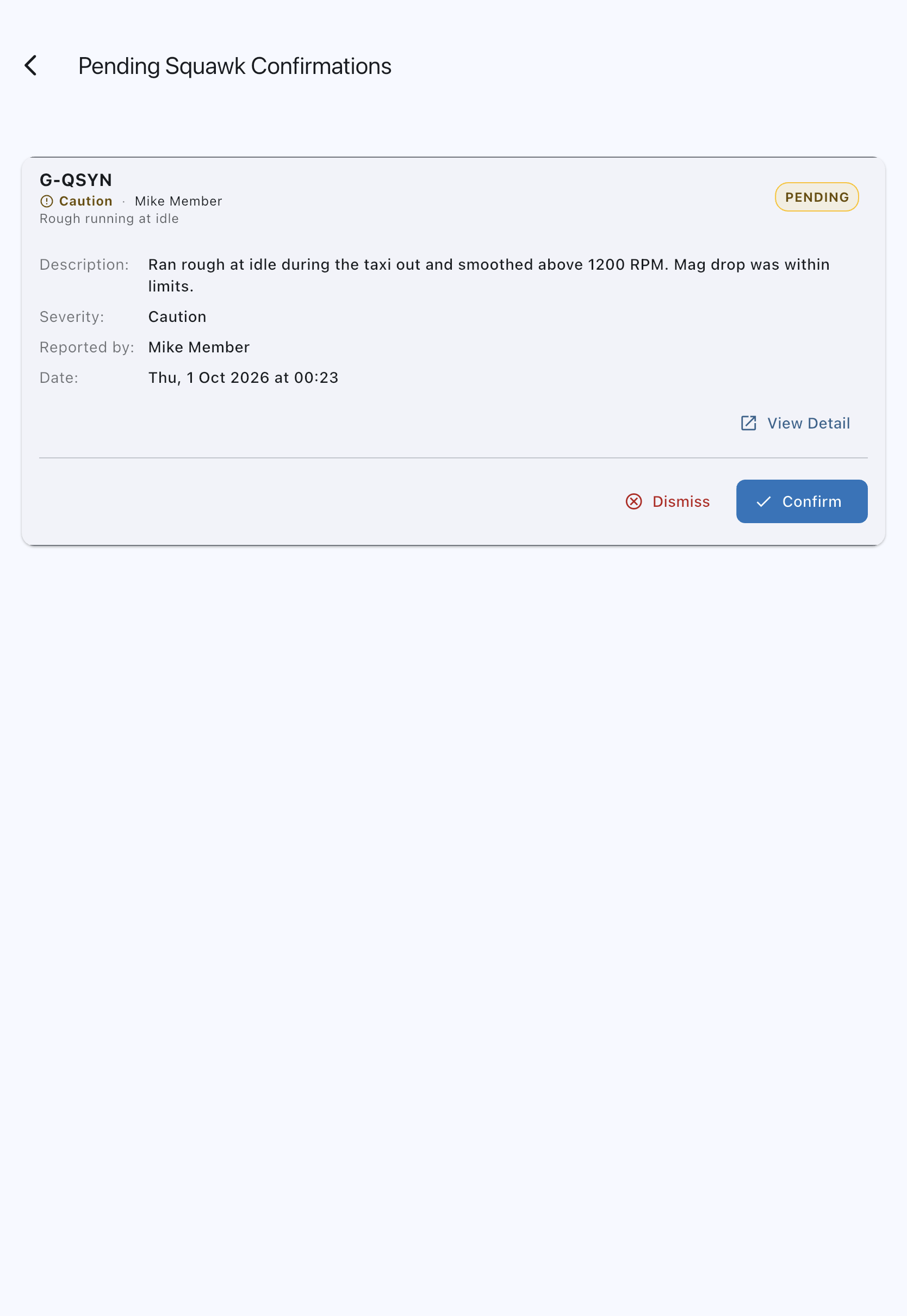
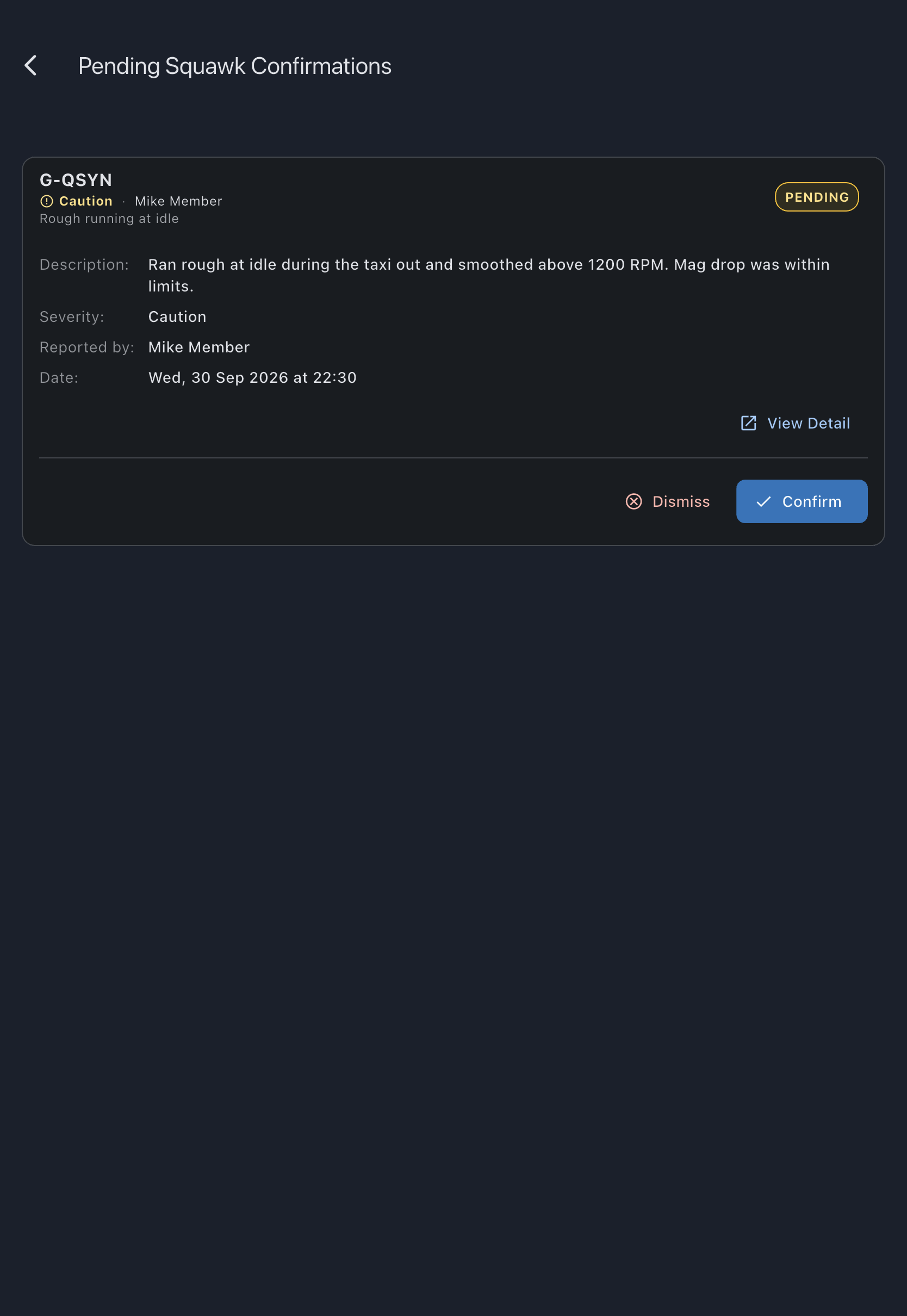
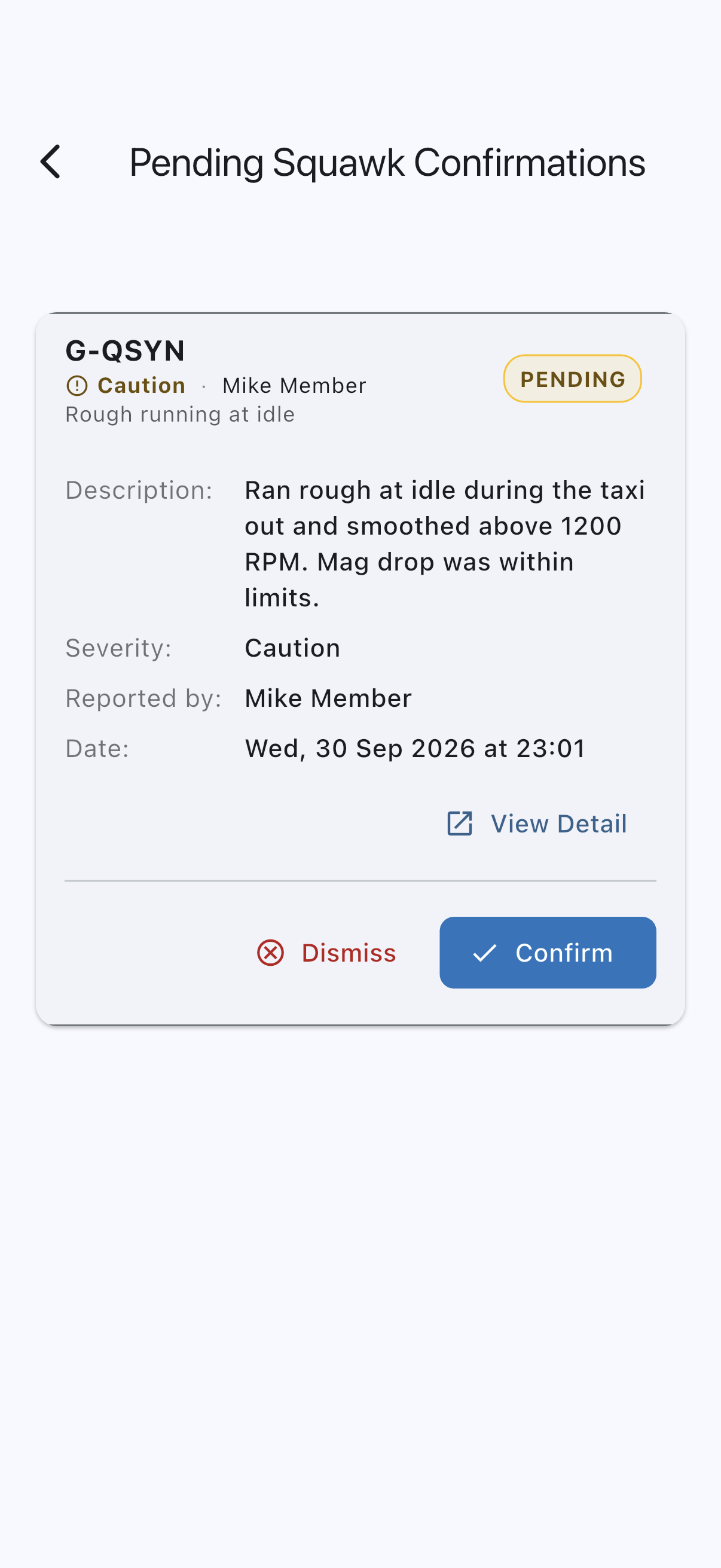
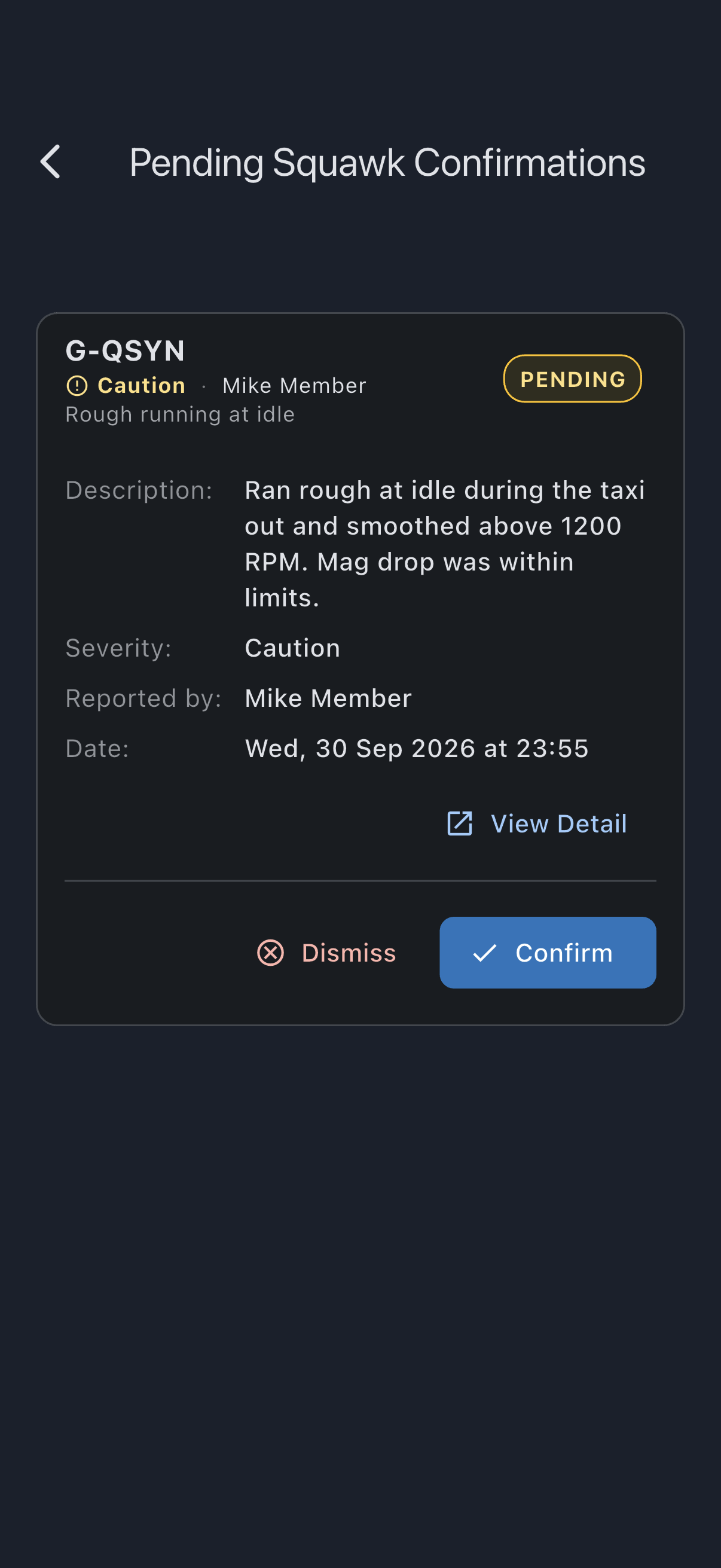
- Tap a row to open it. Only then do you get the full detail (Description, Severity, Reported by, Date), a View Detail link to the squawk’s own screen, and the Dismiss and Confirm buttons. Both actions live inside the opened panel, so open the entry before you decide.
To confirm
Section titled “To confirm”- Tap Confirm in the opened squawk. The Confirm squawk dialog opens with the severity the member reported already selected.
- Check the severity. If the member picked the wrong one (a stiff trim wheel reported as Grounding, say), tap the right one: Grounding, Caution or Info. A Reason box appears once you change it. It is optional here, and anything you write is kept on the squawk’s record. When the severity is Grounding, whether the member picked it or you did, the dialog warns you that confirming takes the aircraft out of service and suspends its bookings straight away.
- Tap the button that names the severity you are confirming at, for example Confirm as Caution. Cancel closes the dialog and leaves the squawk pending.
- You see Squawk confirmed. The squawk moves to
openat the severity you chose. If that is grounding, confirming it grounds the asset and suspends future bookings. If you changed the severity, the squawk’s detail screen says so: Severity changed from the old severity to the new one, with your name, the date and time, and your reason if you gave one.
The Confirm button on the squawk’s own screen (tap View Detail) opens the same dialog. To change the severity of a squawk that is already open or deferred, see Change a squawk’s severity.
To dismiss
Section titled “To dismiss”- Tap Dismiss in the opened squawk.
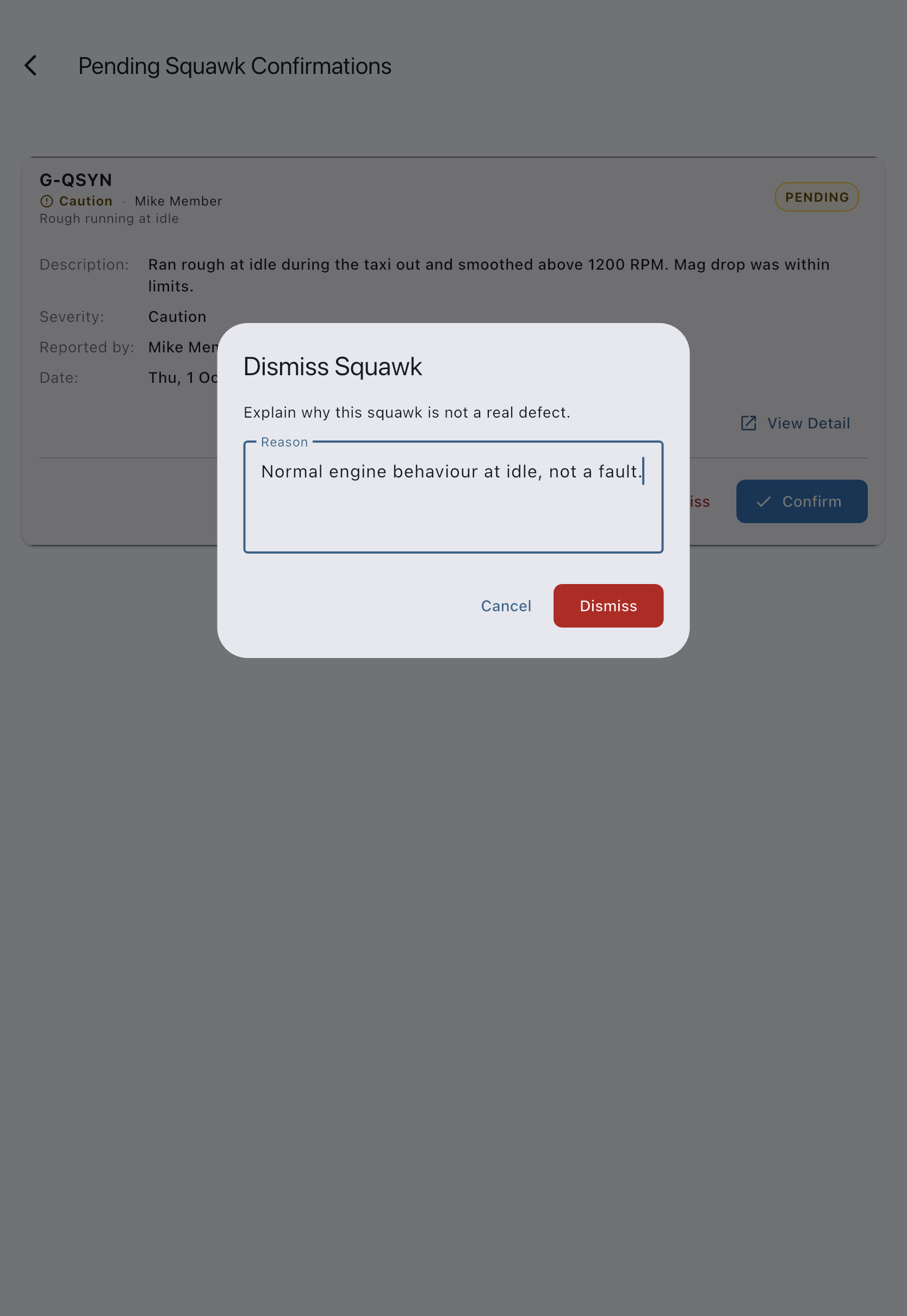
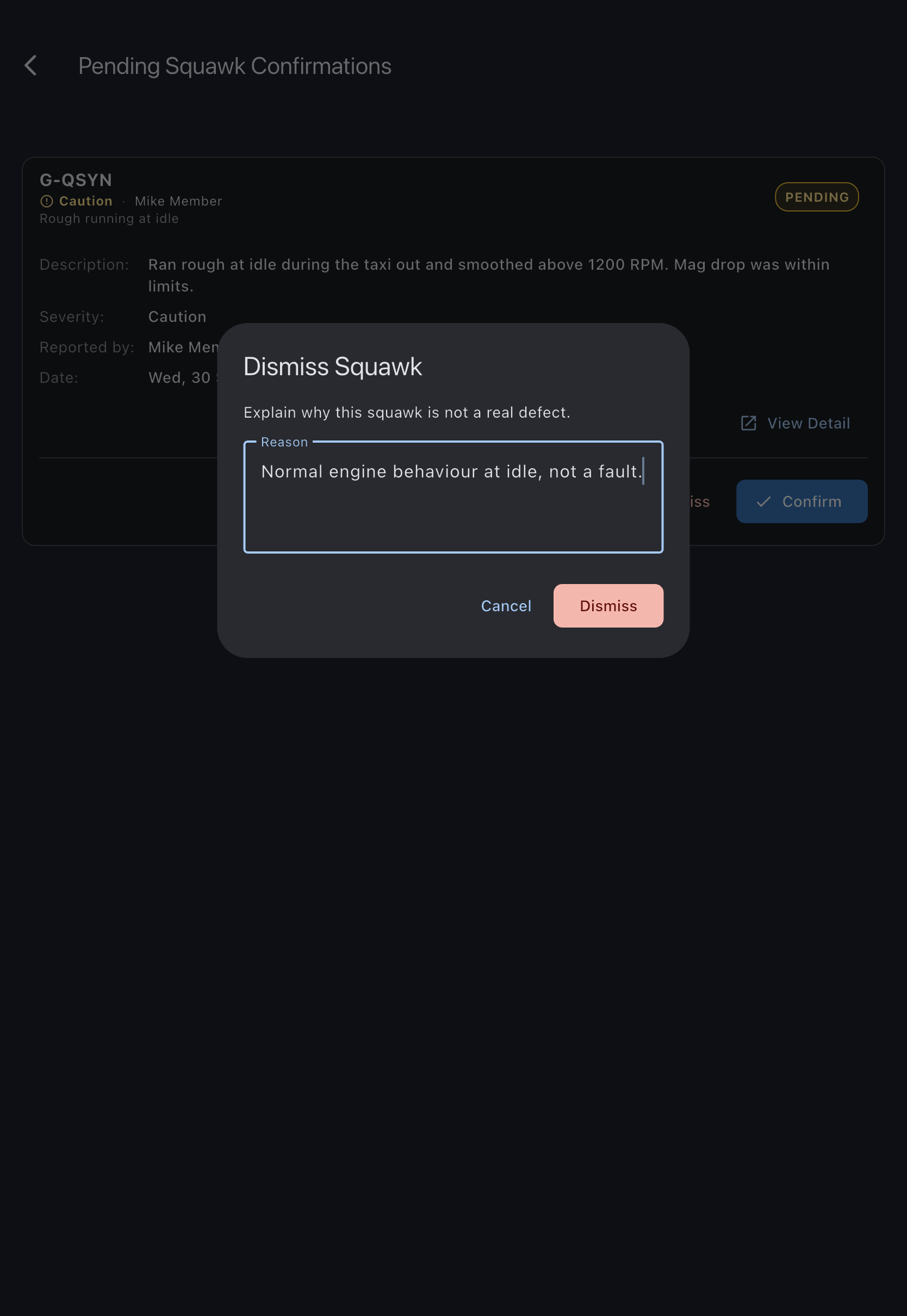
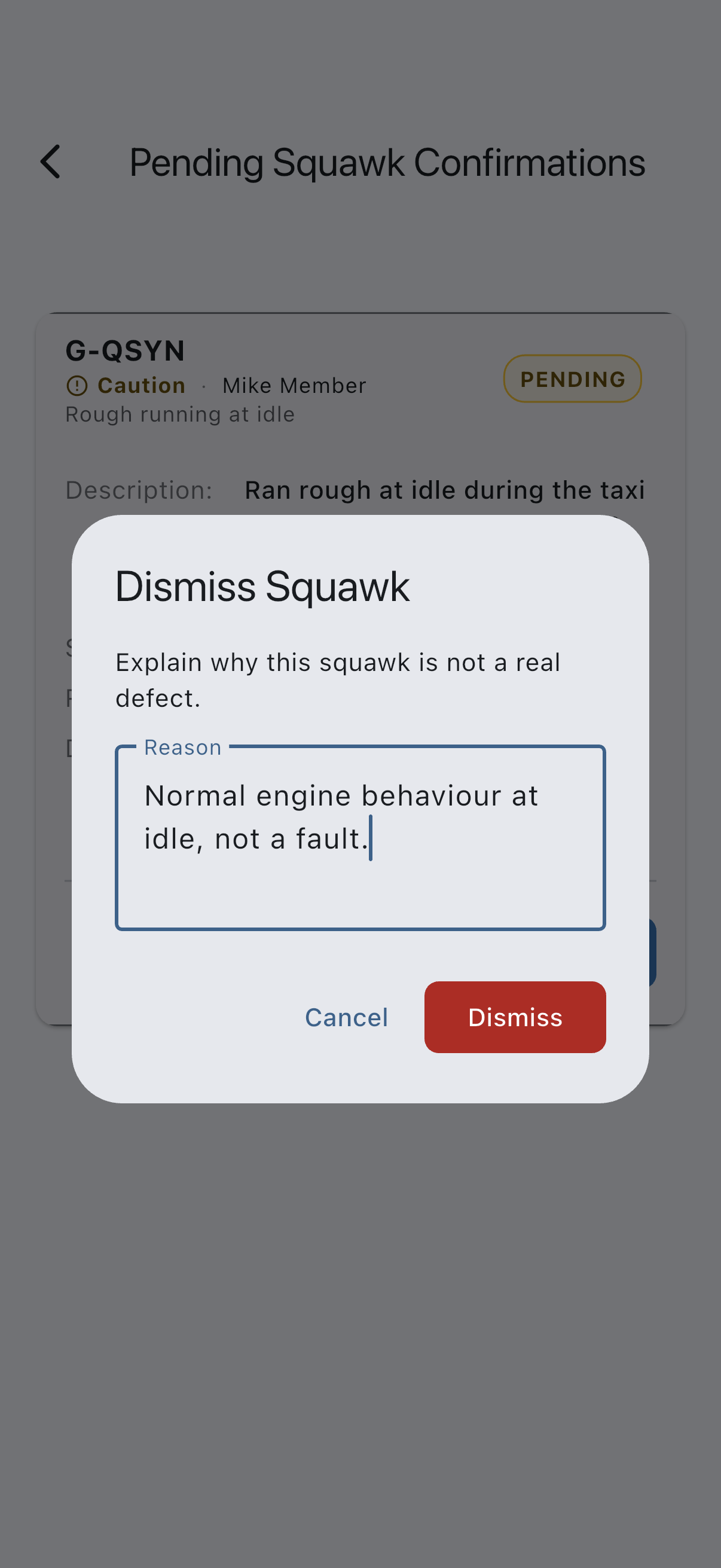
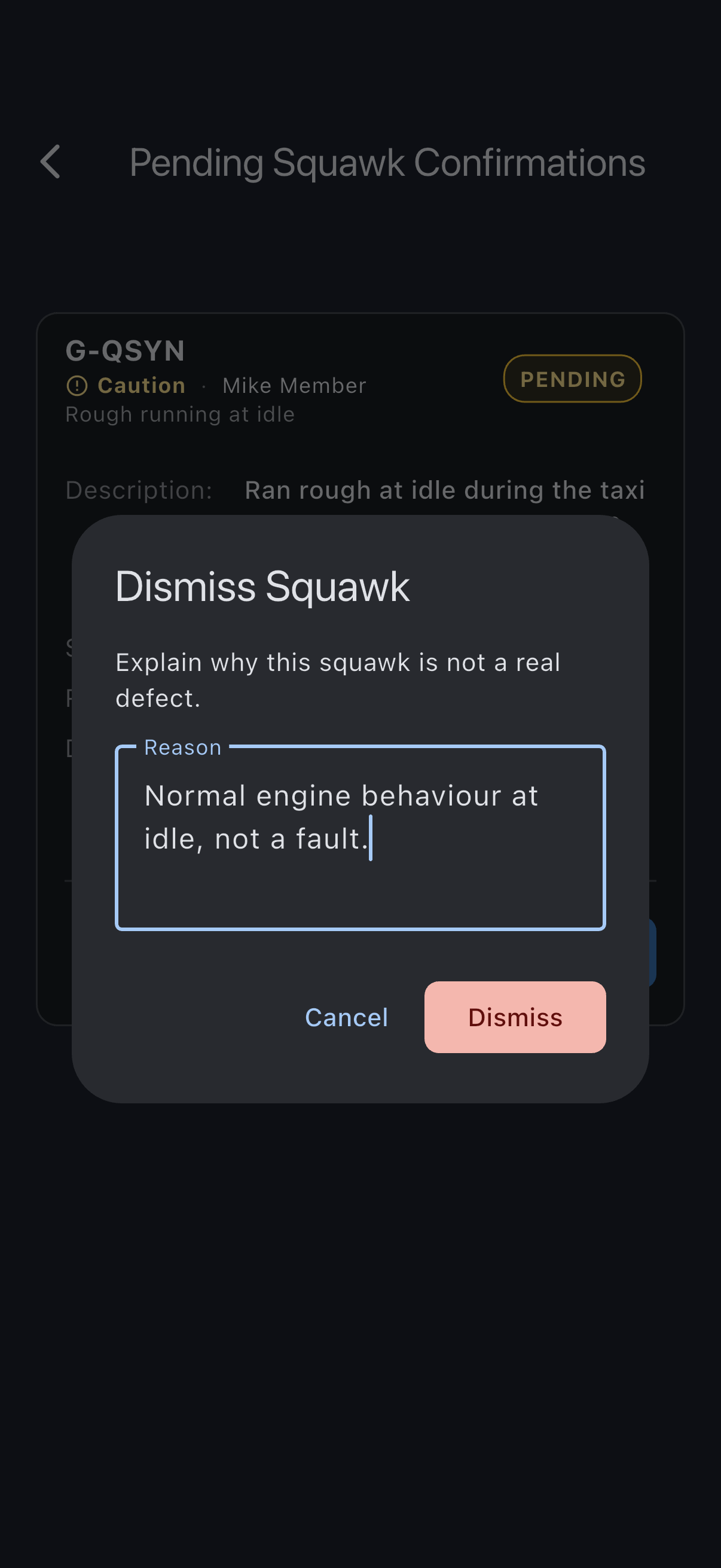
- The Dismiss Squawk dialog asks you to explain why this squawk is not a real defect. Enter a reason (for example, Normal engine behaviour, not a fault). The dialog’s Dismiss button stays greyed out until you type something. Cancel closes the dialog and leaves the squawk pending.
- Tap Dismiss to confirm.
- You see Squawk dismissed. The squawk moves to
dismissedand does not affect the asset. The member who reported it gets a Squawk dismissed notification that includes your reason, so write it for them to read. Its detail screen shows a Dismissed as not a defect card with the date and time, your name, and your reason. Everyone who can open the squawk sees it, including the member who reported it.
If it goes wrong
Section titled “If it goes wrong”- “Couldn’t confirm this squawk” or “Couldn’t dismiss this squawk”: nothing has changed. Check your connection and try again. If it keeps failing, reopen the squawk: another admin may have dealt with it already.
- No Confirm or Dismiss button on a row: the entry is still collapsed. Tap it to open it; the buttons are at the bottom of the opened panel.
- The queue is empty: there are no pending squawks. Squawks reported by admins skip this step.
See also
Section titled “See also”- Squawk statuses: the full lifecycle
- Squawk severities: what confirming each severity does
- Report a squawk: the member-side flow that produces
pendingsquawks - Resolve a squawk: next step after confirm