
Change your subscription
Change the card behind a paid subscription, fetch an invoice, or cancel at the end of the current period.
What the subscription costs is not set here. It follows the size of the syndicate: add an aircraft or invite a member past the allowance and the amount changes with it, having asked you first. See add an aircraft and invite members.
Before you start
Section titled “Before you start”- You must be an admin. Active admins manage that syndicate’s billing. A change of admin or payment card does not transfer the recorded purchaser’s contract.
- The web Subscription screen has Cancel renewal. Stripe’s billing portal handles payment details and invoices. On mobile the screen is read-only.
- Billing is monthly, priced on aircraft and members. See pricing. Founding pricing keeps its 50% discount whatever the syndicate’s size does in the meantime.
Steps (web)
Section titled “Steps (web)”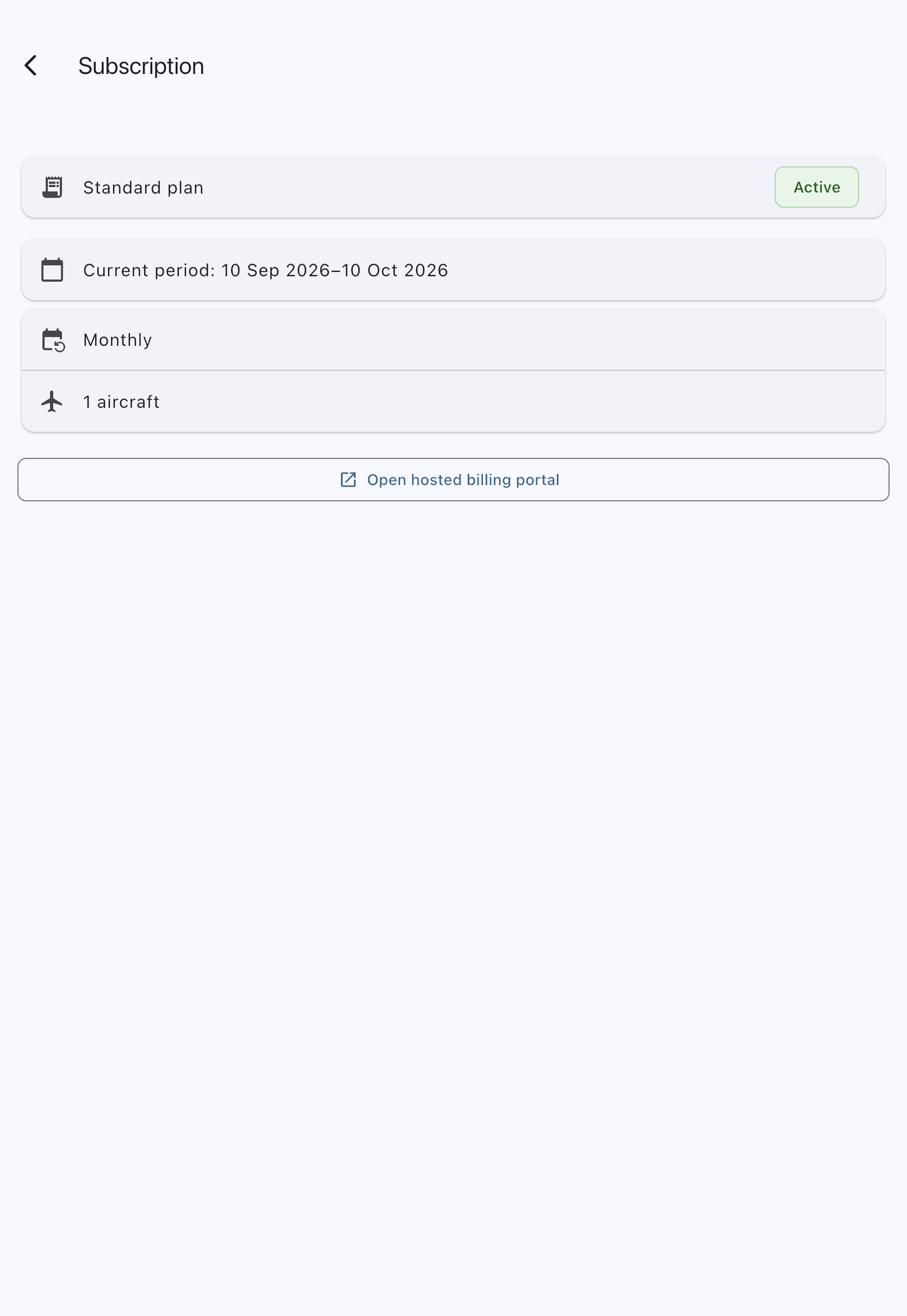
- Open the syndicate and go to the Admin tab, then tap Subscription.
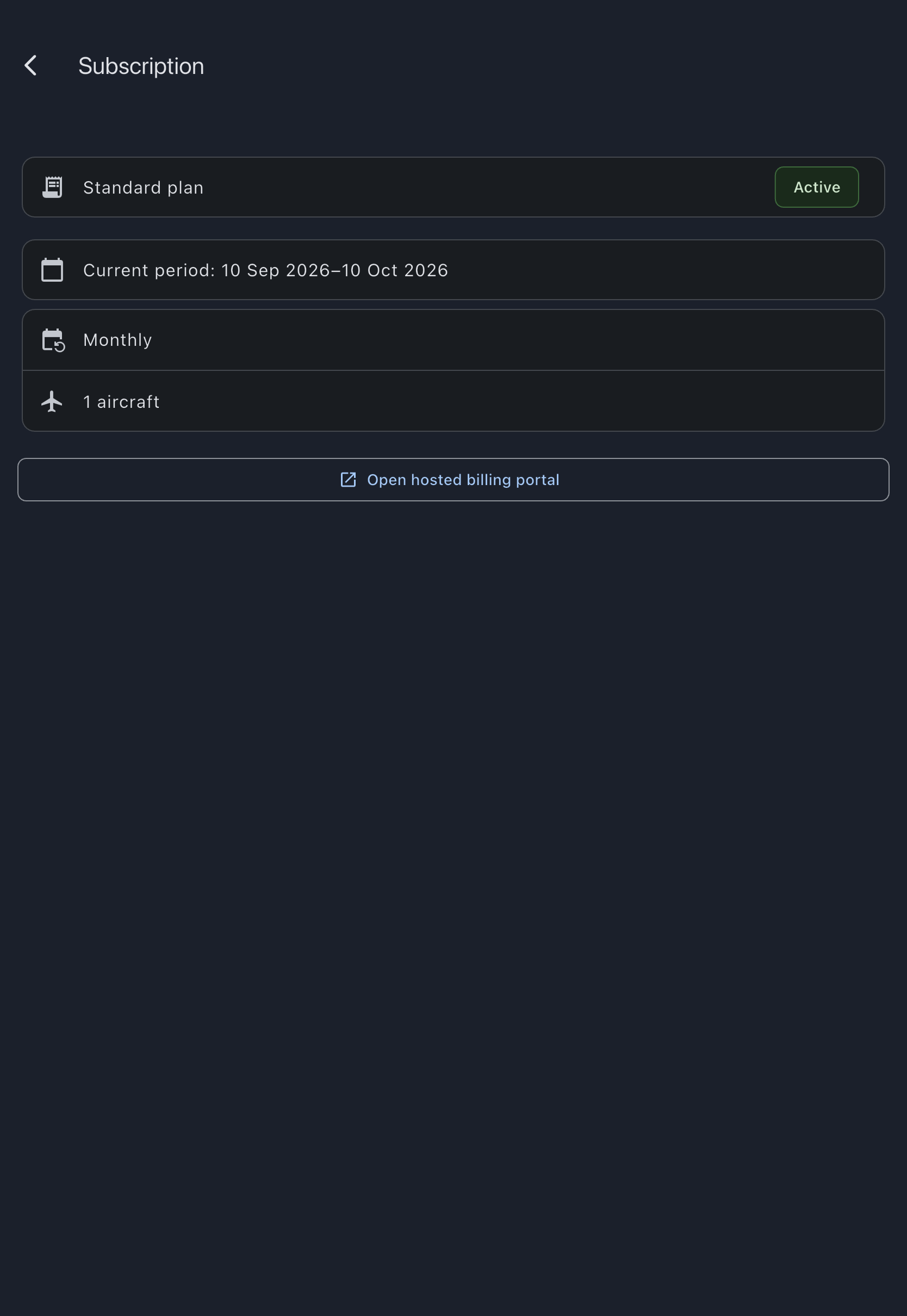
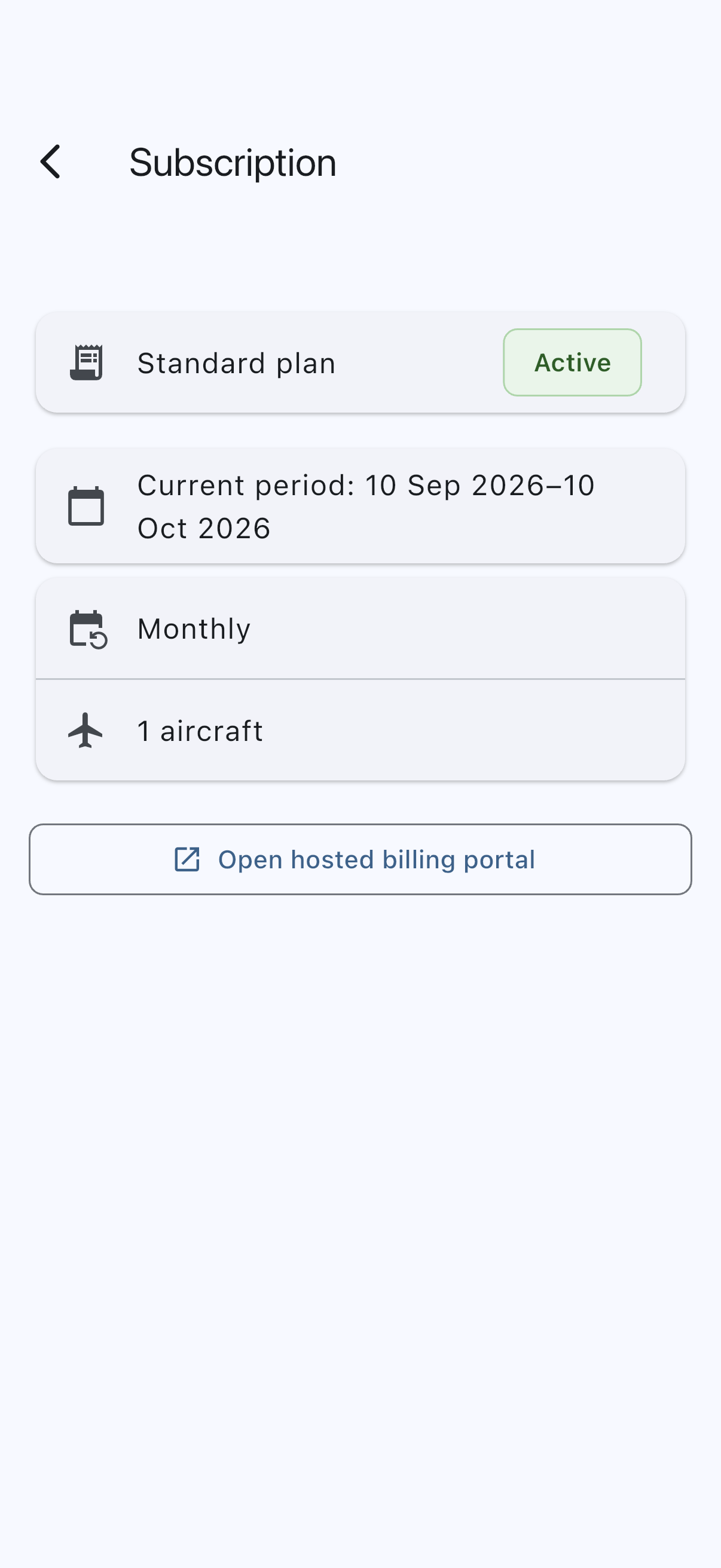
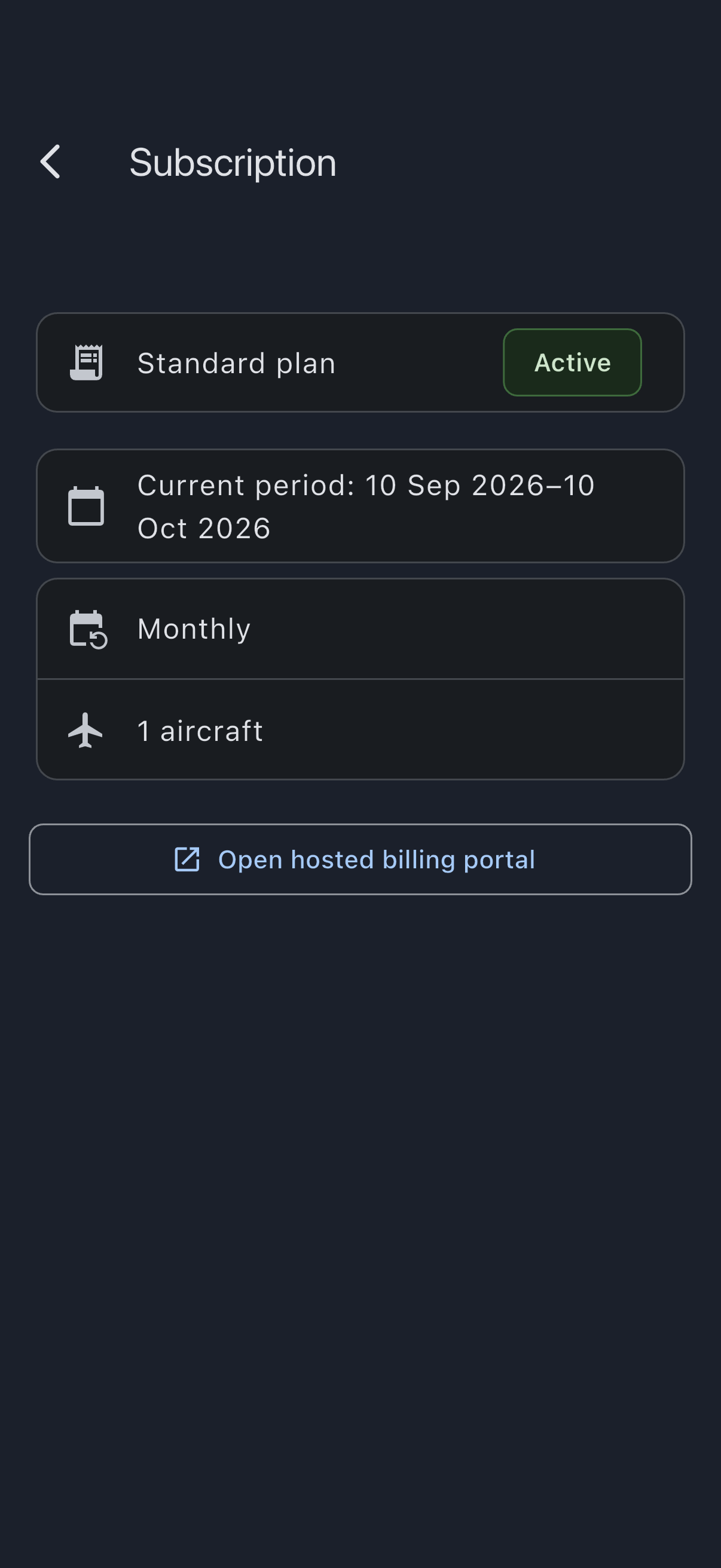
- Review the plan card and the current billing period shown below it. The card names the plan (Free plan, Standard plan, or Founding rate while a founding discount is running) with the subscription’s status beside it. A paid plan also lists its billing interval (new subscriptions are monthly), how many aircraft it is billed for, and, for a founding syndicate, Founding pricing until the date the discount stops. During a syndicate’s one 14-day free trial, the status reads Trial and a card below says Your trial ends on and the date; nothing is charged until then. No recurring subscription price is shown on this screen; the rates are on the pricing page and the actual figures are on your invoices in the portal.
- To stop renewal, tap Cancel renewal and confirm. Paid access continues to the date shown, and any outstanding charges may still be collected; no portal visit is required. If renewal is already stopped, the screen shows that status. While a 14-day refund right is open, the dialog offers two choices instead: Stop renewal, or Cancel immediately, which shows the amount and ends paid access straight away.
- To review invoices, replace a payment method or change your billing address, tap Open hosted billing portal. Follow Stripe’s instructions and use its return link to come back. The portal does not change the purchaser, billing email, subscription quantities or cancellation.
- For purchaser takeover or billing contact arrangements, contact support. Replacing a card alone does not release the recorded purchaser. Putting the contract in a limited company’s name is also a takeover: contact support with the company’s name and registered number.
The portal is Stripe’s, and Stripe changes it as it sees fit, so we do not walk you through it here. Stripe describes what the portal covers in its customer management documentation.
Steps (iOS and Android)
Section titled “Steps (iOS and Android)”The subscription screen on mobile is read-only. It shows the current plan, its status and the billing period, then a note saying your plan, payment details and invoices are not managed in the app. There are no controls.
- Open the Admin tab and tap Subscription on your phone to confirm your current plan and renewal date.
- Open a desktop or laptop browser and sign in at syndik8.app.
- Follow the web steps above.
Changes you make on the web take effect everywhere. A phone with the app open updates on the spot; otherwise the new plan is there the next time you open the Subscription screen.
Common changes
Section titled “Common changes”These are common changes on the Subscription screen and in Stripe’s portal. What is described here is the effect, and what you should see back in Syndik8 afterwards.
- Update the card the subscription is charged to, or change the billing address on the invoice.
- Download an invoice or receipt. Each one itemises the aircraft charge, the member charge (including the members you are not billed for, shown at £0), any founding discount, and 20% VAT.
- Cancel renewal. On the web Subscription screen, tap Cancel renewal and confirm. A cancellation sets the subscription to end at the close of the current billing period. The purchaser is emailed an end-of-contract notice straight away, giving the end date and, if a refund right is still open, how long it stays open. Back in the app, the Subscription screen shows an amber card saying Your subscription will end on and the date. Until that date, the syndicate keeps full paid access. Stopping renewal does not waive what is already owed: a failed payment or a part-month adjustment may still be collected. Only a cooling-off cancellation refunds or stops collection.
- A cancellation cannot be reversed in the portal. Contact support for an authorised purchaser takeover or follow the normal subscription flow after the current subscription ends.
Renewal reminders
Section titled “Renewal reminders”Reminders are scheduled for the purchaser before the first payment after a free trial, the first full-price payment after a discount, and a payment at least every six months. The target is 7–10 days before the payment; the email gives the amount, payment date and how to stop renewal. A delayed reminder can still be sent before the payment date. As with other emails, sending does not guarantee inbox delivery.
Cancellation, refunds and purchaser changes
Section titled “Cancellation, refunds and purchaser changes”Ordinary cancellation stops renewal at the end of the paid period. Cooling-off cancellation is different: every purchaser, consumer or not, has 14 days from entering the subscription contract, including a trial signup. A deduction for service already supplied requires an express early-start request and the prescribed information; otherwise the full refund applies. Once a payment has fallen due, the purchaser can use Cancel now and get a refund during those periods, described below, or tell us any other way at any time in them, including by emailing [email protected]. The Terms include a model form, but you do not have to use it.
Purchasers can also cancel within 14 days of the day the first payment after a free trial or a discounted period falls due, and we email when that period begins. If that payment fails and is collected later, the 14 days do not restart. While we are still trying to collect it, the purchaser can cancel and stop it. In these 14-day periods the purchaser sees Cancel now and get a refund, or Cancel now and stop the payment if nothing has been taken, on the web Subscription screen and at their emailed link. The Cancel renewal dialog offers the same thing as Cancel immediately. Each shows the amount first and stops paid access straight away. Cancel renewal on its own gives no refund. The refund goes back to the card that made the payment, even if that card was another administrator’s, and the confirmation email names the card where the provider can say which. These rights come with the same deduction and refund conditions and 14-day refund deadline. You may request a pro-rata refund within 14 days of a renewal; we consider that request fairly. These benefits do not limit statutory rights.
The recorded purchaser accepts subscription responsibility, but Syndik8 cannot tell whether the card is theirs, the syndicate’s or another authorised person’s. Departure, removal or account deletion does not automatically cancel renewal. We email the purchaser a cancellation route that works without admin access and ask remaining admins to review the payment method and billing contact, which may need updating. Support is also available. We do not automatically redirect billing emails to another admin. The purchaser’s cancellation email opens a browser confirmation page that works without signing in, including after leaving or deleting a personal account. Opening the link only checks its authority; renewal stops only after Cancel renewal is pressed. Invalid or revoked links offer support instead.
If a purchaser rejoins and later leaves again, we send fresh departure notices to the purchaser and remaining admins, even when the subscription and payment details have not changed.
The contract confirmation emailed to the purchaser when the subscription starts carries a Cancel renewal button. It opens the same browser confirmation page as the departure email, works without signing in, and stops renewal only once Cancel renewal is pressed there. The link is in the email only; the confirmation text kept as the record of the terms does not contain it.
A replacement purchaser must expressly agree a takeover through support. A takeover is a new subscription contract: the replacement purchaser sees the key and full subscription information, accepts the Terms, makes their own early-start request, and gets their own contract confirmation and 14-day right to cancel. Changing a card or appointing an admin alone does not release the former purchaser. Until takeover, another admin cannot increase their charges or undo their cancellation. Period-end cancellation keeps paid access until the end date; the existing free-plan/read-only rules then apply.
Changing what you pay
Section titled “Changing what you pay”The amount is a consequence of the syndicate’s size, so you change it by changing the syndicate, not by editing the subscription.
- Adding an aircraft on a paid syndicate raises the bill by £14.40 a month including VAT (£12 excluding VAT). Syndik8 says so as the aircraft form opens, before you have typed anything: a prompt warns that the change may increase the subscription and offers to check, and only once the payment provider has answered are you shown a figure to accept. See add an aircraft.
- Inviting a member past the allowance raises it by £1.20 a month including VAT (£1 excluding VAT), with the same confirmation, but asked when you pick the role rather than when the form opens, because only the role decides whether there is anything to pay. Viewers are free at any size. The first 15 members are included. The cost is incurred when you send the invitation, not when it is accepted, because an outstanding invitation already counts. See invite members.
- No figure is quoted until it has been checked. The amount comes from the payment provider rather than from a price list, so a founding syndicate is shown its discounted rate. If the provider cannot be reached, the published rate is shown instead and labelled as an amount that could not be worked out exactly. During a free trial the invoice line is replaced by the date the trial ends: nothing is charged until then, and from then the change is billed at the VAT-inclusive monthly total shown before purchase.
- Sometimes the answer is that it costs nothing. The provider knows the quantity it is actually billing, and it can be lower than the count on your device. When it says the change is covered, you get a No extra charge notice with a single OK and no decision to make.
- Nothing is charged at the moment of the change. The difference is prorated and appears on your next monthly invoice, so there is no card authentication to complete.
- The purchaser is told. Whenever a change raises the charge, whoever made it, the recorded purchaser is emailed the new monthly amount and the date it first applies, with a link to stop renewal before then. Stopping renewal does not waive the part-month adjustment already owed.
- Removing an aircraft, or a member leaving, lowers the bill on its own. No confirmation, because nobody should have to ask to stop paying for capacity they gave up. An invitation that expires unaccepted frees its seat the same way, within an hour of lapsing.
- On iOS and Android you cannot buy the increase. The aircraft form is replaced by an explanation. The invitation form stays, with Admin and Member greyed out and the reason attached, because inviting a viewer is free and taking the form away would block that too. A change the provider says is free is not blocked at all: the form comes back and you make it on your phone. Both are told only that subscription changes cannot be made in the app, because neither store permits the app to point you elsewhere to buy. Where the aircraft form was taken away, a factual account-limit notice is requested in the background. It explains the blocked action and links to subscription settings in a browser, without starting checkout.
If it goes wrong
Section titled “If it goes wrong”- The screen says it couldn’t open the payment page. Try again. Your existing plan continues unchanged while the portal is closed.
- A cancellation takes the syndicate over the free-tier limits. When the period ends, the syndicate enters read-only rather than being cut off. See grace period and read-only. Bring the syndicate within the free-tier limits or resubscribe from the web.
See also
Section titled “See also”- Pricing: what a given aircraft and member count costs
- Founding pricing: discount rules if you are a founding subscriber
- Add an aircraft: the confirmation you get on a paid syndicate
- Invite members: the confirmation once you pass the member allowance
- Grace period and read-only: what happens when a subscription ends or lapses