
Upload your pilot medical and licence
This tutorial walks you through recording your pilot documents (your aeromedical certificate and your Part-FCL licence) on Syndik8. The medical has an extra step compared with ordinary documents because it’s health data, and Syndik8 stores anything about it only on your explicit consent.
There are two ways to record a medical, and Syndik8 leads with the lighter one:
- Record the expiry date only. Nothing is uploaded. You still get the renewal reminders, and your syndicate’s admins can still see that you’re current. This is the primary button on the tile.
- Upload the certificate as well. Everything above, plus the file itself, readable on your own devices including offline.
This tutorial takes the fuller route and uploads the certificate. The date-only route is written out in full in Step 2, so you can stop there if that is all you want. By the end you’ll have your medical recorded, your licence on file, expiry reminders running, and your syndicate’s admins able to see at a glance that you’re current. Plan on about ten minutes, including reading the consent screen carefully (we want you to).
You’ll need:
- The expiry date printed on your medical certificate.
- A photo or PDF of the certificate, if you want to upload it. This one is optional.
- A photo or PDF of your pilot licence.
- To be signed in to Syndik8. You don’t have to be an admin of anything; pilot documents are personal.
Step 1: Open My documents
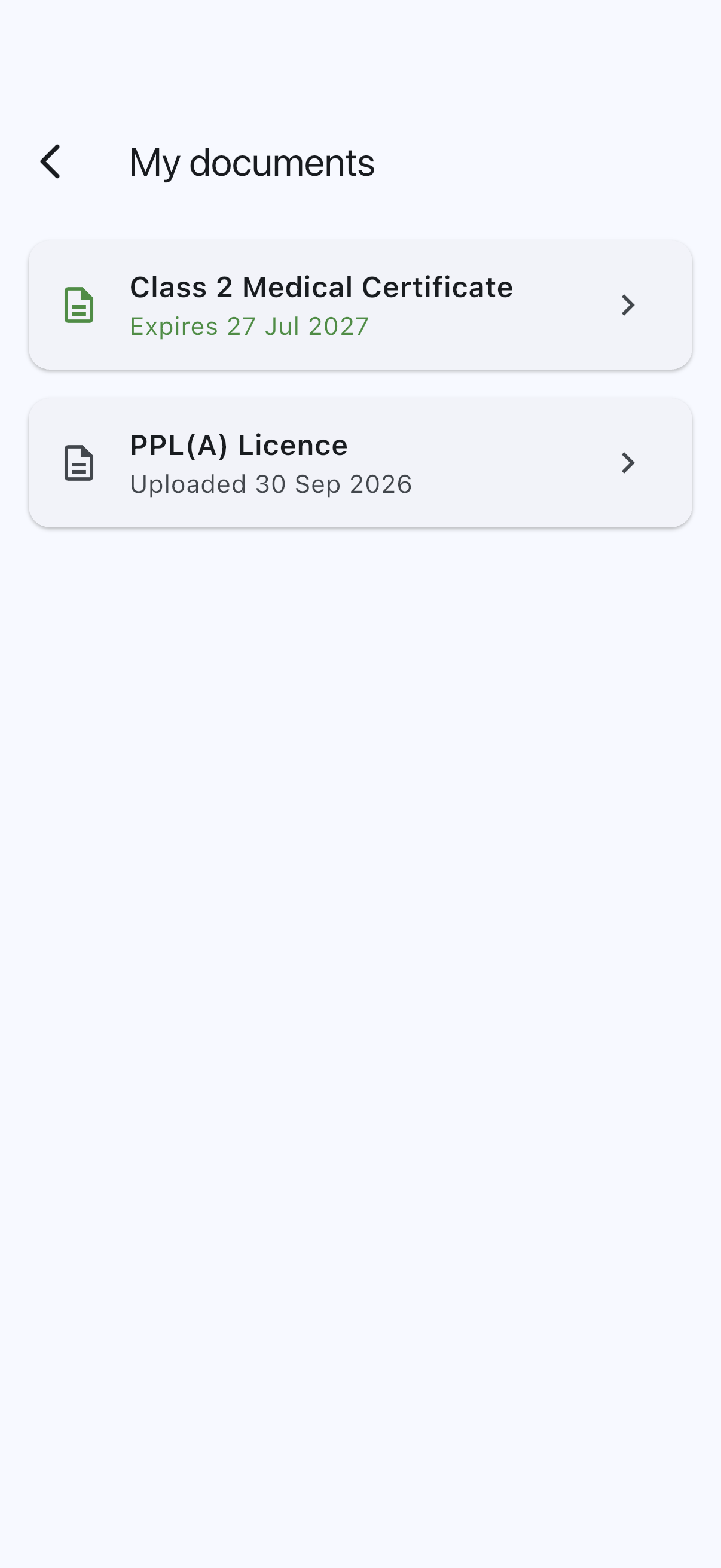
Section titled “Step 1: Open My documents”On the Profile tab, find the Pilot documents section and tap My documents. You’ll see two tiles: Medical and Licence.
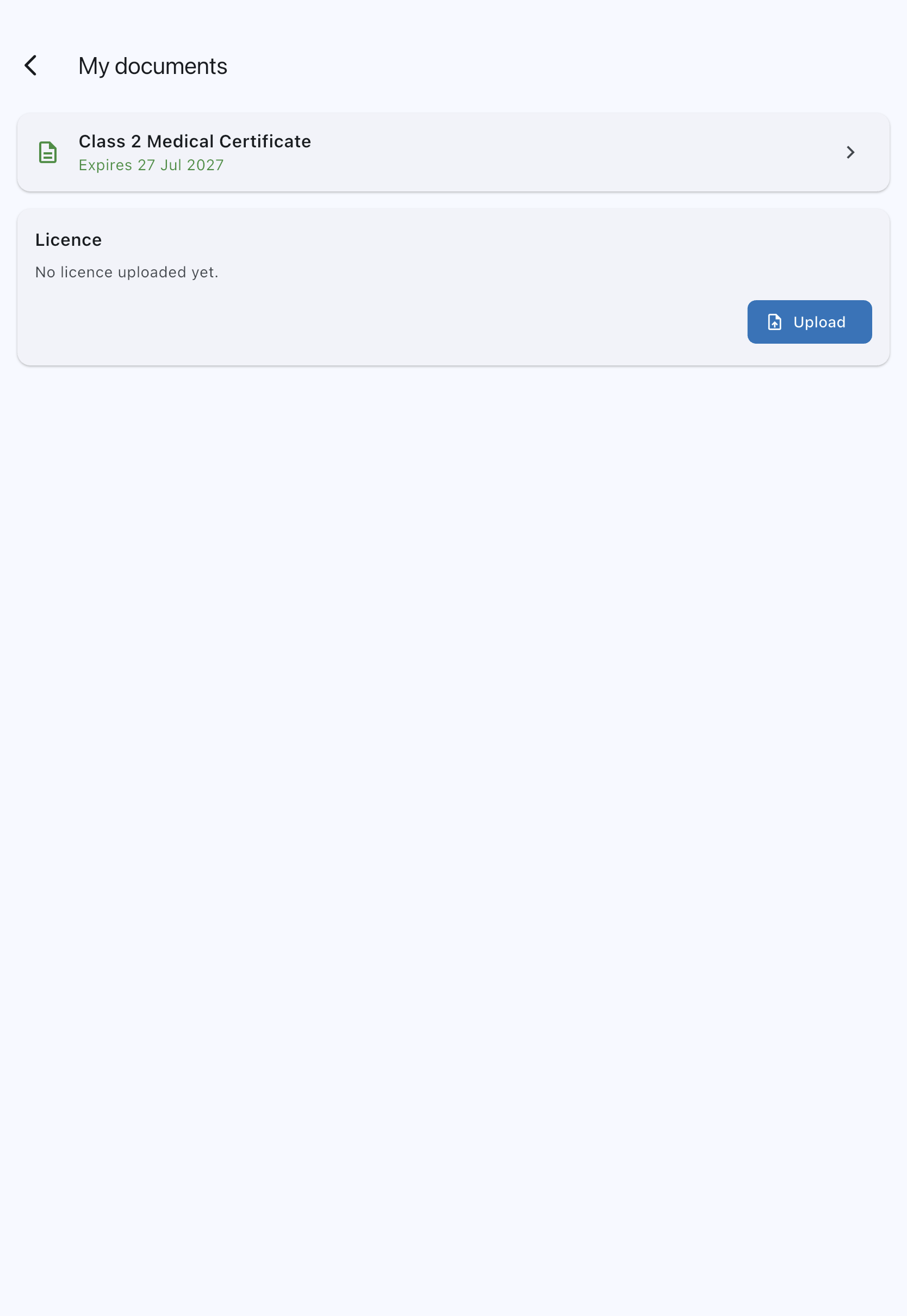
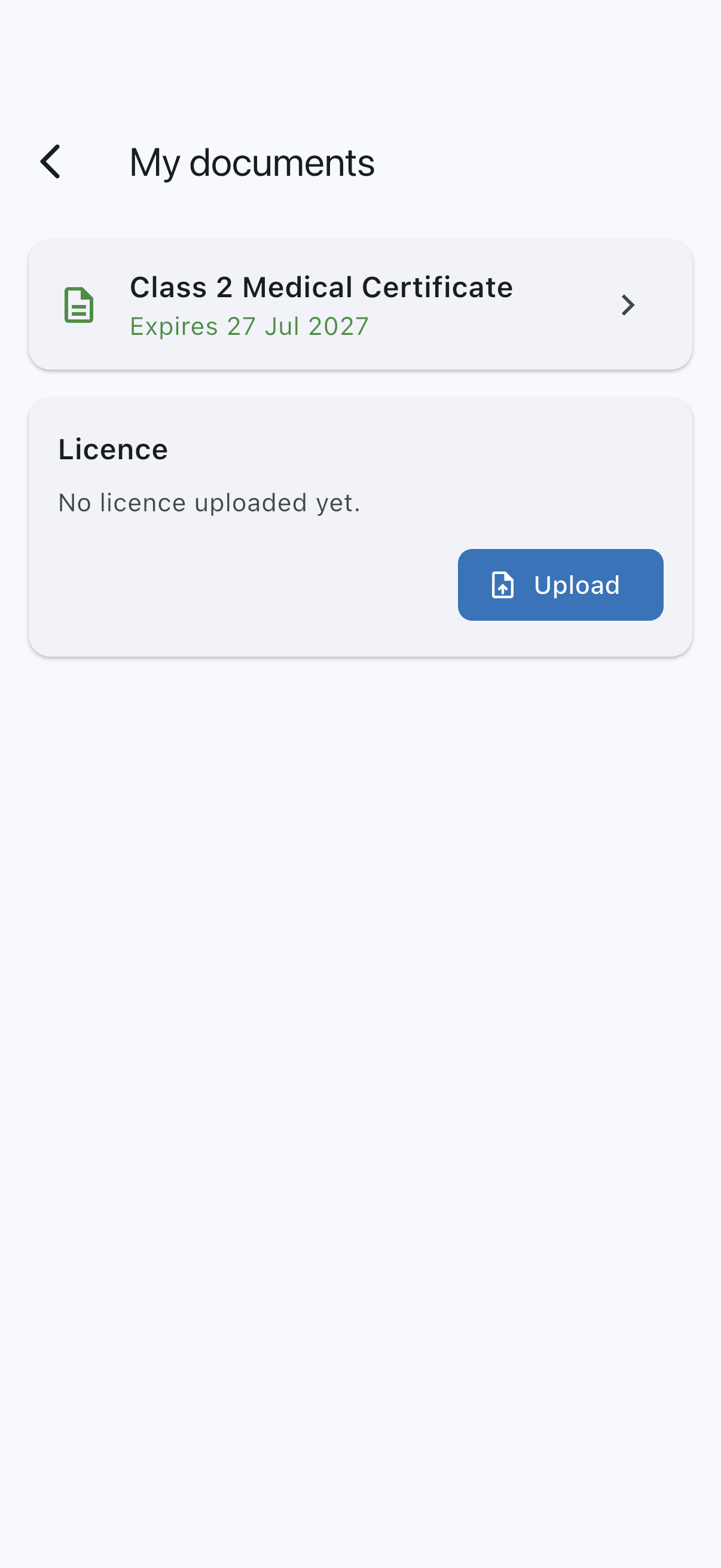
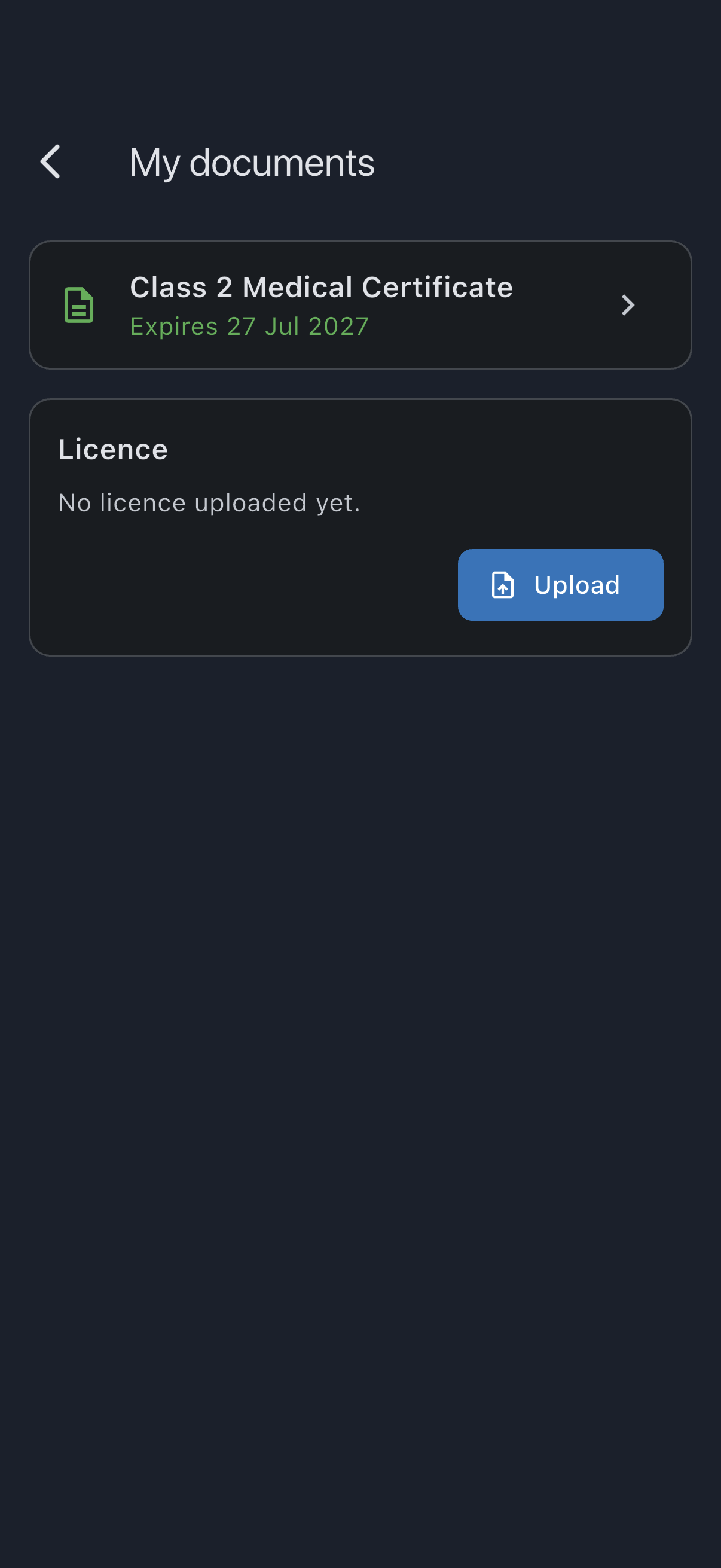
Neither tile uses the words “not uploaded”. The empty Licence tile reads No licence uploaded yet. The empty Medical tile spells out the choice ahead of you: No medical recorded yet. Record your expiry date to stay current with your syndicates; uploading the certificate is optional.
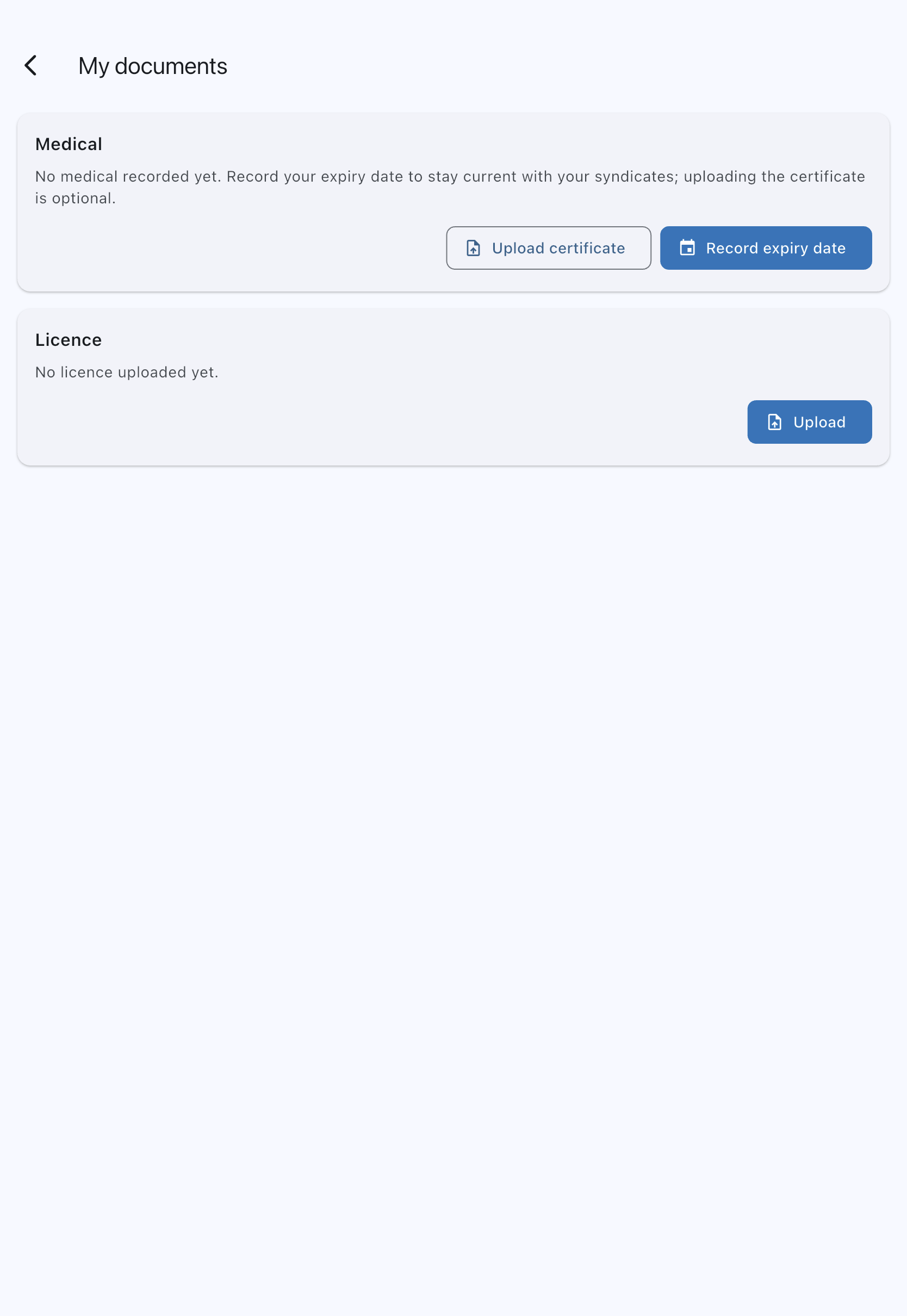
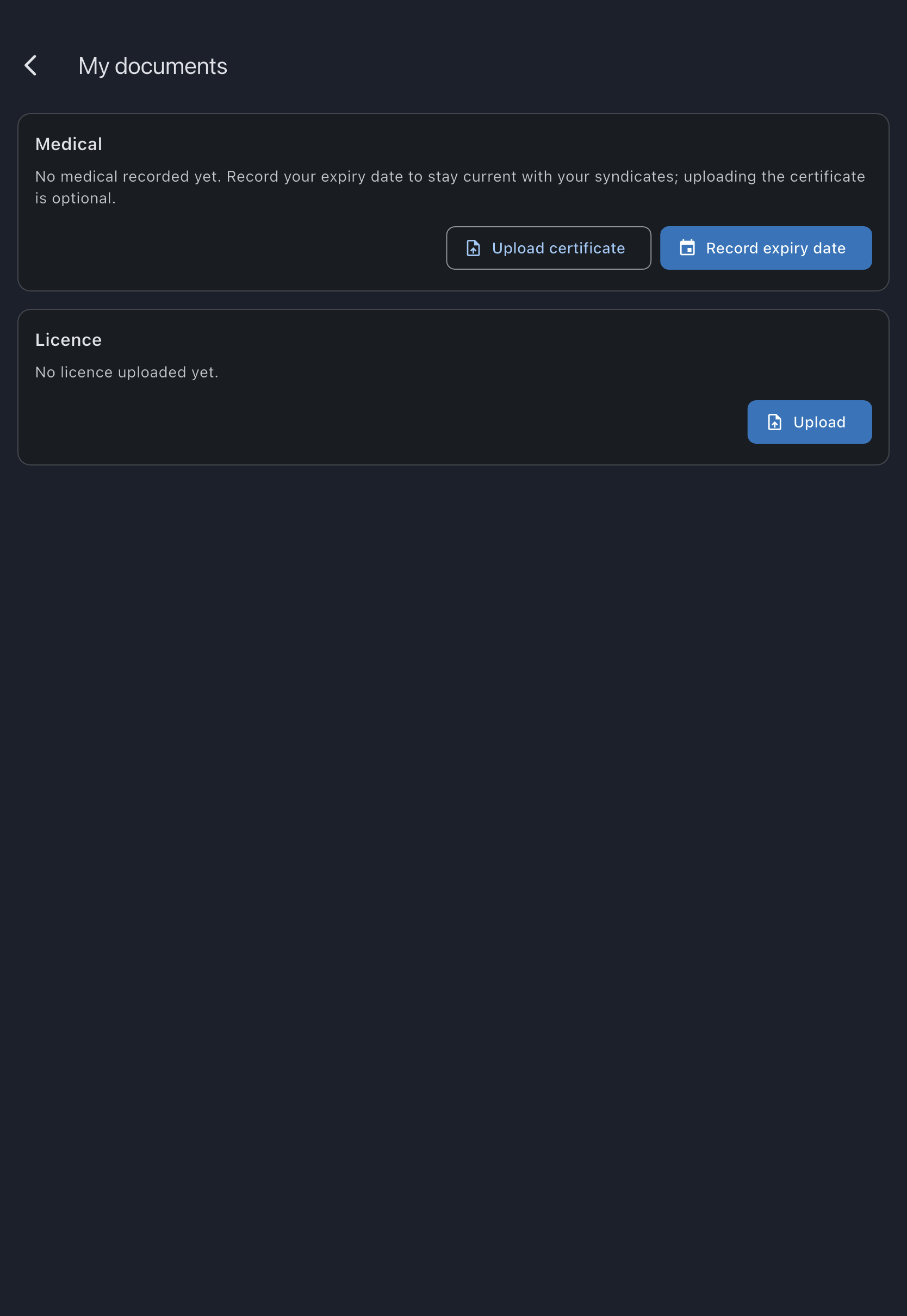
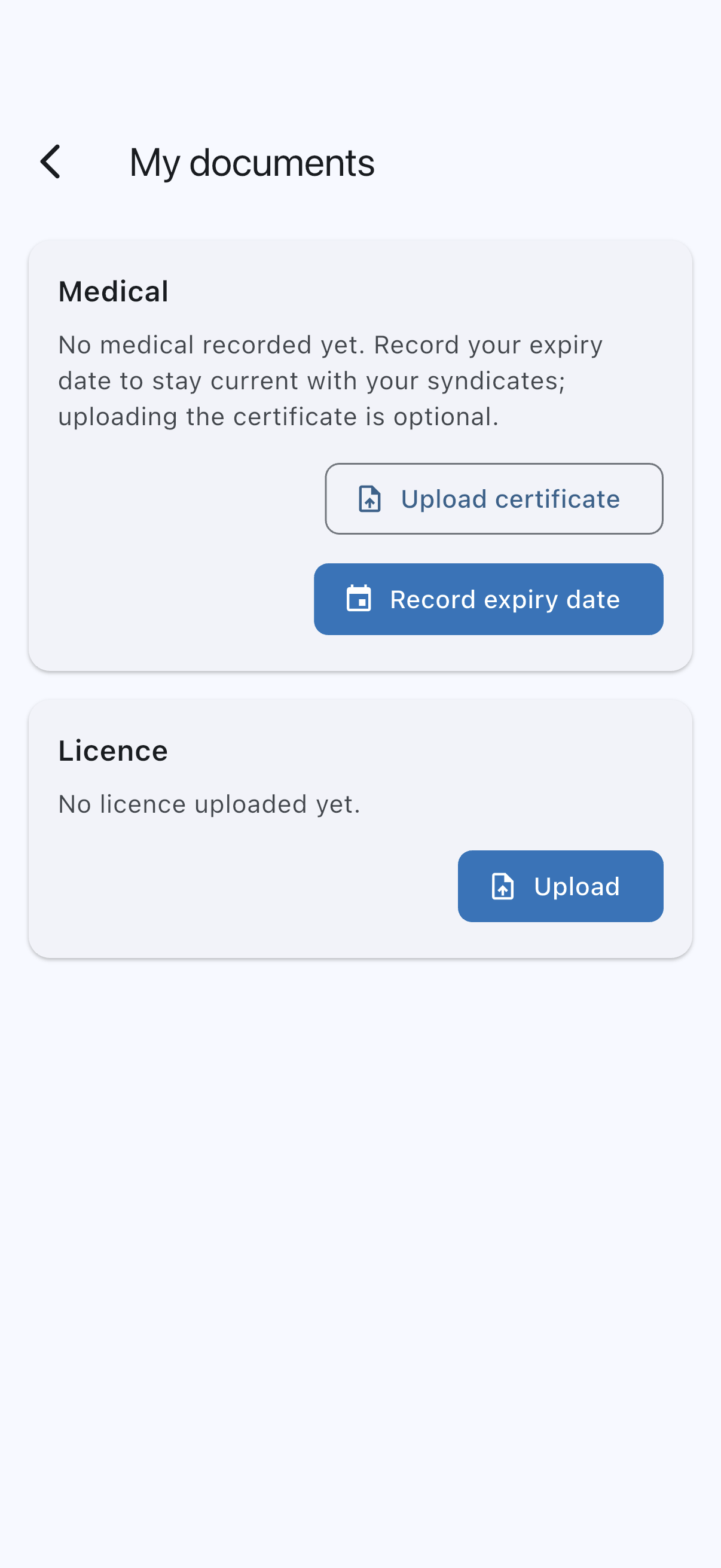
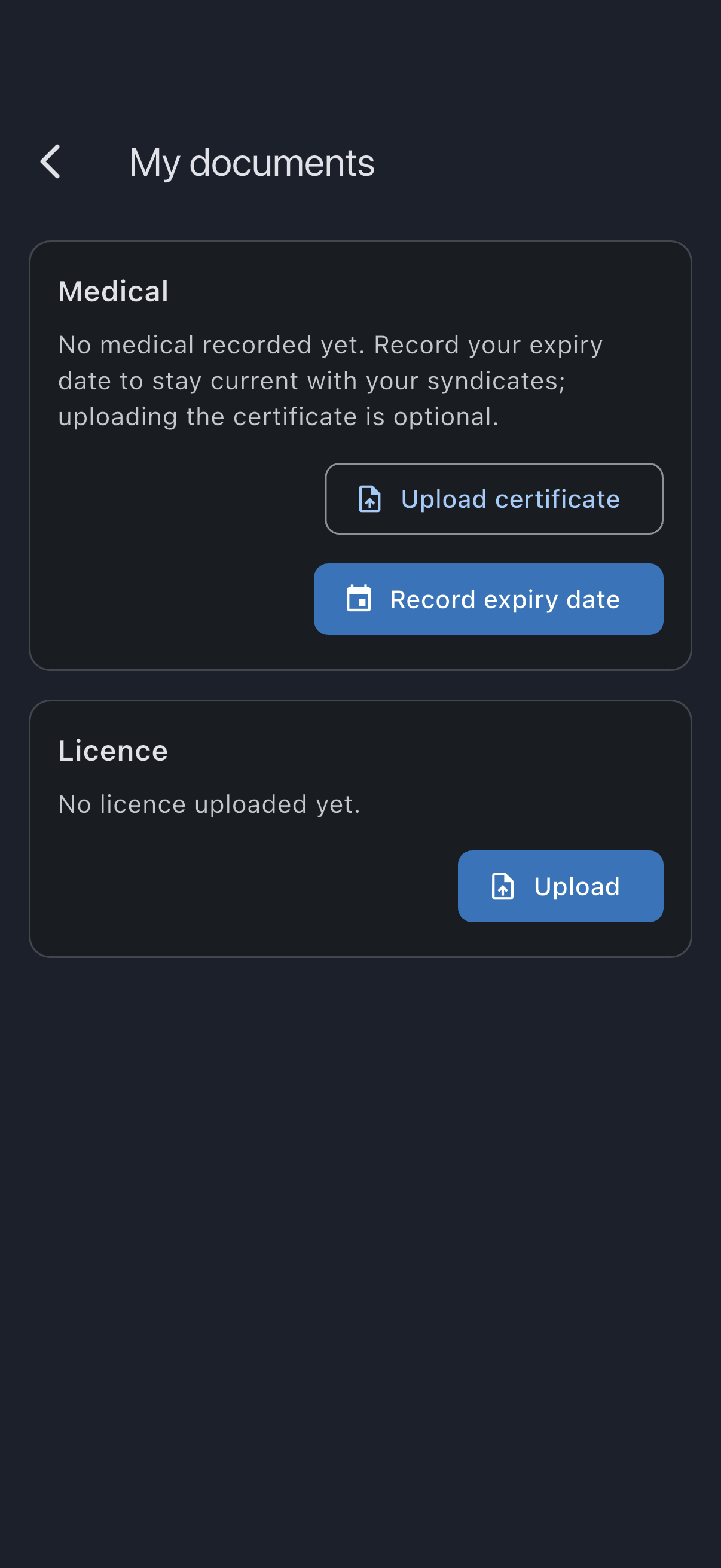
These two tiles are the only place pilot documents live. They are deliberately separate from the syndicate library: your medical is yours, not the syndicate’s. Your fellow members see nothing of it at all, and your admins see only whether it’s current, never the certificate. Step 6 shows exactly what reaches them.
Step 2: Choose your route, and give consent
Section titled “Step 2: Choose your route, and give consent”The empty Medical tile carries two buttons, not one. Record expiry date is the filled, primary button; Upload certificate sits beside it as the outlined alternative. There is no bare Upload button on this tile. That one belongs to the Licence tile, and you’ll meet it in Step 5.
Tap either, and the Medical consent screen opens before anything else, because your expiry date is health data whether or not a certificate comes with it. The wording adapts to the route you picked.
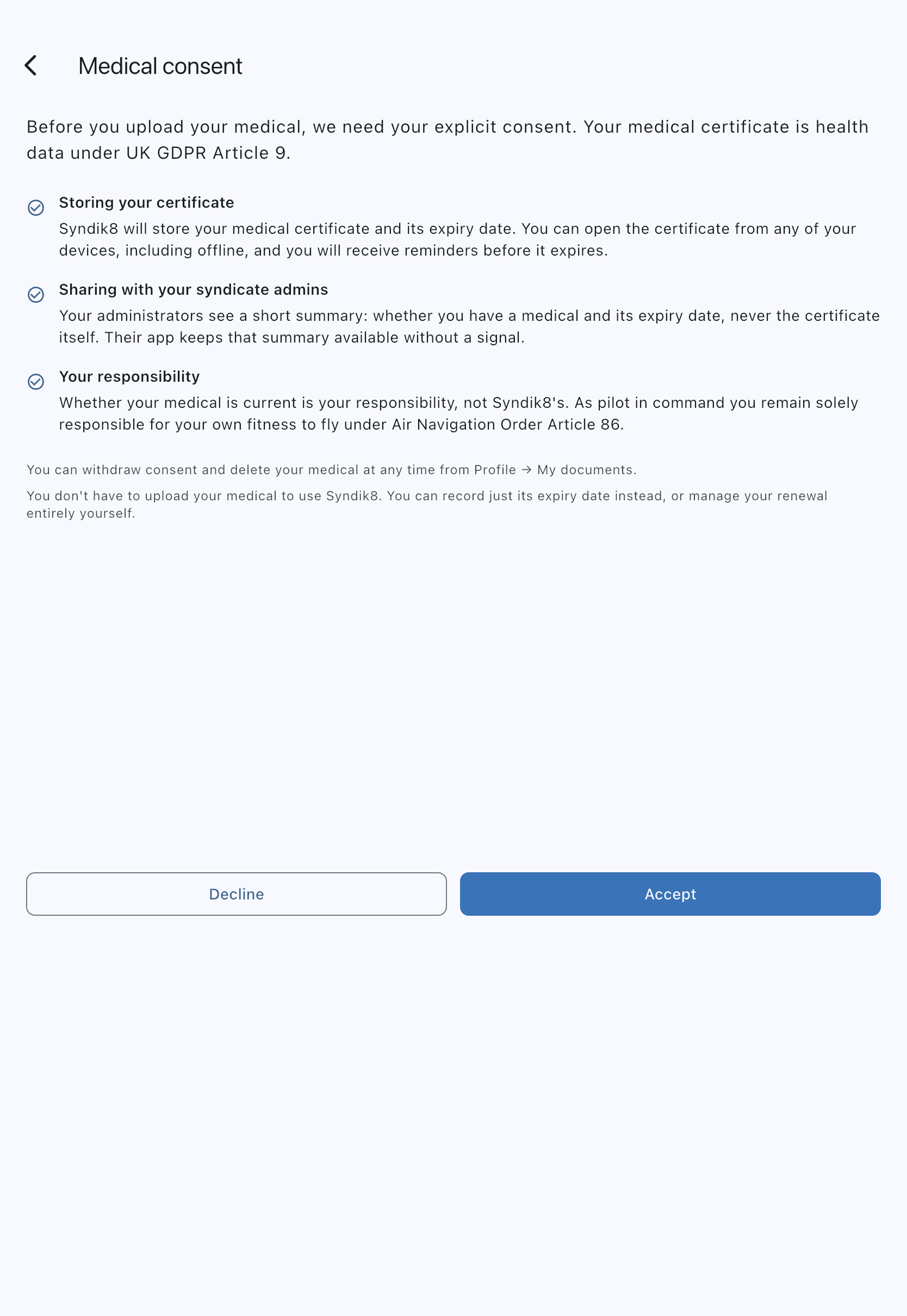
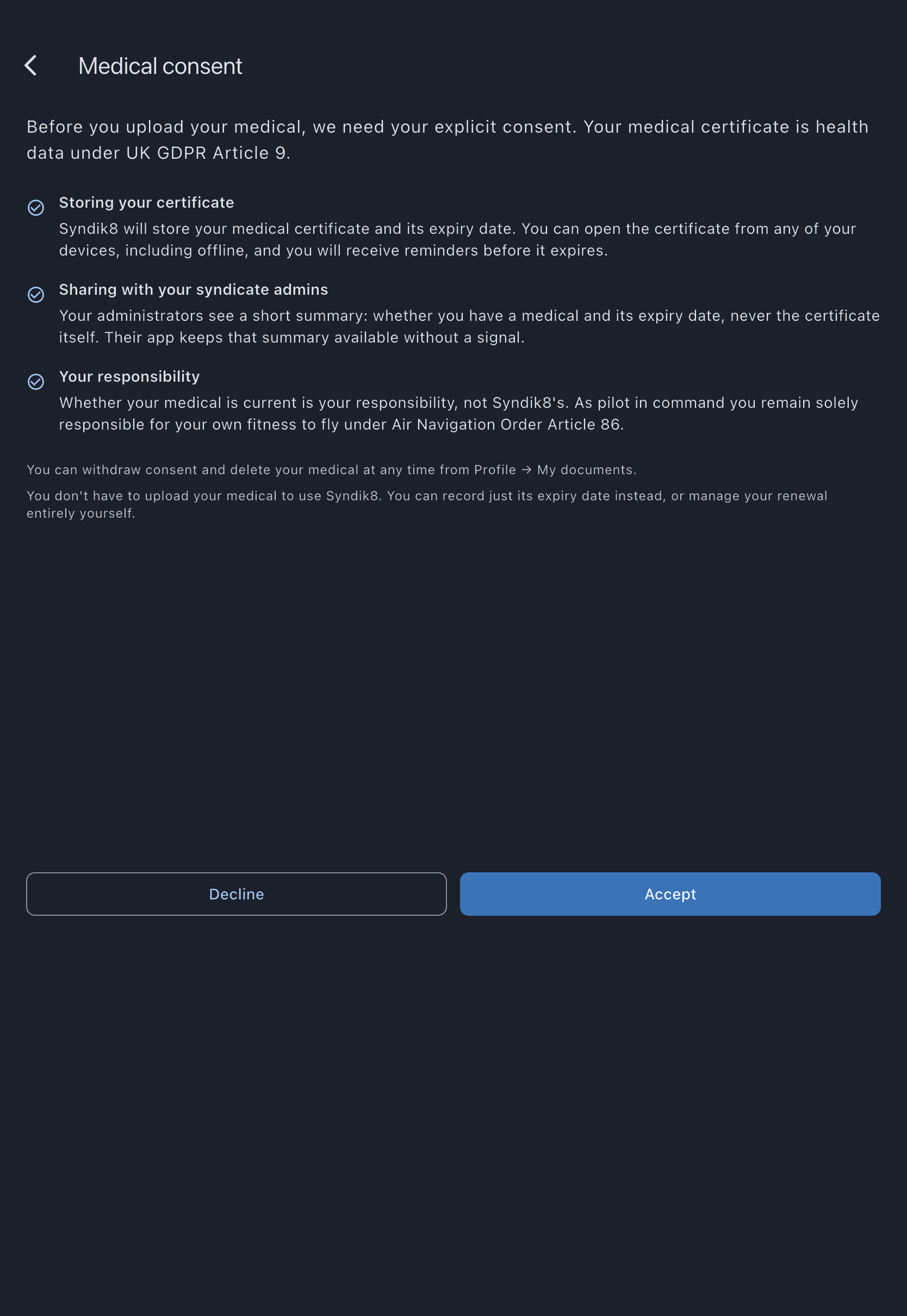
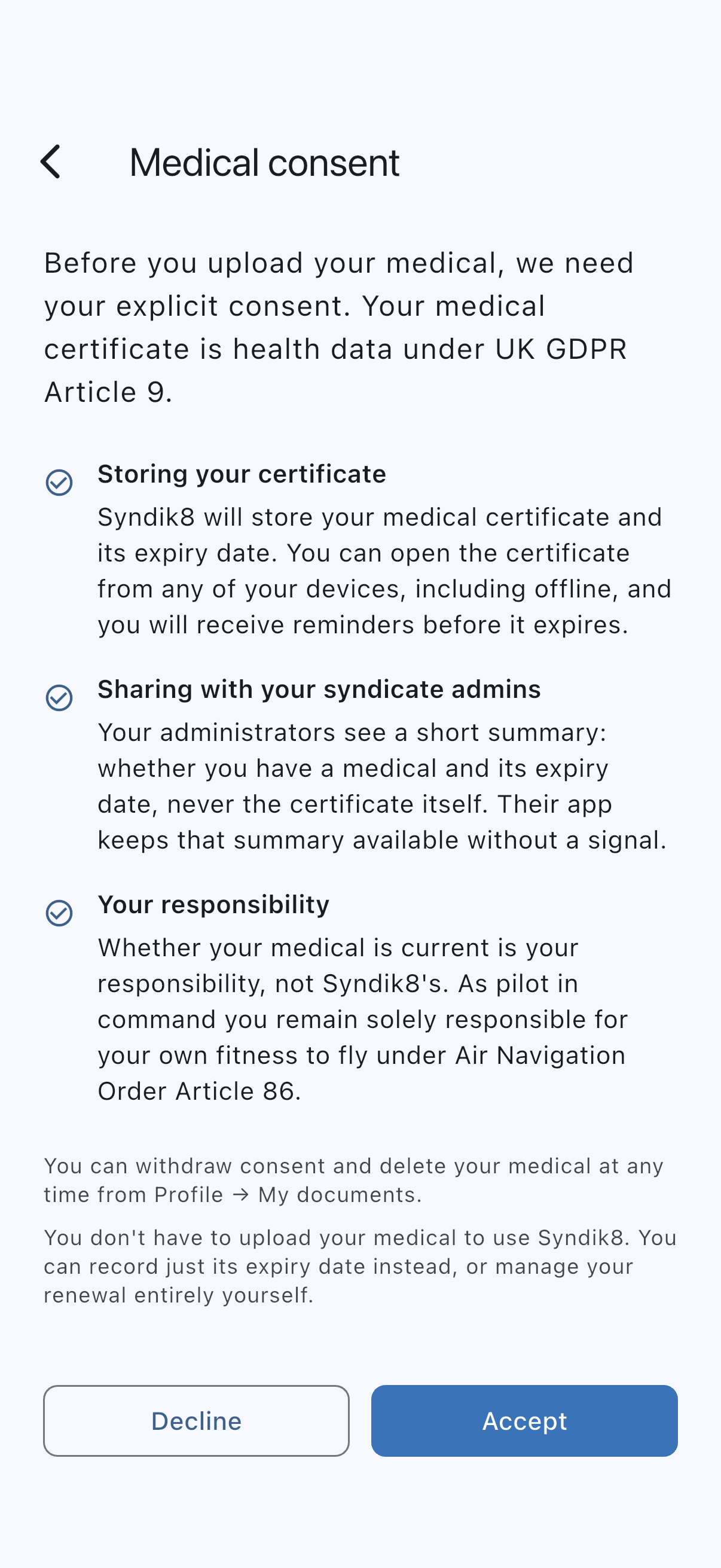
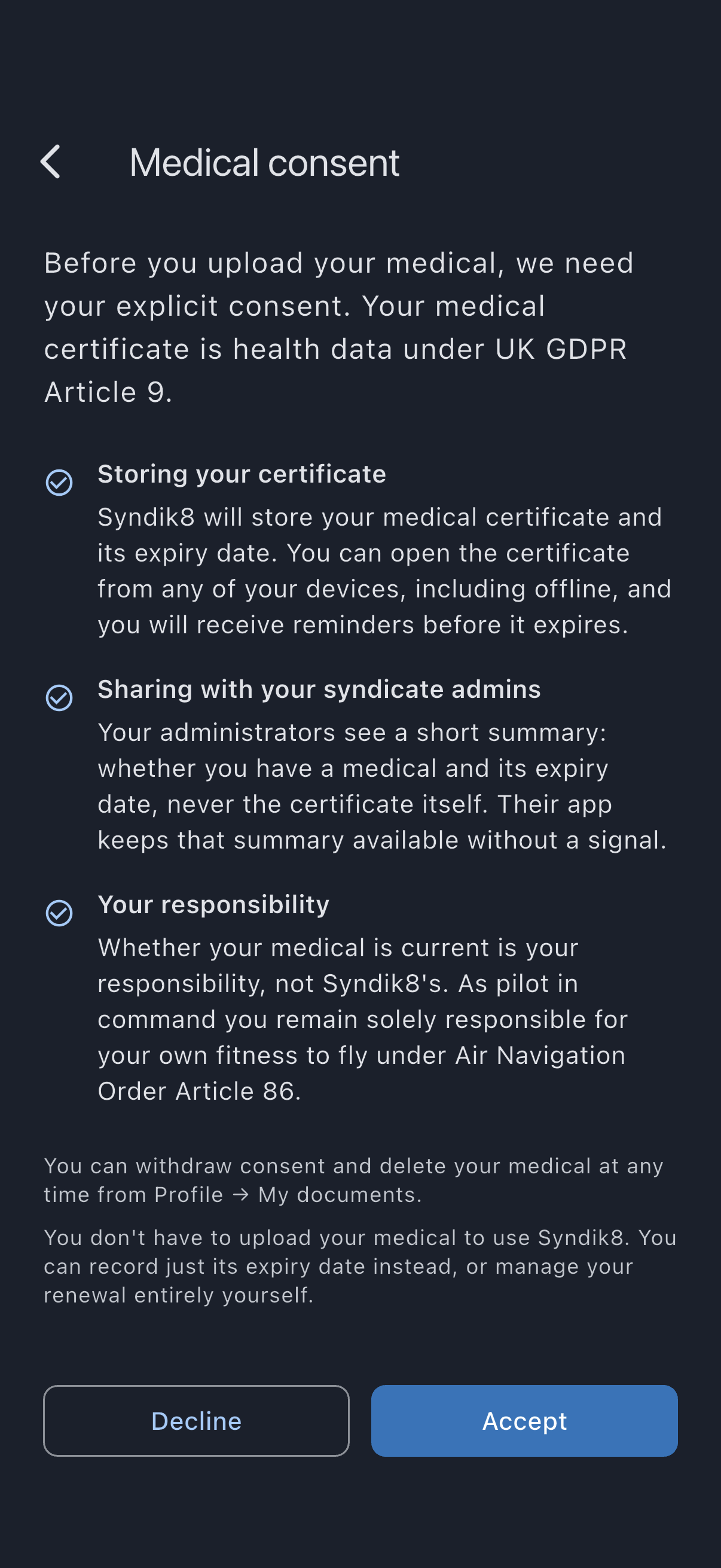
Read it properly. It makes three headed points:
- Storing your certificate, or Storing your expiry date if you chose the date-only route. On the upload route, Syndik8 stores the certificate and its expiry, openable from any of your devices including offline, with reminders before it expires. On the date-only route it stores the expiry date alone, and says so plainly: your certificate itself is not uploaded.
- Sharing with your syndicate admins. The admins of every syndicate you belong to will be able to see that you have a medical recorded and its expiry date. Your certificate is never shared with anyone but you.
- Your responsibility. Whether your medical is current is yours to manage, not Syndik8’s. As pilot in command you remain responsible for checking your medical validity and fitness to fly under the rules that apply to your flight. A recorded expiry date or uploaded certificate does not establish current fitness. See Pilot-in-command responsibility.
Two short notes sit below the three points: that you can withdraw consent and delete your medical at any time from Profile, under My documents, and that you don’t have to record your medical on Syndik8 at all if you would rather manage the renewal yourself. See Withdraw medical consent for how the withdrawal works.
The screen doesn’t carry a “what won’t be stored” list, so it’s worth saying here: Syndik8 has no field anywhere for your medical class, your date of birth, the limitations printed on your certificate, or who examined you, so none of that is ever held as data or shown to anyone. If you upload the certificate, the file naturally still shows whatever is printed on it, and you are the only person who can open it.
If anything gives you pause, tap Decline. Nothing is stored, you go straight back to My documents, and a one-line note confirms the medical was not recorded. To continue, tap Accept.
Behind the scenes, accepting records the time of your consent and which version of the wording you accepted, against your account. Everything after this depends on it: the server refuses to store a medical for you without it.
If you chose Record expiry date
Section titled “If you chose Record expiry date”You land on the Medical expiry date screen, which has a single field. Tap Expiry date, pick the date printed on your certificate, and tap Save. You’ll see Medical expiry date saved. and return to My documents.
The Medical tile now reads Medical, with Expires and your date under it, and Certificate not uploaded on the line below so you can never mistake it for a filed certificate. Your admins see exactly the same currency they would have seen from a full upload, and your renewal reminders are already running.
That is a complete, finished medical record. If it’s all you wanted, skip ahead to Step 5 and add your licence. You can add the certificate whenever you like: open the Medical tile and tap the upload icon in the toolbar, labelled Upload certificate.
The remaining steps follow the Upload certificate route instead.
Step 3: Pick the certificate file
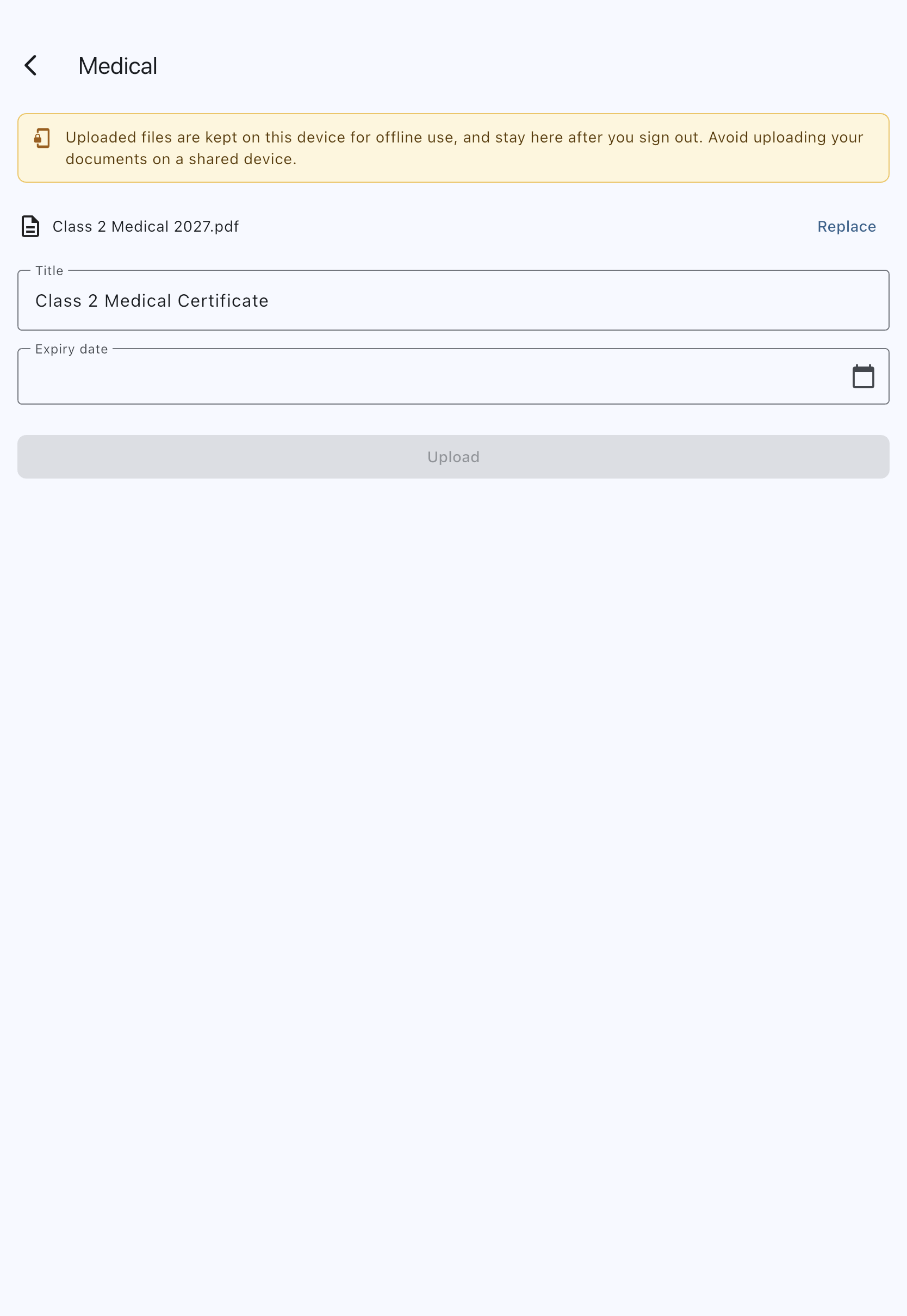
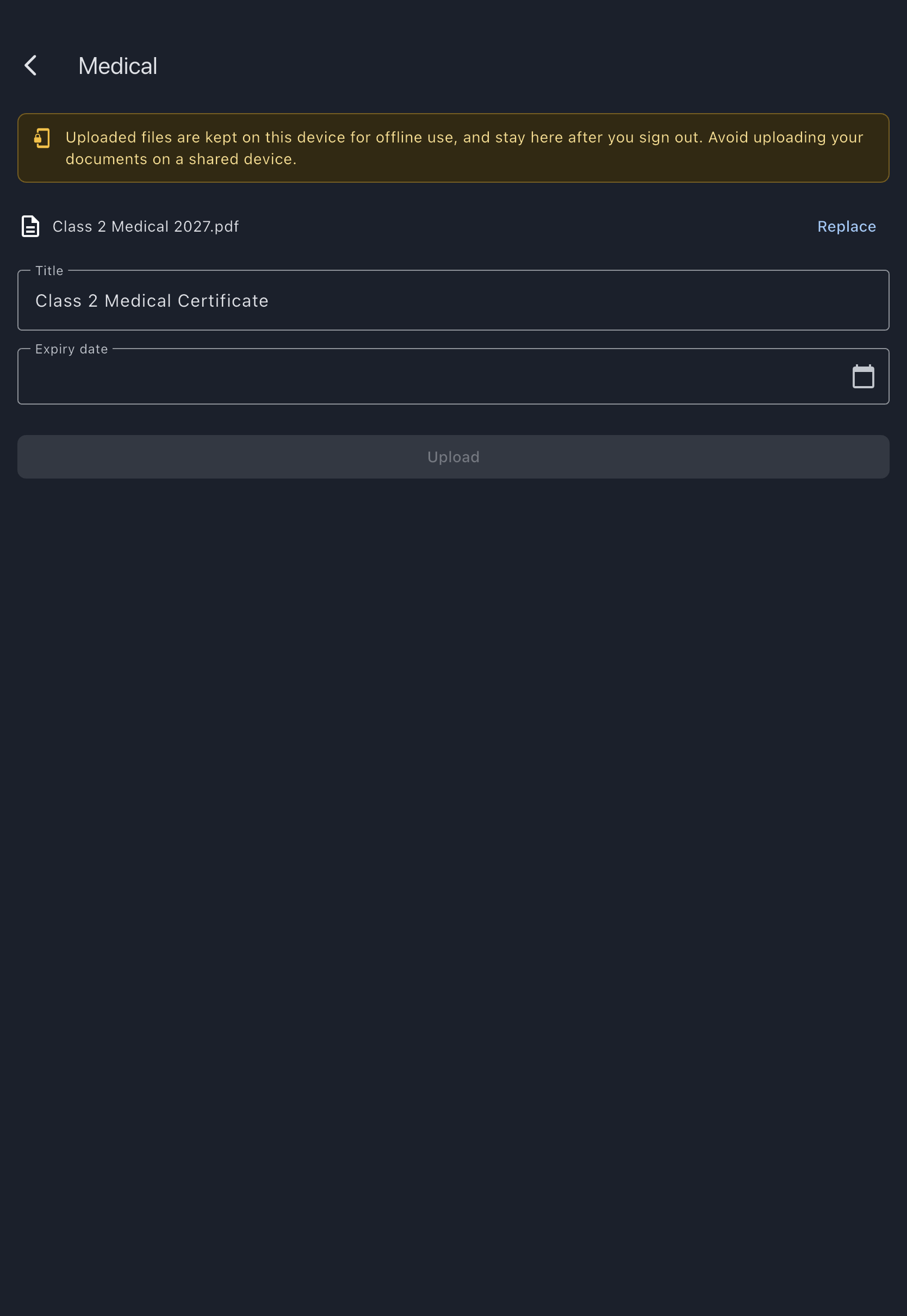
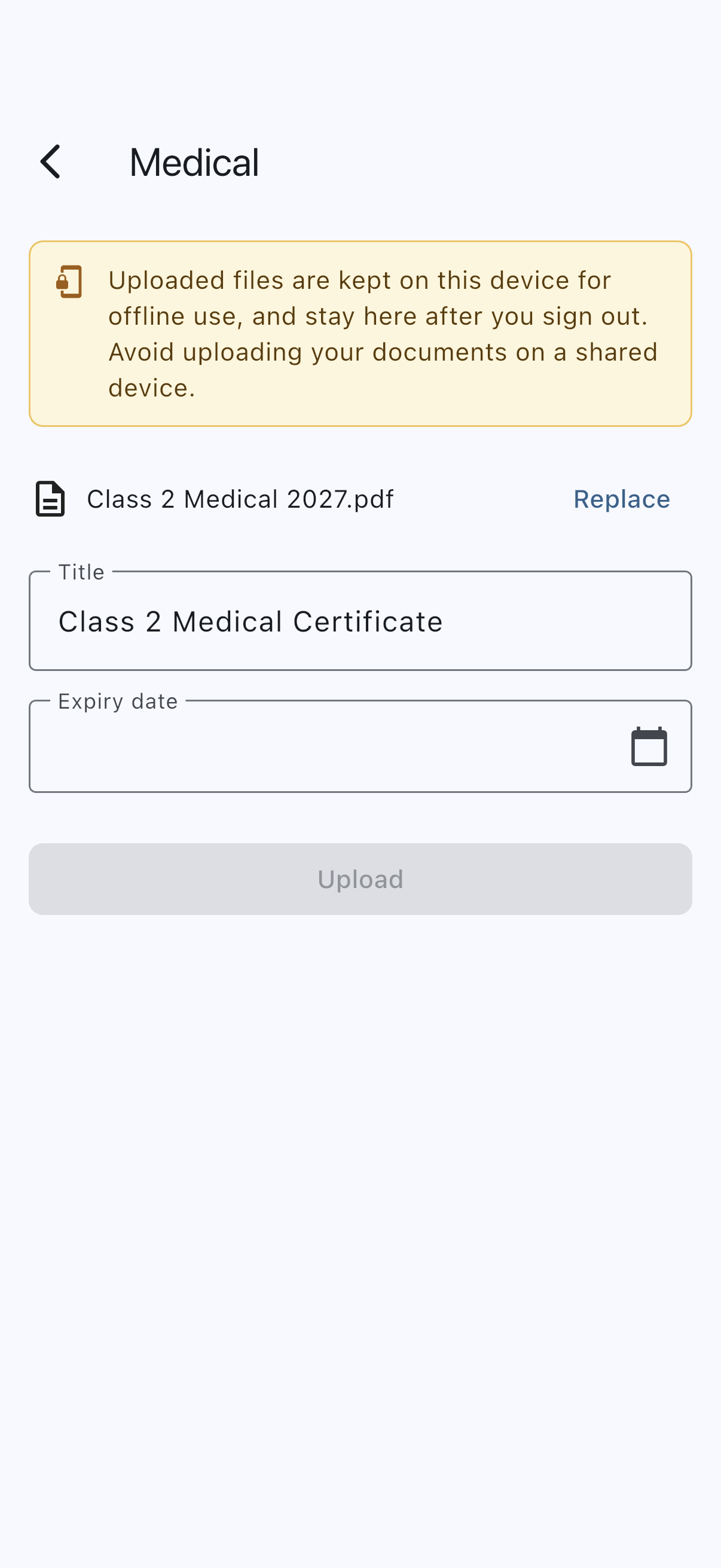
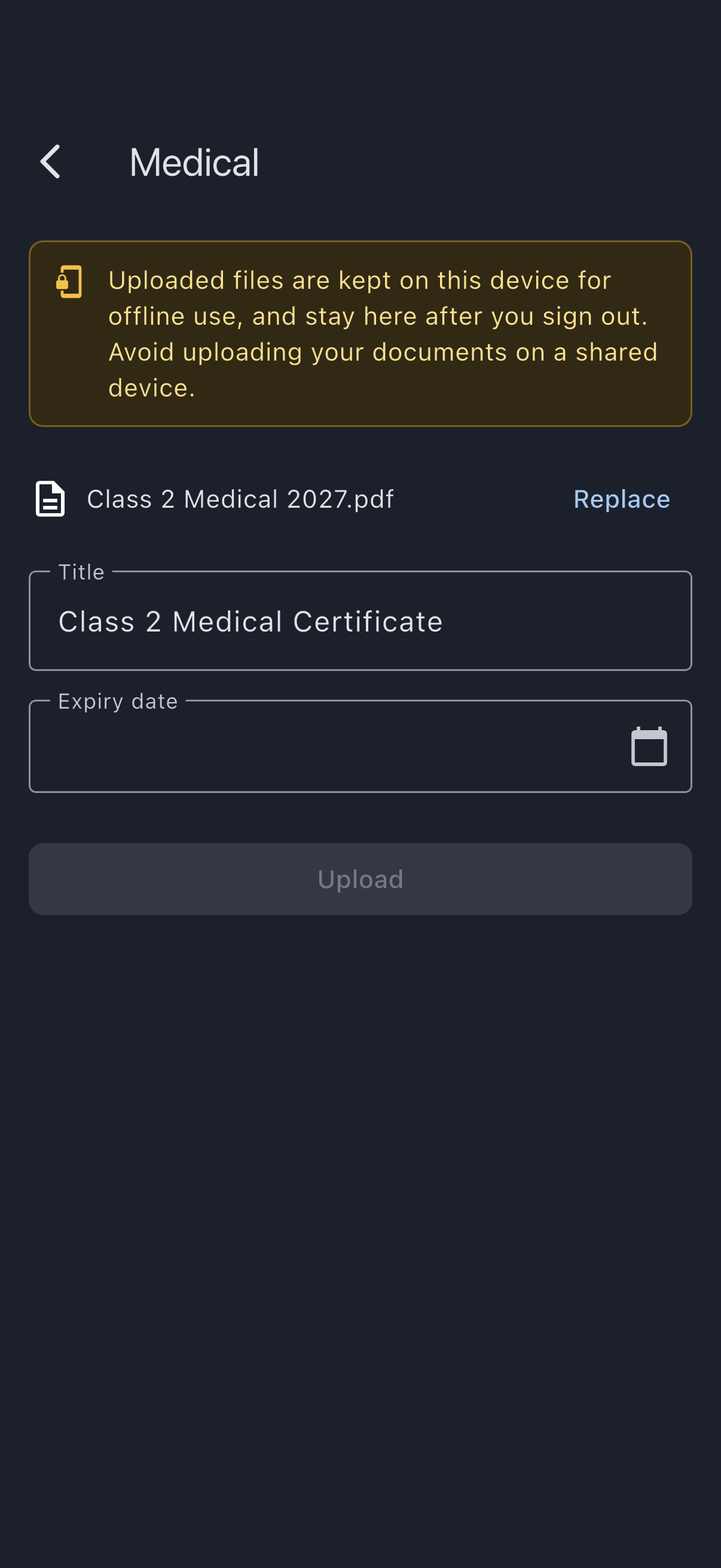
Section titled “Step 3: Pick the certificate file”The upload screen opens. Tap Choose file and pick the certificate from your device, or Add a photo to snap the paper certificate there and then. Files must be PDF, JPEG, PNG, or WebP and no larger than 20 MB.
A short caution sits at the top of the form: uploaded files stay on the device for offline use, and stay there after you sign out, so don’t do this on a shared device.
The Title fills in automatically with the document-type name, Medical. It gains the expiry once you pick one in the next step, becoming something like Medical (expires 12 Apr 2027). Type your own title at any point and Syndik8 stops rewriting it, so Class 2 Renewed Apr 2026 will stick if you prefer it.
Step 4: Pick the expiry date
Section titled “Step 4: Pick the expiry date”The Expiry date field is mandatory for medicals, and Upload stays disabled until you fill it. Tap the field; a date picker opens. Pick the date printed on your certificate.
This is the date that drives the renewal reminders. Get it right, but don’t agonise. If you mis-set it, replace the file later and correct the date in the same step.
Tap Upload.
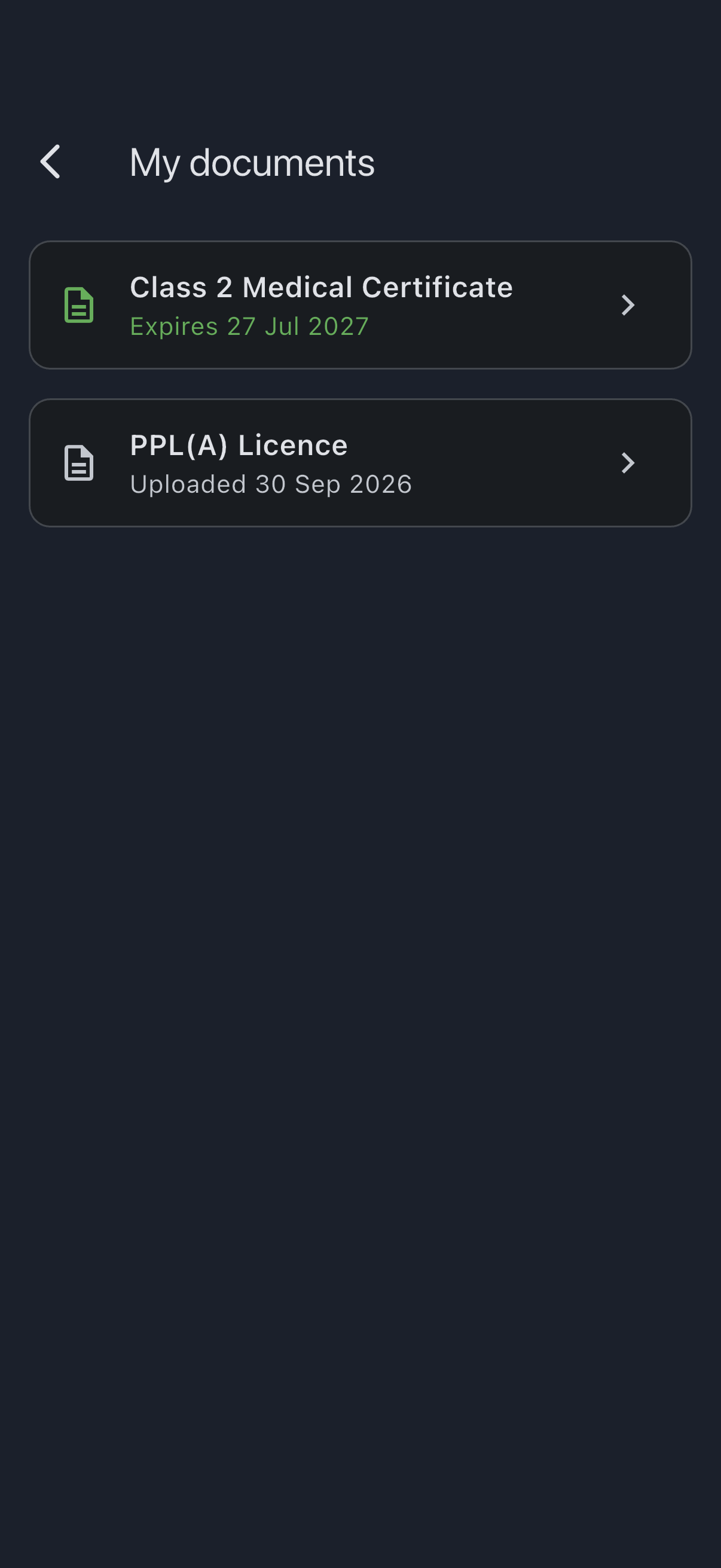
You’ll see a Document uploaded. confirmation and return to My documents. The Medical tile now shows the title and, beneath it, Expires with your date.
There’s no status chip. Instead the tile colours its document icon and that expiry line together: green while the medical is more than 30 days from expiry, amber inside 30 days, red once the date has passed. So the tile tells you how comfortably current you are by its colour rather than by a badge.

Step 5: Add your pilot licence
Section titled “Step 5: Add your pilot licence”The second tile is headed simply Licence, and it has a single Upload button. Tap it.
There’s no consent screen this time; the licence is ordinary personal data, not health data. There’s also no expiry field and no date-only option: Part-FCL licences are indefinite, so there is no date to track. (Ratings on them expire, but Syndik8 doesn’t track ratings.)
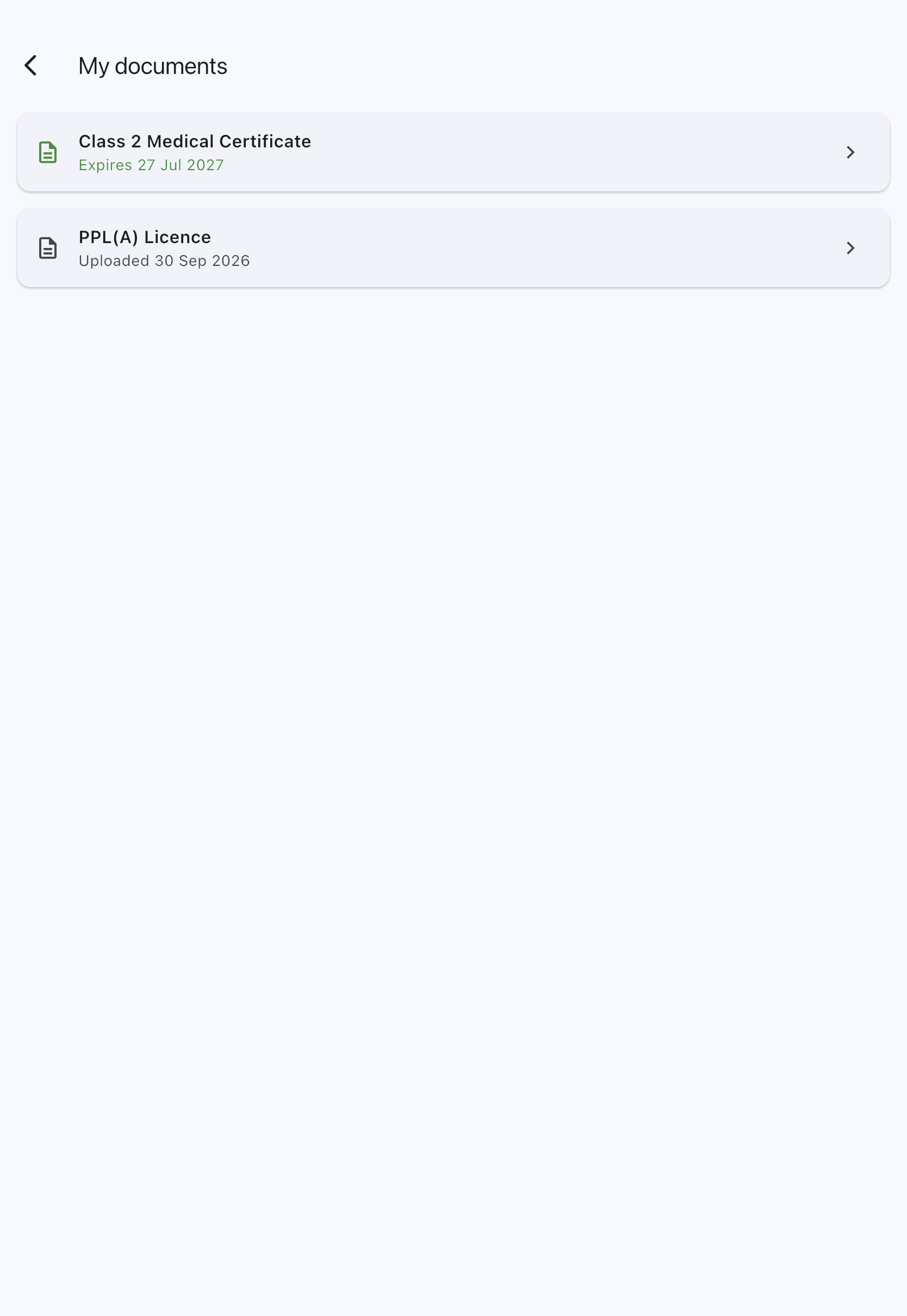
Pick the file, edit the title if you like, tap Upload. The Licence tile now shows the title with Uploaded and the date beneath it. Unlike the Medical tile, its icon and date line stay neutral, because there’s no expiry to colour them by.

Step 6: Confirm what your admins see
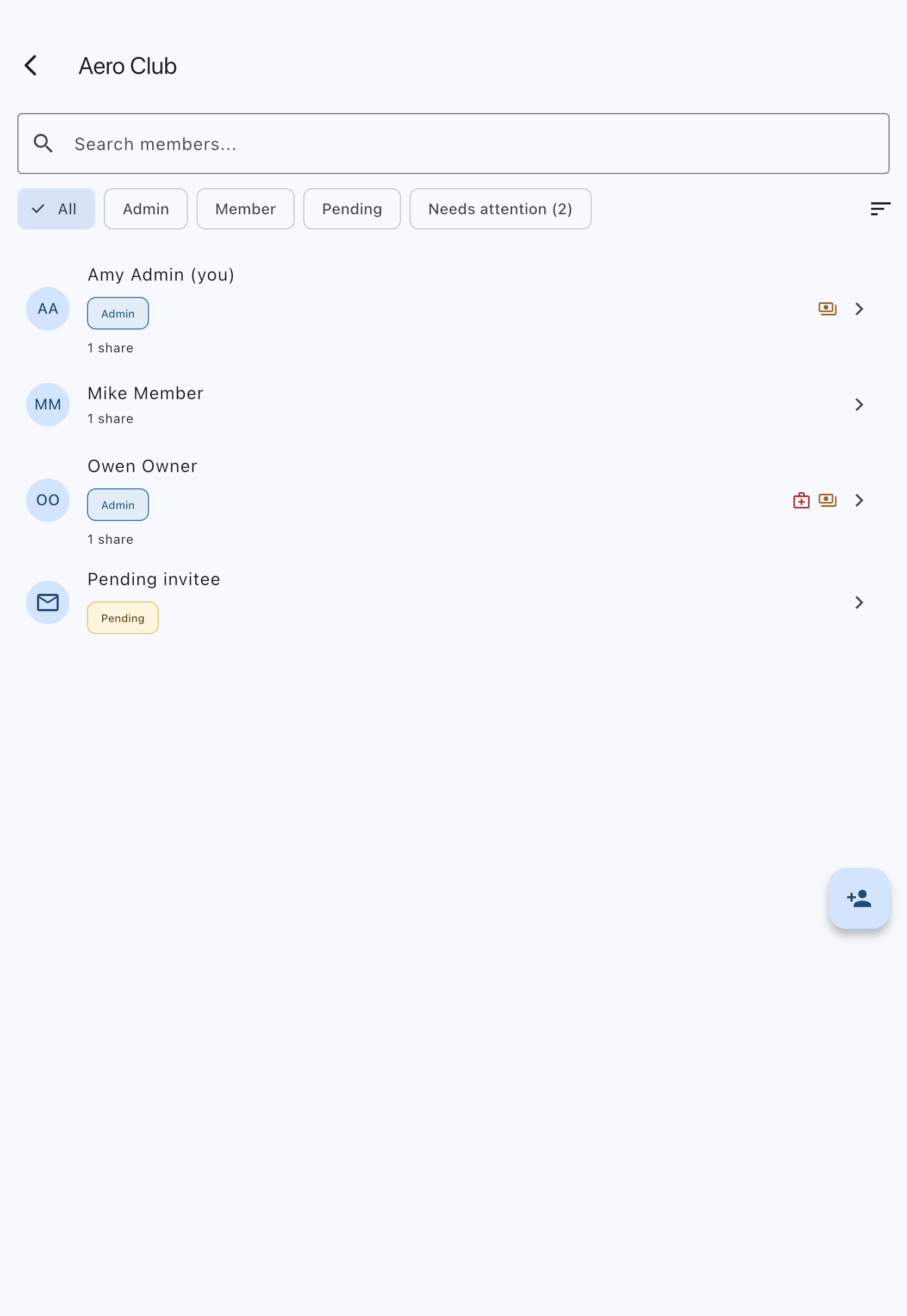
Section titled “Step 6: Confirm what your admins see”Switch syndicates if you have several. You’ll need to either ask an admin to look, or sign in as one if you’re an admin yourself. Admins reach the members list from the Admin tab, under Members; everyone else gets there from the Members row on the syndicate dashboard.
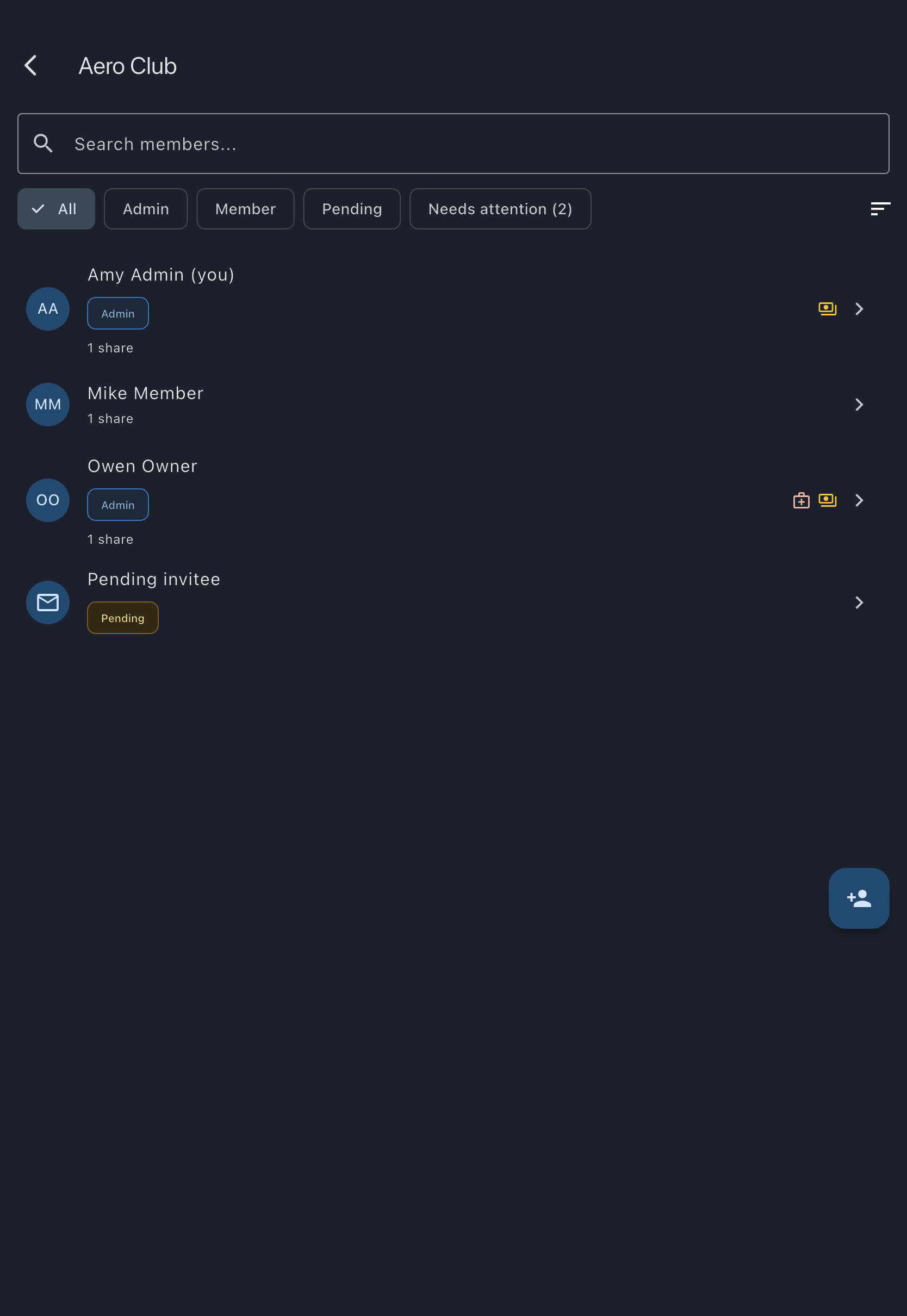
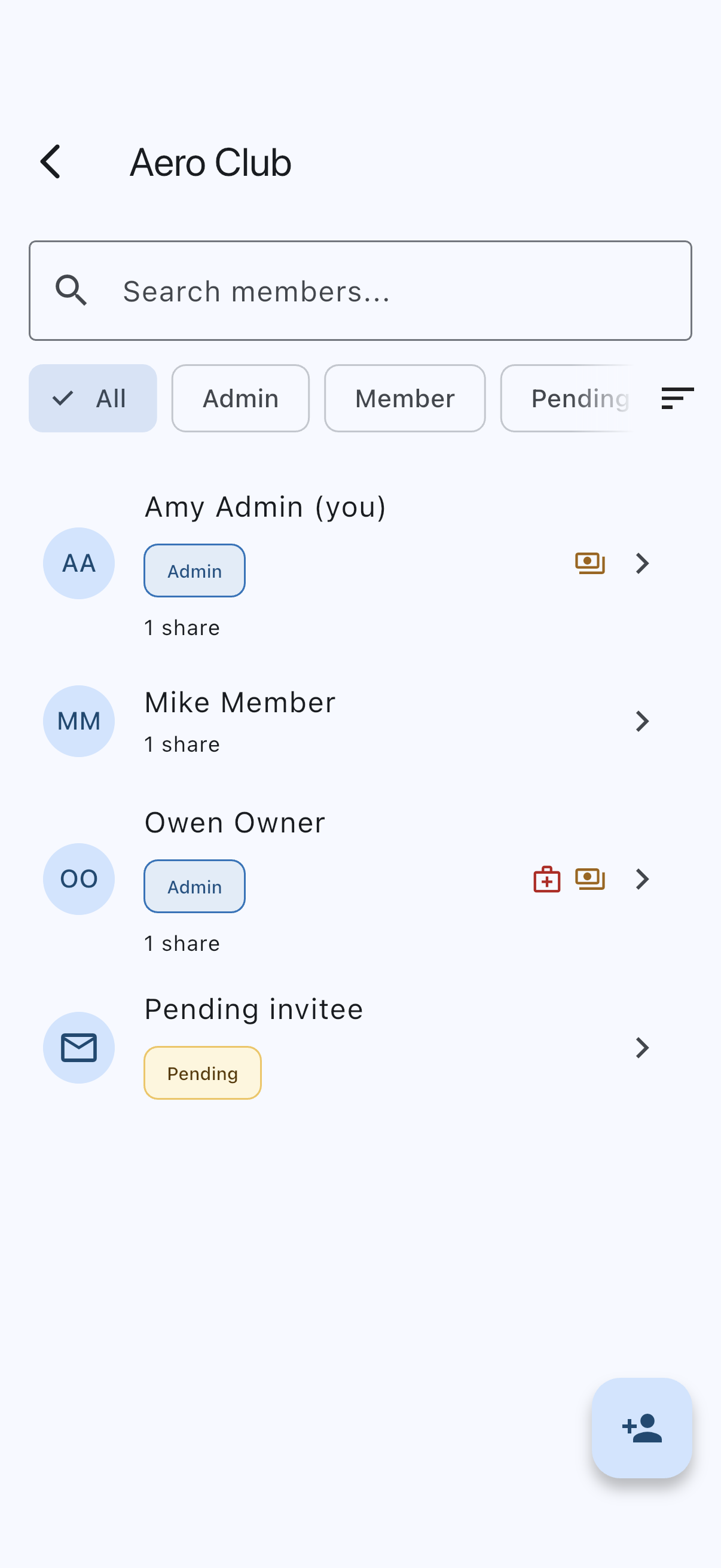
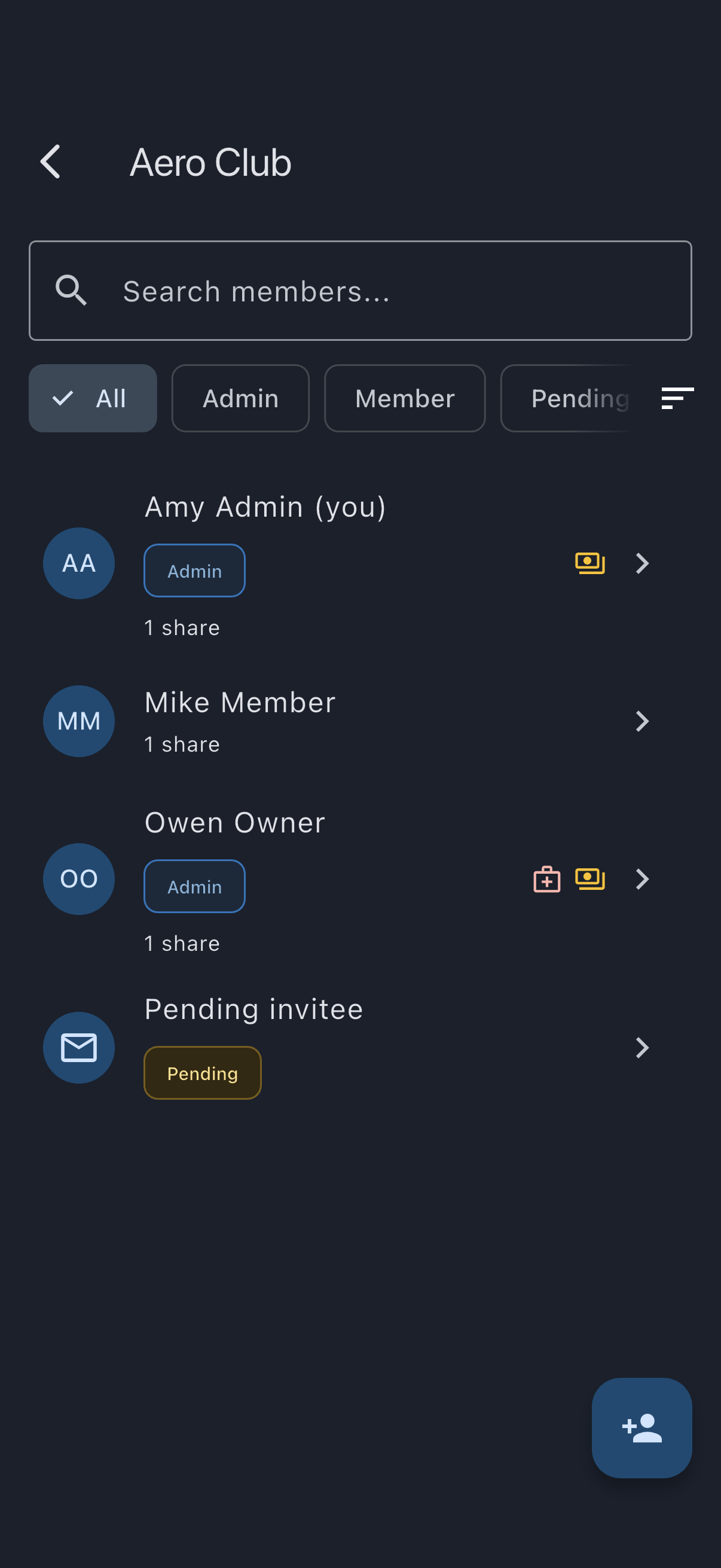
There is no documents column on that list, and this is the part worth understanding. Now that your medical is current, your row shows nothing at all about your pilot documents. The list only speaks up when something needs chasing: a member with no medical on file, or one whose medical has lapsed, picks up a single small red medical glyph at the end of their row. The glyph looks identical in both cases, and the only thing that separates them is its tooltip, which reads either No medical on file or Medical expired. (Screen readers get the same text as the glyph’s label.) Admins also get a Needs attention filter chip that counts the flagged members, so they can narrow the list to just those rows.
The detail this tutorial has been building towards lives one level down. An admin who taps a member row opens that member’s detail screen, which has a Pilot documents section reading Medical expires with your date, and Licence uploaded with the date you added it. If you had recorded only the expiry and no certificate, the section reads exactly the same, because that is all it was ever showing.
That section is the whole of what admins see about your pilot documents. There is no way for them to open or download the file, and nothing printed on the certificate is visible to them anywhere.
Step 7: Set a reminder in your head, too
Section titled “Step 7: Set a reminder in your head, too”Syndik8 will remind you at 60, 30, and 7 days before the medical expires, and again on the day it lapses. The reminder is delivered to your account, not to your admins. Your admins can look up your expiry on your member detail screen, but they are not on the hook for renewing your medical: you are.
If you’ve enabled email notifications in Profile → Notification Preferences, the same reminders also reach your inbox. Otherwise they live in the in-app bell.
You’re done
Section titled “You’re done”Your medical and your pilot licence are on file. The medical will remind you of its own renewal, the licence sits quietly. Your syndicate’s admins see the right amount about both (currency, not contents), and the rest of your fellow members see nothing.
Both actions for changing a document live in its own toolbar, not on the My documents screen, so tap the tile first to open the document:
- Replace swaps in a renewed copy, pre-filled with the current title and expiry so you only change what moved. On a date-only medical the same button reads Upload certificate instead, because there is no file yet to swap.
- Delete on a medical opens a Delete medical screen offering a choice rather than a single warning. Delete everything removes the expiry, the certificate and your consent, so your admins stop seeing a medical for you and you’ll be asked to consent again next time. Delete the file, keep the date removes only the certificate and leaves your currency intact; it’s offered only when a certificate is actually filed. See Withdraw medical consent.
Useful follow-ups:
- Medical consent: the legal basis and version history of the consent wording.
- Why medicals need explicit consent: the reason for the extra step in this tutorial.
- Pilot-in-command responsibility: why Syndik8 doesn’t gate flying on what’s stored here.