
Withdraw medical consent
Withdrawing your consent means deleting your medical. This is the UK GDPR Article 7(3) right to withdraw consent at any time. You can exercise it whenever you wish, without justifying yourself, and without any consequence on the rest of your Syndik8 account.
Before you start
Section titled “Before you start”- Withdrawing means choosing Delete everything on the delete screen, then confirming it a second time. The certificate file (if you uploaded one), the expiry date, the title, and your consent record are all removed, and any copies on your own devices go with them. There is no archive, no soft-delete, no recovery.
- The delete screen’s other option, Delete the file, keep the date, is not a withdrawal. It removes only the certificate; your expiry date stays visible to your admins under your existing consent. Use it when you no longer want Syndik8 holding the certificate but still want to appear current.
- Your pilot licence (if you’ve uploaded one) is not affected. The licence is ordinary personal data, not health data, and is not covered by the medical consent.
- The next time you record a medical (a date or an upload), you’ll be shown the consent screen again as if it were your first.
- Your syndicate admins stop seeing a medical for you as soon as their app is online, even if they already have your details open, and a red attention icon returns on your row in their Members list. The short summary their app keeps on their device so it reads without a signal — that you have a medical, and its expiry date — is removed with it. An admin whose device is offline at the time stops seeing it, and loses the copy on their device, the next time that device connects.
- Go to the Profile tab, then the Pilot documents section, and tap My documents.
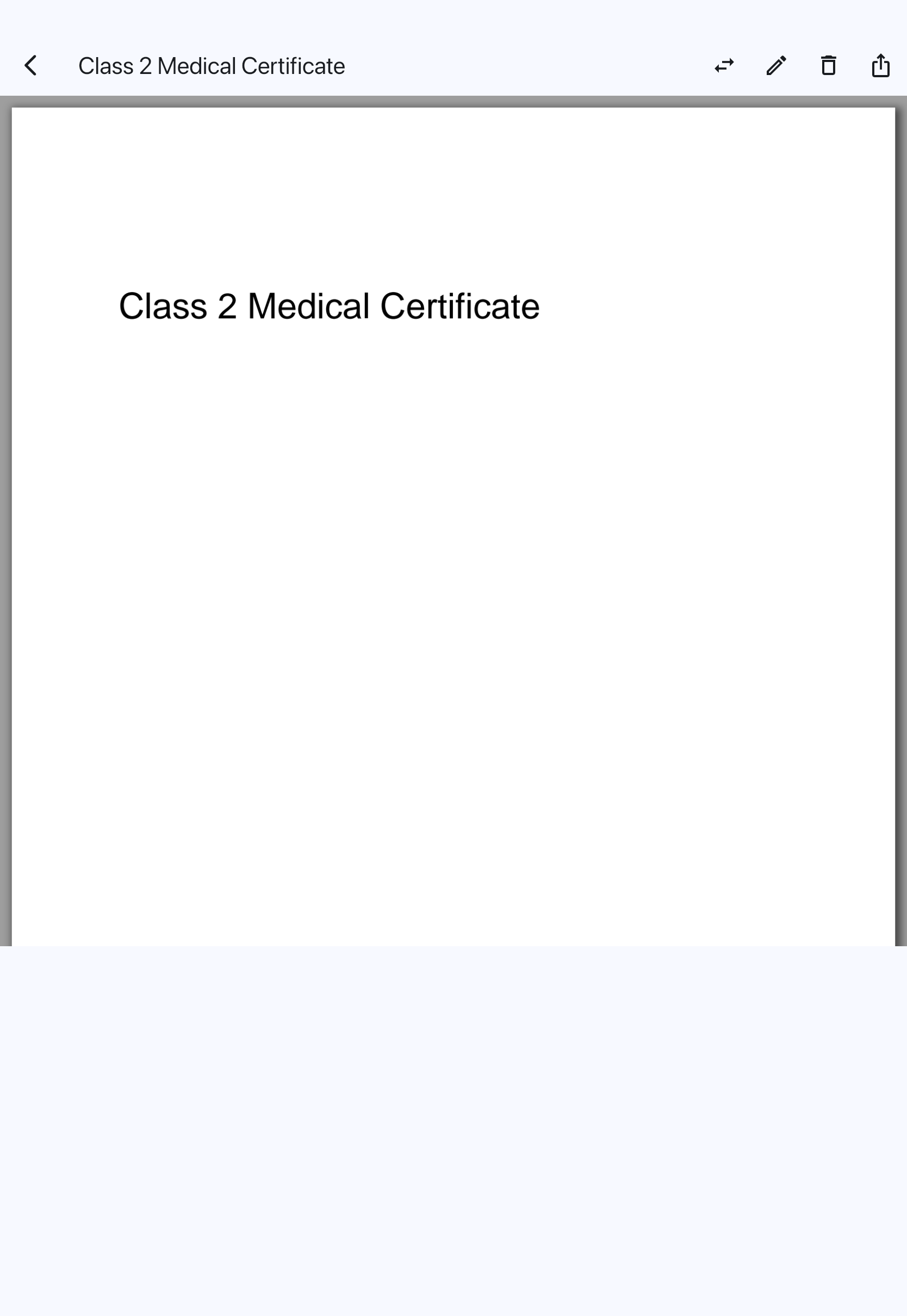
- Tap the Medical tile to open your medical in the document viewer.
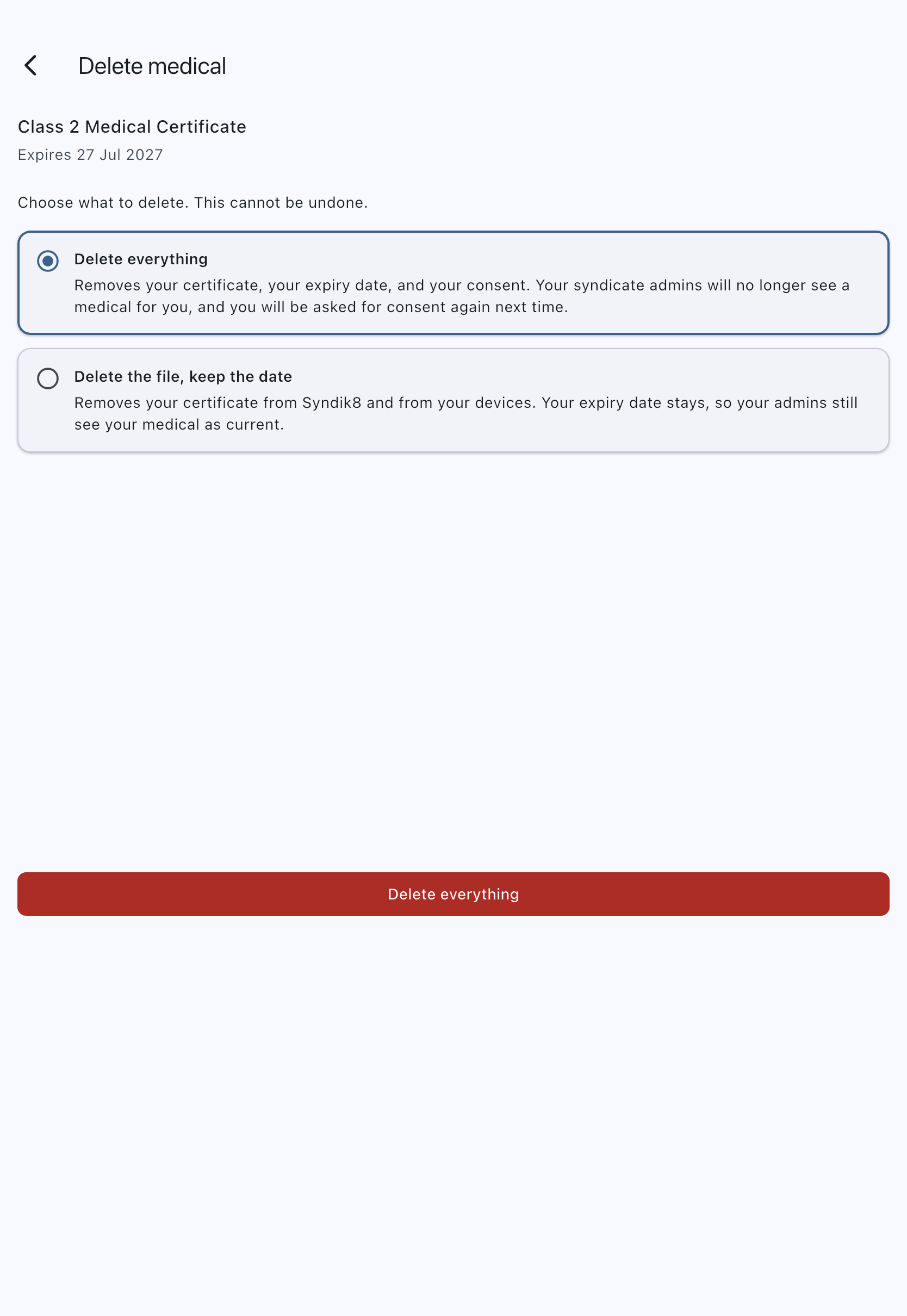
- Tap Delete. The Delete medical screen opens with two options (one, if your medical is a date-only record).
- Tap the Delete everything card to select it. Nothing is selected when the screen opens, and the button below stays disabled until you choose — withdrawing consent is never the default. The card spells out the consequences: your certificate (if any), your expiry date, and your consent all go, and your admins will no longer see a medical for you.
- Tap the Delete everything button. The button always restates the selected outcome, so you cannot withdraw by accident, and you cannot accidentally keep data you meant to remove.
- A confirmation asks once more, naming your certificate, its expiry date and the consent you are withdrawing. Tap Delete and withdraw consent to go ahead, or Cancel to stop. Choosing Delete the file, keep the date does not ask again, because it costs you no consent.

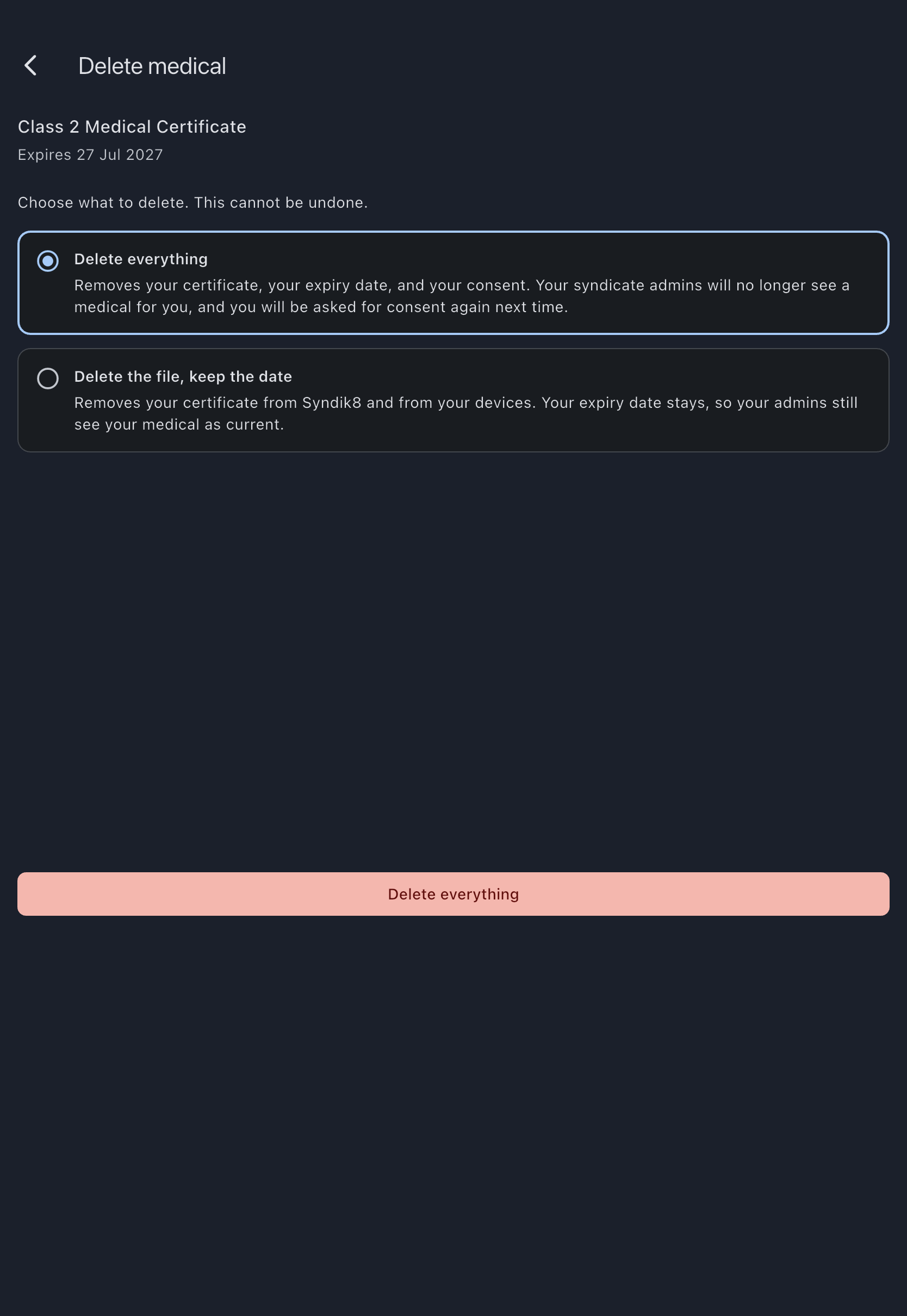
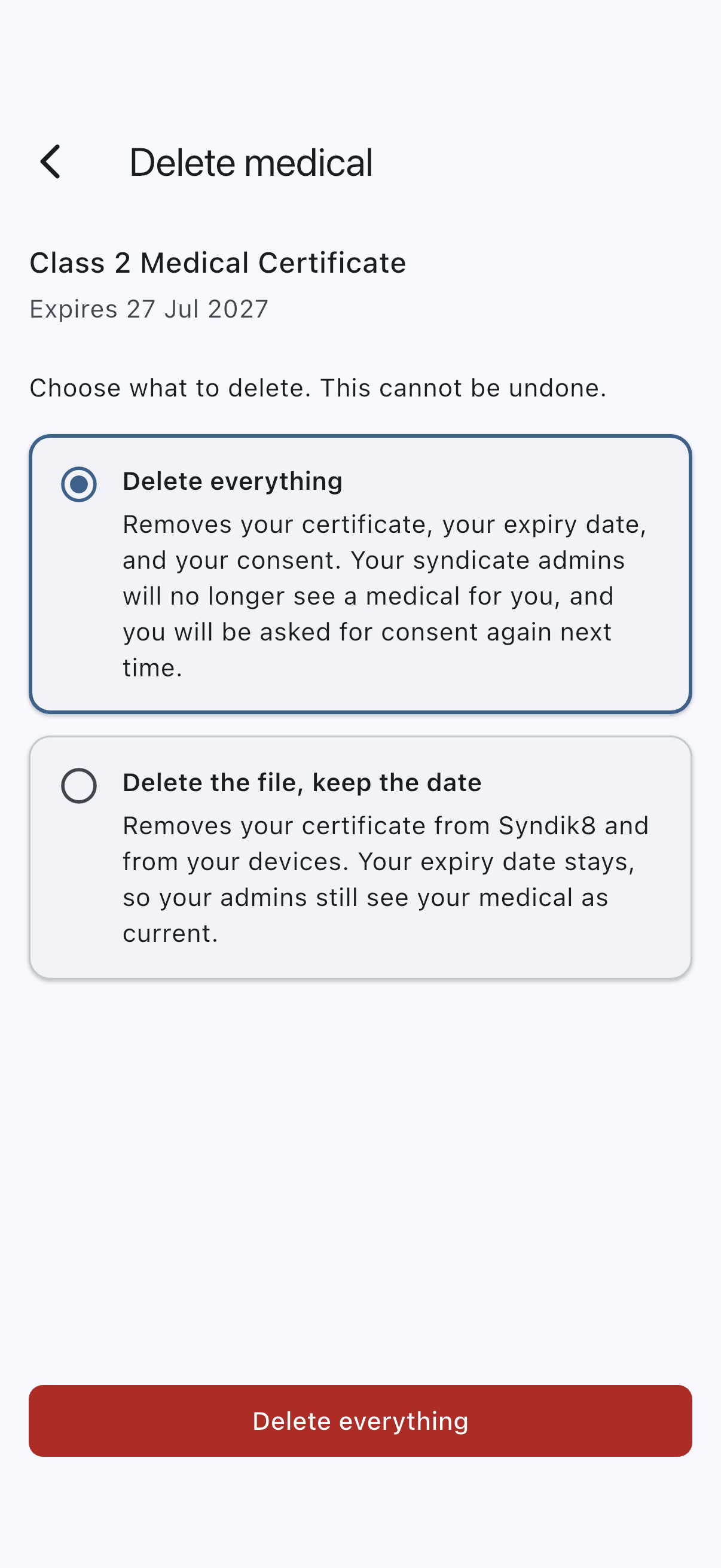
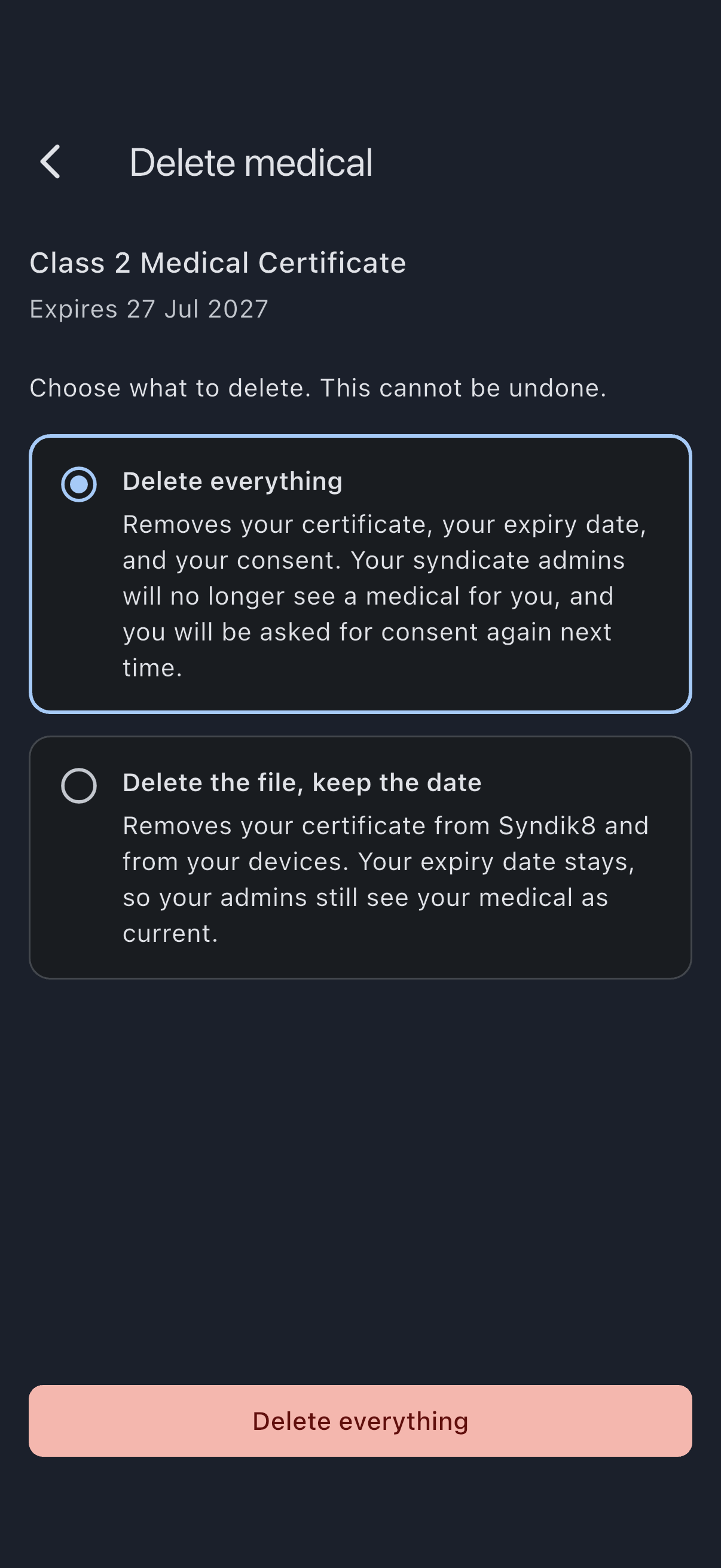
The Medical tile returns to its empty state and a “Medical deleted. Your consent has been withdrawn.” confirmation appears.
If it does not go through
Section titled “If it does not go through”Withdrawing is two steps, and Syndik8 does them in the order that fails safely: your consent record is withdrawn first, and only then is the certificate deleted. Almost always, that means a failure happens before anything has been removed. The screen stays open so you can try again, and your certificate is still there.
Withdrawing consent needs a connection, so this is the one part of the delete screen that does not work offline. If you are offline the screen says your consent was not withdrawn and nothing was deleted. Delete the file, keep the date is a local change and still works.
What admins see afterwards
Section titled “What admins see afterwards”- A small red medical icon appears on your row in the syndicate’s Members list. It has no text, but hovering it, or reading the row with a screen reader, gives No medical on file. Your member detail screen stops reporting a medical.
- No expiry reminders fire for medicals (because none is on file).
- Your bookings are unaffected. Syndik8 does not gate flying on having a medical on file. See Pilot-in-command responsibility for why this responsibility stays with you, not with the app.