
Lock the app with biometrics
Turn on App lock to require Face ID, Touch ID, or a fingerprint each time you open Syndik8. This is a lock, not a separate login: you stay signed in as normal, and the lock simply draws a curtain over the app until you unlock it. It is useful if you hand your unlocked phone to someone or share a device, so your balances, mandates and other details aren’t visible at a glance.
Before you start
Section titled “Before you start”- Your device must have a working biometric sensor that you’ve already set up in the operating system’s own settings (for example, Face ID or Touch ID on iOS, or a fingerprint on Android).
- App lock is a mobile-only option. On the web it does not appear in settings.
- If your device has no biometric hardware, the toggle does not appear.
- The setting is per person: if two people use the same device with different accounts, turning it on for your account does not affect theirs.
- Open the Profile tab.
- In the Security section, find App lock. Its subtitle explains that it requires Face ID, a fingerprint or your device passcode each time you open Syndik8, and that you stay signed in.
- Tap the switch to the on position. The device prompts you to authenticate with your biometric. Follow that prompt.
- After the check succeeds, a snackbar confirms App lock enabled. No password is stored on the device.
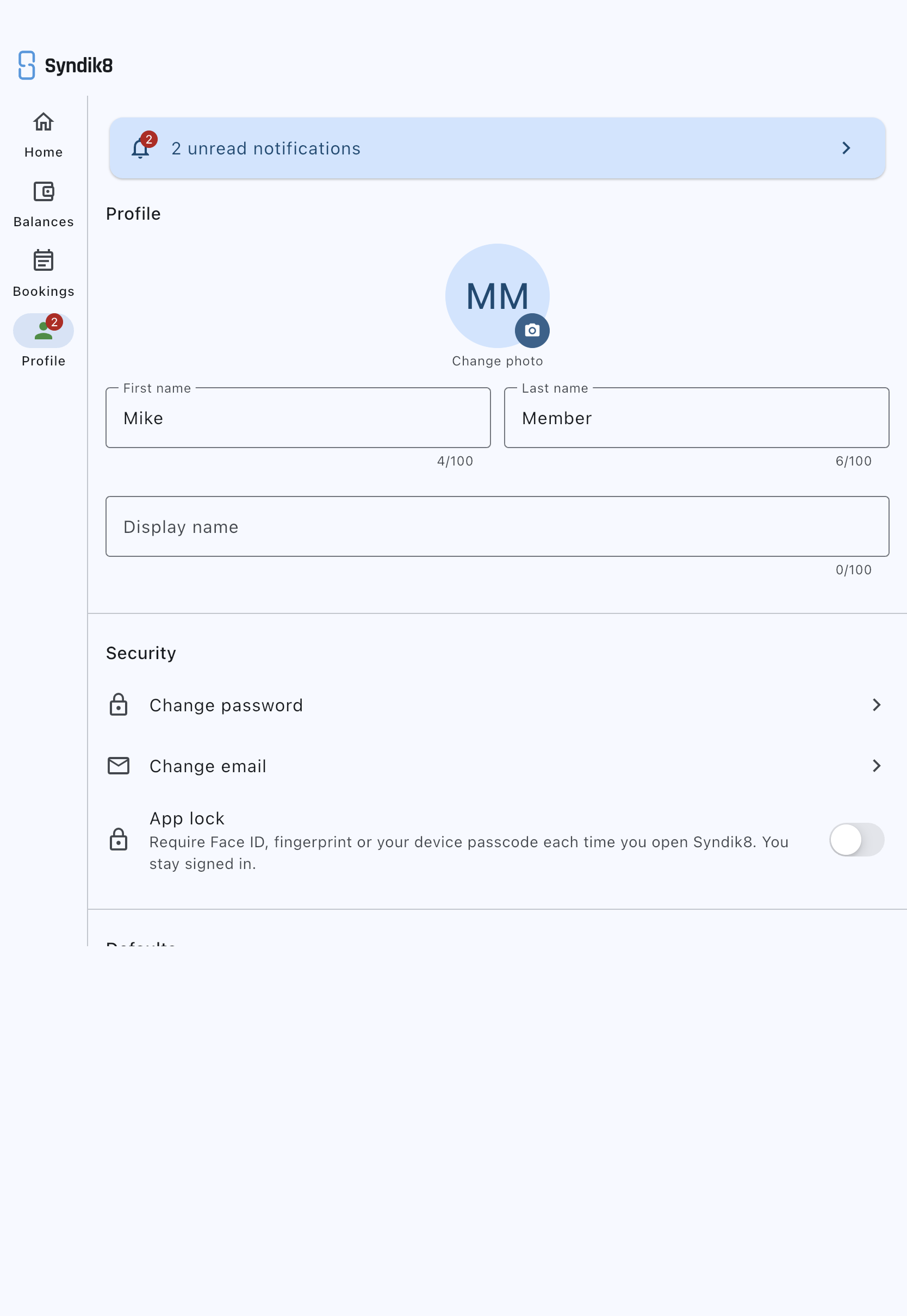
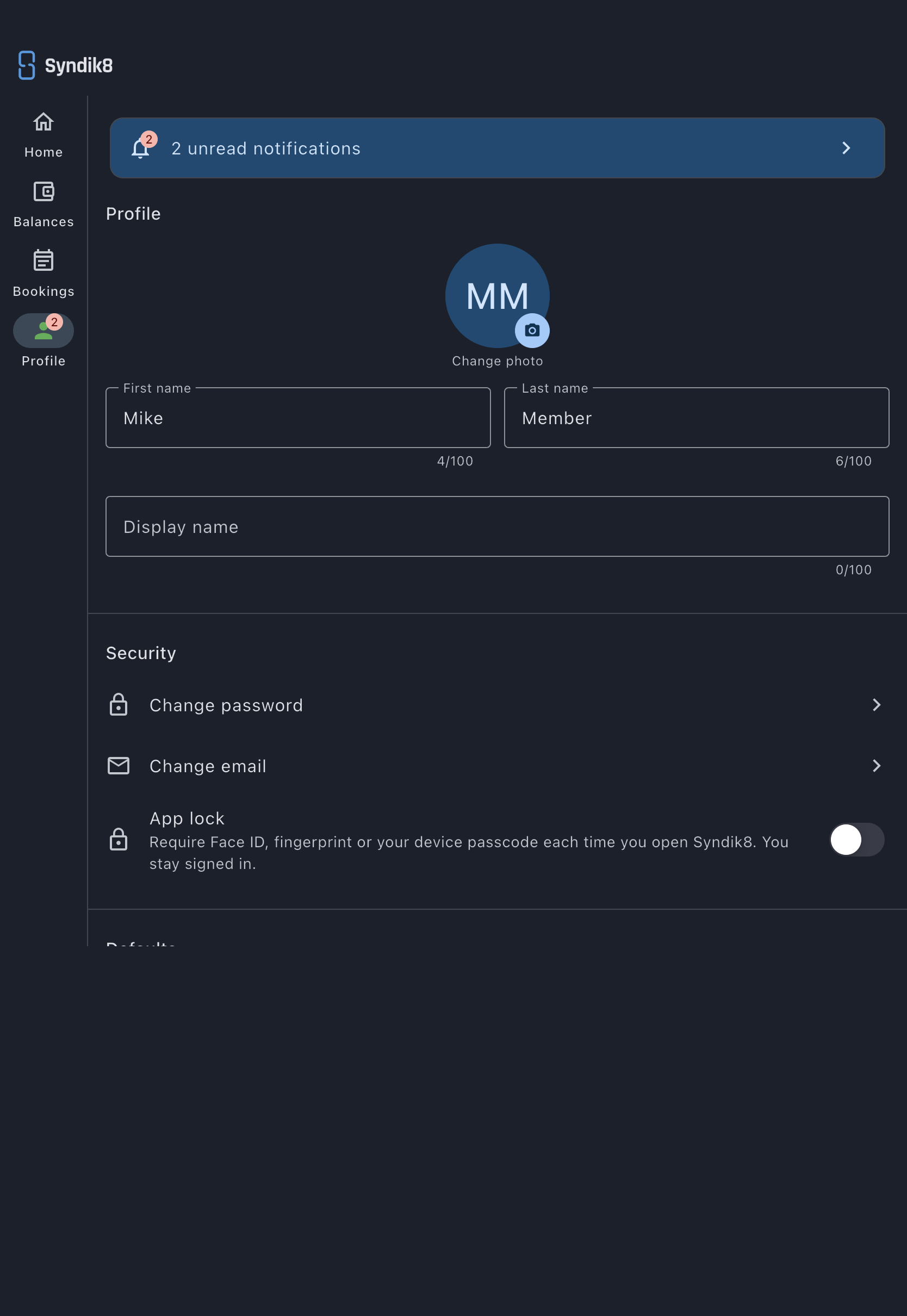
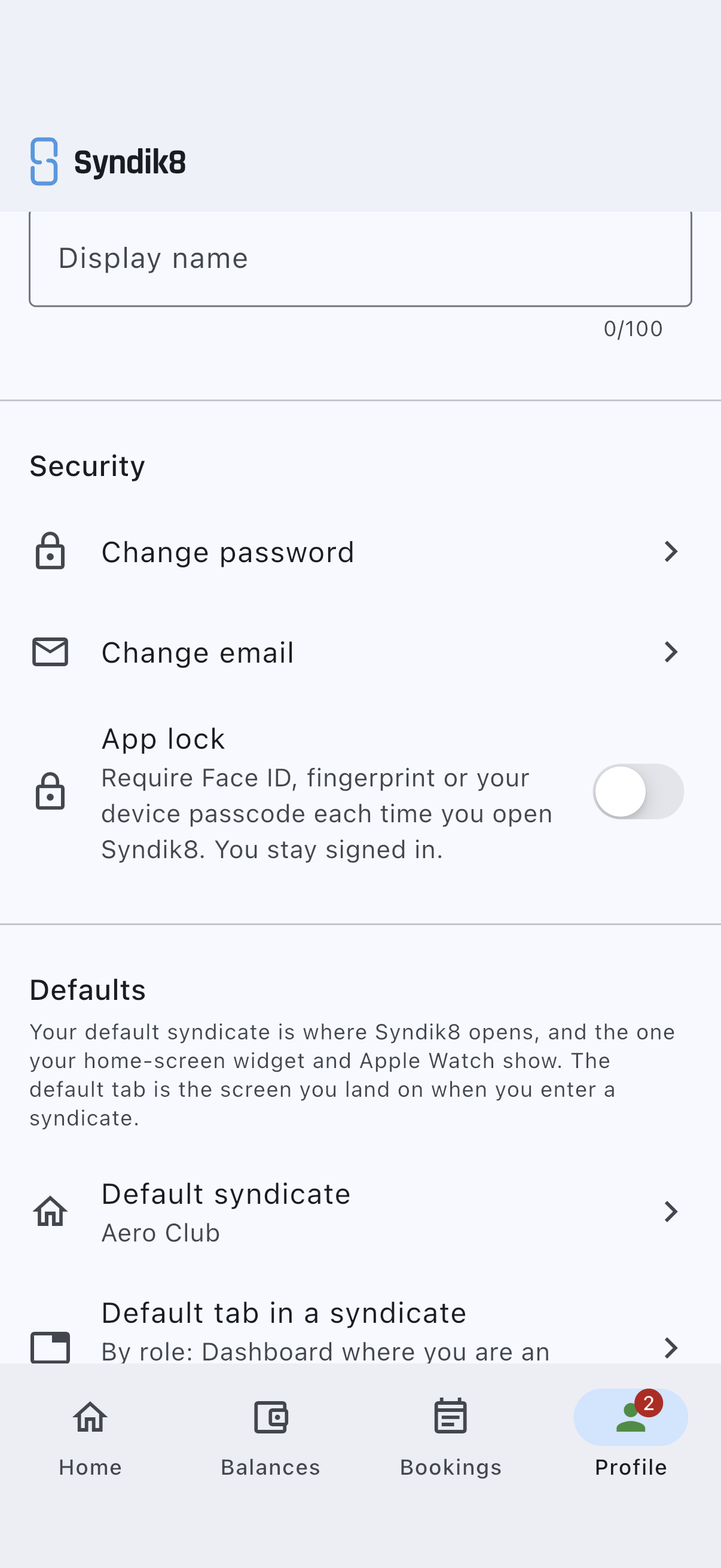
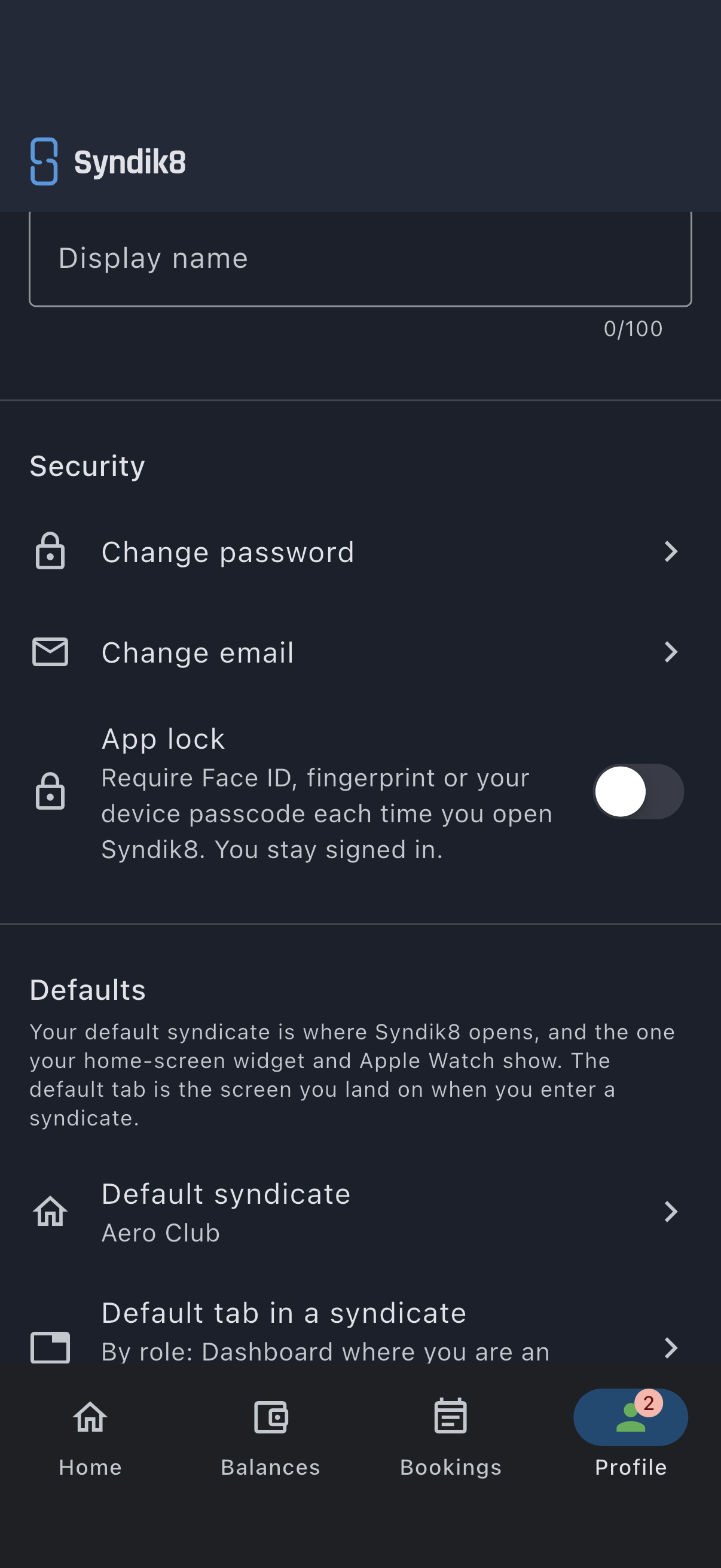
The next time you open Syndik8 (or return to it after leaving it in the background for a while), the lock screen appears and you unlock with your biometric.
Unlocking
Section titled “Unlocking”- When the lock screen appears, authenticate with Face ID, Touch ID or your fingerprint. If that fails, you can fall back to your device passcode, just as your phone’s own lock screen does.
- If you can’t unlock, choose Sign out instead on the lock screen. You’ll return to the normal password login and can sign back in.
Turn it off again
Section titled “Turn it off again”In the same Security section, tap the App lock switch to the off position. A snackbar confirms App lock disabled. You remain signed in; only the lock is removed.
If it goes wrong
Section titled “If it goes wrong”- The toggle isn’t visible. The device either has no biometric hardware, or none is enrolled in the operating system. Set up Face ID, Touch ID, or a fingerprint in your device’s own settings first, then reopen Syndik8.
- The biometric prompt fails and cancels. The device is rejecting your face or fingerprint. Check whether the sensor works in other apps; if it doesn’t, re-enrol in your device’s own settings. You can also unlock with your device passcode.