
Invite members
Generate an invitation for someone to join your syndicate.
Before you start
Section titled “Before you start”- Only admins can create invitations.
- On the free plan, the syndicate is capped at three members, and invitations not yet accepted count towards the three. When the plan is full, a message at the top of the invite form says so, for example 2 members and 1 waiting invitation: your plan allows 3 members. It lists each waiting invitation, by the address it was sent to or, for one shared as a link, by its role and the day it was sent, with Cancel invitation, which frees its place (an invitation accepted in the meantime cannot be cancelled, and the app says so), and offers the upgrade: Upgrade Now on web opens a checkout in the same browser tab, and iOS and Android say the subscription cannot be changed in the app. Generate Invitation for a fourth admin or member is refused while the message shows. On mobile the attempted action also triggers a factual action-limit notice to the active admin, at most once a day for each syndicate. Its link opens the authorised Subscription screen in a browser, where checkout requires an explicit early-start request and Terms agreement. See Free-tier limits.
- Viewers are exempt from that cap. A viewer is read-only and takes up no seat, so a full free syndicate can invite as many as it likes and is never asked to upgrade for one. Pick Viewer on the role selector and the invitation goes through.
- On a paid syndicate, the first 15 members are included. Inviting past that adds £1 a month per member to the subscription, so Syndik8 checks what it costs and asks before it does it. See Inviting past the member allowance below.
- Either way, the count includes outstanding invitations, not just people who have accepted. Viewers are counted by neither.
- You need to decide the invitee’s role (admin, member, or viewer), whether they’ll be an equity member (and if so how many shares they hold), and which billing scheme they’ll be on. All three are set on the invite and carry across when they accept.
- You must be online. The Generate Invitation button writes through a server-side flow and disables when the device is offline.
- A syndicate that has gone read-only issues no invitations at all. That happens when it is closed, or when it has dropped back to the free plan while still over the free limits. The Invite Member button is hidden from the Members list until you bring it back within the plan or resubscribe — see Bring a syndicate within the free plan. Anyone already holding an invitation issued before that can still accept it: their seat was counted the moment it was sent.
- Open the syndicate, go to the Admin tab, and tap Members under the Members & governance heading. (Every member can also reach the same list from Members on the My Syndicate card on the Dashboard tab.)
- Tap the Invite Member floating action button (bottom right).
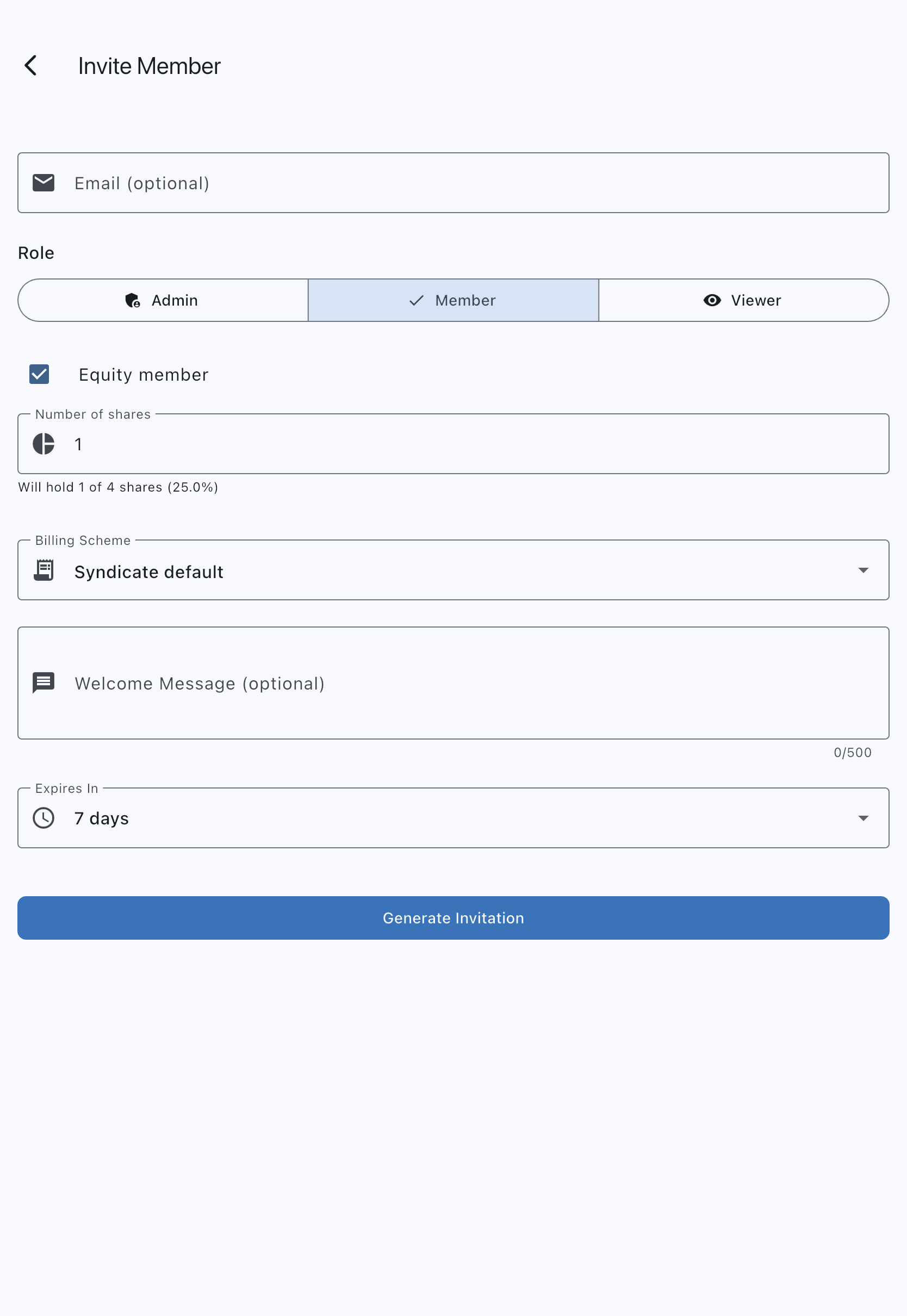
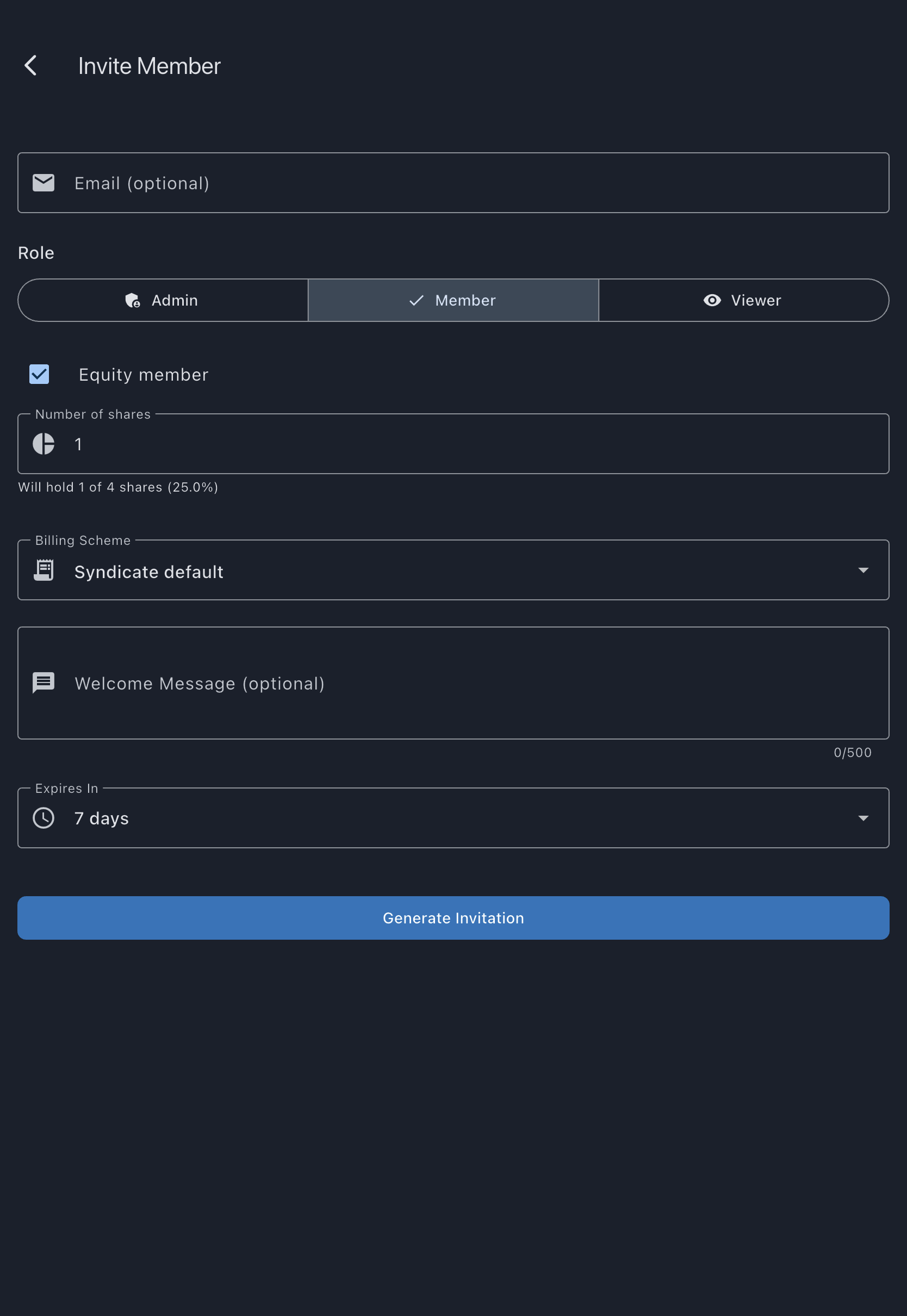
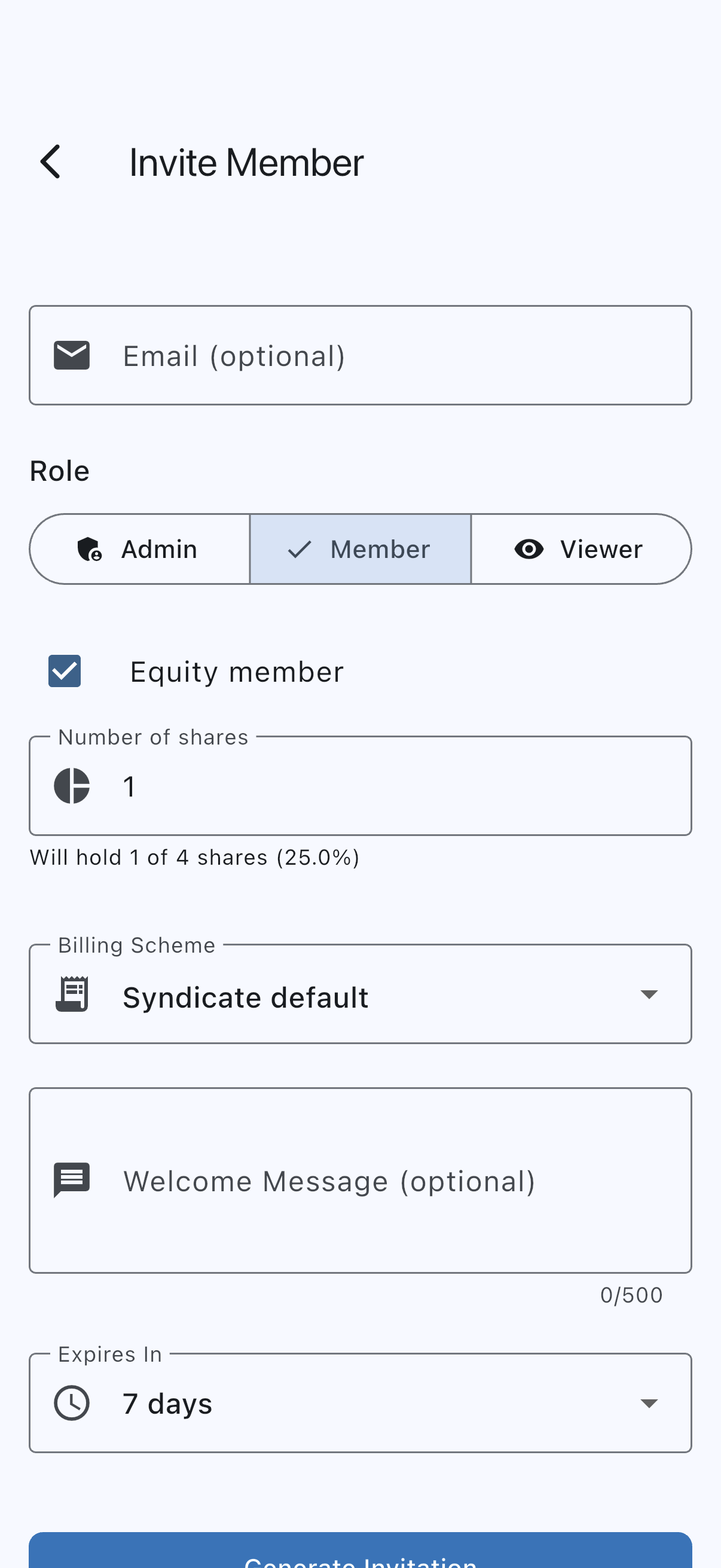
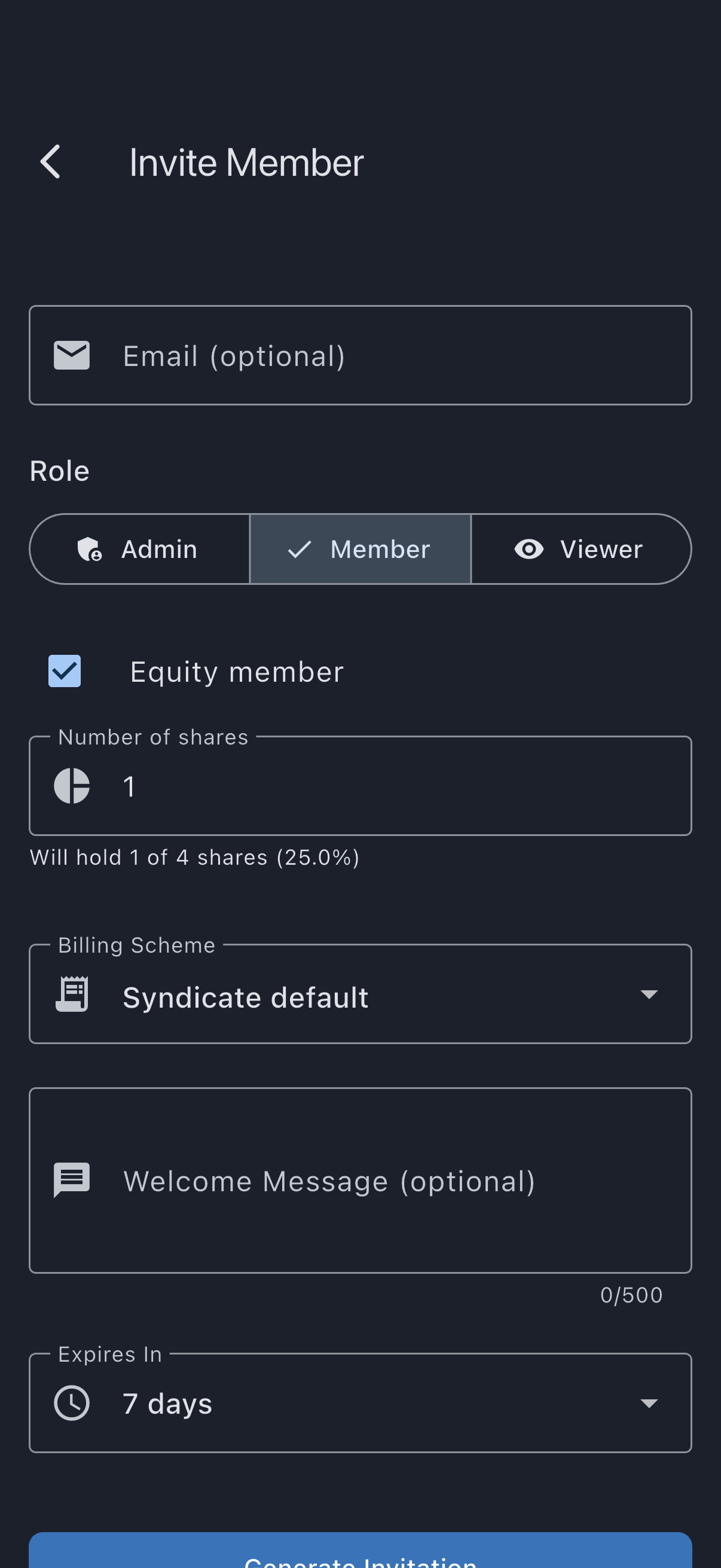
- Optionally fill in Email (optional). Entering an email sends the invitation to them directly. Leaving it blank generates a link only, which you copy or share yourself.
- Pick the Role (Admin, Member, or Viewer). The default is Member — except on a paid syndicate that has used its included seats, where it opens on Viewer because that is the option that costs nothing. See Role capability matrix and Inviting past the member allowance below.
- Set whether the invitee is an Equity member. The checkbox is on by default. Tick it for partners who hold shares; untick it for non-equity members who use the asset without holding any. When the checkbox is on, a Number of shares field appears (defaulting to 1) along with a preview showing what proportion of the syndicate’s total this represents once they accept.
- Pick a scheme from the Billing Scheme dropdown. It is preselected on Syndicate default, which assigns the syndicate’s default scheme (called Standard Member unless you have renamed it) on acceptance. The dropdown only appears once the syndicate has at least one billing scheme; with none defined it is hidden, and the invitee gets the syndicate default. The scheme is independent of equity status: a non-equity member can still be on any scheme, and an equity member can be on any scheme.
- Optionally add a Welcome Message (optional) (shown to the invitee on the accept screen) and pick an Expires In value (1, 3, 7, 14, or 30 days; default 7).
- Tap Generate Invitation.
A dialog titled Invitation Created opens showing the invitation link. If you entered an email, the invitee receives an email automatically with the same link. Otherwise, tap Copy to copy the link or Share to open the system share sheet and send it through any app.
Temporary email failures retry automatically. If delivery still cannot be confirmed, you get an Invitation email needs attention notification while the invitation is unused and has not expired. This can mean the outcome is uncertain, rather than that the provider definitely refused the message. See If it goes wrong below.
Inviting somebody twice
Section titled “Inviting somebody twice”If the address you entered already has an invitation to this syndicate that has not expired and has not been accepted, Syndik8 gives you that one back instead of issuing a second. The dialog is titled Already invited and says so: no new email goes out, no extra seat is used, and the link shown is the one they already have, which still works.
That is what makes the usual order of setting a syndicate up work — invite everyone, then import your booking history, which offers to invite the people it could not match, who are the same people. Without it they would each be invited twice, emailed twice, and counted twice against your plan.
Two details worth knowing:
- The expiry does not move. Re-inviting is not a way to give somebody longer. If their invitation is about to run out, cancel it and generate a new one.
- Neither do the terms. The invitation you get back keeps the role, shares and billing scheme it was issued with, because a link already sitting in somebody’s inbox should not quietly start meaning something different. To change any of those, cancel the outstanding invitation and issue a fresh one.
Once an invitation has expired, or has been accepted, it is no longer in the way: entering that address generates a new invitation as normal. Link-only invitations — the ones with no email address — are never matched to each other, so you can generate as many separate links as you like.
Inviting past the member allowance
Section titled “Inviting past the member allowance”A paid syndicate includes 15 members. The 16th and everyone after costs £1 a month, ex-VAT (£1.20 including VAT). Inviting past the allowance does not quietly increase your bill.
You are asked when you choose the role, because the role is what decides whether there is anything to pay. Admins and members take up a seat; viewers do not and never cost anything. Until you have picked, there is no question to ask.
So when the syndicate is at its allowance, the form opens on Viewer and a short note under the role selector tells you what the next paid seat would cost. Choose Viewer and nothing is charged, however many you invite.
On the web, choosing Admin or Member opens a confirmation, and the role only takes effect once you have been through it. It names no figure to begin with, because at that moment nothing has been checked:
- This may increase your subscription says you have used all the members your plan includes, so inviting another may raise what the syndicate pays every month, and that Syndik8 will check online what it costs before anything changes. Cancel here and nothing is sent and nothing changes. Check the cost asks the payment provider.
- Checking what this costs… is the wait while the provider answers. Cancel is still offered, so a check that never comes back cannot strand you.
What the provider says decides the third and last step, which is one of three endings.
- What this costs is the usual one. It tells you how many members you have, what the next one is charged at per month before VAT, and that the change appears on your next invoice with nothing charged now. The rate is the one the payment provider says your syndicate actually pays, so a founding syndicate is quoted its discounted rate rather than the list price. The exception is a free trial: while it runs, the provider cannot say what the next member will cost, so you are quoted the published rate instead, and a founding syndicate is quoted its founding rate. Below that is your next invoice total: the whole of one invoice, VAT and the part-month included, which is deliberately not the same number as the monthly rate above it. During a free trial there is no invoice total to show. Instead you are told that nothing is charged until the trial ends, and on which date, and that from then the member is billed at the monthly rate shown, plus VAT. Agree and continue selects the role you picked; Cancel leaves it on Viewer.
- No extra charge means the provider has said this seat is covered by what the syndicate is already billed for. There is nothing to agree to, so the only button is OK, and the role you picked is selected anyway.
- What this costs, with no invoice total, means the provider could not be reached. The monthly rate falls back to the published rate, which is correct for every syndicate without a discount, and the invoice line says the exact amount could not be worked out. You can still agree.
Once you are through, the rest of the form is unchanged and you are not asked a second time when you tap Generate Invitation. Cancelling at any step leaves the role on Viewer, charges nothing, and keeps you on the form. The confirmation cannot be dismissed by clicking beside it or pressing Escape: every way out is a button.
Sending a second invitation without leaving the screen asks again, because one agreement buys one seat.
A syndicate with room inside its allowance sees an ordinary form with Member preselected and no note at all.
This is not the upgrade prompt. A free syndicate at its three-member cap sees the full-plan message instead, and never sees this confirmation.
Three things about the confirmation are worth knowing before you meet it.
- You are asked when the invitation is sent, not when it is accepted. An outstanding invitation counts towards the syndicate’s total from the moment you create it, which is deliberate: otherwise the allowance could be sidestepped by leaving invitations open. Sending it is where the cost is incurred, so that is where the decision sits.
- You can make room instead. Cancel an outstanding invitation and the seat comes back. An invitation nobody accepts before its Expires In date frees its seat too: Syndik8 clears lapsed invitations every hour, so the seat is back, on every device, within an hour of the invitation running out. The subscription follows the count down without being asked, and an invitation that has already been accepted is never touched.
- Nothing is charged there and then. The difference is prorated and appears on your next monthly invoice. There is no card step to complete.
On iOS and Android
Section titled “On iOS and Android”You get the whole form, and a viewer invitation works exactly as it does on the web. What you cannot do on a phone or tablet is buy a seat: when the syndicate is at its allowance, Admin and Member are shown but not selectable, with the reason attached. Viewer stays available.
The form is deliberately not taken away. A viewer costs nothing, so removing the form would block a free action for the sake of a paid one you were not necessarily trying to make.
On iOS and Android the note says seats that add to your subscription cannot be bought in the app, and names nowhere to go. No email is sent: you came here to invite someone, not to change your subscription, so an email about one would be unexpected. Add the paid seat from a web browser.
The reason is the one that puts upgrading on the web too: store rules forbid completing a purchase of digital services in the app. Both platforms follow the same rule: neither store lets the app point you elsewhere to buy.
Company director and shareholder flags
Section titled “Company director and shareholder flags”If your syndicate is set up as a company, the Company director and 25%+ shareholder flags used for payment setup are not part of the invitation. Set them after the person accepts: open Members, tap the member, and tick the boxes on their member screen. Both appear only for company syndicates.
Offline behaviour
Section titled “Offline behaviour”The Generate Invitation button watches connectivity. When the device is offline, the button disables and shows Invites need a connection. Try again when you’re online in a snackbar if you tap it. It re-enables automatically when the connection returns.
Invite generation hits a server-side auth flow that issues a single-use code, stores the invite row, and (if you provided an email) sends the email via the backend mailer. None of those steps can be queued offline; the code must be reserved by the server before the link is shareable.
If it goes wrong
Section titled “If it goes wrong”- The Generate Invitation button is disabled. The device is offline. See Offline behaviour above. Being offline is the only thing that disables it.
- The form says your plan is full. The syndicate has reached the three-member free-plan limit, counting invitations not yet accepted, and the role you picked takes up a seat. Cancel a waiting invitation from the message to free its place, or upgrade: on web, tap Upgrade Now to start checkout; on mobile, check your email inbox for the action-limit notice after tapping Generate Invitation. Or invite them as a Viewer, which is exempt from the cap and always goes through. See Upgrade prompt.
- A cost prompt appears when you pick Admin or Member. You are at the 15-member allowance, so that seat may add £1 a month. Tap Check the cost to have the cost checked, then accept it, or cancel and the role stays on Viewer, which is free. You can also free a seat by withdrawing an outstanding invitation first.
- It says “No extra charge” after you pick Admin or Member. The payment provider has confirmed the seat is covered by what the syndicate already pays, usually because the count on your device is ahead of the quantity actually being billed. Tap OK; the role is selected and your invoice does not change.
- “We couldn’t work out the exact amount for this billing period.” The monthly rate above it is still correct; only the next-invoice total could not be fetched, usually because the device is offline or the payment provider did not answer in time. You can still agree, and the invoice is unaffected. Cancel and try again later if you would rather see the figure first.
- The seat count still looks too high after an invitation expired. Lapsed invitations are cleared hourly rather than on the stroke of expiry, so wait until the top of the next hour and the seat comes back on its own. Withdrawing the invitation instead frees it immediately.
- Admin and Member cannot be selected. You are on a phone or tablet and the syndicate is at its allowance, so those roles would add to the subscription — which cannot be bought in the app. Invite them as a Viewer, or add the paid seat from a web browser. See On iOS and Android above.
- The shares preview shows a smaller-than-expected percentage. The preview computes against the live total of active members’ shares. Pending invites don’t count yet; renters (shares = 0) and former members are excluded from the denominator. When everyone has accepted, the percentage settles to the value you’d expect.
- Share says the syndicate’s name has not loaded. The invitation names the syndicate, so it refuses to send rather than invite someone to join an unnamed one. The link itself is valid and is shown in the dialog: copy it and send it yourself. If the name has still not appeared after the device has synced, you may be looking at a syndicate you are no longer a member of.
- The invitee says they never received the email. The email is sent from Syndik8; ask them to check spam. Even if the email fails to deliver, the link in the confirmation dialog remains valid, so you can share it another way. Codes are usable once.
- You get an Invitation email needs attention notification. Automatic recovery could not confirm delivery. Only the admin who sent the invitation gets this notice, once, while the invitation is unused and unexpired. It does not name the address or prove that no email arrived. Review the invitation and its delivery before resending; you can share the existing link another way. If the address is wrong, cancel the invitation so it stops holding a seat, and invite the right address. Cancel it too before inviting the same address again: while it is outstanding, the same address gets the existing invitation back and no new email is sent (see Inviting somebody twice above).
See also
Section titled “See also”- Accept an invite
- Role capability matrix
- Pricing: what a member beyond the allowance costs
- Invite link
- Invite code