
Download your data
Export a copy of the personal data Syndik8 holds about you, as a single zip file, without asking anyone.
What the export contains
Section titled “What the export contains”The download is a zip file containing an export.json file with every category of your personal data, and a documents folder holding copies of any certificate files you have uploaded. If there are no files to include, the zip holds export.json alone:
- Profile — your name, display name, preferences, and account settings.
- Memberships — your membership in each syndicate, including past memberships kept for the financial record.
- Bookings and usage logs — the bookings you made and the flights you logged, with the charge estimates attached to your logs.
- Financial records — your transactions, charges and credits alike, your expenses, your Direct Debit mandates, every payment and collection made against your balance, and any reversal raised against one of them.
- Notifications — your in-app notifications and your per-type notification preferences.
- Pilot documents — the details of your licences and medicals, plus copies of the certificate files you uploaded, in the zip’s
documentsfolder. A medical you keep as an expiry date only is listed with a note that no file was ever uploaded, so nothing reads as missing when nothing is.
The export is yours alone: it never includes another member’s bookings, charges, or personal details, even where the app shows you shared calendars or open financial summaries.
Syndicates that have closed
Section titled “Syndicates that have closed”The download covers the syndicates you can still see in the app. If a syndicate you belonged to was closed more than 30 days ago, an ordinary member’s access to it has ended, so that syndicate’s bookings, flights and financial history are not in the file — and neither is the membership itself, so the download will not list that syndicate at all.
You will be told when this affects you. After your file has been handed over, a Your download is incomplete message appears, which you have to acknowledge before carrying on. The file says so too: export.json carries an incomplete note near the top explaining what is missing and why. A download with nothing missing carries no such note and shows no such message. This warning reaches you whether you are still a member of the closed syndicate or have since left it.
That is a limit of this self-serve download, not of what we hold. Closing a syndicate does not delete it: the data is kept for a retention window. Close a syndicate explains both the member access cutoff and how long the window runs.
So if you need a copy of the records from a closed syndicate, ask us and we will put the complete set together for you — see The data you own and control for how to make that request. Admins are not affected by the cutoff: an admin keeps the read-only view of a closed syndicate for the whole retention window, so their download still includes it and carries no warning.
Before you start
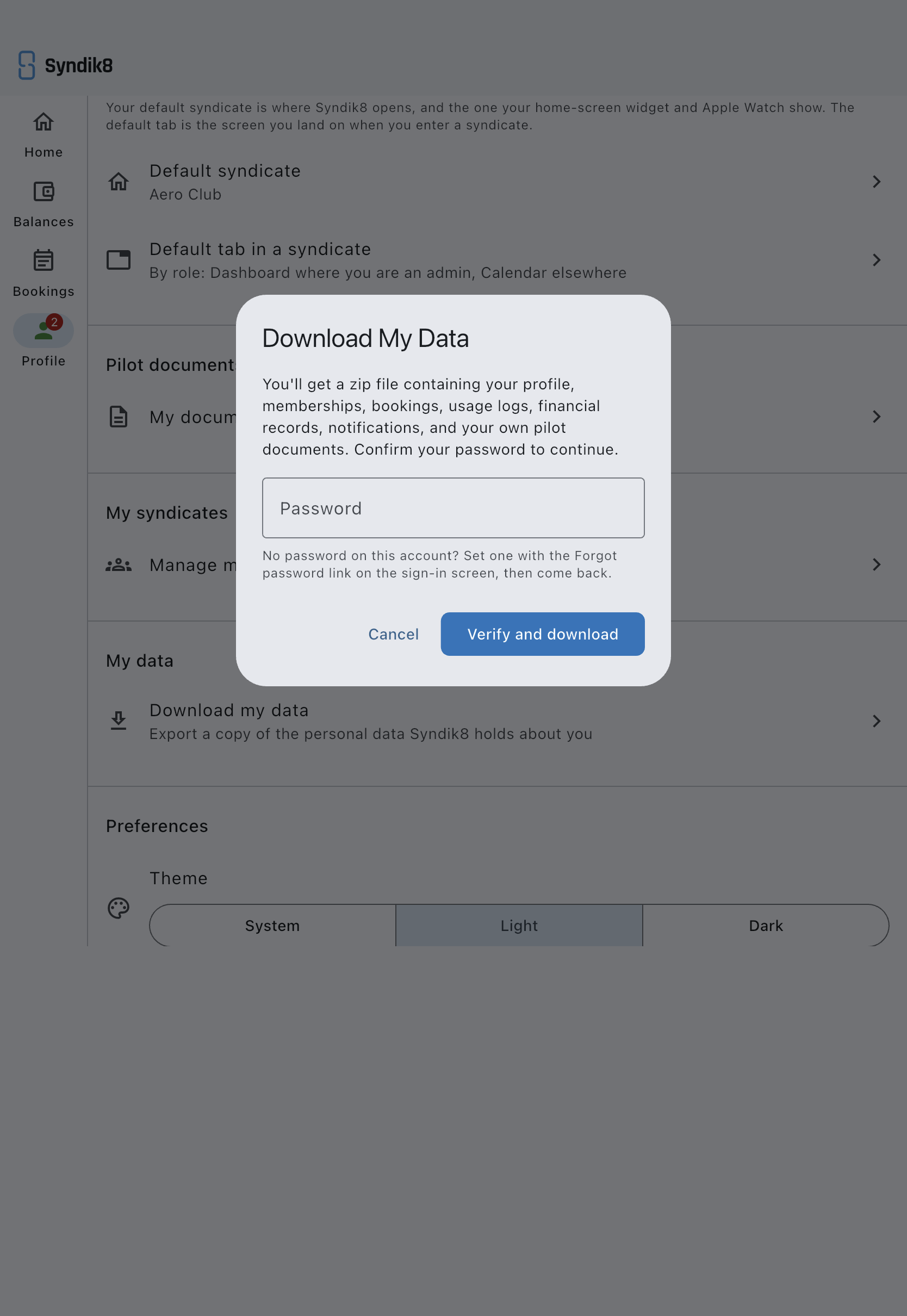
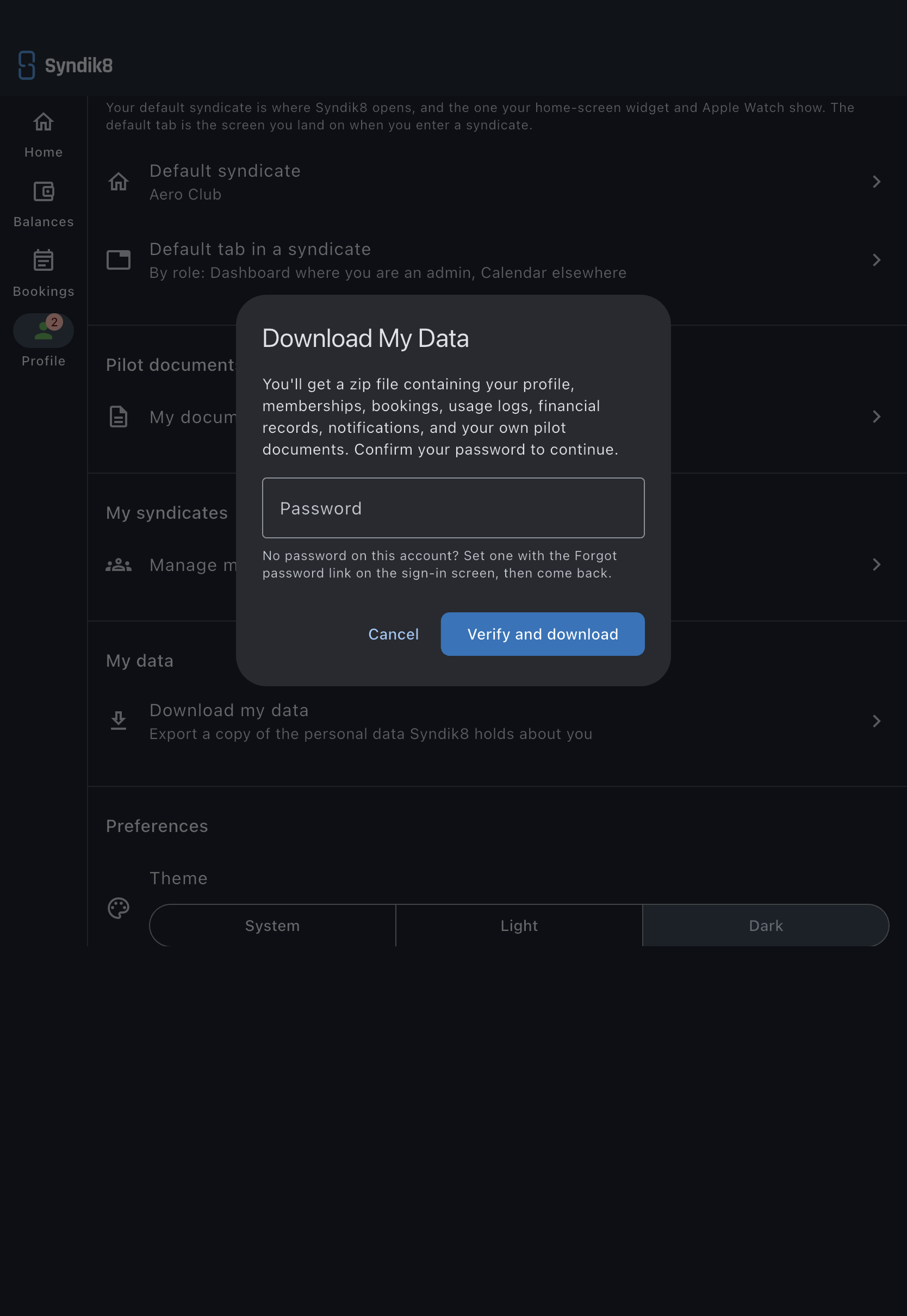
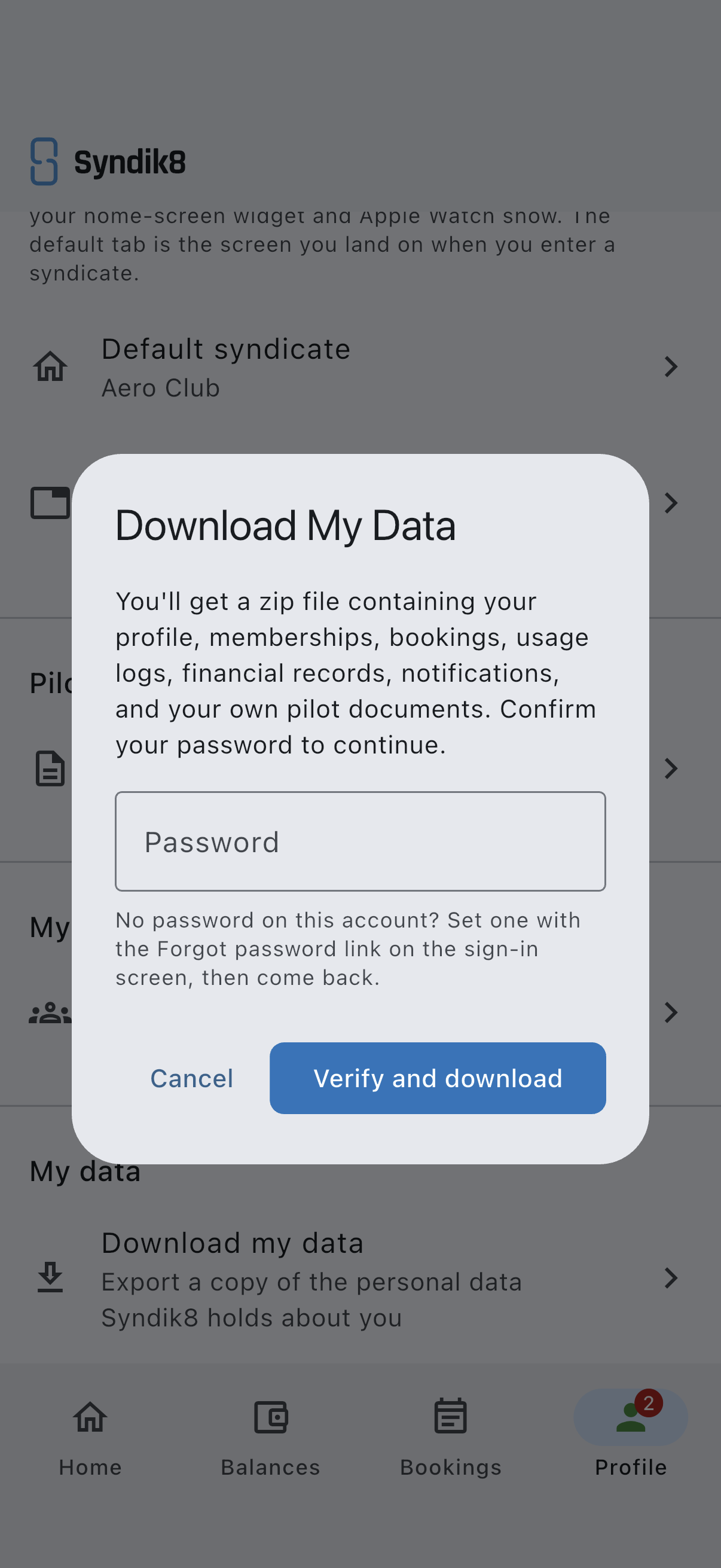
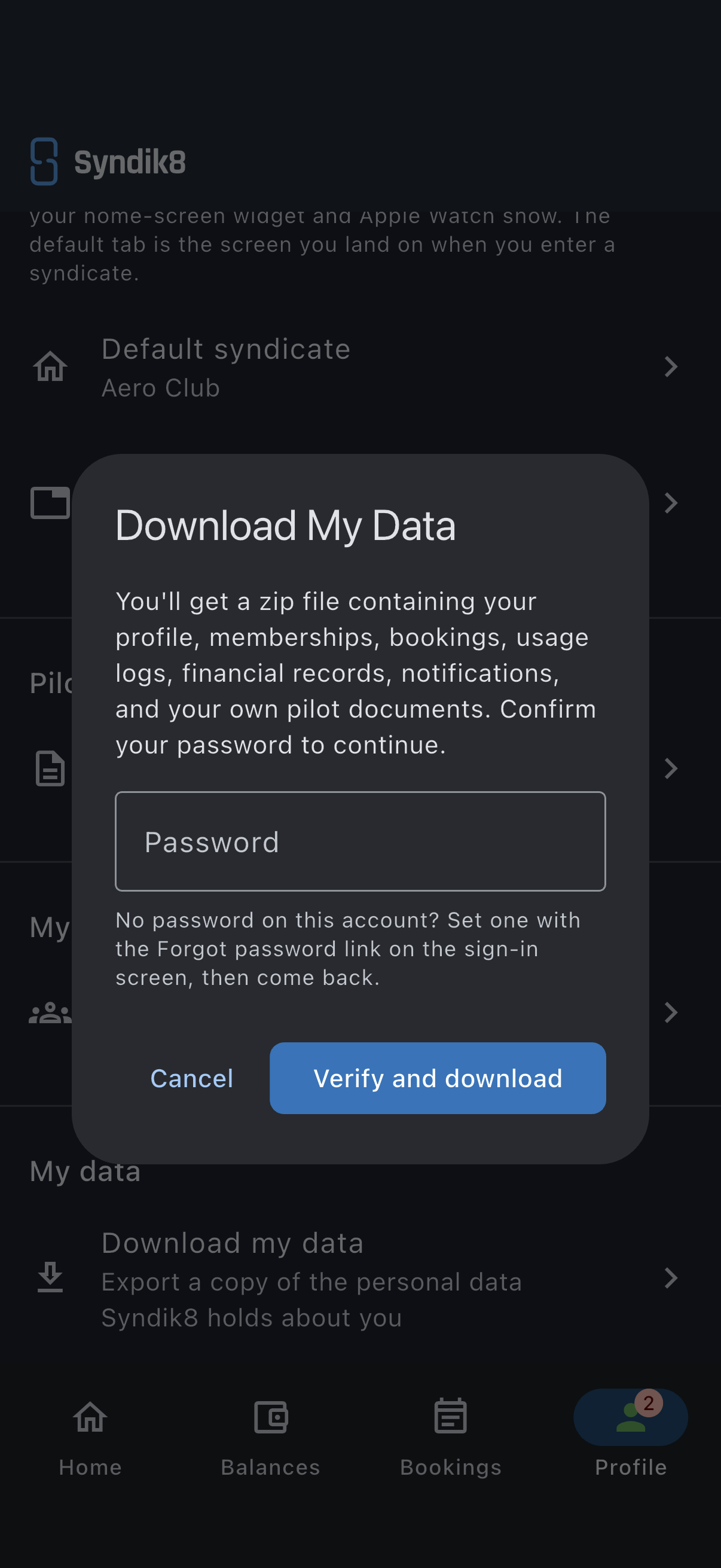
Section titled “Before you start”- You need your password. The export asks you to re-enter it, so a borrowed signed-in device is not enough to download your data. If you have forgotten it, or your account has never had one — an account set up for you by an administrator, say — reset your password first, then come back.
- You need a connection. The export is assembled live from the server, so it is unavailable offline. If you are offline the button tells you so.
- Open the Profile tab.
- Scroll to the My data section and tap Download my data.
- Enter your password and tap Verify and download.
- Wait a moment while your export is prepared.
- Collect the file:
- On the web, the zip downloads through your browser like any other file.
- On iOS or Android, the share sheet opens — save the zip to Files, or send it to yourself however you prefer.
A Your data export is ready confirmation appears when the file has been handed over.
If it goes wrong
Section titled “If it goes wrong”- “Password is incorrect.” Re-enter your current password. If you have forgotten it, cancel and reset your password, then try again.
- The button won’t respond and says you’re offline. The export needs a live connection. Reconnect and try again.
- “Couldn’t prepare your data export.” Something failed while gathering your data — usually a dropped connection. Try again; if it keeps failing, contact support.