
Log a ground run or ferry flight against a maintenance booking
Log a ground run or ferry flight against a maintenance booking
Section titled “Log a ground run or ferry flight against a maintenance booking”During maintenance, the engine often runs without the aircraft leaving the ground: an end-of-work ground run, a mag check, a post-rebuild leak test. Occasionally the aircraft moves under its own power, flown by someone who isn’t the usual booker. A workshop pilot ferries it to or from a workshop. Both cases need to be recorded on the asset’s logbook so the meters advance, but the usage shouldn’t be attributed to whoever booked the maintenance, and landings/airframe hours shouldn’t tick up for an engine that never left the chocks.
Syndik8 handles both scenarios as usage logs against the maintenance booking, with two knobs on the log form: Used by (who actually operated the asset) and Ground run: no takeoff (suppresses landings and airframe-hours tracking).
Before you start
Section titled “Before you start”- The maintenance booking must already exist. If it doesn’t, see Schedule maintenance over member bookings.
- Any member of the syndicate can log usage against a maintenance booking, not only the admin who scheduled it. That’s deliberate: the pilot who ferried the aircraft, or the admin who supervised the ground run, should be the one who records the meter.
- A maintenance booking is not a flight, so the quick routes leave it out: it never appears on the Home screen’s Ready to fly? card, the I’m flying now app shortcut, the watch’s Start Flight screen, or as your next booking on the home-screen widget and the watch. Log against it from the booking on the Calendar, as below.
- Nobody has to finalise a maintenance booking by hand. It closes on its own, on the first finalisation sweep after its end time, in every syndicate — flying to the engineer is not billed to anybody, so there is no charge for an admin to review. An admin can still close one early from the booking itself; see Finalise a booking.
Steps: ground run by a mechanic
Section titled “Steps: ground run by a mechanic”An engine run-up during maintenance. The engine ran; the aircraft didn’t fly.
- Open the maintenance booking via Syndicate → Calendar → [the maintenance slot]. (The Bookings list is filtered to your own bookings and does not show maintenance entries.) Its detail screen shows a Maintenance card with the work description where a member’s booking shows its status steps (Requested, Confirmed, In Progress, Completed), and it does not offer I’m flying now: a ground run or ferry flight is always recorded with Log Usage.
- Tap Log Usage. A banner at the top of the form reads “Maintenance usage: no charge to you or the syndicate.”
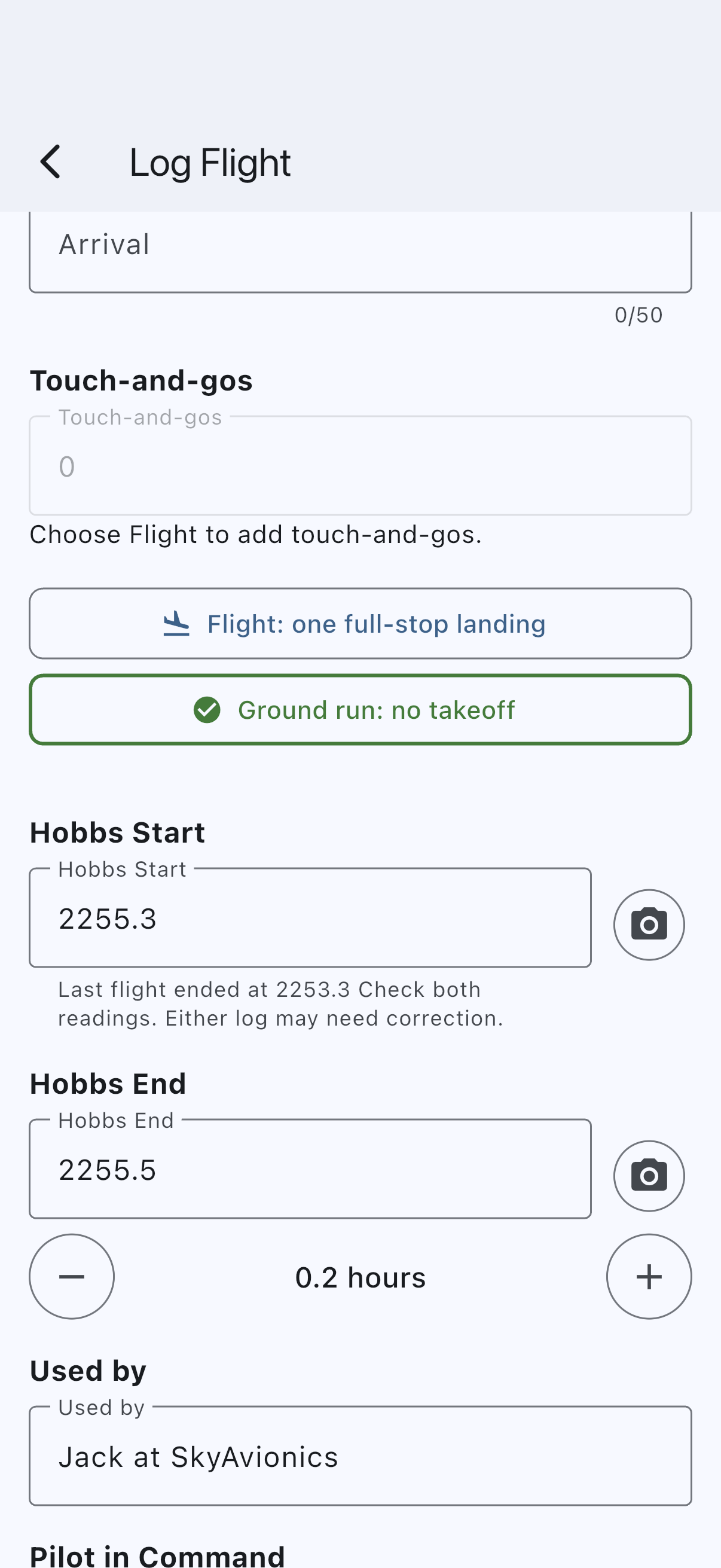
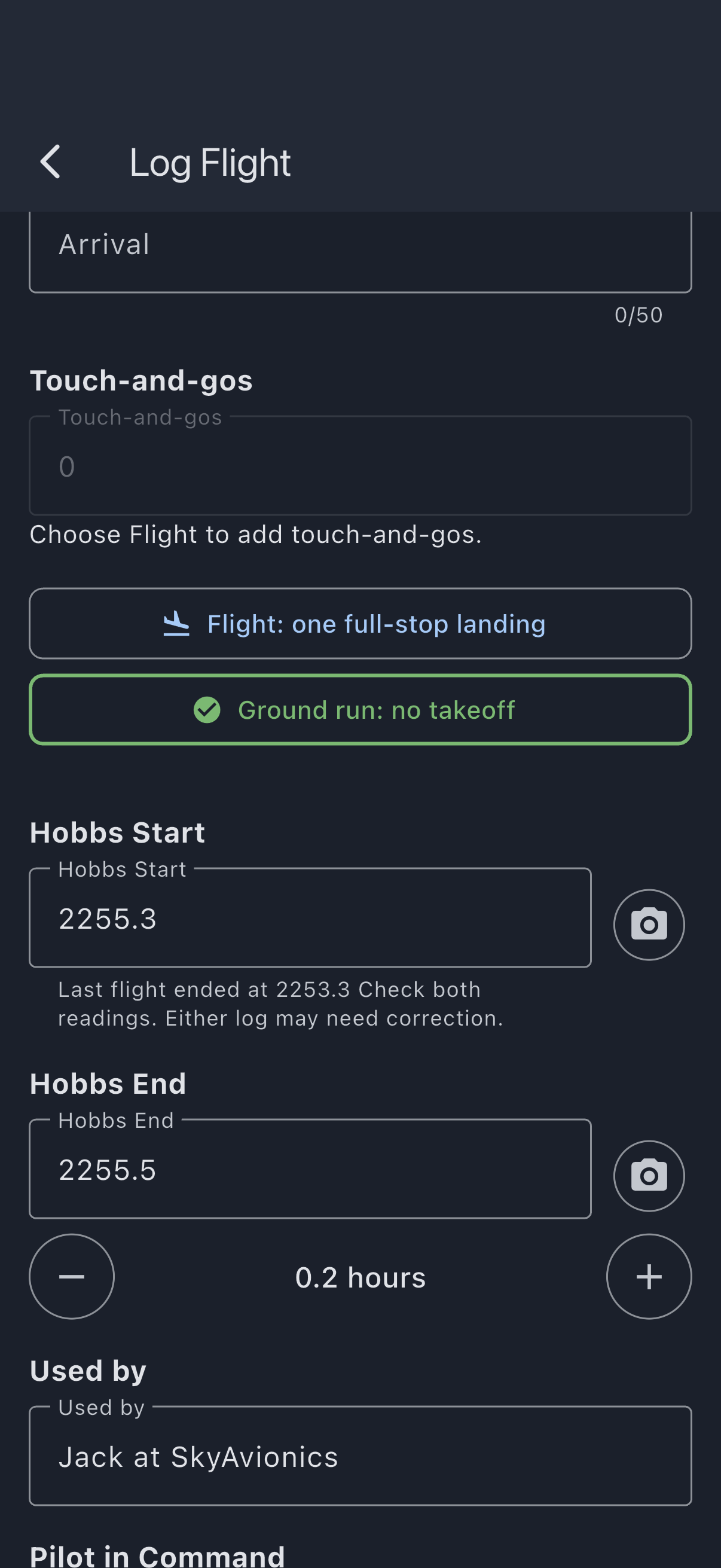
- Enter the engine meter Start and End readings as normal. The meter moves during a ground run; that’s expected.
- Under Used by, pick the member who supervised the run, or type a free-text name for an external mechanic (for example “Jack at SkyAvionics”). A free-text name records the attribution without creating a user record.
- Choose Ground run: no takeoff in the landing group after Arrival. Every aircraft uses the same choice, whatever its capture settings. Touch-and-gos must already be 0; a nonzero count disables ground run and explains why. Selecting ground run sets full stops to zero, disables touch-and-gos, retains meter/block readings, and suppresses airborne time and airframe-hour advancement. To add touch-and-gos, choose Flight: one full-stop landing first.
- Add Notes, for example “mag check after plug clean”.
- Tap Log Usage to save.
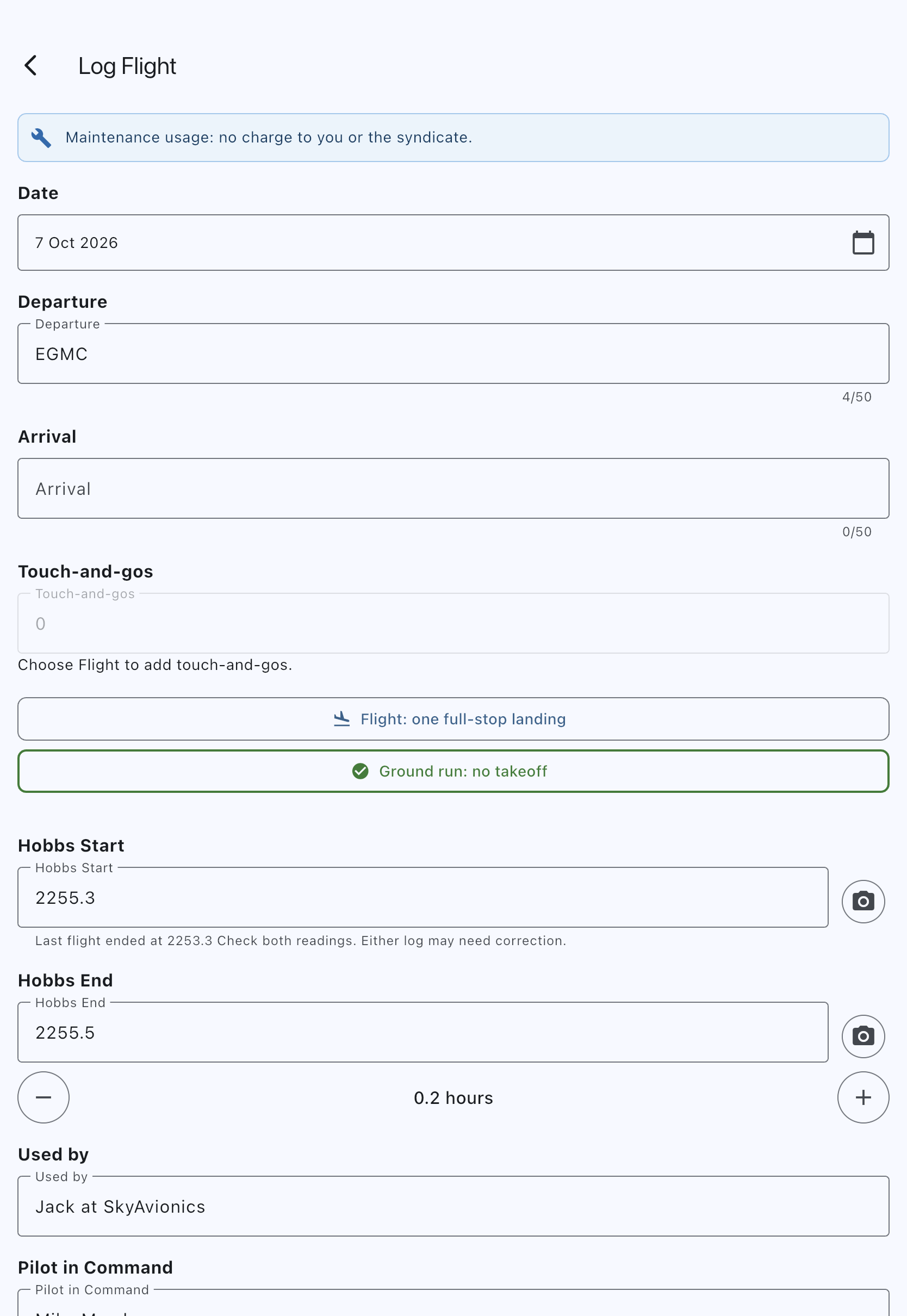
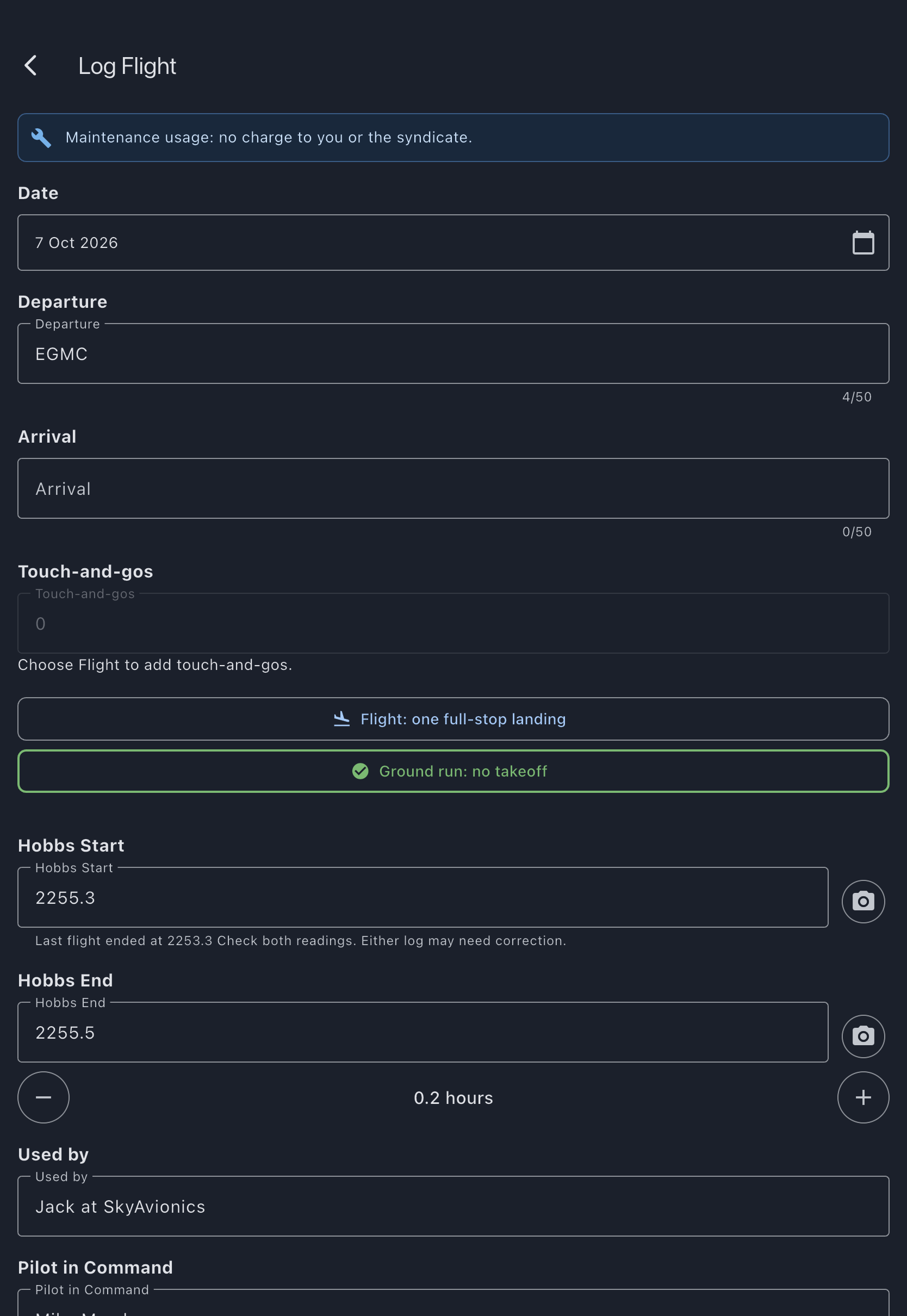
The meter on the asset advances, the engine hours accrue toward the next engine-hours-based maintenance item, but the airframe log and landing counter are untouched. The booking closes itself on the next finalisation sweep after its end time, with no charge to anybody.
Steps: ferry flight by someone who isn’t the booker
Section titled “Steps: ferry flight by someone who isn’t the booker”A relocation flight to or from a workshop, flown by a workshop pilot or another member on behalf of the syndicate.
- Open the maintenance booking via the Calendar. Again, any syndicate member can log against it; the ferry pilot can do this themselves.
- Tap Log Usage.
- Enter the meter readings, departure, arrival, landings, and so on; the same fields as a normal flight.
- Under Used by, pick the member who flew, or type a free-text name for an external pilot (“J. Smith, workshop ferry pilot”). Do not leave it as yourself if you weren’t the one flying. The logbook attribution is the point of the field.
- Choose Flight: one full-stop landing and enter the actual T&G count. Every flight has exactly one full stop; log separate legs separately. A ferry flight has takeoffs and landings and should accrue airframe hours like any other flight.
- Add Notes. “Ferry Booker → Workshop for annual” is the kind of line that’s useful three years later.
- Tap Log Usage to save.
What “Used by” actually does
Section titled “What “Used by” actually does”The Used by value is stored on the usage log either as a link to a syndicate member (when one is picked) or as a free-text name (when a name is typed); exactly one of the two is always set. The asset’s tech log and, in future, the per-pilot logbook views read this field (not the booker field) to answer “who operated this asset on this day.” Defaulting to the current user is right in the vast majority of cases; the exceptions are precisely the ones in this how-to.
A free-text name is a one-off record. If the same external pilot appears frequently, consider inviting them as a member. After they accept, future entries can pick them from the member picker and their logbook accumulates properly.
Interaction with meter continuity
Section titled “Interaction with meter continuity”Syndik8 checks that every flight on an asset starts on the meter reading where the flight before it ended (a tacho-continuity conflict when it doesn’t). If the start reading on a log doesn’t follow on, the save still succeeds, and Log Flight shows “Last flight ended at reading” under the start before you save, on a new log or when you edit one. Once saved, the booking is held for an admin, and its pilot and the syndicate’s admins are sent a Flight logs don’t follow on alert. Ground runs and ferry flights are part of this check, because they move the meter: if a mechanic runs the engine for ten minutes and the meter advances from 1234.5 to 1234.7, the next usage log (a member flight) must start at 1234.7, not 1234.5. The admin is asked to reconcile if it doesn’t. A ground run is not part of the departure check, which compares where flights left from and landed. The next flight’s start meter is pre-filled with the highest reading logged on the aircraft by bookings that started no later than that flight’s, the ground run’s or ferry’s end reading included, as soon as that log is on the pilot’s phone: a pilot who accepts the pre-fill lines up automatically and no conflict is raised. The same holds for the next leg you log on the maintenance booking itself, which starts where your last leg ended. See Previous-tacho pre-fill.
If it goes wrong
Section titled “If it goes wrong”- “Choose who used it, or type their name”: shown under Used by when you tap Log Usage with the field empty. Nothing is saved. Pick a member from the list or type a free-text name, then tap Log Usage again.
- “Enter the pilot in command”: shown under Pilot in Command when you tap Log Usage with that field empty. Nothing is saved. Pick a member or type a name (for a ground run, whoever ran the engine), then tap Log Usage again.
- Ground run is unavailable: set Touch-and-gos to 0 first. Counts must be nonnegative whole numbers.
- “Last flight ended at reading” appears under the start: the start value doesn’t match where the flight before it ended. Either the reading on the aircraft has changed since the previous log (a ground run that wasn’t logged, for example), or you’ve typed the wrong number. Double-check the reading, then either adjust or save and let an admin reconcile at finalisation.
See also
Section titled “See also”- Schedule maintenance over member bookings: create the booking this how-to logs against.
- Usage log fields: every field on the usage form, including the Used by field and the Ground run: no takeoff choice.
- Log your first flight: end-to-end tutorial on the non-maintenance path.