
Capture a flight on your watch
Capture a flight from your wrist. The watch walks you through one step per screen, stamps your times and location, sets meters and airfields with the Digital Crown, lets you review and adjust the times before you submit, and creates a real usage log against your booking, the same log you would create on the phone’s Log Flight screen.
Before you start
Section titled “Before you start”- Install the watch app and sign in on the paired iPhone (see Install the watch app).
- You need your own confirmed booking, the same as logging a flight on the phone.
- Keep your iPhone within range. The watch asks the phone for nearby airfields and submits the flight through the phone.
Every aircraft flight records one full-stop landing plus its T&Gs. Ground run records zero of both. If an older watch sends invalid counts, the phone keeps the capture for correction with the original values visible. The watch’s stepper reaches 20; the phone accepts higher whole-number counts within the counter storage range.
Open the capture wizard
Section titled “Open the capture wizard”Tap a Ready to fly complication to open the Start Flight page, even if you last viewed the balance page. This opens setup; the timer starts only when you tap its start action. If a capture is already unfinished, it resumes instead.
When your confirmed non-maintenance booking is ready to fly (throughout its slot, including multi-day bookings, or within two hours either side of its start), the watch opens to a Start Flight screen (the glance is one swipe away). A maintenance booking never opens it: log a ferry flight or ground run from the maintenance booking on your phone (see Log a ground run or ferry flight). Tap Start Flight to open the wizard. It runs one step per screen, and the Digital Crown always drives the control in front of you. Back (or Cancel on the first step) is at the top left beside the Watch clock.
With both apps updated, the phone sends booking details ahead of time. The Watch can then show Start Flight when the window opens without a new phone update. Those details are valid for up to 24 hours; reconnect to refresh them if Start Flight is missing. Booking changes still need to reach the Watch. An unfinished capture remains available to resume when these booking details expire. Aircraft capture still needs the paired phone for nearby-airfield lookups.
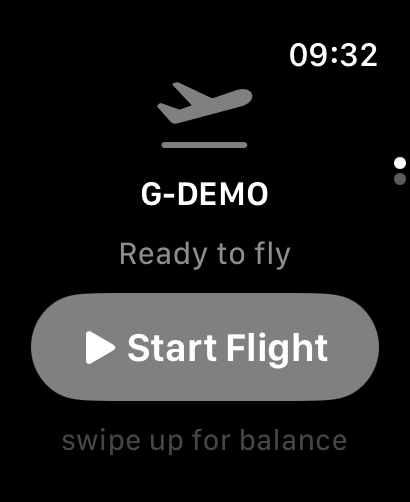
The watch screenshots are captured on a real Apple Watch rather than generated alongside the rest of the documentation, so the aircraft in them still carries an older registration than the G-Q… marks used on every other page.
For a timed capture, the Start Flight screen also shows your saved Tank reminder choice for this aircraft. Tap it to choose Off / 10 / 15 / 20 / 30 minutes. The countdown starts with the flight timer. Check the reminder page’s background-alarm status: with Background App Refresh enabled and an alarm armed, watchOS can alert you with your wrist lowered. Its Open control returns to Syndik8. If you previously closed the reminder card, use Tank reminder → Show reminder to reopen it; Stop only silences the alarm. See Set fuel-tank reminders on your Watch.
The steps mirror exactly what your syndicate captures:
- Airfields, touch-and-gos and the landing choice appear for every aircraft because a landing fee can apply even when the flight is billed on block time.
- Meter steps appear only when your syndicate reads an engine meter (such as a Tacho or Hobbs). When it bills purely on time, there are no meter screens.
- The flight screen follows the times your syndicate records. You tap the start and end of the span you record: brakes off and on for block time, or takeoff and landing for airborne time. When your syndicate records both, you tap only brakes off and on, and the watch estimates takeoff and landing from your configured taxi time for you to check on the review screen. Without a taxi default, enter both actual times during review. You still use only the two stationary block taps, so you never have to reach for your wrist during takeoff or landing.
The buttons, the meter steps and the review rows use your syndicate’s own names for each moment, the same words as the phone’s Log Flight form: Brakes off and Brakes on by default, or a pair such as Engine start and Engine stop, and Tacho Start and Tacho End for the meter. This page uses the defaults.
A typical airborne aircraft that reads a meter runs: departure airfield → start meter → flight → end meter → arrival airfield → touch-and-gos → full-stop landing or ground run → confirm no defects → review.
Return to a capture from your watch face
Section titled “Return to a capture from your watch face”Keep both the watch and iPhone apps up to date to use capture recovery and the active complication.
While a capture is in progress, the Syndik8 complication shows it ahead of Ready to fly or aircraft availability. Tap it to return to the same capture and the same wizard step. You can also reopen the watch app to continue. The watch keeps your step, meter readings, chosen airfields and recorded times if watchOS closes the app.
During a timed flight, a rectangular complication shows a small Block time or Airborne time label above elapsed hours, minutes and seconds, matching the in-app timer. Smaller circular, corner and inline slots show Block or Airborne with a compact duration. Engine-meter-only capture shows an active indicator without an elapsed measurement. watchOS controls how often the complication refreshes; seconds are not guaranteed to update continuously when the display is dimmed or always on.
The complication also lets you return while preparing the capture or checking it after the flight. Once you stop, its duration stays fixed; submitting or cancelling clears the active indicator.
This recovery stays on the watch. It does not open the unfinished capture on your phone; use the watch to finish and submit it.
Work through the steps
Section titled “Work through the steps”- Departure airfield (aircraft): allow location access when asked. The Watch gets your location, then asks your paired iPhone for nearby airfields. The nearest airfield is selected automatically; turn the Crown to change it using the list, ordered by distance. If location fails or the phone does not reply within 30 seconds, the screen explains the problem and offers Try again. For a missing phone reply, open Syndik8 on your nearby iPhone before retrying. Confirm becomes available once an airfield is selected.
- Start meter (when a meter is read): turn the Crown to set the starting reading. It starts where the highest eligible flight before yours ended, including an earlier leg on this booking, and never below the aircraft’s opening reading. Later, cancelled and rejected bookings are passed over. With no eligible flight it uses the opening reading, or the stored meter if no opening figure is available. Check it against the aircraft and correct it with the Crown if needed. Phone updates arriving after you begin capture leave your readings alone.
- Flight: an explicitly labelled UTC clock shows the current 24-hour time with seconds. Below it in equal-size digits, Block time counts from brakes off, or Airborne time counts from takeoff when only airborne time is captured. Engine-meter-only capture shows the UTC clock and Engine running, with no elapsed measurement. One button at a time stamps the next time as you tap it, along with your location. You tap the start and end of the span your syndicate records: brakes off then brakes on for block time, or takeoff then landing for airborne time. When your syndicate records both spans, you still tap only brakes off then brakes on; the watch estimates takeoff and landing when a taxi default is configured, ready for you to check and adjust on the review screen. Without a taxi default, both stay unset until you enter the actual times after parking.
- End meter (when a meter is read): turn the Crown to set the finishing reading. It seeds from your confirmed start and can only climb.
- Arrival airfield (aircraft): pick your arrival from the nearby list.
- Touch-and-gos (aircraft): record any touch-and-gos separately; the counter starts at 0.
- Full-stop landing / Ground run (aircraft): the screen repeats your selected arrival airfield. Choose Full-stop landing for a completed leg; this records 1 full-stop landing, in addition to your touch-and-gos. Choose Ground run: no takeoff only if the aircraft never left the ground. It records no landings, keeps meter and block readings, and drops airborne times. Ground run is unavailable until touch-and-gos are 0; your count is never discarded. Go back to this step to change the choice. One capture is one leg, so if you land, stop and taxi back to fly again, capture that as another flight.
- Confirm no known defects (aircraft): the pilot-in-command’s per-flight declaration, the same one the phone requires. Tap No known defects to continue. If the aircraft has a defect to report, finish this flight on your phone instead; the watch does not capture defect details, only the clean confirmation.
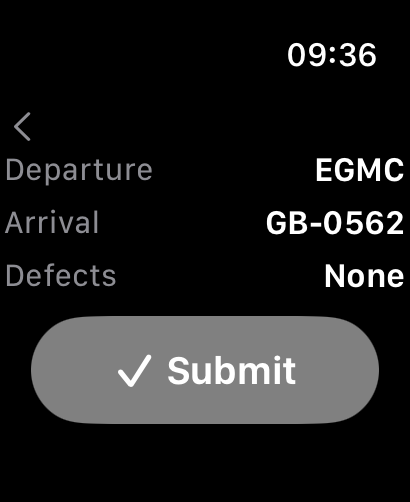
- Review: check the full-stop and touch-and-go counts, or Ground run: no takeoff, before submitting. Times are listed in UTC under Times (UTC), in order with each span’s length; tap a time and turn the Crown to adjust it a minute at a time. With a configured taxi allowance, takeoff and landing show est and are ready to submit without tapping them first, matching the phone. Check them and adjust either if needed. Without a taxi default, tap each Set time row, turn the Crown to the actual takeoff or landing time shown in UTC, and tap Confirm. The entry shows its date for overnight flights. Dismissing it leaves that time unset. Submit requires both actual times unless you explicitly chose Ground run: no takeoff. Returning a short ground run to Full-stop landing requires corrected block times before it can save as a flight. When the figures are right, Submit.
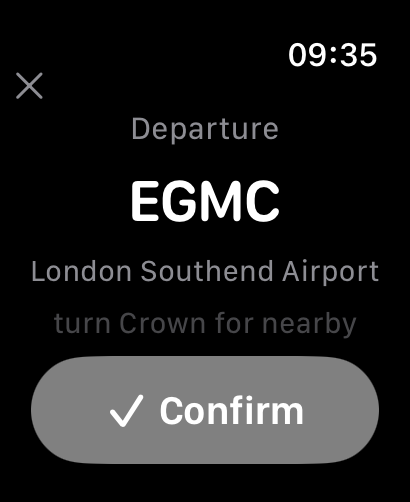
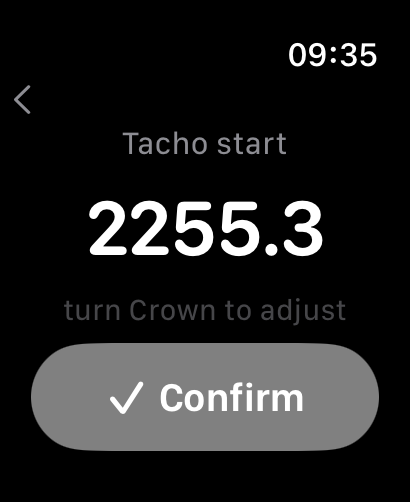
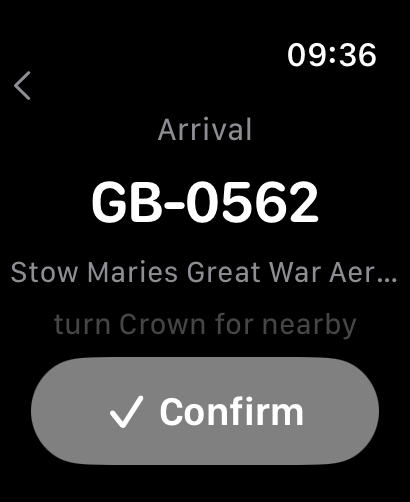
If the block times are too close together to estimate a flight, Submit waits until you correct the block times or go back and explicitly choose Ground run: no takeoff. Missing takeoff or landing times never automatically mean a ground run or discard your touch-and-gos.
Times are saved to the whole minute. If a very short capture starts and stops within the same minute, its saved start and end would be identical. Submit waits and explains that the end must follow the start, including for a ground run. Tap a time and turn the Crown to correct the recorded times. Choosing ground run never adds takeoff or landing times. If an older Watch capture is already on the phone for checking, its missing times stay blank when opened. Editing one recorded time on the phone leaves the others unchanged. The phone does not apply its taxi default to Watch captures or saved logs, and retains recorded timing spans even if capture settings changed before you checked them. The date follows the captured takeoff or departure day in your profile timezone, including on multi-day bookings. A capture with no timestamps uses the day the phone first received it.
Return to a finished flight
Section titled “Return to a finished flight”If you use Back to revisit the flight screen after stopping, it shows Flight finished and the recorded duration stays fixed. Tap Continue to return to the next post-flight step. This does not restart the timer or tank reminders. Engine-meter-only capture shows the finished state without an elapsed measurement.
What happens on submit
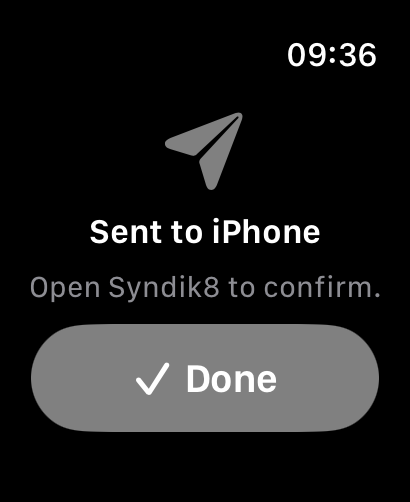
Section titled “What happens on submit”- Phone online: the flight is submitted straight away as a usage log. As with a flight logged on the phone, it is charged when the booking is closed or finalised, not when you submit; see Close a booking. If the booking had already been finalised, the flight is still kept and the syndicate’s admins are asked to add it to the charge. Immediately after you submit, the watch shows Sent to iPhone; once the phone has logged it the screen updates to Logged. There is nothing more to do on the phone.
- If the flight is already on the booking: when a flight already logged on the booking covers some of the same time, or has the same start and end readings (usually because it was logged on the phone as well), the watch still saves yours, but the result reads Logged. with a warning mark and the line “It overlaps a flight already on this booking: check it on your phone.” On the phone, the booking marks both flights, and the one from the watch says From the watch. Remove the spare one before the booking is closed, or both will be charged; see If the flight is already logged. A second leg that starts where the first ended does not count, and nor do readings that only partly overlap: those are two flights, and the booking is held because the later one does not follow on.
- If the phone cannot save the flight: the phone checks every capture by the same rules as the Log Flight form: meter readings that could not be real (below zero, 1,000,000 or more, more than two decimal places, an end below the start, or an end more than 10,000 above the start), a time later than now (a few minutes are allowed for the watch’s clock), a missing departure or arrival, or a missing defect declaration. It also cannot save a flight whose booking or charges have not reached the phone yet. None of these loses your flight. The phone keeps it, and the watch shows Sent to iPhone with the line “Check it there.” The phone then sends a notification such as “Check your 11:05 flight: the meter reading looks wrong.” Tap it to open Log Flight with everything the watch recorded already filled in, correct what is wrong, and save. The watch never asks you to fix a flight on the wrist. If notifications are off for Syndik8, the same flight is listed on the phone’s Home tab under A flight from your watch needs checking, and its Check and save button does the same. Once you save it, it leaves the list; if you would rather log it by hand, tap Discard this flight and confirm Discard. An end reading equal to the start is not refused: if you confirm the end meter without turning the Crown, the flight is saved with no meter time, so check it on the phone.
- The flight’s date is the day it took off, in the timezone on your profile (or went off blocks, if no take-off time was captured), even when the phone receives it later. A flight captured with neither time is dated the day the phone receives it.
- Phone offline: the flight is still logged; it is saved on the phone and uploaded automatically when the phone next has a connection. There is no separate draft to submit.
- You are recorded as the pilot in command. There is no name field on the wrist, so the phone fills one in from your profile as it logs the flight, using your display name or your first and last name. If you have set neither, the flight records your account but leaves the pilot’s name blank rather than guessing, and it can be typed in by editing the log. When someone else is flying as pilot in command, log that flight on the phone.
Haptic confirmations
Section titled “Haptic confirmations”The Watch gives a start haptic when you record the flight’s start and a stop haptic when you record its end, including engine-meter-only capture. Opening or resuming the wizard does not repeat either signal.
A clean Logged result gives a success haptic. A definite submission failure gives a failure haptic; a capture kept for checking on the phone or logged with an overlap warning gives a notification haptic. Sent to iPhone or a queued result stays quiet while awaiting confirmation. Repeated acknowledgements from the phone do not replay the feedback. These haptics play only while the app is active.
Check it worked
Section titled “Check it worked”When the submit succeeds, the flight appears as a usage log against the booking; check it from the booking’s usage-logs section on the phone or web, exactly as for a flight logged on the phone.
See also
Section titled “See also”- Apple Watch app: the glance and capture surfaces.
- Log a flight: the full phone-side flow and field reference.
- Install the watch app
- Set fuel-tank reminders on your Watch