
Replace a document
Replace the file behind a document you’ve already uploaded. The typical case is an annual renewal (e.g. a new ARC), or correcting a scan that turned out to be unreadable.
Before you start
Section titled “Before you start”- Only admins can replace syndicate or asset documents. Pilots can replace their own medical or licence; see Upload your medical or Upload your pilot licence instead.
- Have the replacement file ready. Accepted formats are PDF, JPEG, PNG, and WebP. The 20 MB limit applies.
- Replacement creates a new record atomically and removes the old one. There is no version history; the previous file is gone after the replace.
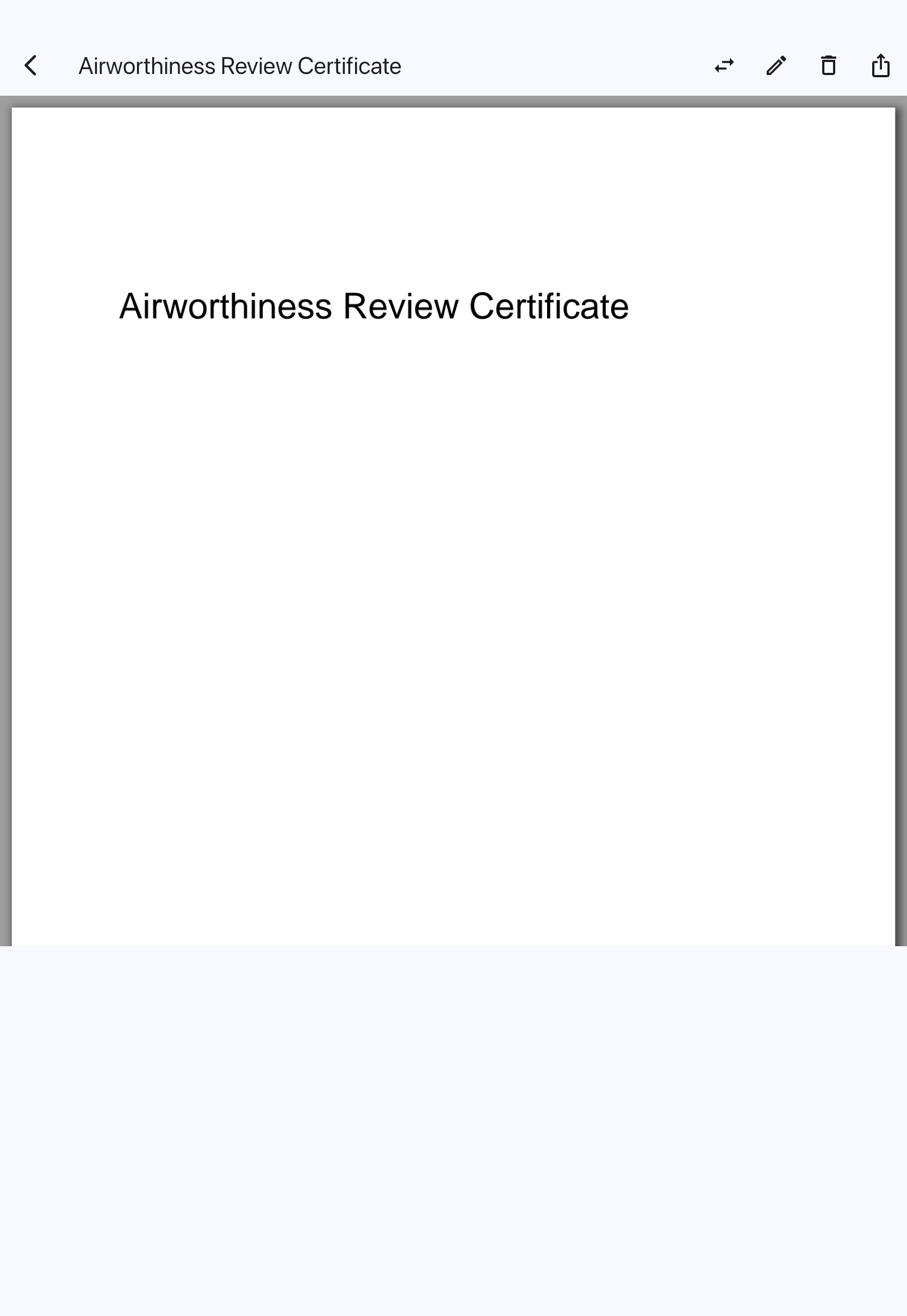
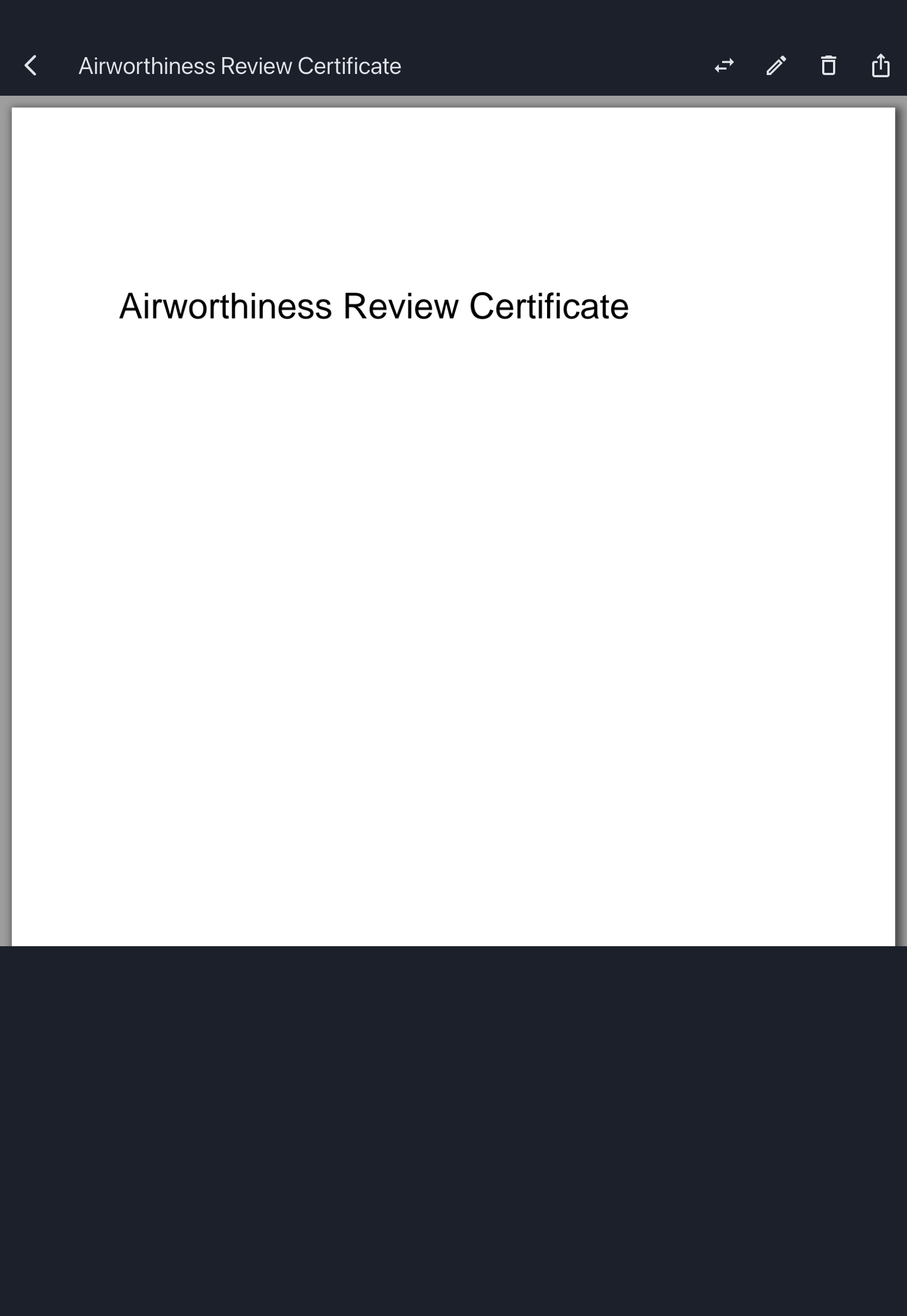
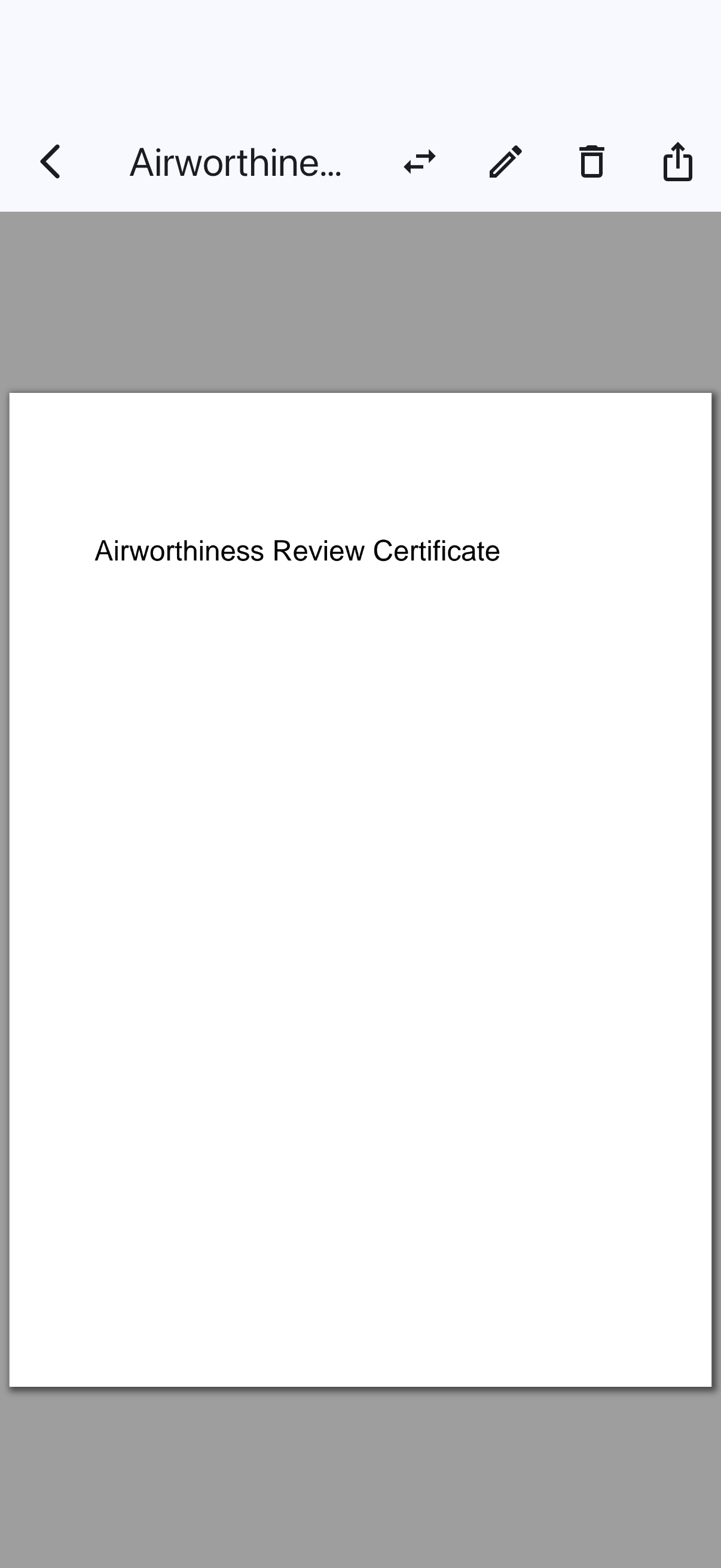
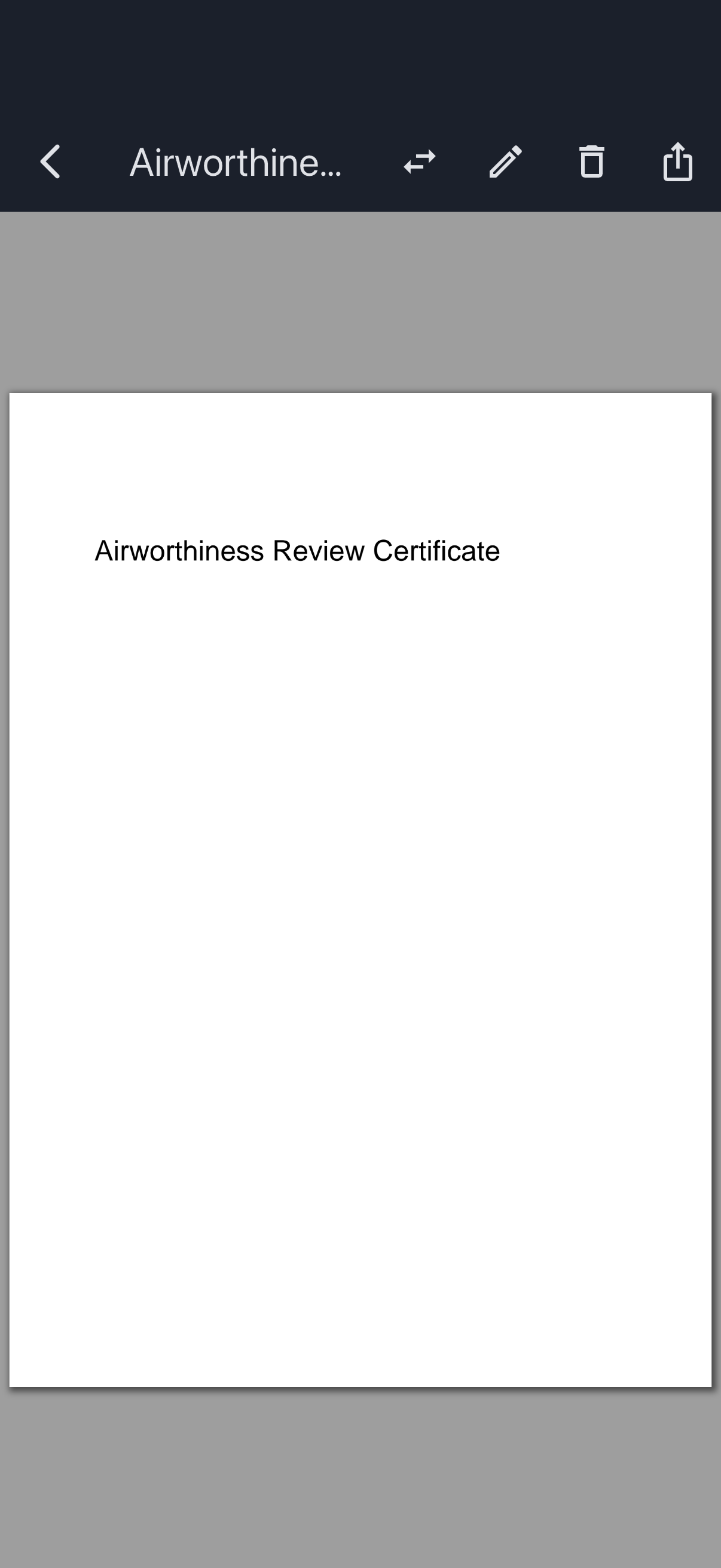
- Open the document you want to replace by tapping it in the library.
- Tap Replace on the viewer’s toolbar.
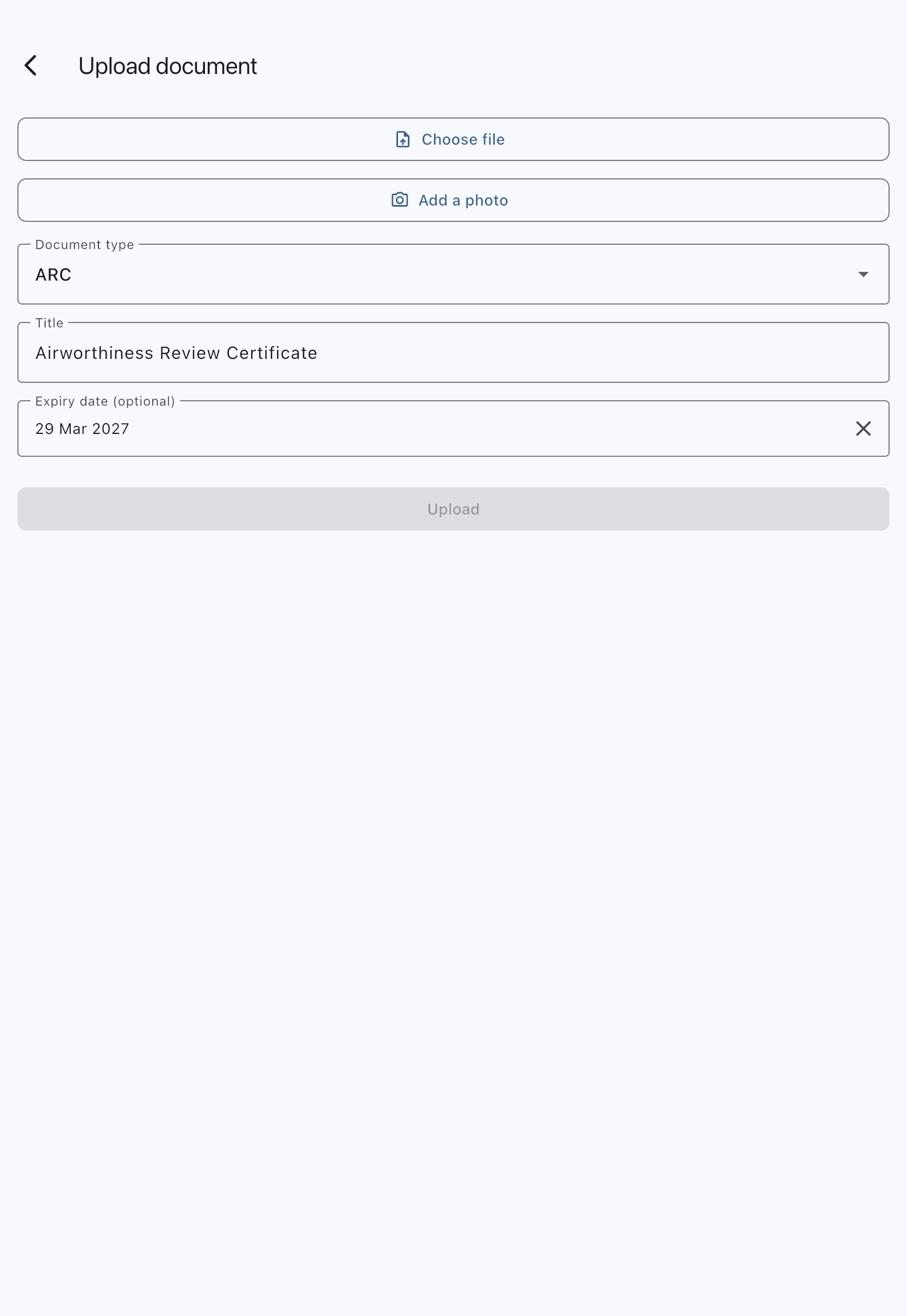
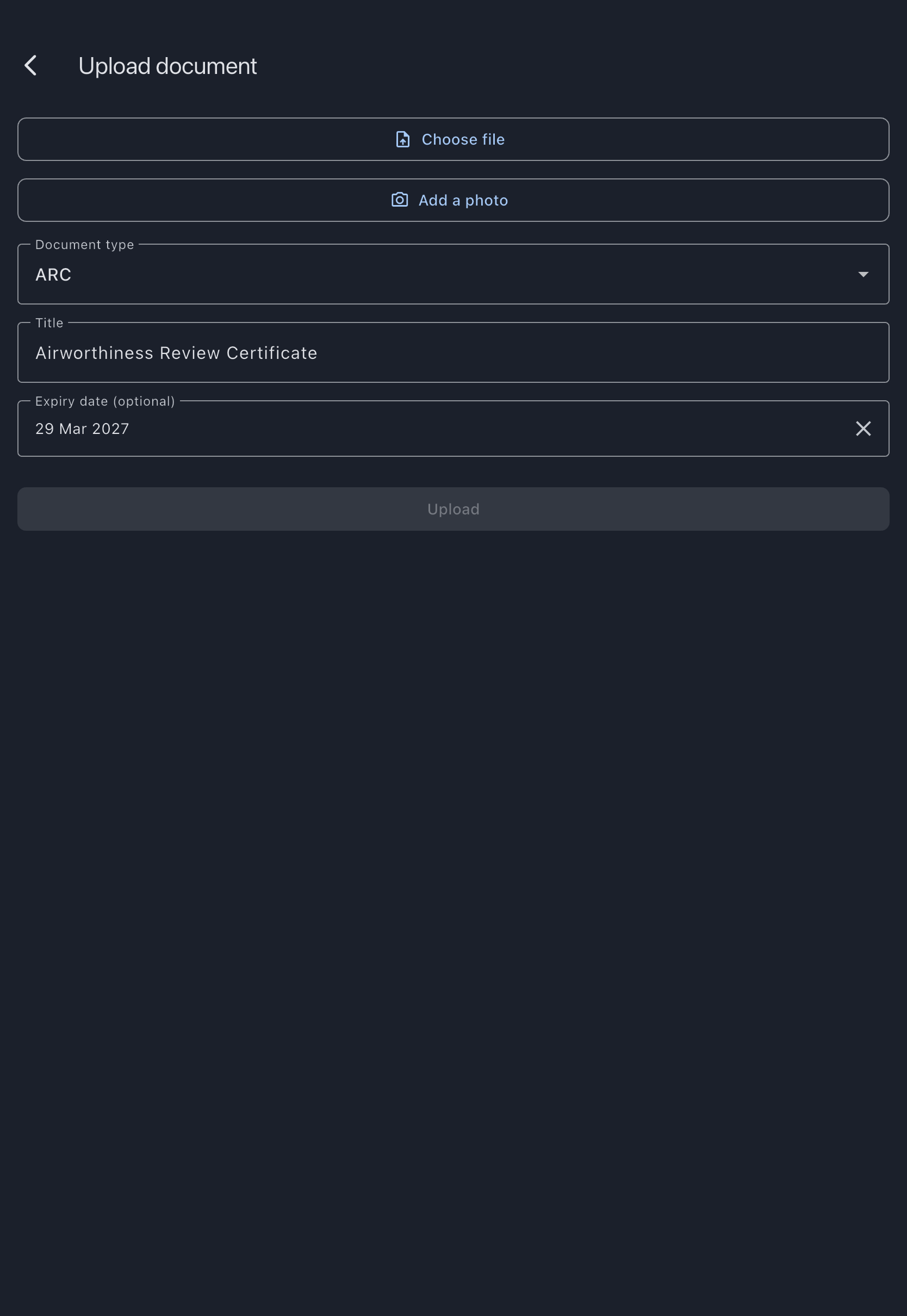
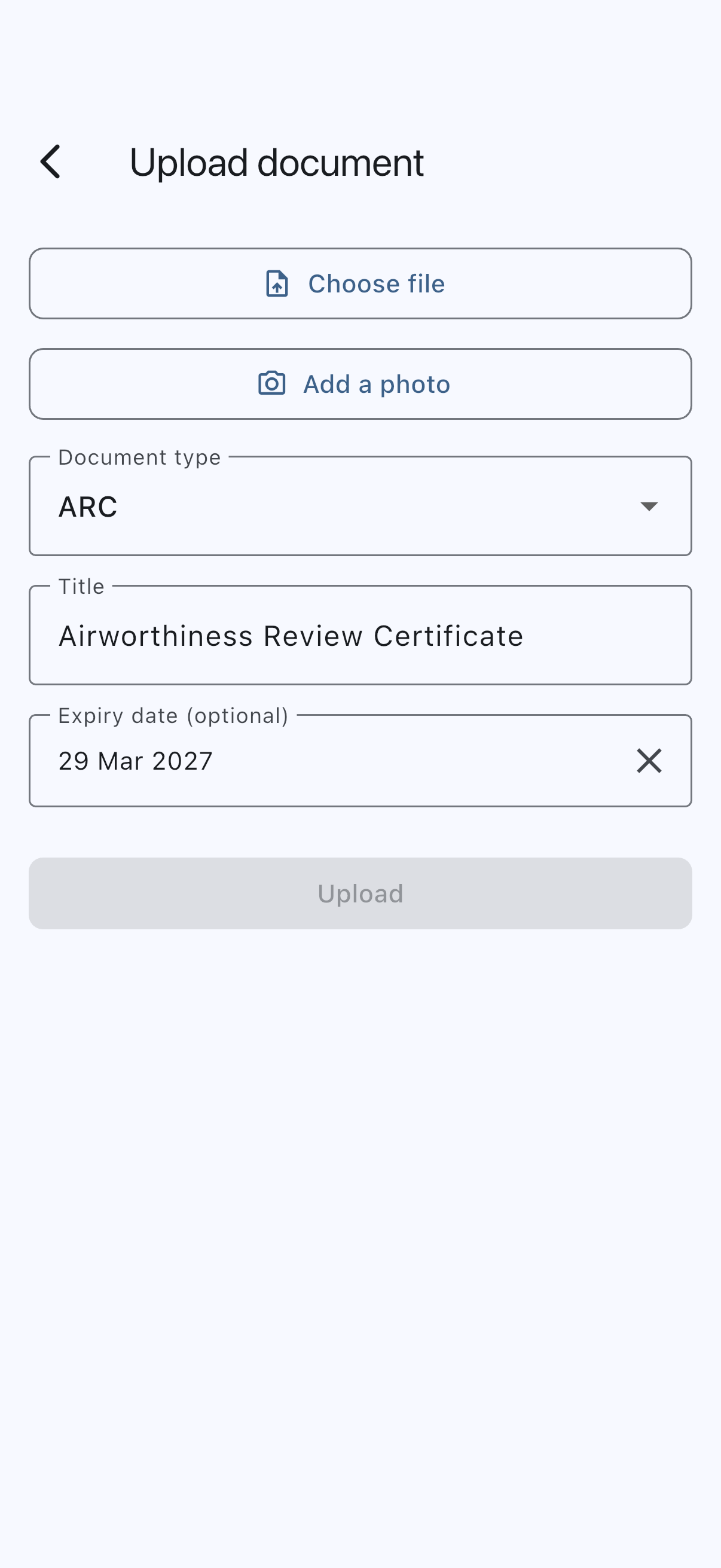
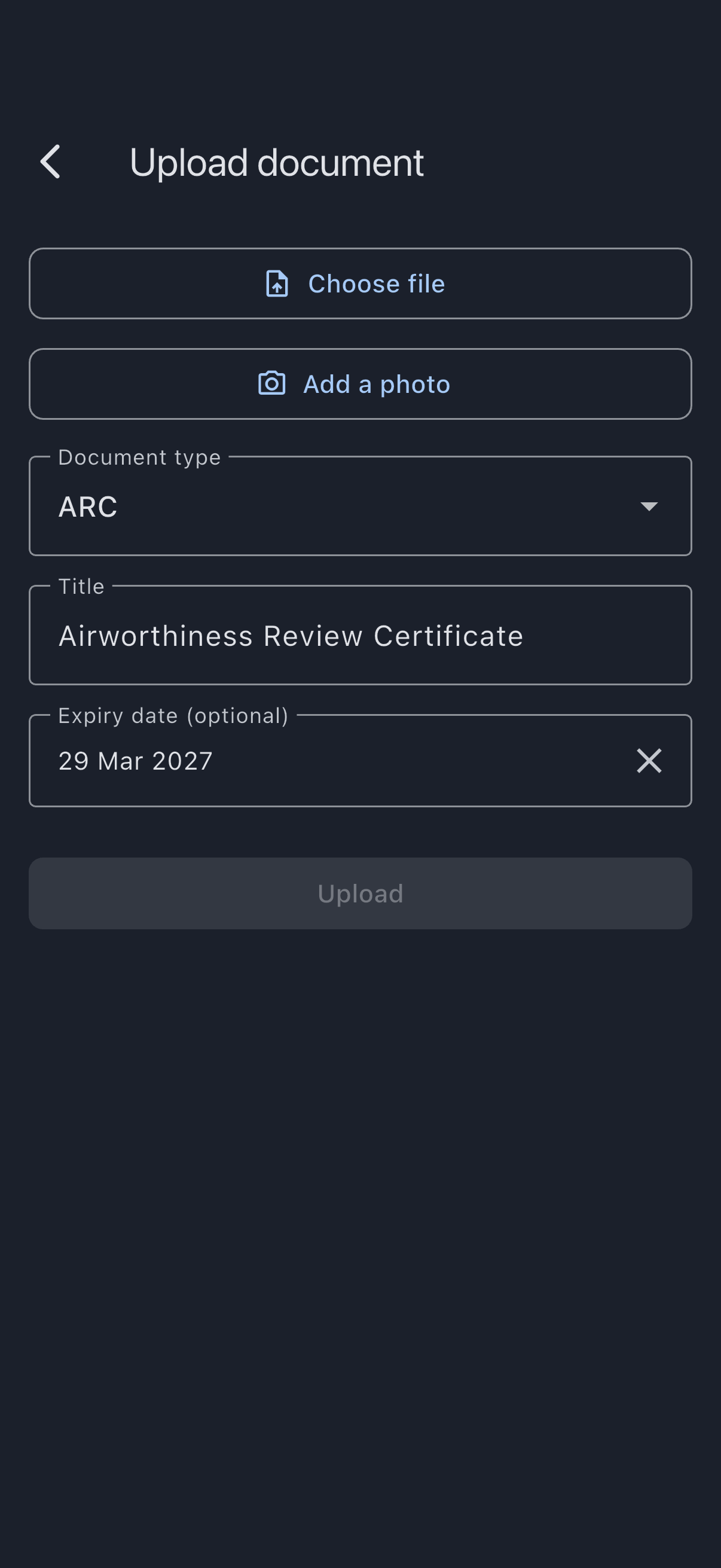
- The upload screen opens pre-filled with the existing title, type, and expiry. The owner cannot be changed. To move a document to a different asset, delete it and re-upload.
- Tap Choose file and pick the new file.
- (Optional) Update the Title, for example to append the new renewal year.
- (Optional) Update the Expiry date to the new expiry on the renewed document.
- Tap Upload.
A “Document uploaded.” confirmation appears and you are returned to the library. Because replacement creates a new record, the document appears as a fresh entry; the old record and its cache state are removed.
What replacement does behind the scenes
Section titled “What replacement does behind the scenes”- The old file is removed from storage.
- The new file is uploaded.
- Members’ offline caches pick up the new file at the next sync and discard the old one.
- Expiry reminders re-evaluate against the new expiry date. If you renewed an ARC that was about to expire, the reminders stop until 30 days before the new expiry.
What can go wrong
Section titled “What can go wrong”- “This file is over 20 MB. Save a smaller copy and try again.” or “Syndik8 accepts PDF, JPEG, PNG or WebP files.”: shown as soon as you choose the replacement file. The document you are replacing is untouched; choose a different file.
- “Upload failed. Please try again.”: the file was fine but the upload didn’t go through, usually because there’s no connection. The old document is still in place; try again when you’re back online.