
Remove a member
Remove a member from a syndicate.
Before you start
Section titled “Before you start”- Only admins can remove members.
- Removal is permanent from the perspective of app access. Their past bookings, usage logs, expenses and balance history stay with the syndicate as part of its audit trail, but the person being removed loses access immediately.
- A removed member drops off the Members list. Their name still appears on the history they left behind, such as past bookings and charges.
- Future bookings the removed member made are cancelled automatically. Any of their bookings on the syndicate’s calendar with a start time in the future are set to Cancelled with the reason “No longer a member”. The confirmation lists them before you confirm. Past bookings and their usage history stay on the syndicate as audit trail. Maintenance they booked in as an admin is the exception: it belongs to the syndicate, so it stays on the calendar, and you or any other admin can still move, cancel or close it.
- Their shares go to zero. Removing a member means they no longer hold a stake, so they stop counting towards the syndicate’s share total, towards a cash call, and towards a vote. The members who stay each hold a larger fraction of what is left. The shares are not passed to anybody automatically: if the stake has been sold to a particular member, put the shares onto that member yourself.
- Their share of any cash call not yet due is cancelled. A cash call whose due date has not arrived is not on the member’s balance yet, so it does not hold the removal. Their share of it is cancelled as they go, with the reason “No longer a member” and your name. Nobody else’s share changes and nobody else is asked for more, so the syndicate collects less than it called; issue another cash call if you need the rest. The confirmation names each share before you confirm, and the member is told their share was cancelled.
- Their Direct Debit mandate for this syndicate is cancelled at the payment provider as part of the removal. If they rejoin later they will need to set it up again. The cancellation happens only after every check below has passed, so a removal the server refuses does not cost them a mandate on the way.
- Nobody can put a new future booking in their name afterwards. You can still finalise and tidy up bookings they already had, and still record a flight that has already happened, but they cannot be booked onto the aircraft from here on.
- The member is told by email that an admin has removed them from the syndicate and, if they had any, that their upcoming bookings in it have been cancelled. If they still belong to another syndicate they are also told in the app. If this was their last syndicate, their phone stops receiving Syndik8 notifications once they are removed, so the email is how they hear.
- A member the syndicate owes money to cannot be removed until that is settled either. A removal waits for the balance to be settled in both directions, so a credit owed to the member is never left behind on a ledger nobody will look at again. This is enforced on the server. (Leaving is different: a member who chooses to leave is not held back by money owed to them.)
- A member with an outstanding balance cannot be removed until the balance is settled. This is enforced on the server. Sort the balance first; either have them pay, or record a payment yourself. A cash call counts once the member’s share is on their balance: on its due date, or earlier if they started paying it early.
- A member cannot be removed while a Direct Debit collection of theirs is still clearing. This is enforced on the server: removing them mid-collection would leave the collection with nobody named on it. Let the collection finish, which usually takes a few working days, then try again.
- A member cannot be removed while a card payment of theirs is unfinished either — one they started and neither completed nor abandoned. The reason is the same, but the wait is not: no bank is collecting it, so there is no clearing period. An unfinished attempt is cancelled automatically within a day of being started, and the removal works after that.
- A member with an unresolved booking cannot be removed until it is sorted. That means a past flight that has not yet been finalised into the accounts, a booking that is in progress right now with usage already logged against it, or a future booking that already has usage logged against it. Finalise the flight, or resolve the booking, first. This is enforced on the server. The in-progress case matters because a flight that is still in the air would otherwise be left on a membership you had just ended, with its charges landing on nobody. Maintenance they booked in as an admin never counts as an unresolved booking: it belongs to the syndicate, not to them.
- The last admin cannot be removed. A syndicate must always keep at least one active admin; the server refuses the removal. Promote another member to admin first.
- Removing the syndicate’s payment representative is no longer blocked. When you remove an admin from a syndicate that has a payment account, the confirmation adds a reminder: if that member is or was the payment representative, make sure that role has been handed to someone else in Stripe. It is a prompt, not a block, and the removal still goes ahead.
- Removing the member who bought the Syndik8 subscription is not blocked either. The confirmation tells you they bought it, that removing them does not stop renewal, that they keep a cancel-renewal link by email, and that the remaining admins should review the payment method and billing contact. See If you purchased the Syndik8 subscription. Only admins are shown this.
- If the member was declared to Stripe as a director or owner during payment setup, and the syndicate’s payment account has been set up with Stripe, the confirmation says so: “{name} is declared to Stripe as a director”, “a part-owner”, or “a director and part-owner”, and that you may need to update this in Stripe. The app does not change what Stripe holds. It is a reminder, not a block; if the app cannot check the payment account in time, the line is left out.
- Open the syndicate, go to the Admin tab, and tap Members under the Members & governance heading.
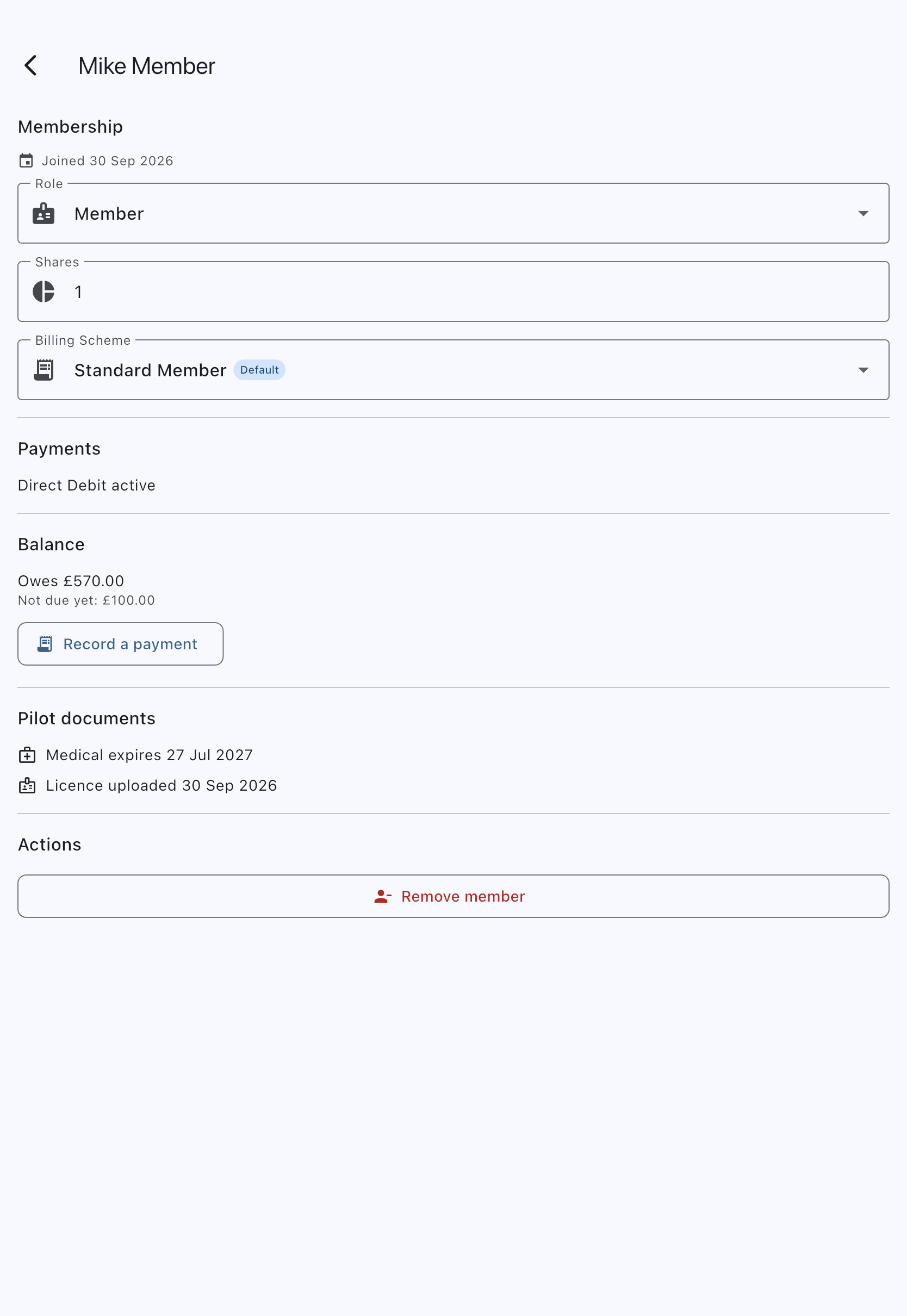
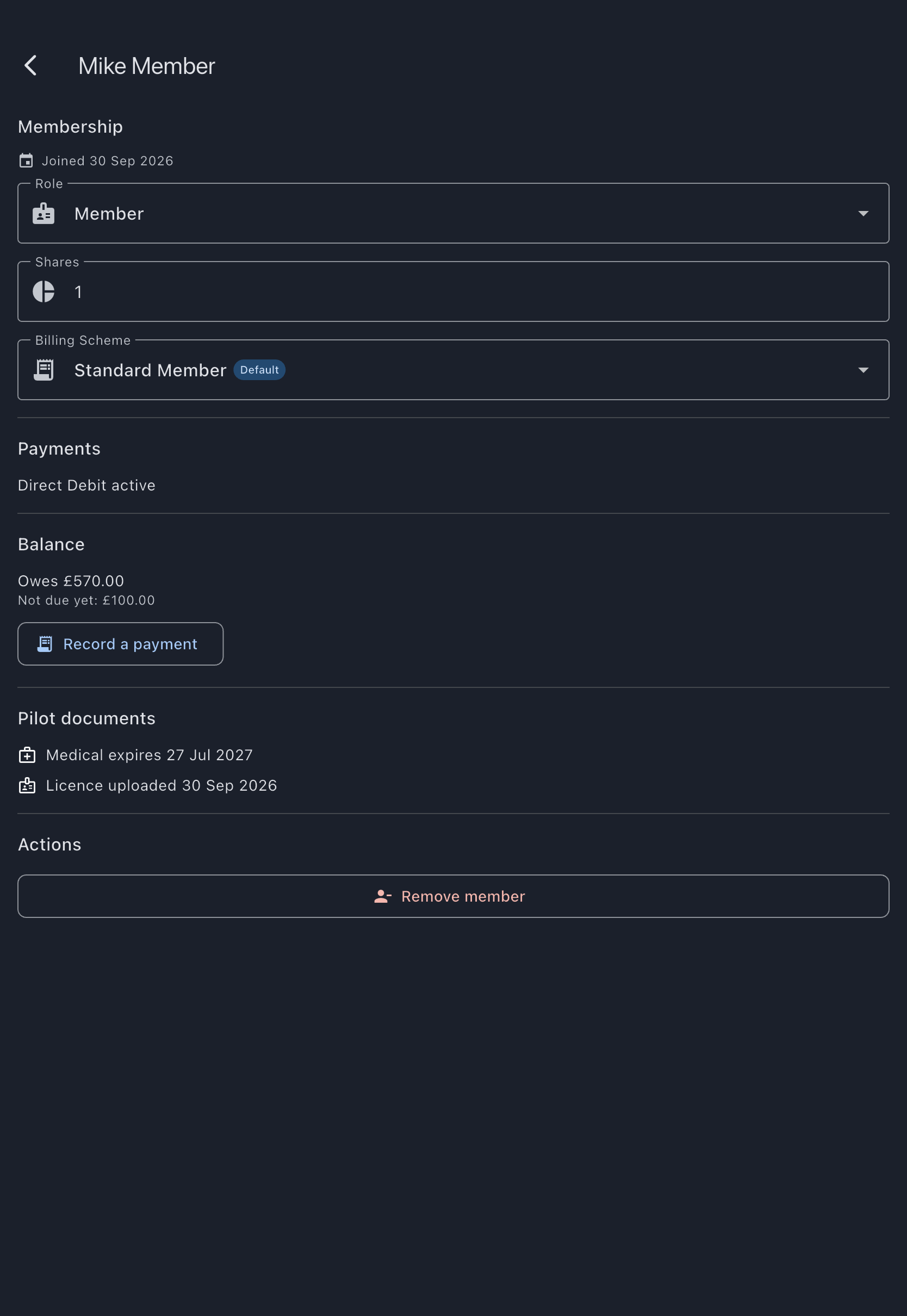
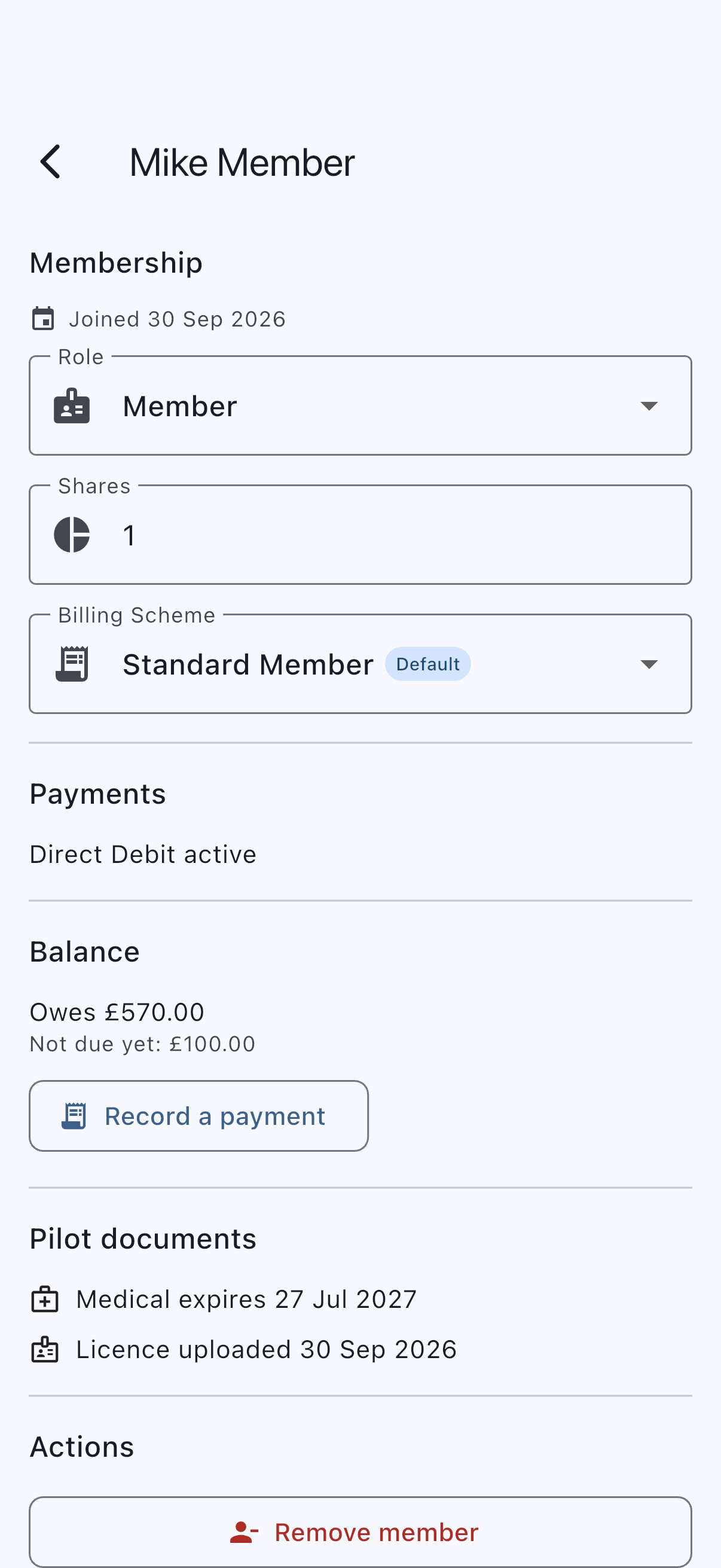
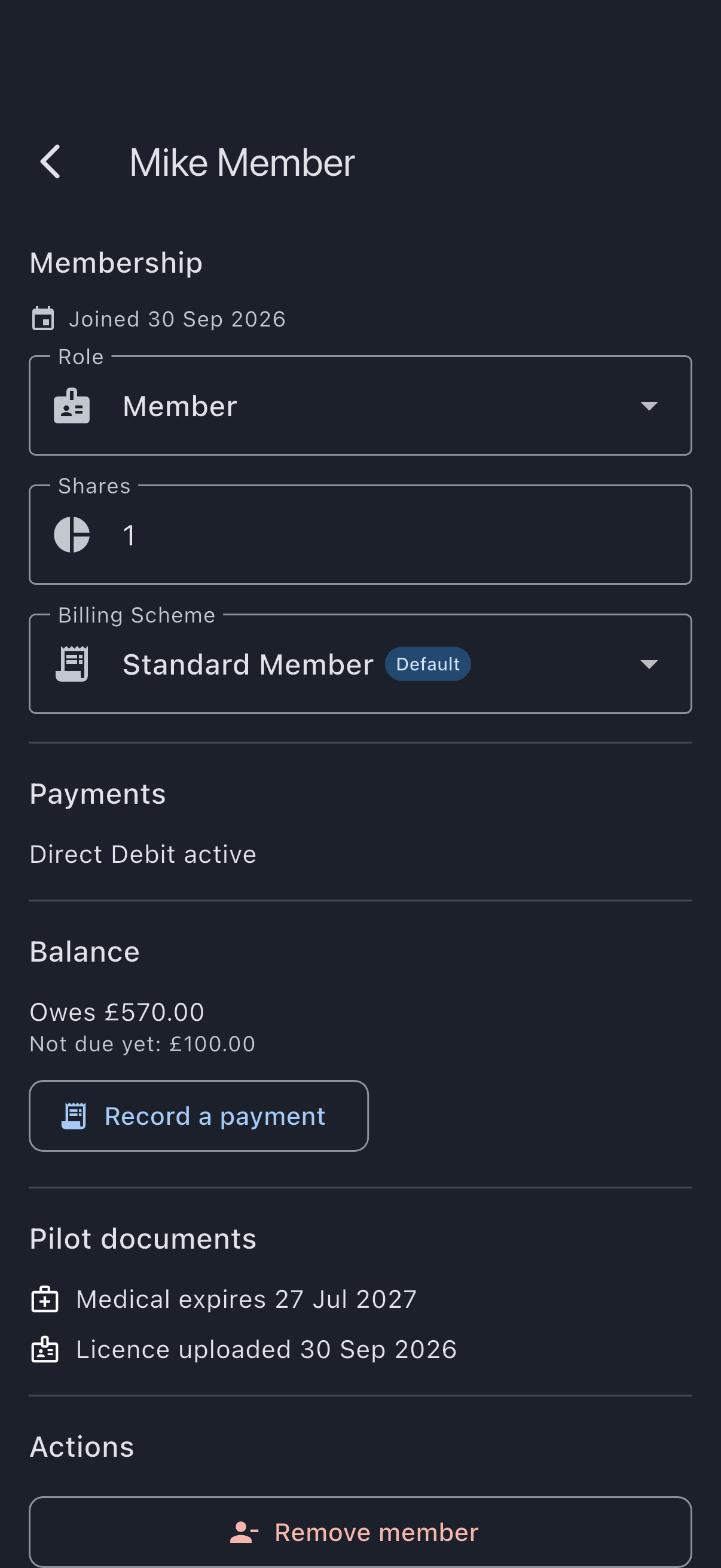
- Tap the member you want to remove. Their member screen opens, titled with their name.
- Scroll to the Actions heading near the bottom and tap Remove member (red).
- On the confirmation dialog Remove Member, read the message: “Are you sure you want to remove {name} from the syndicate? This action cannot be undone.” If the member has upcoming bookings, the dialog lists them (the first five, then how many more) under “These upcoming bookings will be cancelled”. For each cash call not yet due it says, for example, “{name} has a £50.00 cash call due 20 Oct 2026. If you remove them now, their share is cancelled.” It says the member will be told, and reminds you if they were declared to Stripe as a director or part-owner. If the member is an admin and the syndicate has a payment account, the dialog also reminds you to make sure the Stripe payment representative role has been handed over. It is a reminder only and does not stop the removal. If the member bought the Syndik8 subscription, the dialog says so as well.
- Tap Remove (red) to confirm, or Cancel to back out.
On success, the snackbar confirms {Name} has been removed, and you are returned to the members list. The member is no longer in it.
On the removed member’s device, a syndicate they had open closes and they are taken to their home screen. If it was their last syndicate, they keep the Home, Balances, Bookings and Profile tabs, with an empty home offering Create a syndicate. The app no longer opens that syndicate for them when it next starts, even if it was their default. Their Balances tab keeps a read-only record of the charges the syndicate made to them, under Syndicates you no longer belong to; they cannot pay those charges or open the syndicate from it. If they later follow an old link or notification to the syndicate — a bookmarked page in a browser, or a notification still on their phone — the app waits a few seconds, in case it is a syndicate that has yet to reach the device, then says Syndicate not available and offers Back to home.
The Actions heading is not rendered at all when you open your own row, so an admin never sees a Remove member action against themselves. Remove yourself by leaving the syndicate instead; see Leave a syndicate.
If it goes wrong
Section titled “If it goes wrong”-
You open a member who has already left. Their page says they are no longer a member of this syndicate and offers a way back, and notes that their bookings, charges and documents stay in the syndicate’s records. It used to show the single word Member under a heading also reading Member, which gave no clue whether a removal had worked, failed, or the screen had broken.
-
“Outstanding Balance” dialog appears. The member has money owing to the syndicate. The dialog names the figure rather than leaving you to go and find it: how much is due now. If the syndicate bills on a set day each month, the member’s charges since the last bill are named as owed but not yet billed rather than due now; they block the removal just the same. Settle what is owed; ask the member to pay, or record the payment yourself. Only then can you remove them.
A cash call whose due date has not arrived is not counted: it is not on the member’s balance, and the removal cancels their share of it.
-
“Settle Their Balance First” dialog appears. The syndicate owes the member money, and the dialog names how much. A share of a cash call not yet due does not reduce that figure: it is not on their balance. Settle it with them first, for example by paying it back and recording that, then remove them. If the balance changes between opening the dialog and confirming, the server refuses the removal with “The syndicate still owes this member money” and nothing is removed.
-
“Couldn’t check this member’s balance” appears. The app could not read the member’s balance, usually because the device is offline or the connection dropped. Nothing was removed. This is not the same as the member having a clear balance, so the removal is held back rather than allowed through on an unchecked figure. Reconnect and try again.
-
“A payment of this member’s is still being collected” appears. This one is a message after you have confirmed the removal, not a dialog before it. One of the member’s Direct Debit collections has not finished clearing at the payment provider, and removing them mid-collection would leave it with nobody named on it. Nothing was removed. Wait for the collection to finish, which usually takes a few working days, then try again. If the message instead names an unfinished card payment, there is no bank to wait for: it is cancelled automatically within a day of being started.
A refusal after you confirm no longer costs the member their Direct Debit mandate. Every check now runs before anything at the payment provider is touched, so a removal that was always going to be refused refuses without cancelling anything. The one case where a mandate can still be lost to a refusal is a genuine race — something changing in the moment between the check and the removal — and the member can simply set the mandate up again.
-
“Cannot Remove” dialog appears. The member is the only admin of the syndicate. Promote another member to admin first, then remove them.
-
A booking-related error appears. The member has a past flight awaiting finalisation, a booking in progress with usage already logged against it, or a future booking with usage logged against it. Finalise the flight, or resolve the booking, first, then remove them. The message names which of the three it is.
-
You removed the wrong person. You’ll need to invite them back; see Invite members. Their booking history is preserved; their membership row is re-created as a new join.
If you purchased the Syndik8 subscription
Section titled “If you purchased the Syndik8 subscription”Leaving, removal or account deletion does not automatically cancel renewal or identify who owns the payment card. The recorded purchaser is emailed a cancellation route that works without syndicate admin access; [email protected] is also available. Remaining admins are asked to review the payment method and billing contact, which may need updating. Neither membership departure nor a new admin silently changes the billing email or transfers subscription responsibility.
A replacement purchaser can agree a takeover through support. Until then, the former purchaser can stop renewal and their cancellation cannot be reversed or their charges increased by another admin. Ordinary cancellation keeps paid access until the end of the billing period and does not waive outstanding charges, which may still be collected; admins are told the end date and can prepare for the free-plan limits. These subscription arrangements are separate from the syndicate’s Stripe payment account and member balances.