
Try Syndik8 with demo data
Set up a disposable, fully-populated syndicate in one tap so you can click around Syndik8 without creating real data.
Before you start
Section titled “Before you start”- You need a Syndik8 account. If you do not have one, sign up first; you land in the onboarding wizard automatically.
- Demos are for brand-new accounts. If you already belong to a syndicate that is still open, the demo button is either hidden or will refuse with an error — leave your existing syndicate first, or sign up with a fresh account to try the demo. A syndicate you have closed does not count, so you can always close a demo and start another.
- The demo counts as one syndicate on your account and respects the free-tier limits (one asset, three members).
- A demo is for looking around, not for running a syndicate. It cannot invite real members, cannot set up payments, and cannot subscribe or take payments — Syndik8 refuses each of those and points you at creating a syndicate of your own.
- Open demos are cleaned up when you stop using them. After a week without signing in, we queue a warning email. Cleanup waits until at least fourteen days of inactivity and a full week after the email provider accepts the warning, so delayed delivery can postpone removal. Signing in resets the inactivity clock. Cleanup can take several passes while files are removed.
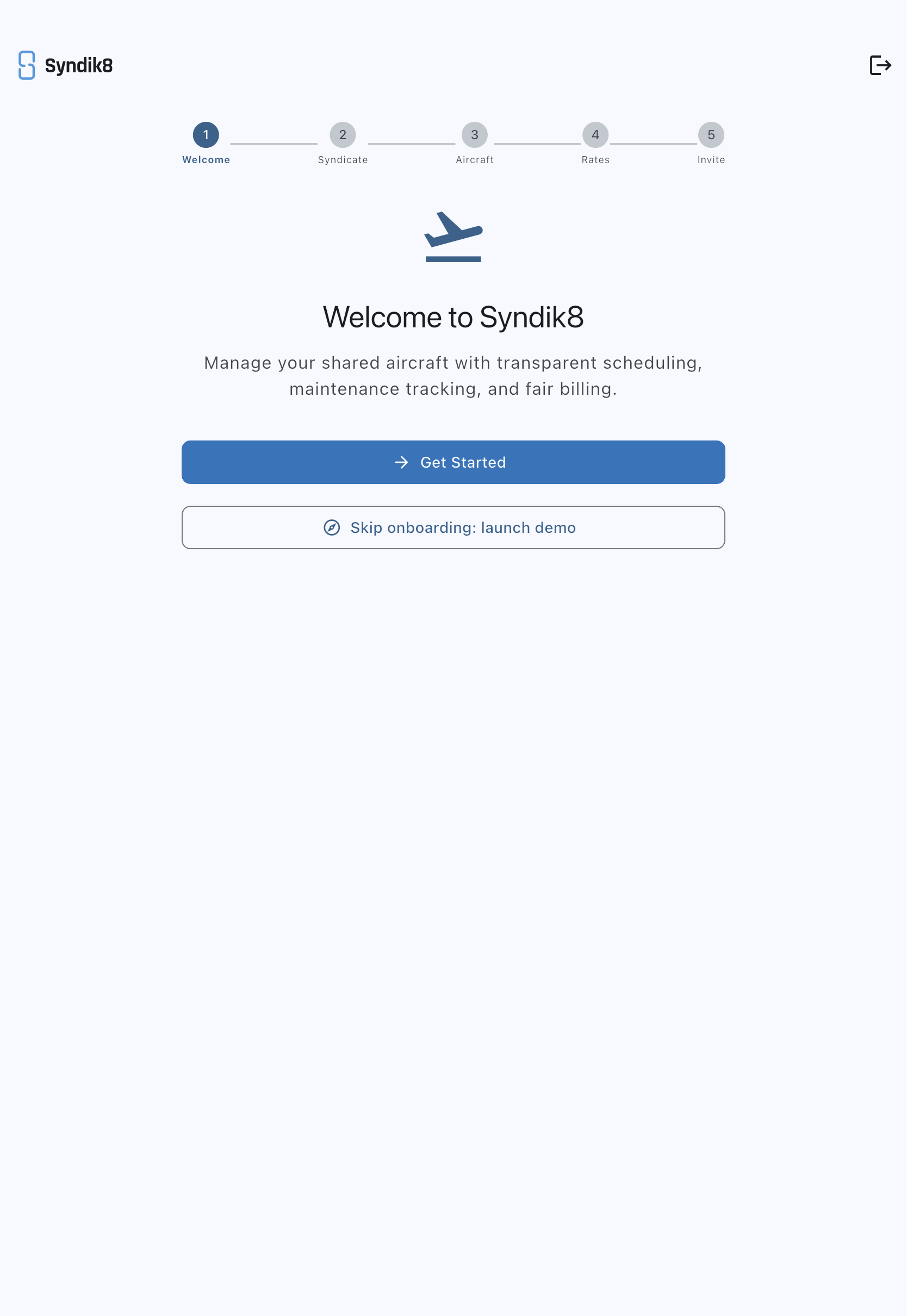
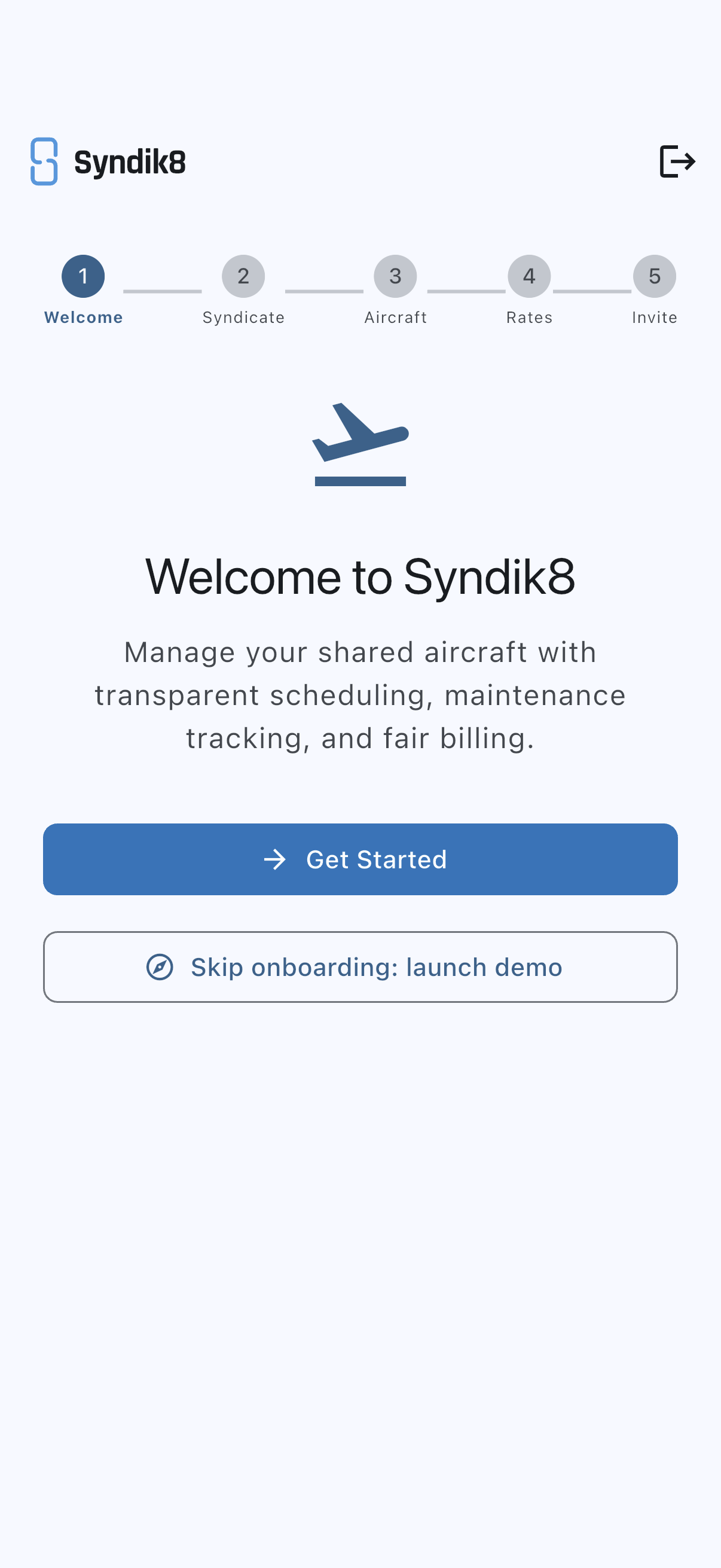
- Sign in (or sign up) and let the app land you on the onboarding Welcome step.
- Below the Get Started button, tap Skip onboarding: launch demo. The button label changes to Setting up your demo… while the server seeds it, which takes a couple of seconds.
- When the demo is ready the app opens your new syndicate directly, not Home. You are its admin, so it opens on the Dashboard tab unless you have already chosen a default tab. This is the same on web, iOS and Android. Later, you can reach it from Home, where it is listed with your other syndicates.
Your new syndicate has:
- One aircraft — a Cessna 172 with registration G-QSYN and a realistic photo. The mark is fictional by construction: no real registration contains the letter Q.
- Two fake members — Amy Admin (admin role) and Mike Member (member role). Both use
@syndik8.appaddresses with notification emails fully disabled, so nothing they do generates real messages. - You as admin — the tutorial screenshots call this persona Owen Owner so that names match what you see.
- About twenty-five bookings spread across the last four weeks and the next eight weeks, with a usage log against each past flight. They are drawn at random and any that would overlap a booking already on the calendar is dropped, so the exact number differs from demo to demo.
- Two open squawks — a flickering landing light and a minor oil seep. Neither grounds the aircraft.
- Two maintenance checks — a 50-hour oil change coming up and an annual inspection due in about three weeks. Neither is overdue.
- One two-day maintenance block a fortnight ago, already completed. It sits in the past on purpose: it shows you the maintenance colour on the calendar without suspending any of the demo’s bookings, so there is no downtime waiting for you.
- Rates on the aircraft of £180 an hour flown, £12 a landing and £6 a touch-and-go, with dues of £50 a month on the default billing scheme. The dues are not scheduled to collect, so the balance screen names the amount and says as much rather than posting anything.
- A sample money history, so Balances and the billing screens have something in them. Every past flight has been charged at those rates — the flying, plus a landing fee, and a few touch-and-gos on the circuit sessions — and each member has one recorded payment covering the older two thirds of their own flying. The most recent flights are left owing, so everybody opens on a real balance rather than on zero. Those payments are recorded the way an admin records one somebody made by bank transfer: no card, no Direct Debit, no payment account, and nothing in a demo is ever charged to anything. No expenses are seeded.
- The notifications that history sends you, such as booking requests from Amy and Mike, already marked as read, and with no push or email sent for them, so you are not sent a burst of news about things you never did. They are still in your notification centre to look through.
Most screenshots in this documentation are taken against this exact demo, so names, registration, and numbers will match what you see on screen. The setup tutorials are the exception: they show a syndicate being built from nothing, so they use an aircraft of their own.
How to know you are in the demo
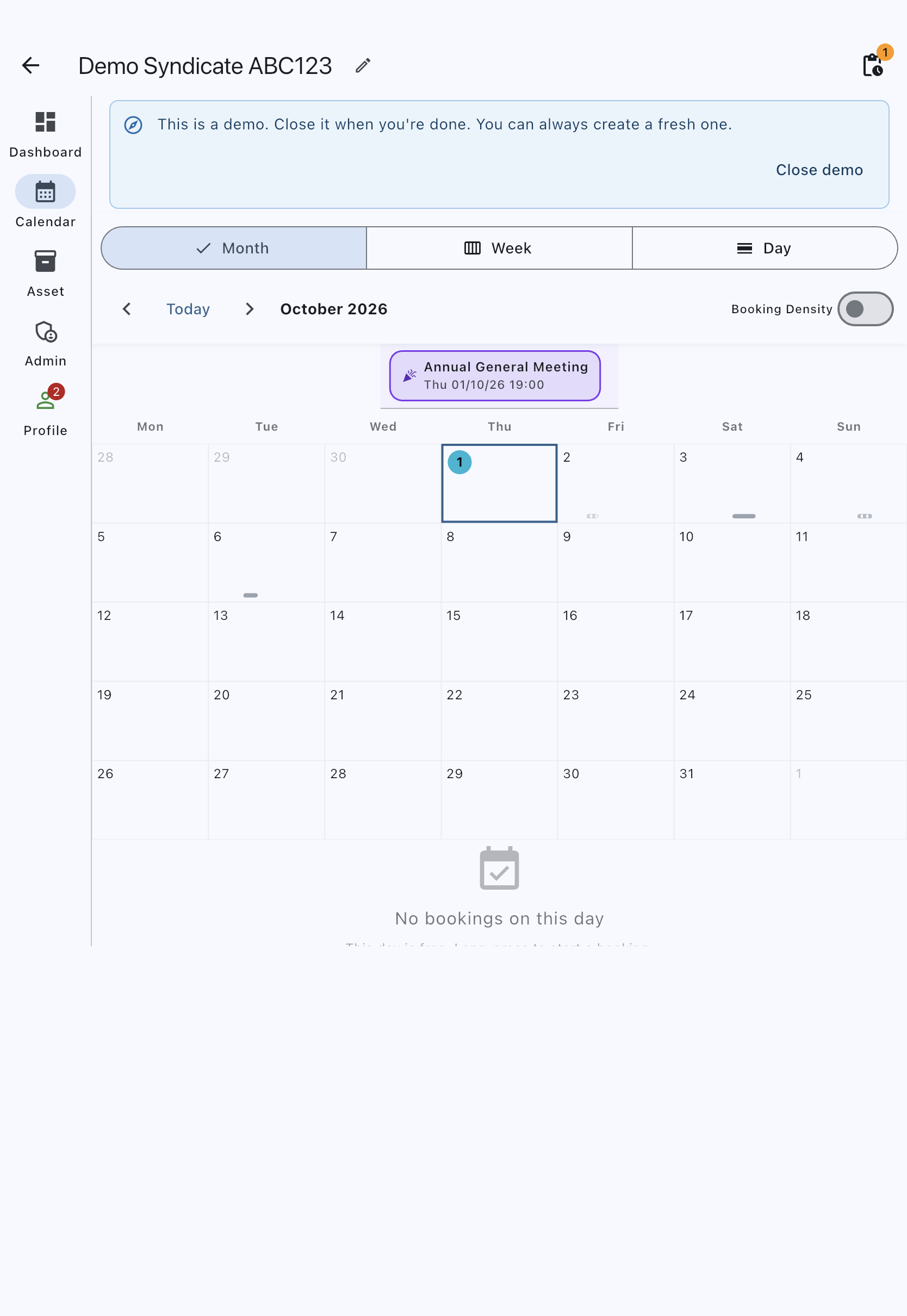
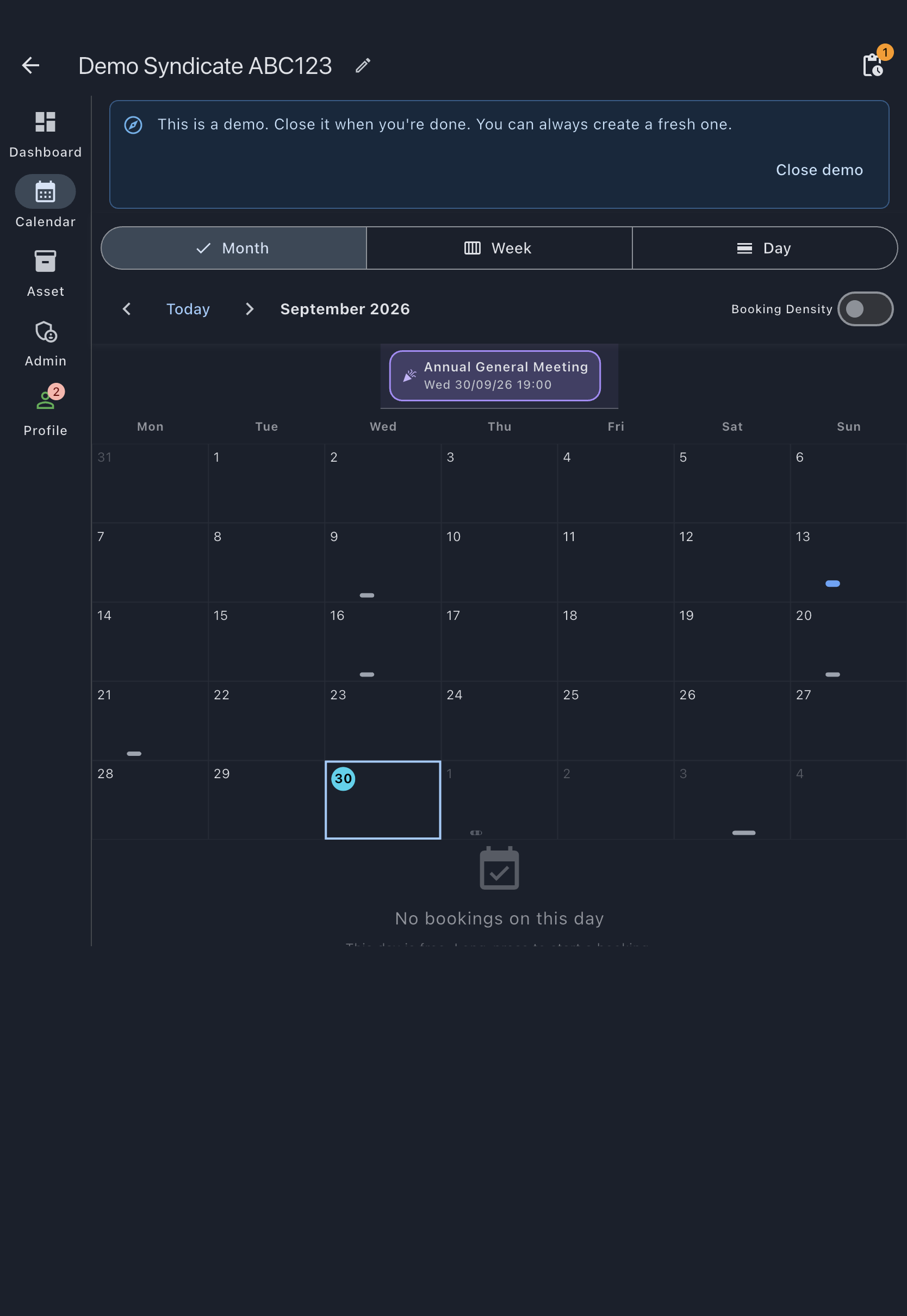
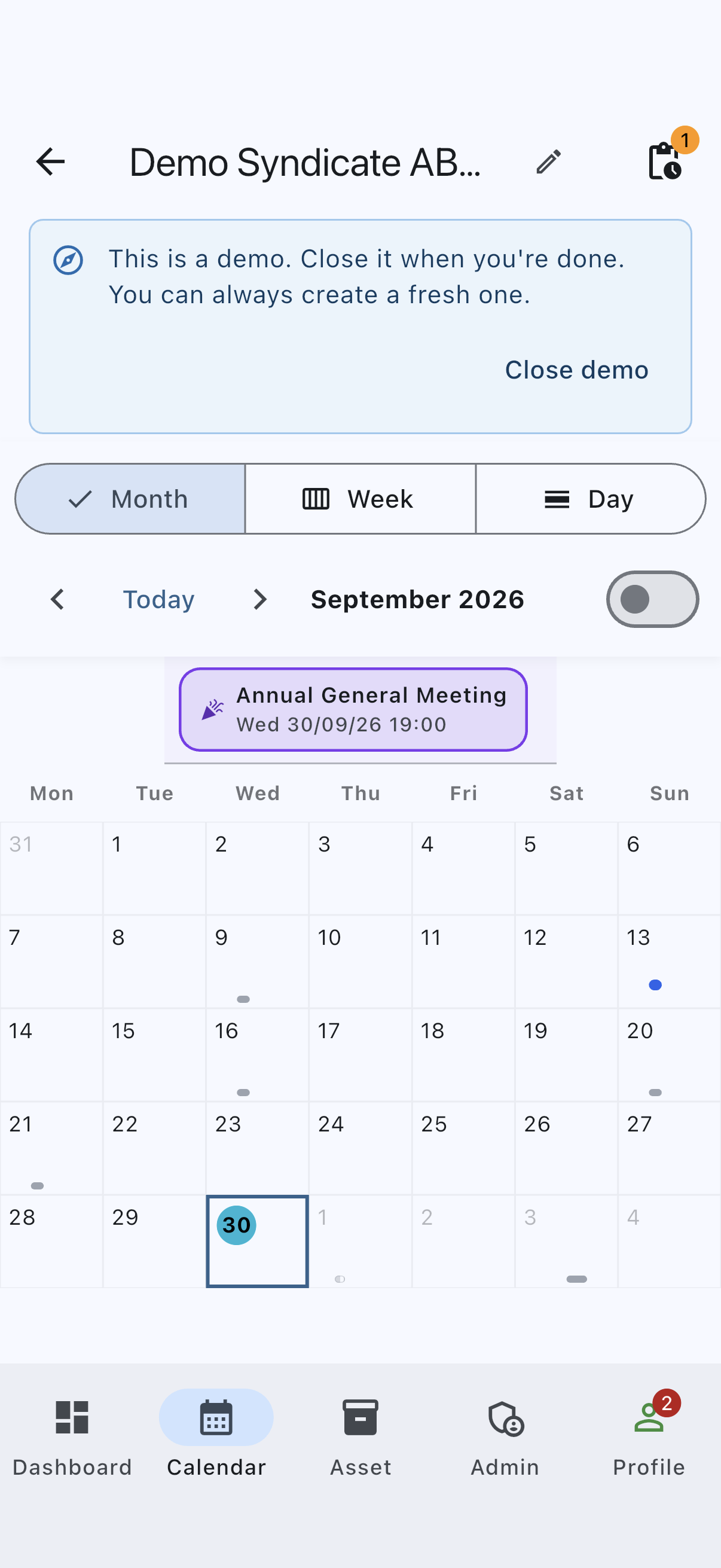
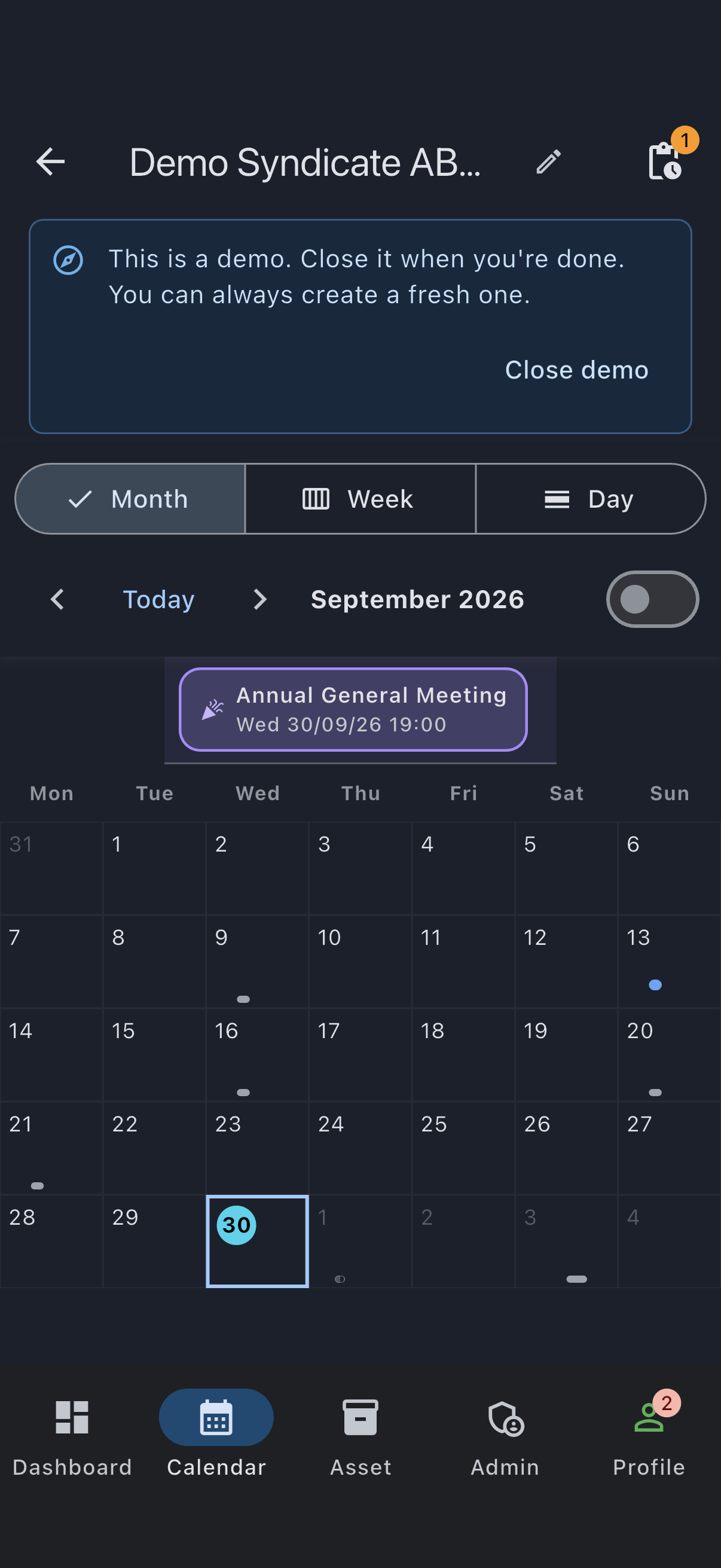
Section titled “How to know you are in the demo”Every tab inside the demo syndicate carries a persistent banner across the top:
This is a demo. Close it when you’re done. You can always create a fresh one.
At its right-hand end is a Close demo button, which takes you to the Edit Syndicate screen where the closing is done.
To leave the demo
Section titled “To leave the demo”You have two options:
- Do nothing. We queue a warning after a week of silence. The open demo becomes eligible for removal after fourteen days of inactivity, and only once a full week has passed since the email provider accepted the warning. Signing in again or editing the demo restarts inactivity; a later absence needs a fresh warning and another full week after acceptance. Delivery delays and cleanup work can make this later.
- Close it now. Tap Close demo in the banner (or go to the Admin tab and open Edit syndicate), scroll to the Danger Zone, and tap Close syndicate. The app checks the syndicate can be closed, then asks you to confirm. A closed demo goes read-only and is permanently removed at the end of a 30-day retention window; you can reinstate it from the same screen before then.
A demo is closed, not deleted, because closing is the only thing Syndik8 does to a syndicate — the same reversible route a real syndicate takes when it winds down. See Close a syndicate for the full flow.
If it goes wrong
Section titled “If it goes wrong”- The demo button did not appear on the welcome step. You already belong to a syndicate on this account. The demo flow is designed for first-time exploration and is hidden once you have any active membership.
- “User already belongs to a syndicate” error. Same root cause as above — the server refuses when you belong to a syndicate that is still open. Close or leave it, or use a fresh account.
- “This is a demo, so it can’t invite real members” / “…can’t take payments or subscribe” / “…can’t set up payments”. Working as intended: nothing in a demo is real, so there is nobody to invite and nothing to pay for — and setting payments up would open a real account with our payments partner for a syndicate that gets cleaned up. Create your own syndicate when you are ready.
- “Could not create demo: …” snackbar. A transient network or server error. Tap the button again. If it keeps failing, sign out and back in so you get a fresh auth token.
- The demo disappeared between sessions. An open demo can be cleaned up after fourteen days of inactivity, with at least a full week after its warning email was accepted. Launching a new demo gives you the same shape with fresh data.
See also
Section titled “See also”- Demo syndicate — the fixed shape of the pre-populated syndicate, and the rationale for the member personas
- Close a syndicate — what closing does, what can block it, and how to reinstate