
Add the home-screen widget
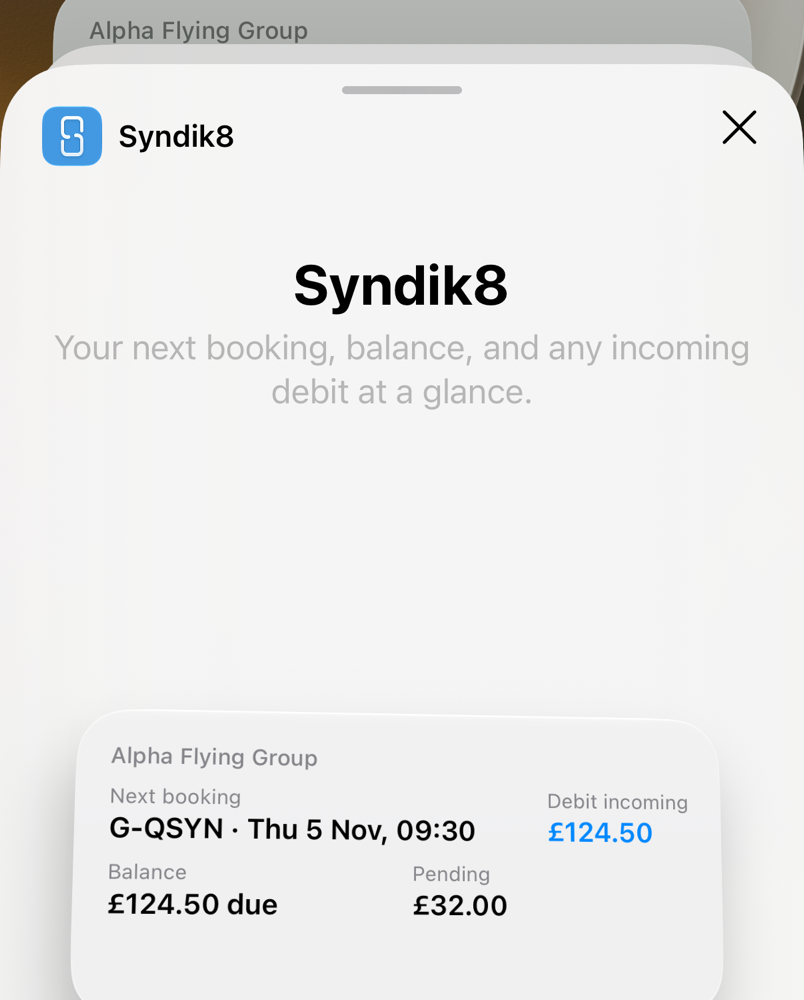
Add the Syndik8 widget to your phone’s home screen. It shows your next booking, your balance, and any incoming debit for your default syndicate. For what each line means, see Home-screen widget.
Before you start
Section titled “Before you start”- Sign in to the Syndik8 app at least once. The widget shows the last data the app synced, so it needs the app to have run.
- If you belong to more than one syndicate, set your Default syndicate under Profile > Defaults (see Set your defaults). The widget follows that setting, not the syndicate you have open in the app. With only one syndicate, the widget shows it.
- The widget is iOS and Android only. There is no widget on web.
On iOS
Section titled “On iOS”- Touch and hold an empty area of the home screen until the icons jiggle.
- Tap Edit in the top corner, then tap Add Widget.
- Search for Syndik8 and select it.
- The widget comes in one size (medium). Tap Add Widget.
- Drag the widget to where you want it, then tap Done.
On iOS 17 and earlier there is no Edit menu: in step 2, tap the + in the top corner instead.
On Android
Section titled “On Android”- Touch and hold an empty area of the home screen.
- Tap Widgets.
- Find Syndik8 in the list and touch and hold its widget.
- Drag it to where you want it on the home screen and lift your finger.
Check it worked
Section titled “Check it worked”The widget should show your default syndicate’s name, your next booking, and your balance. Tap the booking line and the app opens that booking. If the widget says “Set your default”, tap it, then set Default syndicate under Profile > Defaults. The widget fills in on the next sync.
See also
Section titled “See also”- Home-screen widget — what each line shows and how it updates.
- Use home-screen shortcuts — quick actions from the app icon.